Export and import
Export packs strategies and indicators into a .zip file, so you can keep a copy or give them to another AlgoDesk user. Import adds the scripts from such a file to your own.
Export scripts
- On the toolbar, choose Tools, then Export. AlgoDesk compiles your scripts first.
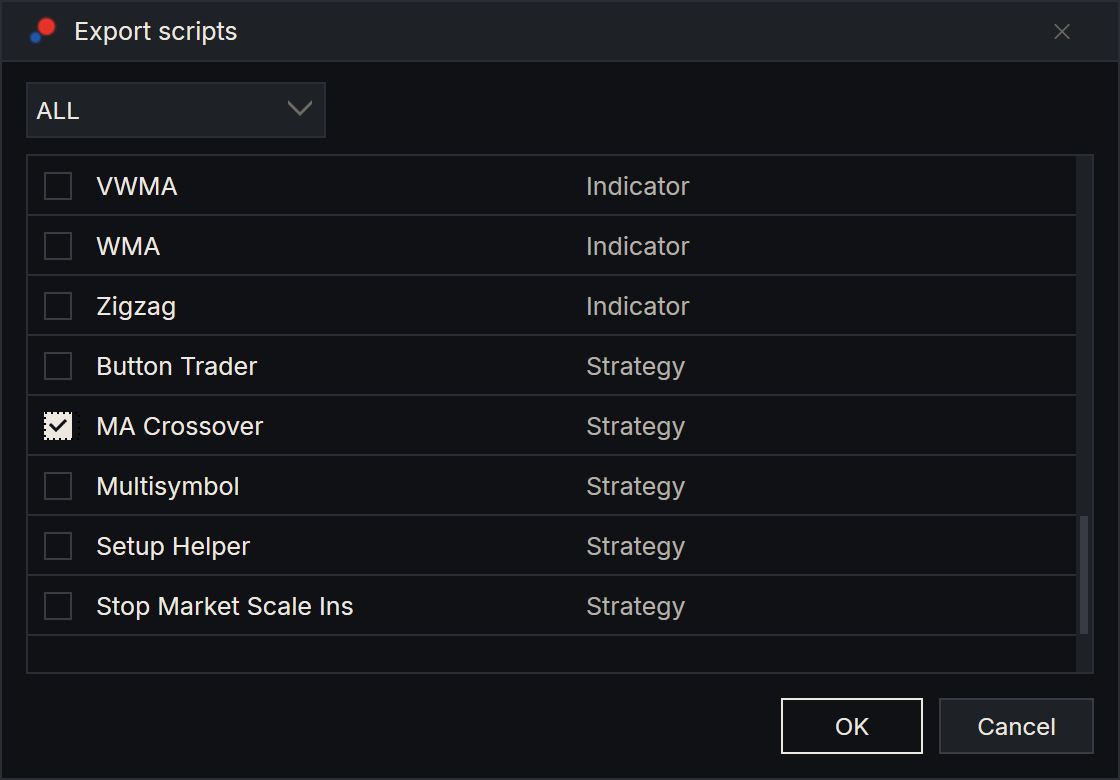
- The Export scripts window lists every strategy and indicator. To shorten the list, choose Indicator or Strategy in the box at the top; ALL shows both.
- Tick the scripts you want to export and choose OK.
- Choose where to save the file. AlgoDesk suggests the name
exportinDocuments\AlgoDesk\Exports.
AlgoDesk says "Export completed successfully" when the file is saved.
Commission scripts and fitness functions are not in the list and cannot be exported. To share one, copy its .cs file from Documents\AlgoDesk\bin\Custom yourself.
What the zip contains
The zip holds the source files of the scripts, nothing else: no compiled code, no presets and no settings. Each file sits at the same path as in your scripts folder. MA Crossover, for example, is Strategies/Default/MACrossOver.cs.
A script can name the other scripts it needs, by their GUIDs. Export then adds them for you. MA Crossover needs EMA, so exporting MA Crossover also exports EMA; Bollinger Bands brings SMA and Standard Deviation.
For Export to work with your own scripts:
- Export looks for each script's file in your scripts folder: a file named after the class in the folder its namespace names, then a file named after the class anywhere in the folder, then any file that holds the class. Naming each file after its class, in the folder its namespace names, keeps this simple. If Export finds no file, it stops with "Export failed: Class MyCrossover not found in project.", naming the class.
- Give every strategy a
StrategyGuidand every indicator anIndicatorGuid, each one different. If any strategy or indicator in your folder has none, Export stops with "Export failed: Empty guid field:" and the script's class name. If two have the same GUID, as a copied script does until you change it, Export stops with "Export failed: Duplicate guid:", the GUID and the two class names. - If a script names a GUID that no script has, Export stops with "Export failed: Can't find type for guid:" and the GUID.
When Export stops, no file is written.
How scripts work shows how to set these up when you copy a script.
Import scripts
- On the toolbar, choose Tools, then Import.
- Choose the
.zipfile. The window opens inDocuments\AlgoDesk\Exports. - AlgoDesk compiles your scripts, copies the files from the zip into your scripts folder at the same paths, creating folders where needed, and compiles again.
If the second compile succeeds, AlgoDesk says "Import completed successfully" and the new scripts are in the lists. If it fails, AlgoDesk undoes the whole import: it deletes the files it added and puts back the ones it replaced. It then says "Import could not be accomplished.", "The project could not be compiled after import." and "Check that the import contains everything that is required." This happens, for example, when a script in the zip needs another script that neither the zip nor your folder has. The compile errors are in the Log tab; see Compiling.
If your scripts do not compile before you start, Import stops at once with "Import failed!" and "Custom project is not compiled".
Export and Import compile your scripts, and a compile restarts the strategies running on your charts. If one has a position or working orders, AlgoDesk first asks the compile button's question, in Stop live strategies; Don't stop exports or imports nothing. See Compiling.
When a file already exists
If the zip holds a file that is already in your scripts folder at the same path, AlgoDesk asks whether to overwrite it, for example "File "EMA.cs" already exists." and "Overwrite this file?".
- Yes replaces your file with the one from the zip.
- No keeps your file and skips that one from the zip.
AlgoDesk asks once for each such file.
If the zip holds a script you already have under another file name, the two files hold the same class and the compile fails, so the import is undone. Rename or remove your copy, and import again.
A built-in script in the zip, such as EMA, is already in your folder, so AlgoDesk asks about it. Choose No to keep yours, unless the person who sent the file changed it on purpose.