Workspaces
A workspace is a saved layout: which windows are open, where they sit and what each one shows. You can keep several, switch between them from the Workspaces menu, and AlgoDesk opens the one you used last when it starts.
What a workspace remembers
Every window below is saved with its position and size.
| Window | Also saved |
|---|---|
| Chart | The instrument and connection, the bar size and how much history to load, the chart's strategy with its parameter values, and its indicators with their parameter values. |
| Backtester | Its instrument lists, and the strategy of the selected item with its parameter values. |
| Optimizer | The selected test and its strategy with their settings. |
| Book Trader | The instrument and the window's settings. |
| Control Center | Only whether it is open, and where. |
Some things are not saved:
- other windows, such as Debug and Global Performance;
- the drawings on a chart;
- whether a strategy was switched on. When a workspace opens, its strategies come back on their charts switched off. Turn on the ones you want to trade again, in the Control Center or on the chart.
Each chart loads its history up to the moment the workspace opens.
The Workspaces menu
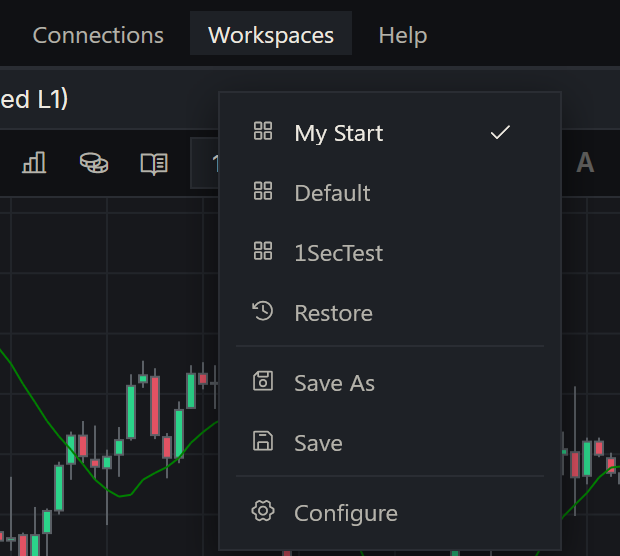
From top to bottom:
| Item | What it does |
|---|---|
| The current workspace, with a check mark | The workspace on your screen now. Clicking it does nothing; use Restore to reopen it. |
| Your other workspaces | Click one to switch to it. |
| Restore | Reopens the current workspace as it was last saved. |
| Save As | Saves the windows on your screen as a new workspace. |
| Save | Saves the windows on your screen into the current workspace. Greyed out for Default. |
| Configure | Opens the Workspaces window to rename, remove, export and import workspaces. |
Default
AlgoDesk starts with a built-in workspace called Default. It holds no windows and cannot be saved, renamed or removed. Choosing it closes every workspace window and leaves you with the toolbar.
To keep a layout, use Save As and give it a name.
Save a new workspace
- Open the windows you want and arrange them.
- Choose Workspaces > Save As. The Workspace window opens.
- Type a Name and choose OK. Cancel saves nothing.
The new workspace becomes the current one, and AlgoDesk opens it at the next start. If the name is taken, including the name Default, AlgoDesk says "Workspace with this name already exists." Choose another. With the Name box empty, OK does nothing.
Save changes
Choose Workspaces > Save to replace the saved layout of the current workspace with the windows on your screen now. If saving fails, AlgoDesk says "Can't save workspace".
Switch workspaces
Choose Workspaces and click the workspace you want. AlgoDesk:
- asks about live strategies first, if any have a position or working orders (see below);
- closes every window of the current workspace;
- opens the chosen workspace, showing a small "Load workspace" window while it works;
- makes it the workspace that opens at the next start.
Switching does not save the workspace you leave, and neither does Restore. Choose Save first if you want to keep your changes.
Closing a workspace's windows stops the strategies running in them. If a live strategy has a position or working orders, the Stop live strategies question opens, saying you are about to "close this workspace". Choose what happens to those positions and orders, or Don't stop to stay where you are. See Running a strategy live.
Restore works the same way, with the same question, but reopens the current workspace.
Rename, remove, export and import
Choose Workspaces > Configure. The Workspaces window lists your saved workspaces; Default is not in the list.
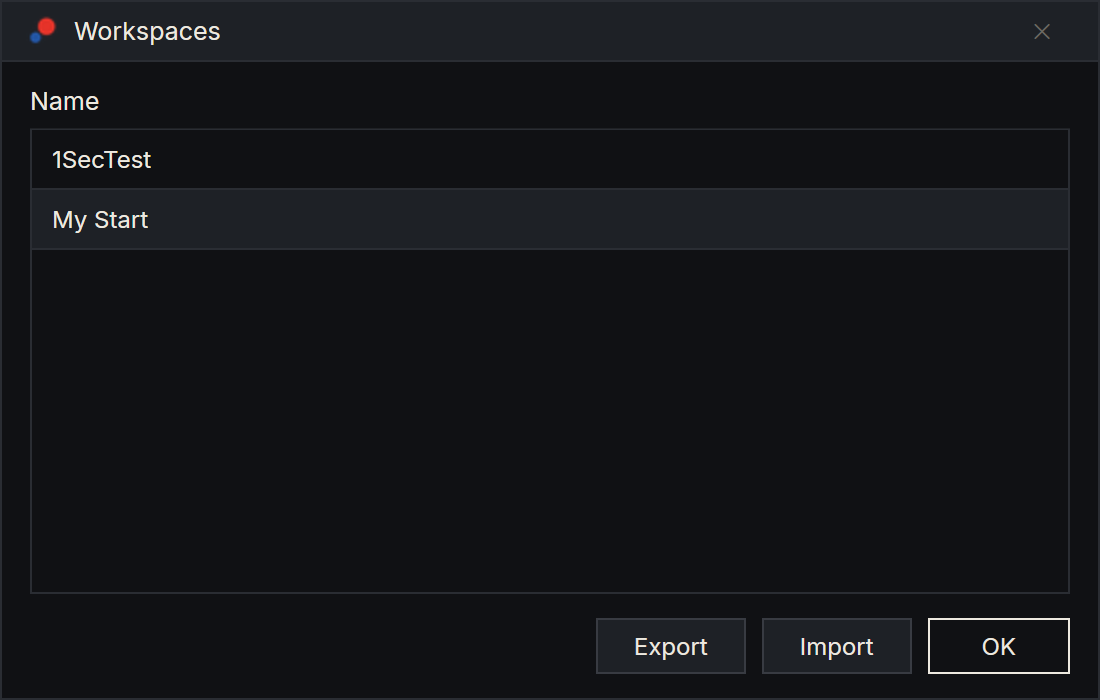
- Rename: right-click a workspace and choose Rename. Type the new Name and choose OK. A name already in use, including Default, gets "Workspace with this name already exists."
- Remove: right-click a workspace and choose Remove. AlgoDesk asks first: the question names the workspace and says its saved windows and layout are deleted, and that this cannot be undone. Choose Yes to delete it. You cannot remove the current workspace: AlgoDesk says "Can't delete current workspace!" Switch to another one first.
- Export: select a workspace and choose Export. Save the
.jsonfile; the save box starts inDocuments\AlgoDesk\Workspaces. AlgoDesk says "Workspace successfully exported". - Import: choose Import and pick a
.jsonfile. AlgoDesk says "Workspace successfully imported." and the name it was given. A workspace whose name you already use gets the first free number after its name: "(1)", or "(2)" if "(1)" is taken too. - OK closes the window.
An imported workspace finds each chart's connection by its kind, and the instrument by its symbol on that connection. Before you import a workspace from another computer, add the same connections and instruments. If a chart used an indicator that is not on this computer, the chart opens without it and the Control Center's Log tab says the indicator was not found. See Moving to another computer.
When you exit or sign out
When you exit AlgoDesk or sign out, and the current workspace has changed since you last opened or saved it, AlgoDesk asks "The current workspace has been changed, do you want to save it?"
- Yes saves it. On Default, which cannot be saved, Yes opens the Workspace window so you can save your layout under a name.
- No leaves the saved workspace as it was.
- Don't show me this message again: tick it before you answer to stop the question from then on.
The question comes only while Ask to save w.space is ticked in Tools > Options > Preferences. Don't show me this message again unticks that option; tick it again to bring the question back. See Options.