How scripts work
Strategies, indicators, commissions and optimisation fitness functions are small C# programs called scripts. They sit in a folder on your computer, where you can read, copy and change them, and AlgoDesk compiles them into the app.
The four kinds of script
| Kind | What it does | Where you use it |
|---|---|---|
| Strategy | Decides when to buy and sell, and places the orders. | On a chart (right-click, Strategies...), in the Backtester and the Optimizer, and live. |
| Indicator | Calculates values from the bars and draws them on a chart. | On a chart (right-click, Indicators...), and inside strategies and other indicators. |
| Commission | Works out what each trade costs. | Commissions in a strategy's settings, for example in the Backtester and the Optimizer. See Commissions. |
| Optimisation fitness function | Gives each optimisation run a score, so the Optimizer can keep the best. | Optimize on in the Optimizer. See Fitness functions. |
AlgoDesk comes with a set of each. Built-in scripts lists them.
Where scripts live
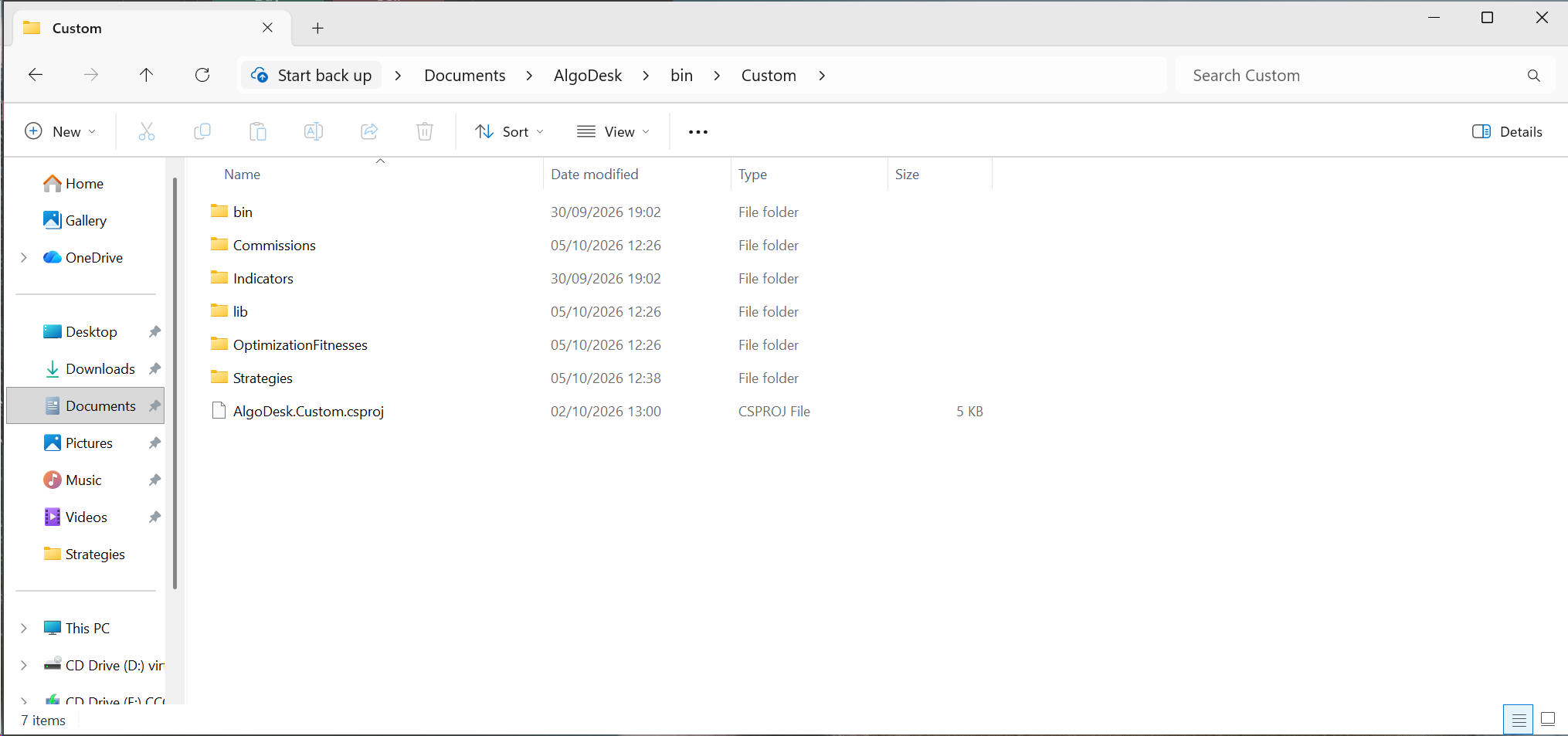
All scripts are in Documents\AlgoDesk\bin\Custom.
| Folder or file | What is in it |
|---|---|
Strategies\Default |
The built-in strategies. |
Indicators\Default |
The built-in indicators. |
Commissions |
The built-in commission scripts. |
OptimizationFitnesses |
The built-in fitness functions. |
Strategies\Strategy.cs and Indicators\Default\Indicator.cs |
The base every strategy and every indicator builds on. Leave them as they are. |
AlgoDesk.Custom.csproj |
The project file, so the folder opens in a C# editor. |
lib |
AlgoDesk's own libraries, which the scripts are compiled against. |
CLAUDE.md and .claude |
AlgoDesk's guide for Claude Code. Every update replaces CLAUDE.md, .claude\settings.json and .claude\skills\algodesk-*. |
CLAUDE.local.md and .claude\settings.local.json |
Your own notes and rules for Claude. Updates never touch them. |
The last two rows are for Claude Code, which can write scripts for you. See Coding scripts with Claude.
AlgoDesk compiles every .cs file in this folder and in all its subfolders, except bin and obj. So a backup copy left in the folder, such as MACrossOver - Copy.cs, is compiled too. It has the same class name as the original, and the compile fails. Keep backups outside the folder.
To use a different folder, change Path to Custom Project in Tools, Options, under General, Project.
Every update replaces the built-in scripts, even if you changed them. Put your own scripts in a folder of your own, such as Strategies\Mine. Updates never touch them.
Editing a script
A script is a plain text file, so any text editor will do. For code completion and error underlining, open AlgoDesk.Custom.csproj in Visual Studio or another C# editor that opens project files.
Save the file, then compile in AlgoDesk. AlgoDesk compiles the scripts itself, so you do not need to build them in your editor.
To make your own strategy from a built-in one:
- Copy the file into your own folder, for example
Strategies\Mine\MyCrossover.cs. - Rename the class to match the file name:
MyCrossover. - Change the namespace to match the folder:
AlgoDesk.Custom.Strategies.Mine. The last part,Mine, is the folder the strategy is listed under in the Strategies and Select strategy windows. - Give
StrategyNamea new name andStrategyGuida new GUID. Any GUID generator makes one. - Compile.
The new name and GUID matter. The name is what you see in every list. Presets find a strategy by its GUID, and so do the scripts that Export adds for you. An indicator works the same way, with IndicatorName and IndicatorGuid.
What a script looks like
These pieces come from the built-in MA Crossover strategy.
A parameter is a property marked [AlgoDeskProperty]. It appears in the strategy's settings under its display name and group, presets save it, and the Optimizer can vary it:
[AlgoDeskProperty]
[Category(EntrySettings)]
[Display(Name = "Period Fast", Order = 53, GroupName = EntrySettings)]
public int PeriodFast
{ get; set; }
OnStateChanged runs as the strategy is set up. SetDefaults happens once, when the strategy is created: here it sets the name and each parameter's starting value. Configured happens at the start of every run: here it clears the Debug window and creates the two moving averages.
public override void OnStateChanged()
{
    if (State == State.SetDefaults)
    {
        SetDefaults();
        SetParameters();
    }
    else if (State == State.Configured)
    {
        ClearDebug();
        AddIndicators();

    }
}
OnBarUpdate runs once for every bar. MA Crossover waits until it has three times Period Slow bars, then looks for a cross. Close[0] is the close of the current bar and [1] means one bar back; the fast average is EMA(High, PeriodFast) and the slow one EMA(Low, PeriodSlow):
_enterLong = Close[0] > _maFast[0] && _maFast[0] > _maSlow[0] &&  _maFast[1] <= _maSlow[1];
_enterShort = Close[0] < _maFast[0] && _maFast[0] < _maSlow[0] &&  _maFast[1] >= _maSlow[1];
A strategy also has OnOrderUpdate, which runs each time one of its orders changes, for example when it fills.
Reacting to each trade
OnTickUpdate runs for each trade a live chart receives for its own instrument, in a strategy running on the chart and in the indicators you put on the chart. An indicator that a strategy calls does not get it, so do per-trade work in the strategy's own OnTickUpdate. It never runs in a backtest or in the Optimizer, which work with whole bars. tick is the trade: tick.C is its price, tick.V its size and tick.t its time. candle is the bar the trade belongs to, with the trade already in it.
tick.AggressorSide says which side started the trade: AggressorSide.Buy when a buyer took the offer, AggressorSide.Sell when a seller hit the bid, and AggressorSide.Unknown when the connection does not say.
| Connection | tick.AggressorSide |
|---|---|
| dxFeed | Usually Buy or Sell. Unknown for a trade dxFeed does not classify, and always for an index, which has no trades of its own. |
| Bybit | Buy or Sell. |
| Interactive Brokers | Always Unknown: its trade stream does not report the side. |
| Tradovate | Always Unknown: AlgoDesk does not read the side from Tradovate's trades. |
| TopstepX | Buy or Sell, as TopstepX reports the side of each trade. |
After a reconnect, AlgoDesk fills the gap with the bars it downloads, and they reach OnTickUpdate one bar at a time with the side Unknown. candle.AggressorSide is always Unknown, because a bar is many trades.
These lines add up the volume bought and the volume sold, in a strategy or in an indicator you put on the chart:
private double _bought;
private double _sold;

public override void OnTickUpdate(ICandle candle, ICandle tick)
{
    if (tick.AggressorSide == AggressorSide.Buy)
        _bought += tick.V;
    else if (tick.AggressorSide == AggressorSide.Sell)
        _sold += tick.V;
}
Set totals like these back to zero in Configured, as the rules below explain.
Prices and boxes on the chart
A strategy can ask the user to click a price on its chart, and draw boxes of lines there that the user drags, as the built-in Setup Helper does. Its files SetupHelper.cs and SetupHelper.Panel.cs, in Strategies\Default, are the worked example.
Chart.PickPrice(this, hint, done) shows hint at the top of the price pane, followed by "Esc to cancel", and turns the pointer into a crosshair with a dashed line. The next click in the price pane calls done with that price, rounded to the tick. done gets null instead when the user presses Esc or picks a drawing tool, when another pick takes its place, or when the chart closes. A chart runs one pick at a time. An optional fourth argument, describe, is called with the price under the pointer and returns a note to show next to it, such as the money a stop there would risk.
Chart.AddSetupBox(this, slot, entry, stop, target) draws a box of up to three lines, entry, stop and target, at the right edge of the price pane, and returns it as a SetupBox. Slot 0 is at the edge, and each higher slot one box further left. A price of double.NaN draws no line; stop and target can be left out. On the box:
Entry,StopandTargetare the lines' prices;EntryText,StopTextandTargetTextthe text after each price;Warninga text under the box.IsLockedset totruestops the user dragging the lines.Movedsays which line moved (e.Line) and its price (e.Price), for each new price while the user drags it, and once more withe.IsFinalset totruewhen it is dropped.Remove()takes the box off the chart.
Chart.PickPrice(this, "Click the entry price", price =>
{
    if (price == null)
        return;                          // Esc, a drawing tool, or another pick

    var box = Chart.AddSetupBox(this, 0, price.Value);
    box.EntryText = "Entry";
});
A box is not a drawing: Delete and Clear all leave it alone, and it is not saved with the chart. When the strategy stops, AlgoDesk takes its boxes away and ends its pick; Chart.ReleaseScriptObjects(this) does the same at any time. Chart is null when the strategy has no chart, so check it first.
done and Moved run when the user clicks or drags, outside OnBarUpdate and OnOrderUpdate. To place orders from them, and to move the boxes when an order changes, follow Setup Helper: Finish in SetupHelper.Panel.cs sends a plan from a click, and OnPlanChangedForPanel passes each order change on to the boxes.
What a script knows about its instrument
Besides TickSize, the price step, and Multiplier, what a move of 1.0 in price makes on one contract, a script can read these facts about its instrument:
| Member | What it holds |
|---|---|
InstrumentType |
Its type as the connection reports it, such as "FUTURE" or "SPOT". |
InstrumentBase |
The currency bought and sold, such as BTC on BTCUSDT. |
InstrumentQuote |
The currency the price is quoted in, such as USDT on BTCUSDT. |
InstrumentCurrency |
Its currency as the connection reports it. |
MinLotSize |
The smallest order size it accepts. |
A text is null, and a number 0, when the instrument does not say. These are read-only and are not parameters, so they never appear in a strategy's settings. Setup Helper uses them to offer BTC or USDT as its unit, to round sizes down to the lot and to refuse spot instruments.
Printing messages
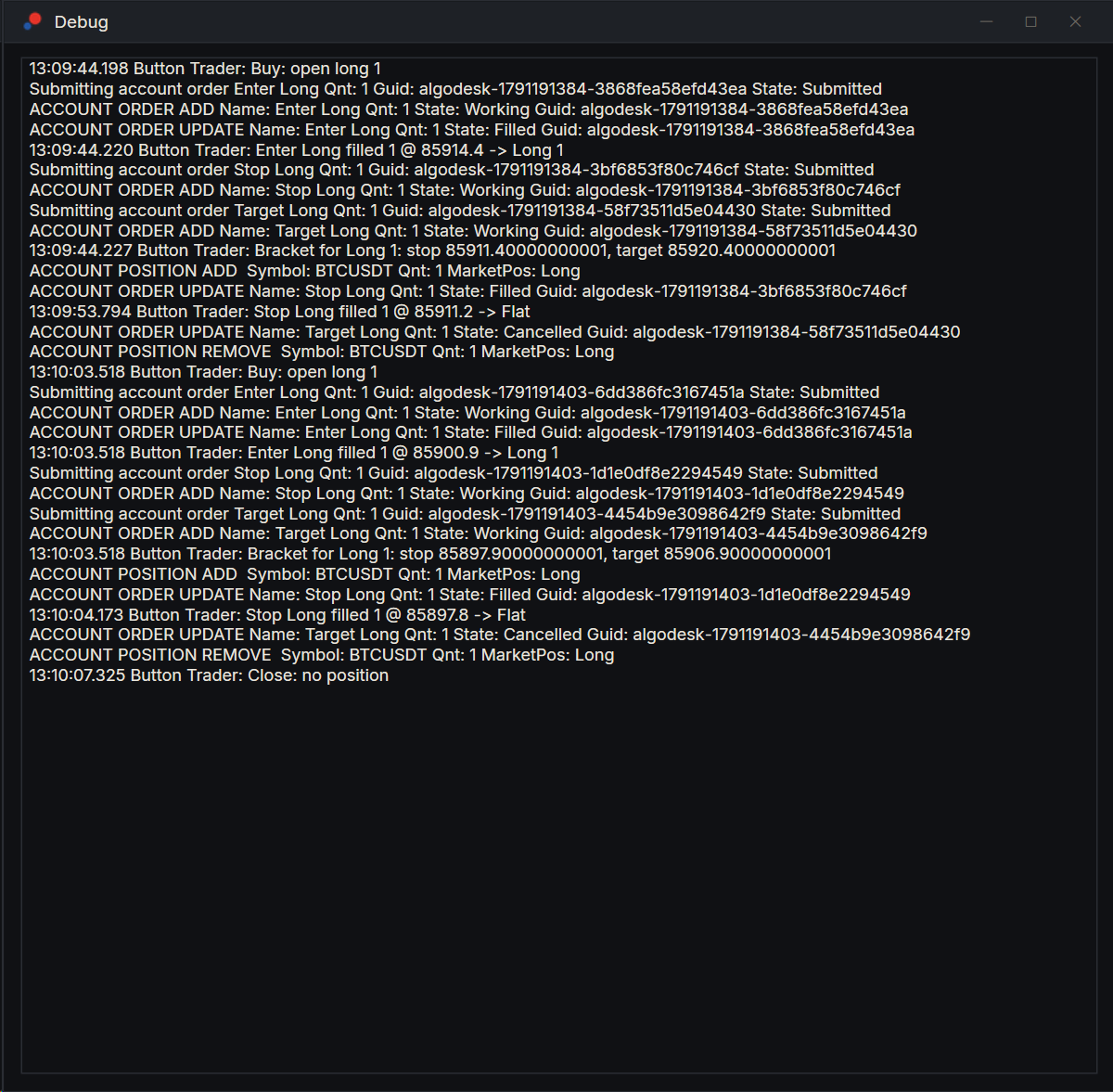
Print writes a line to the Debug window. To open it, choose New, then Debug on the toolbar. Button Trader prints a line for each button you press and each fill, like this:
private void Say(string text)
{
    Print(System.DateTime.Now.ToString("HH:mm:ss.fff") + " " + StrategyName + ": " + text);
}
ClearDebug()empties the Debug window. Right-click the window for Copy and Clear.Logwrites to the Log tab of the Control Center instead.Printdoes nothing while the Optimizer runs, so an optimisation does not flood the window.
AlgoDesk writes its own lines about orders and positions to the same window, such as "Submitting account order" and "ACCOUNT ORDER ADD". Lines your script prints sit among them.
Indicator files
When you compile, AlgoDesk adds a block to the end of each indicator file, marked "AlgoDesk generated code. Neither change nor remove." It lets strategies and other indicators call the indicator by name with its parameters, such as SMA(14) or EMA(High, PeriodFast). Leave the block alone, and keep your own code inside the file's namespace: each compile rewrites everything after it.
Rules for a strategy that gives the same result twice
AlgoDesk reuses the same strategy from one run to the next instead of building a new one, because that is faster. Re-running a backtest, compiling, changing a chart's data and restarting a strategy all reuse it. Whatever your code left behind at the end of one run is still there when the next one starts, and the second run can trade differently from the first.
An optimisation runs many tests at the same time, each on a copy of the strategy. The copies start from the strategy's values as they are, and a list the strategy created once is the same list in every copy.
Follow these four rules:
- Set everything your strategy changes while it runs back to its starting value in
Configured, which runs at the start of every run. That means counters, flags, prices you remember, the orders you keep, and lists. - Make lists and other objects new there, with
new, or set them tonull. Do not empty them with.Clear(): an emptied list is still the one the other copies are using. - Never keep anything that changes in a
staticfield. Constants, andstatic readonlyvalues that never change, are fine. - Use
SetDefaultsonly for names and the starting values of parameters. Create series, lists, indicators and helper objects inConfigured.
The indicators a strategy calls are built fresh for every run. Rules 1 and 2 apply to strategies and to indicators you put on a chart; rule 3 applies to every script.
The built-in Button Trader strategy shows rules 1 and 2. In Configured it calls this:
private void ResetTradeState()
{
    _actionOrder = null;
    _stopOrder = null;
    _targetOrder = null;
    _cancelsSent = new HashSet<string>();
    _bracketHalted = false;
    _flipQuantity = 0;
    _insideOwnCall = false;
    ResetBracketPrices();
}
To check your own strategy, run the same backtest twice without changing anything. The numbers must match exactly.
Removing a script
In a chart's Indicators or Strategies window, right-click a script and choose Remove. AlgoDesk asks, for example "Delete the script file of "MA Crossover"? This cannot be undone." Choose Yes to go on.
Removing a script compiles your scripts, so if a running strategy has a position or working orders, AlgoDesk then asks the compile button's question; see Compiling. Don't stop removes nothing, and AlgoDesk says "Remove failed!".
AlgoDesk then deletes the script's file and compiles. If the scripts no longer compile without it, for example because a strategy uses that indicator, AlgoDesk puts the file back and says "Unable to delete file, see log for details."