Connecting Claude
Claude Desktop and Claude Code can work in AlgoDesk for you: you ask in plain words, and Claude finds instruments, sets up charts, Backtesters and Optimizers and reads the results. You link them once from the Claude icon on the toolbar.
What you need
- AlgoDesk installed on this computer, running and signed in.
- Claude Desktop or Claude Code, or both, installed on the same computer and used under the same Windows user as AlgoDesk.
- A Claude account to sign in to Claude.
Claude can use AlgoDesk only while AlgoDesk is open and you are signed in. AlgoDesk answers only a Claude running on this computer under your Windows user.
Link Claude
- Sign in to AlgoDesk.
- On the toolbar, click the Claude icon, the sparkle next to the scripts cube. A left or a right click opens the same menu.
- Choose Link Claude.
AlgoDesk adds itself to every Claude it finds on this computer: Claude Desktop, Claude Code, or both. A card titled Claude link confirms it and names them, for example "Linked. Restart Claude Desktop to see AlgoDesk in the tools."
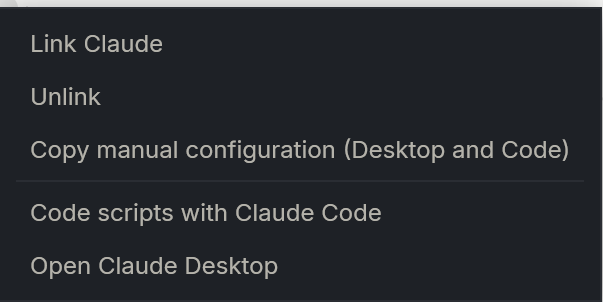
Link Claude is greyed out when AlgoDesk finds neither Claude. The menu then offers the download pages instead.
Linking adds one entry named algodesk to Claude's configuration and leaves everything else in it as it was. Claude Code gets the entry for your Windows user, not for one project.
Restart Claude and check
As the card says, Claude sees AlgoDesk only after a restart:
- Close Claude Desktop completely and start it again, or restart Claude Code.
- Ask Claude something simple, for example "Is AlgoDesk running?". Claude asks AlgoDesk and answers with its version and whether you are signed in.
- Look at the Claude icon on the toolbar. It turns green as soon as Claude has used AlgoDesk.
What the icon tells you
Hold the mouse over the icon to read its state.
| Icon | Tooltip | Meaning |
|---|---|---|
| Grey | "Claude is not linked" | Neither Claude Desktop nor Claude Code has AlgoDesk in its configuration. |
| White | "Linked to: Claude Desktop and Claude Code" | Linked. The tooltip names the Claude that is linked, or both. |
| Green | "Claude is connected to AlgoDesk" | A Claude has used AlgoDesk since it started and is still running. It goes back to white when that Claude closes. |
| Dimmed | As above | You are signed out. A left or a right click opens the Sign in window. |
The Claude menu
| Item | What it does |
|---|---|
| Link Claude | Adds AlgoDesk to Claude Desktop and Claude Code, whichever are installed. |
| Unlink | Removes AlgoDesk from both. Available once something is linked. |
| Copy manual configuration (Desktop and Code) | Puts the configuration on the clipboard, for setting it up by hand. See Manual configuration. |
| Code scripts with Claude Code | Opens Claude Code in your scripts folder, in Windows Terminal or PowerShell, ready to write scripts with you. Greyed out when AlgoDesk finds no Claude Code. See Coding scripts with Claude. |
| Open Claude Desktop | Starts Claude Desktop. Available when it is installed. |
| Claude Desktop is not installed - open the download page | Shown when AlgoDesk does not find Claude Desktop. Opens claude.ai/download. |
| Claude Code is not installed - open its page | Shown when AlgoDesk does not find Claude Code. Opens the Claude Code page at claude.com. |
Manual configuration
Use this when AlgoDesk does not find your Claude, or when you prefer to edit Claude's configuration yourself.
- Choose Copy manual configuration (Desktop and Code). The clipboard now holds two blocks, each under a line naming the file it belongs in:
claude_desktop_config.jsonfor Claude Desktop, and.claude.jsonin your Windows user folder for Claude Code. - Open the file, find its
mcpServerssection (add one if there is none) and add thealgodeskentry inside it. Keep everything else. - Restart Claude.
The Claude Desktop block looks like this, with the folder where AlgoDesk is installed:
{
  "mcpServers": {
    "algodesk": {
      "command": "C:\\Program Files\\AlgoDesk\\Mcp\\AlgoDesk.Mcp.exe"
    }
  }
}
The Claude Code block is the same, with "args": [] added after command.
Unlink
Choose Unlink in the Claude menu. AlgoDesk removes its own entry from Claude Desktop and Claude Code and touches nothing else. A Claude that is already running keeps its AlgoDesk tools until you restart it.
You can link again at any time. If you install AlgoDesk in another folder, choose Link Claude again so that Claude points at the new place.
Troubleshooting
When something is wrong, Claude repeats what AlgoDesk told it.
| Claude says | What to do |
|---|---|
| "AlgoDesk is not running. Start AlgoDesk and sign in, then ask again." | Start AlgoDesk and sign in. Claude can work with AlgoDesk only while it is open. |
| "AlgoDesk is running but nobody is signed in; sign in and try again." | Sign in. See Sign in. |
| "AlgoDesk did not answer in time; it may be showing a dialog - check the app, then ask again." | AlgoDesk is waiting for you, usually in a message or question window. Answer it, then ask again. |
| "AlgoDesk and the Claude link are different versions; reinstall AlgoDesk so they match." | Reinstall AlgoDesk, then restart Claude. |
If Claude does not seem to know about AlgoDesk at all, check that the icon is white or green, and restart Claude after linking.
If Link Claude shows an error in the Claude link card, Claude's configuration file could not be read, for example because it is not valid JSON. AlgoDesk changes nothing in that case. Fix the file, or use manual configuration.
The Claude side of the link keeps its own log in Documents\AlgoDesk\Log, one file a day whose name starts with mcp-.