Setting up a backtest
The Backtester runs a strategy over price history and shows what it would have traded. You set it up in three steps: make a list, add instruments to it, and choose a strategy with its parameters.
The Backtester window
On the toolbar, choose New, then Backtester. You can open as many Backtesters as you like.
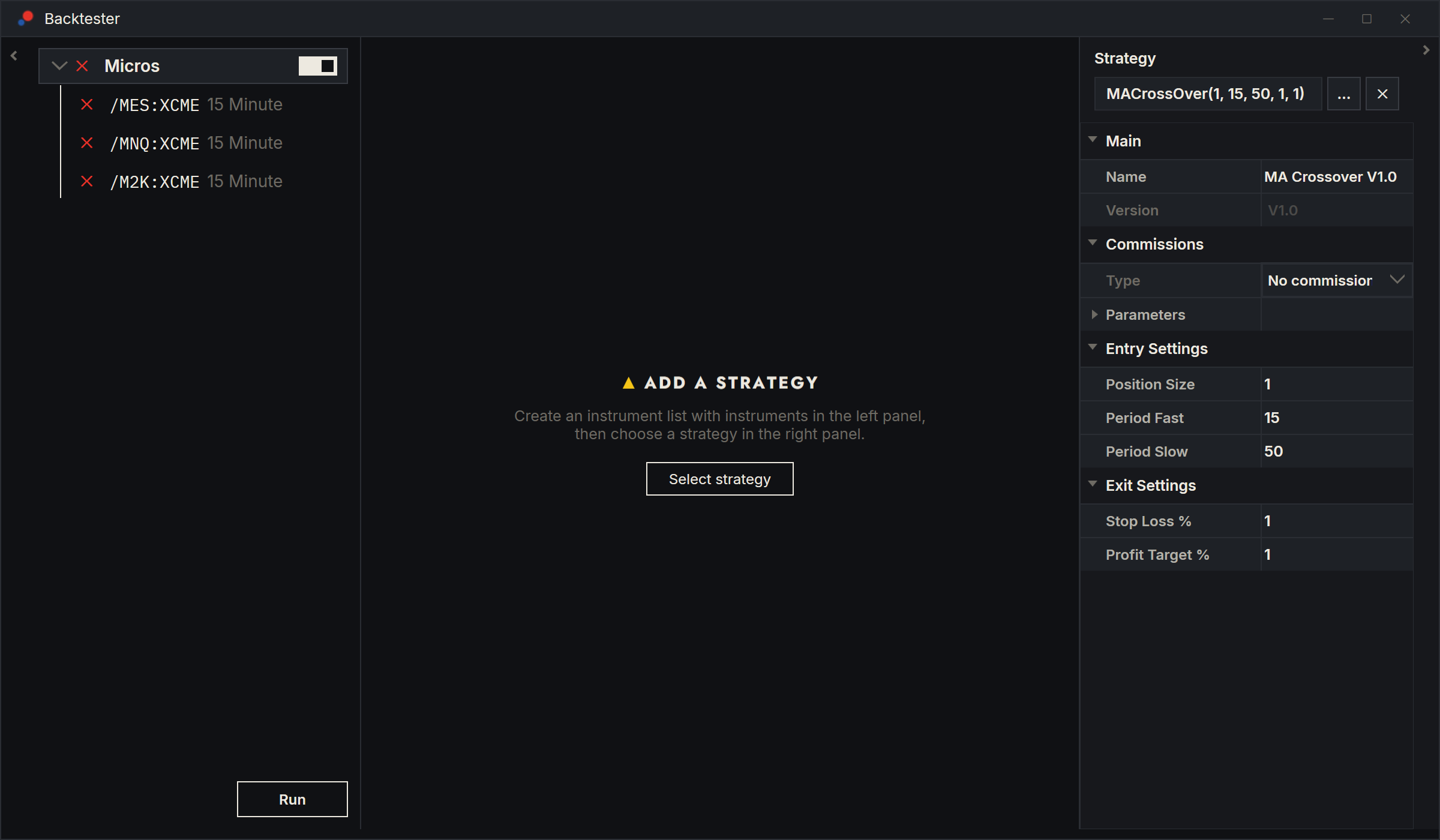
The window has three parts:
- On the left, your lists and their instruments, with the Run button below them.
- In the middle, the results of the row you select. Until there are any, you see "Add a strategy".
- On the right, Strategy: the strategy on the row you select, and its parameters.
The arrows at the edges fold the side panels away to give the results more room.
Make a list
- Right-click the empty left panel and choose Add instrument list.
- Type a Name: for the list and choose OK.
A list here is a group of instruments inside this Backtester. It is not one of the lists you keep under Tools, Instrument Lists, but you can fill it from one of those. One Backtester can hold several lists.
To rename a list, double-click it, or right-click it and choose Edit.
Add instruments
Select the list, or an instrument in it, then right-click:
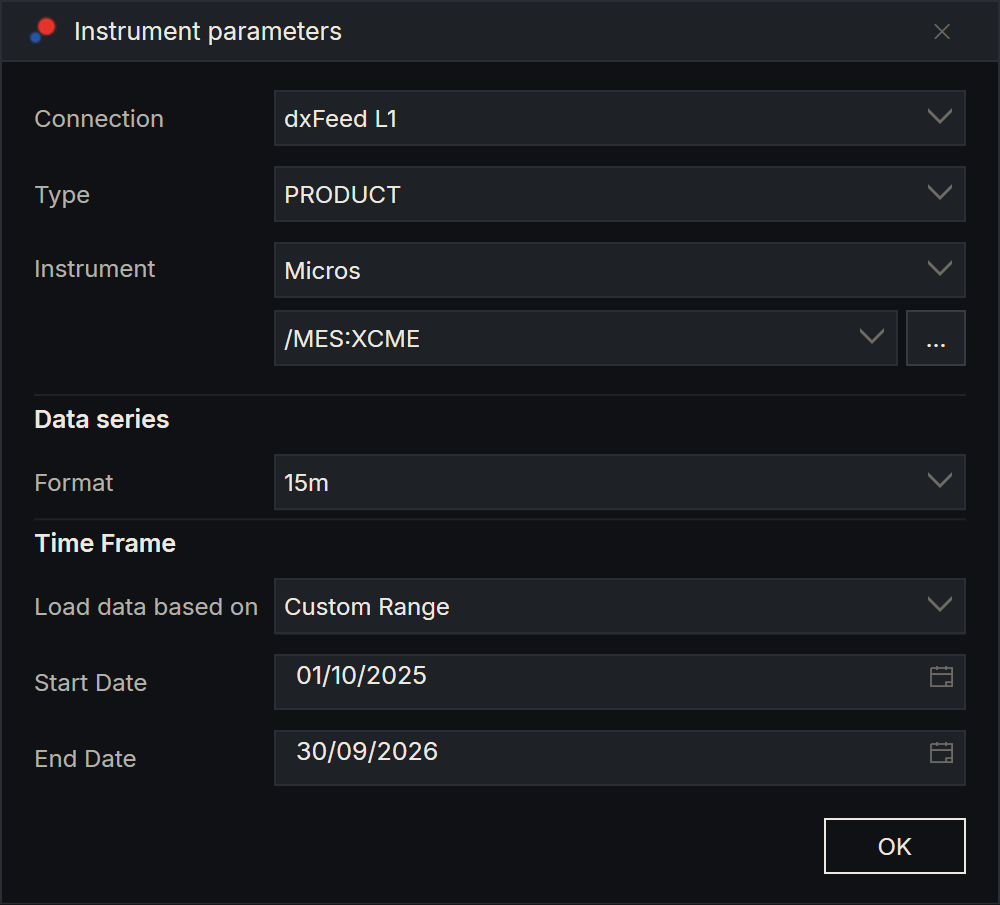
- Add instrument adds one instrument. The Instrument parameters window has the same fields as the chart's Data series window: Connection, Type, Instrument, the bar size in Format, and the history to load under Time Frame, either Days to Load up to the End Date or a Custom Range. See Your first chart.
- Add instruments adds every instrument of one of your instrument lists, all with the same bar size and history. Choose the list under Instrument list.
After OK, AlgoDesk loads the history; see Running a backtest. Each instrument row shows its symbol and bar size, such as "15 Minute". Every instrument has its own bar size and history, so one list can mix them.
To change an instrument, double-click it, or right-click it and choose Edit. AlgoDesk loads its history again and, if it had results, runs it again.
To take a list or an instrument out, right-click it, choose Remove and confirm. Removing a list removes its instruments too.
Choose a strategy
- Select the row the strategy goes on: the list, or one instrument.
- In the Strategy panel, choose the ... button.
- In Select strategy, double-click the strategy. Strategies are grouped in folders; the built-in ones are under Default.
To take the strategy off, choose the X button next to ....
One strategy for the list, or one per instrument
Each list has a switch at the right of its row. Hold the mouse over it to read "Apply to all instruments".
| Switch | Which strategy runs | Where you set it |
|---|---|---|
| On | The list's strategy runs on every instrument in the list, with the same parameters. | Select the list. While the switch is on, selecting an instrument shows the list's strategy, greyed out. |
| Off | Each instrument runs the strategy you put on it, with its own parameters. An instrument without one is not run, and a strategy on the list itself is not used. | Select each instrument. |
The thin line under an open list shows the switch: bright while it is on, grey while it is off.
Turning the switch on does not delete the instruments' own strategies. Turn it off again and they are back, with their parameters. Either way, every instrument gets results of its own.
Parameters
With a strategy chosen, the Strategy panel lists its settings in groups:
- Main: the strategy's Name and Version.
- Data series: the instrument's TickSize, when an instrument is selected.
- Commissions: what each trade costs. See Commissions.
- The strategy's own groups. MA Crossover, for example, has Entry Settings and Exit Settings.
Hold the mouse over a parameter to read its description, where the script gives one.
To reuse a setup, right-click the parameters and choose Presets: Save keeps the strategy with its parameters, Load brings one back, and Export writes one to a file. Right-click the left panel for Presets of the whole window: every list, its instruments with their bar sizes and history, and their strategies with their parameters. When you load one of those, tick Sync to move each instrument's End Date to today. See Presets.
Check and cross marks
Each row in the left panel starts with a mark.
| Mark | On an instrument | On a list |
|---|---|---|
| Green check | Its last run succeeded and nothing it depends on has changed since. | The list has instruments, and every one of them shows a check. |
| Red cross | It has not run yet, its last run failed, or something it depends on has changed. | At least one instrument shows a cross, or the list is empty. |
What turns a check into a cross:
- Changing a parameter of an instrument's own strategy crosses that instrument only. Its neighbours keep their checks.
- Changing a parameter of the list's strategy, or any parameter while the switch is on, crosses every instrument in the list.
- Choosing or clearing a strategy crosses that row and the instruments under it.
- Turning the switch on or off crosses every instrument in the list.
- Editing an instrument crosses it. If it had results, AlgoDesk runs it again straight away.
When a change crosses a row, its old results are hidden. Run it again to see new ones.