Compiling
Compiling turns your scripts into code AlgoDesk can run. Compile after every change to a script; AlgoDesk also compiles by itself after your first sign-in and after each update.
Ways to compile
Any of these compiles all your scripts:
- the compile button on the toolbar, the circular arrows next to the Control Center button;
- the scripts icon on the right of the toolbar, a cube;
- Tools, then Compile;
- the compile button on a chart's toolbar, also circular arrows.
All four do the same thing. While a compile is running, clicking the toolbar button, the cube or Compile again does nothing.
Tools, Export compiles before it exports, Tools, Import compiles before and after it imports, and removing a script compiles too. See Export and import and How scripts work.
What the cube shows
The cube on the toolbar shows the state of your scripts. Hold the mouse over it to read the state in words.
| Colour | Tooltip | Meaning |
|---|---|---|
| Red | "Custom project — not compiled" | The scripts are not compiled, or the last compile failed. |
| Yellow | "Custom project — compiling…" | A compile is running. |
| Green | "Custom project — compiled" | The last compile succeeded. A short sound plays when it does. |
While the cube is red, the lists of strategies and indicators in the chart's Strategies and Indicators windows and in the Backtester's Select strategy window are empty. Strategies and indicators already on charts keep running.
When strategies are running
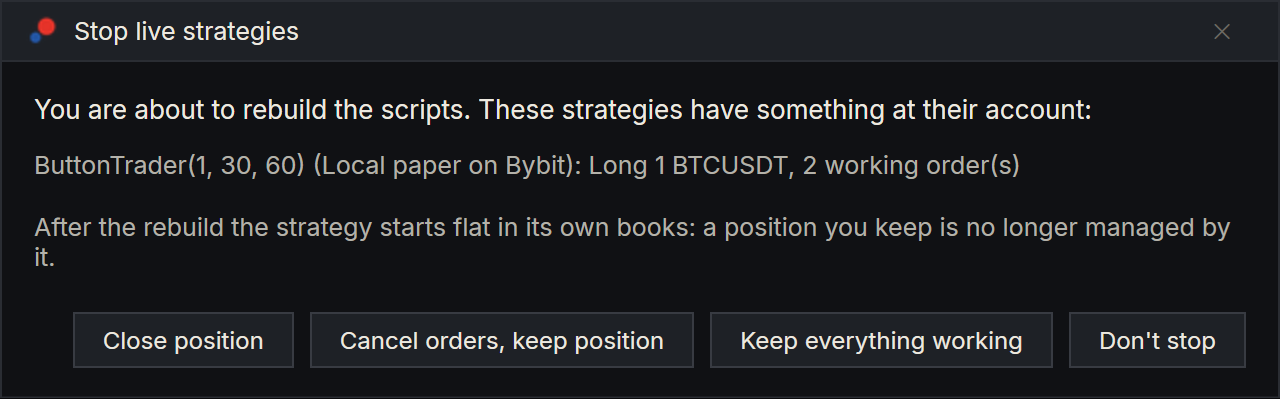
A compile rebuilds the strategies running on your charts: each one stops and starts again with the new code. If any running strategy has a position or working orders at its account, the four ways of compiling above ask first, in a window called Stop live strategies. So do Export, Import and removing a script. It lists those strategies and says: "After the rebuild the strategy starts flat in its own books: a position you keep is no longer managed by it."
| Choice | What happens |
|---|---|
| Close position | The strategies cancel their orders and close their positions, then the compile runs. |
| Cancel orders, keep position | The strategies cancel their orders and leave the positions open, then the compile runs. |
| Keep everything working | Orders and positions stay as they are, then the compile runs. |
| Don't stop | Nothing is stopped and nothing is compiled. Nothing is exported, imported or removed either. |
A position you keep is yours to manage from then on. See Running a strategy live.
What a compile changes
When a compile succeeds:
- Every chart rebuilds its indicators and strategies from the new code, keeps their parameter values, and calculates them again. A strategy that was running starts again as a new strategy, flat in its own books.
- Open Backtester and Optimizer windows take the rebuilt strategies, with the same parameters. Run them again to see results from the new code.
- A script whose class you renamed or deleted disappears from the charts it was on.
- New scripts appear in the lists: strategies under Strategies and Select strategy, indicators under Indicators, commissions under Commissions, Type, and fitness functions under Optimize on in the Optimizer.
Charts rebuild only while Reload script on recompile is ticked in Tools, Options, under General, Project. It is ticked to start with. Untick it and a compile leaves the scripts on your charts as they are, running the code they started with.
Compile in debug, in the same place, compiles your scripts with debugging information and without optimisation, for stepping through a script in a debugger. Leave it unticked otherwise. See Options.
When a compile fails, nothing on your charts changes.
Reading compile errors
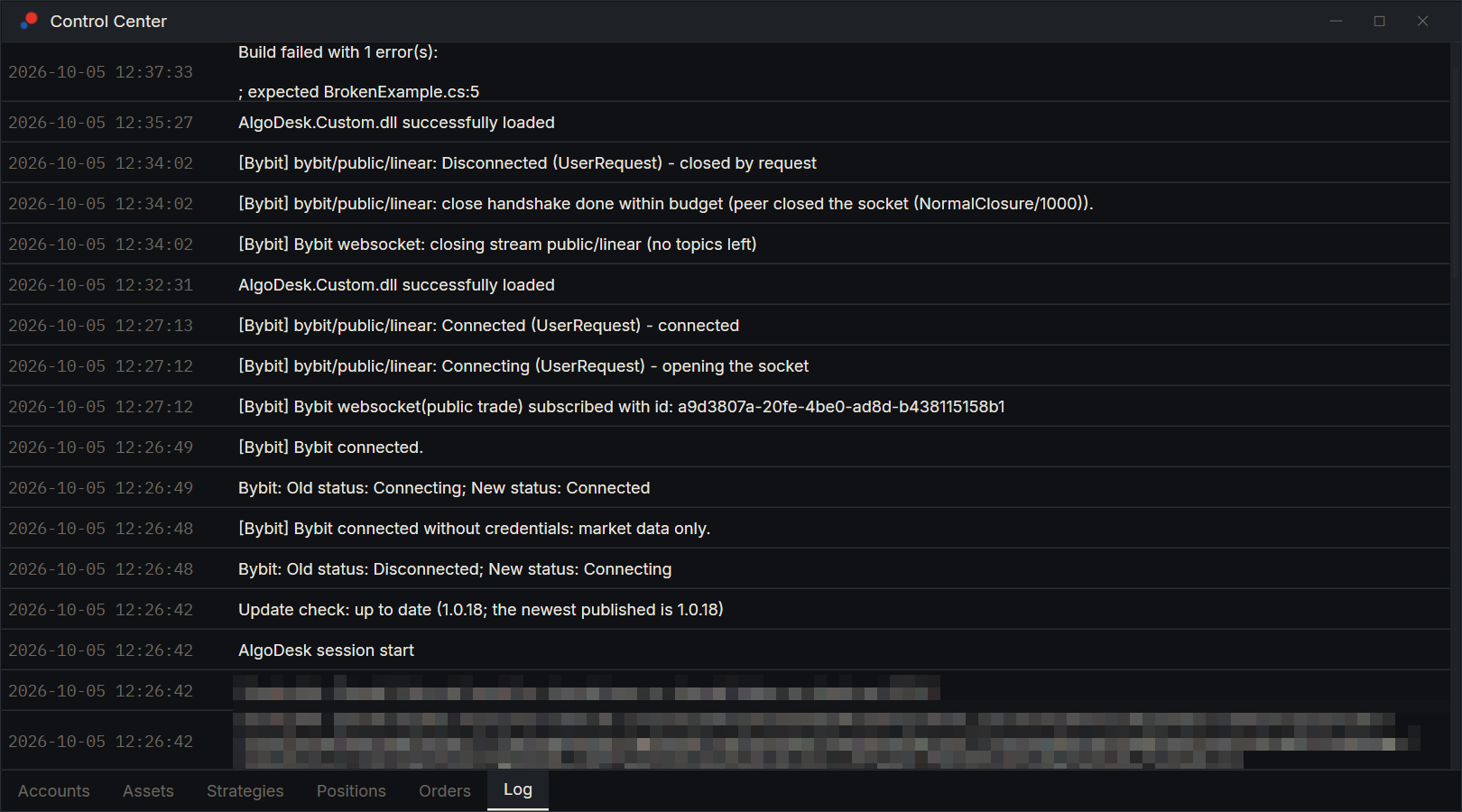
When a compile fails, the cube turns red and the errors go to the Log tab of the Control Center, newest message at the top. They come as one message:
Build failed with 1 error(s):

; expected MyCrossover.cs:57
Each line is one error: the compiler's message, then the file name and line number where it found the problem. Open that file, go to that line, and look there and on the line just before it. Often the first error causes the others, so fix it and compile again before working down the list.
The compile covers every .cs file in your scripts folder, so an error in one file stops all of them. The file name tells you which one to open, even when it is not the script you were working on.
For two kinds of error, AlgoDesk adds an indented line under the error that says what to change. They come up in strategies written for older versions of AlgoDesk.
If the compile keeps failing
- Two files that hold the same class stop the compile. A copy of a script left in the scripts folder does this; move it out. See How scripts work.
- If you changed a built-in script and cannot find the mistake, the next update puts the built-in scripts back as they were shipped.
- Until a compile succeeds, you cannot add strategies or indicators from the lists, and Export and Import refuse with "Custom project is not compiled".