Drawing tools
You can draw lines, levels, text and boxes on a chart, and measure a move or plan a trade with the Ruler and Risk Reward tools. All of them are in the Drawing Tools panel.
Open the panel
On the chart's toolbar, choose Drawing Tools (the pencil icon). The panel opens on the right of the chart, in place of Chart Trader. To close it, choose the button again or the X at the top of the panel.
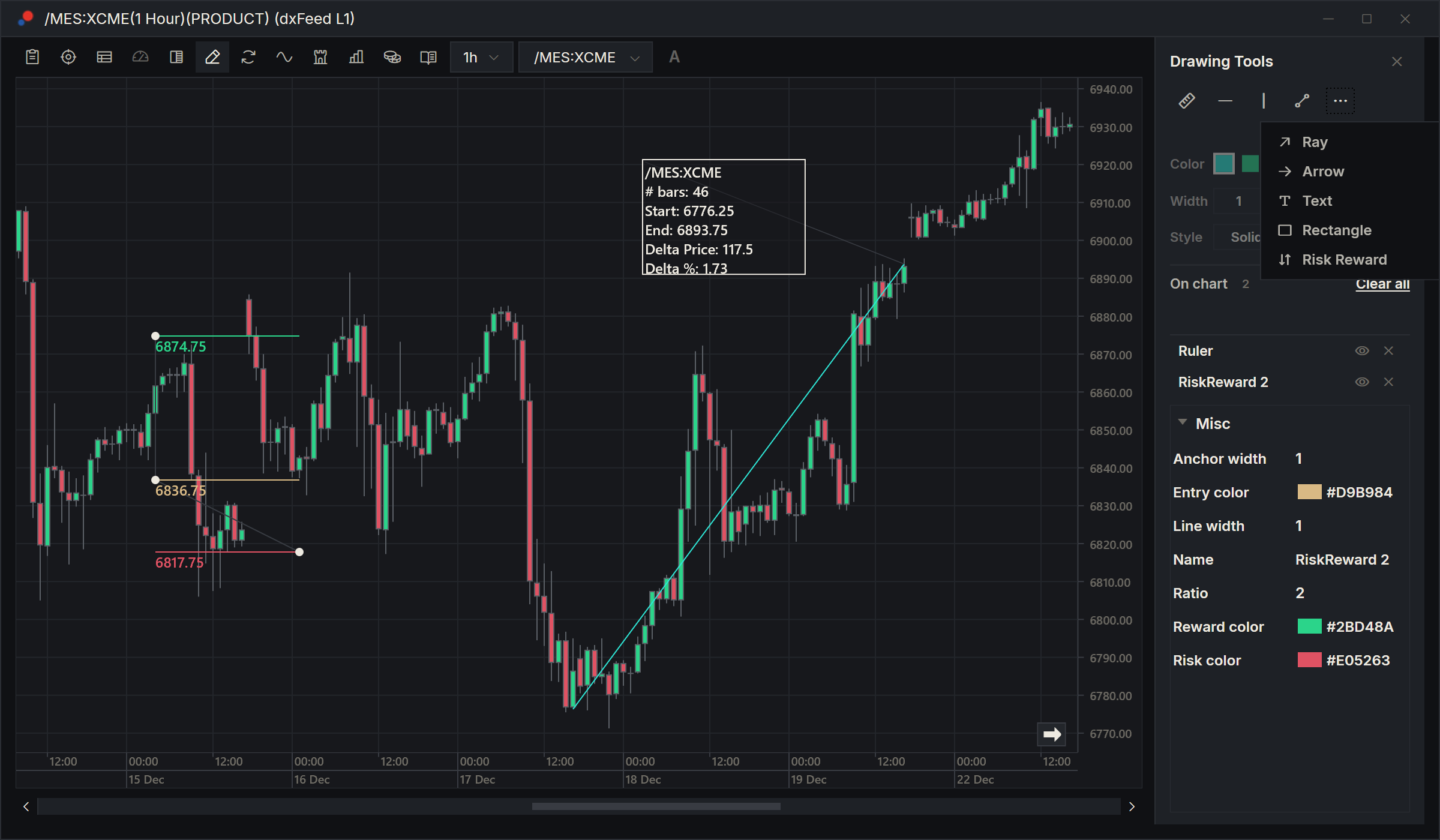
The top row of the panel holds Ruler, Horizontal Line, Vertical Line and Line. The More tools button next to them (three dots) holds Ray, Arrow, Text, Rectangle and Risk Reward. The name of the tool you picked shows under the row.
Draw
Pick a tool, then click on the price pane:
| Tool | How to draw it |
|---|---|
| Horizontal Line | Click at the price. |
| Vertical Line | Click on the bar. |
| Line | Click where it starts, then where it ends. |
| Ray | Click where it starts, then at a second point. The line carries on past the second point. |
| Arrow | Click where it starts, then where it ends. The arrowhead is at the end. |
| Text | Click where the text goes, type it and press Enter. |
| Rectangle | Click one corner, then the opposite corner. |
| Ruler | Three clicks. See Ruler. |
| Risk Reward | Two clicks. See Risk Reward. |
Between the clicks, the drawing follows the mouse. Each tool draws one object and then switches itself off; pick it again for the next one. To give up on a drawing half-way, press Esc.
You draw on the price pane only, not on indicator panes.
Colour, width and style
The rows under the tools set how the next drawing looks:
- Color: five colours, or Custom color to pick any colour.
- Width: line width from 1 to 4.
- Size: text size from 12 to 18, shown instead of Width while Text is picked.
- Style: Solid, Dash or Dot.
These rows are greyed out while a drawing is selected, because they apply only to new drawings. They are also greyed out for Ruler and Risk Reward, which have their own look.
Hotkeys
In a chart window with the Drawing Tools panel open, these keys pick a tool. Press the same keys again to put the tool down.
| Tool | Keys |
|---|---|
| Line | Ctrl+F1 |
| Vertical Line | Ctrl+F2 |
| Horizontal Line | Ctrl+F3 |
| Ray | Ctrl+F4 |
| Arrow | Ctrl+F5 |
| Text | Ctrl+F6 |
| Rectangle | Ctrl+F7 |
| Ruler | Ctrl+F8 |
| Risk Reward | Ctrl+F9 |
These are the keys AlgoDesk is installed with. You can change them in Options, Hot Keys. See Hotkeys.
Select, change, move and delete
Under On chart, the panel counts and lists the drawings on the chart, by name: "Line", "Line 2", "Horizontal Line" and so on. Before you draw anything it says "Nothing drawn yet".
- Select a drawing by clicking it on the chart, with no tool picked, or by clicking it in the list. Its settings appear at the bottom of the panel: its Name, colours, width and line style, and for text the Text itself and its font.
- Move a drawing by dragging it. Reshape it by dragging one of its ends; the pointer changes when you are over one.
- Hide a drawing with the eye button in its row (Show / hide). A hidden drawing stays in the list, greyed out, until you show it again.
- Delete a drawing with the X in its row, or select it on the chart and press Delete.
- Clear all deletes every drawing on the chart at once. It does not ask first.
When you change the chart's bar size, with the bar-size button or in the Data series window, your drawings stay at the same times.
When you switch the chart to another instrument, whichever way you do it, its drawings are deleted, as Clear all does: they were drawn at the old instrument's prices.
Drawings belong to the chart window while it is open. They are not saved with your workspace, so they are gone when you close the chart or AlgoDesk.
Ruler
The Ruler measures a move.
- Pick Ruler and click where the move starts.
- Click where it ends.
- Click where you want the information box.
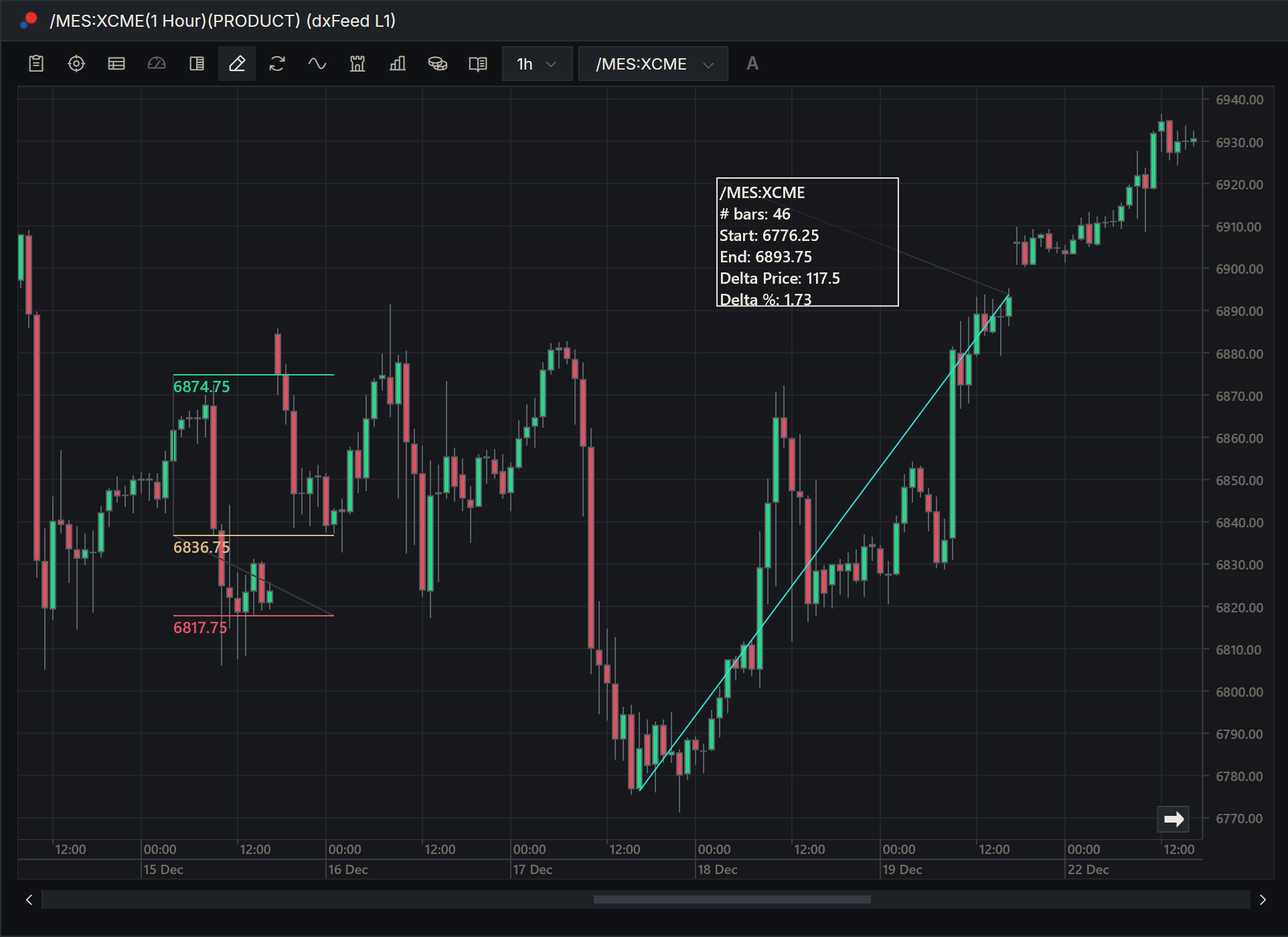
The box shows the symbol, the number of bars (# bars), the Start and End prices, the difference in price (Delta Price) and the difference as a percentage of the start price (Delta %). The prices are rounded to the instrument's tick size; Delta % has two decimals.
With the panel closed, double-click a ruler to open the Draw object window and change its name, colour and width.
Charts in the Backtester's results have no Drawing Tools button; they have a Ruler button that works the same way.
Risk Reward
Risk Reward shows where a trade's target would be for a given risk.
- Pick Risk Reward and click at your entry price.
- Click at your stop.
AlgoDesk draws three lines across the drawing, each with its price rounded to the instrument's tick size: the entry, the stop, and the target on the other side of the entry. The target is Ratio times as far from the entry as the stop is. Ratio starts at 1; select the drawing and change Ratio in the panel, for a 1:2 trade set it to 2.
Drag the entry or the stop and the target moves to keep the ratio. Drag the target and the stop moves instead. The colours of the three lines are Entry color, Risk color and Reward color in the panel.