Opening a chart and data series
A chart shows one instrument at one bar size, from one connection. This page covers the Data series window that sets a chart up, the parts of the chart window, and how to move around a chart and change what it shows.
The Data series window
The Data series window opens when you choose New, then Chart on the toolbar. On an open chart, the Change params button and Data series... in the right-click menu open it again.
| Field | What it does |
|---|---|
| Connection | The connection the data comes from. It starts on the first connection that is connected and is not Static data, or on a Static data connection when no other connection is connected. |
| Type | The kind of instrument, such as STOCK, FUTURE or PRODUCT. It starts on the connection's first type, STOCK for dxFeed. |
| Instrument | Pick one of your instrument lists in "Select Instrument list", then the instrument in "Symbol". Or choose … to pick an instrument in the Instruments window. |
| Format | The size of each bar. The choices depend on the connection. For dxFeed: 1s, 1m, 3m, 5m, 15m, 30m, 1h, 2h, 4h, 6h, 12h, 1d, 1w, 1M and 1Y. For Static data: 1s, 1m, 3m, 5m, 15m, 30m, 1h and 1d. It starts at 1d. |
| Load data based on | Days loads a number of days back from the End Date. Custom Range loads from a Start Date instead. |
| Days to Load | How many days of history to load. It starts at 365 and must be a whole number above zero. |
| Start Date | Shown with Custom Range. It must be earlier than the End Date. |
| End Date | The last day to load. It starts on today. |
OK stays greyed out until you have chosen an instrument and the values are valid; Enter does the same as OK once it is available. There is no Cancel button: Esc closes the window.
On an open chart, OK reloads the chart. If a strategy is running live on it, AlgoDesk asks first, because a reload stops the strategy. A new bar size keeps your drawings at their times; a new instrument deletes them.
A chart of a Static data instrument that finds no bars says why, in the middle of the chart. See Static data.
A step-by-step example is in Your first chart.
The chart window
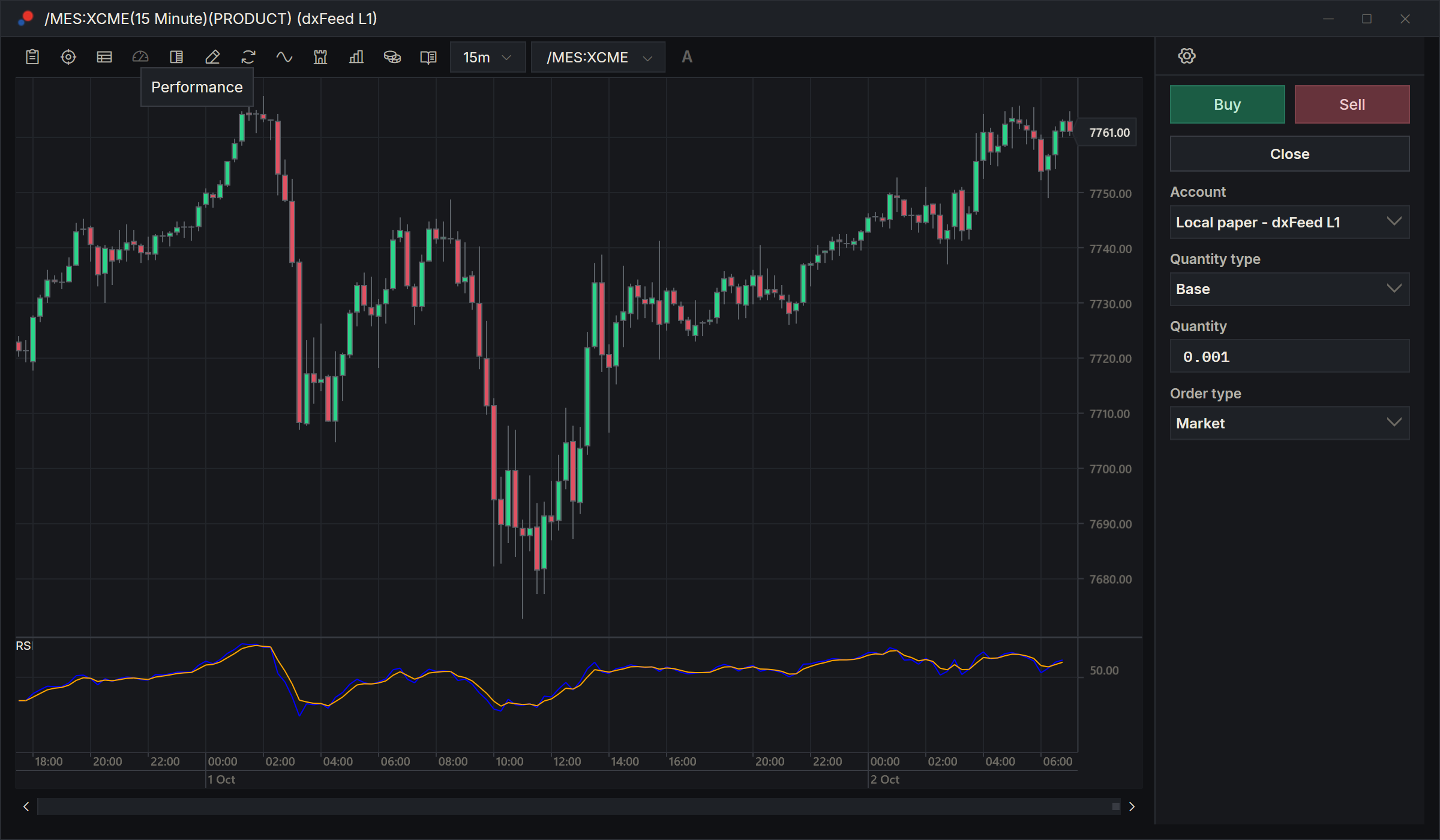
- Title bar: the instrument, the bar size and the connection, for example "/MES:XCME(15 Minute)(PRODUCT) (dxFeed)". With a strategy on the chart, its name is added.
- Toolbar: a row of buttons along the top, described below.
- Price pane: the bars, with the price axis on the right.
- Indicator panes: below the price pane, one for each indicator that draws in a pane of its own. Drag the line between two panes to change their heights. See Indicators.
- Time axis: times on the upper row, dates on the lower row. Times are in the time zone set in Options.
- Scroll bar: under the time axis, to move through the history.
- Arrow button: appears at the bottom right of the price pane when you have scrolled back. Click it to jump to the latest bars.
- Right panel: Chart Trader, or the Drawing Tools while they are open. Drag its left edge to make it wider or narrower.
The toolbar
The buttons are icons. Hold the mouse over one to see its name.
| Button | What it does |
|---|---|
| Data box (clipboard) | Shows or hides the Data box. |
| Cross line (crosshair) | Turns the crosshair on and off. See Cross line. |
| Time And Sale (table) | Shows or hides the Time And Sale window. |
| Performance (gauge) | Shows or hides the performance of the chart's strategy. Greyed out unless the chart has a strategy that is enabled. |
| Chart trader (half-filled square) | A menu: Chart only hides the Chart Trader panel and the order items in the right-click menu, Chart trader shows the panel, Chart trader (Hidden) hides the panel but keeps the order items. See Chart Trader. |
| Drawing Tools (pencil) | Opens or closes the Drawing Tools panel. |
| Compile (circling arrows) | Compiles your scripts, as the Compile button on the main toolbar does. See Compiling. |
| Indicators (wave) | Opens the Indicators window. See Indicators. |
| Strategies (castle tower) | Opens the Strategies window. See Running a strategy live. |
| Chart style (bar chart) | Shows the bars as Candlestick or OHLC. Every chart opens as candlesticks. |
| Change params (coins) | Opens the Data series window. |
| Open Book Trader for this instrument (open book) | Opens a new Book Trader on the chart's instrument. |
| Timeframe, the bar size, for example "15m" | Changes the bar size. See Change the instrument or bar size. |
| Symbol box | Changes the instrument. |
| A (Auto scale) | Fits the price scale to the bars again after you have stretched it. Greyed out while the scale is automatic. |
Moving around the chart
With the setting AlgoDesk starts with:
| To | Do this |
|---|---|
| Scroll back or forward in time | Drag the chart left or right, turn the mouse wheel, or drag the scroll bar. |
| Show more or fewer bars | Drag the time axis. Dragging to the right shows more bars. |
| Stretch or squeeze the price scale | Drag the price axis. Dragging down shows a wider price range. The scale then stays where you put it until you choose A. |
| Move the price scale up or down | Hold the left Ctrl key and drag up or down on the chart or the price axis. |
| Go back to the latest bars | Click the arrow button at the bottom right of the price pane. |
In Options, Preferences, the Chart zoom scroll setting swaps the two: Drag Zoom + Wheel Scroll is the default; Drag Scroll + Wheel Zoom makes the mouse wheel zoom and a drag on the time axis scroll. See Options.
Change the instrument or bar size
- Bar size: click the bar-size button (Timeframe), for example "15m", and pick another. The chart reloads at the new size. Your drawings stay at the same times.
- Symbol box: type part of a symbol. A list shows the matching instruments you have already added to AlgoDesk, with their type and connection; the buttons above it filter by type. Click one to switch the chart to it. Esc puts the chart's own symbol back. To add a new instrument, see Finding and adding instruments.
- Arrow next to the symbol box: a menu of your instrument lists, by connection and type. Pick an instrument to switch to it.
- Change params: the Data series window, to change anything at once, including how much history to load.
Drawings belong to the instrument they were drawn on. Switching the chart to another instrument, whichever way you do it, deletes them, as Clear all does.
While a strategy is running live on the chart, the symbol box will not change the instrument. AlgoDesk says, for example, "Stop the strategy first: it is live on /MES:XCME". A new bar size or a change in the Data series window asks you before it stops the strategy.
Cross line
With Cross line on, two lines follow the mouse across the chart. The price under the mouse shows on the price axis and the time on the time axis.
Time And Sale
The Time And Sale window lists each trade on the chart's instrument as it arrives, newest at the top: the time to the millisecond, the price (Value) and the Volume. It keeps the last 100 trades. It starts empty each time you open it and shows only live trades, not history.
The right-click menu
Data series..., Indicators... and Strategies... do the same as the toolbar buttons. The other items:
| Item | What it does |
|---|---|
| Reload Script | Reloads the chart's indicators, or its strategy. See Indicators. |
| Display options... | Opens Options at Display: the colours of up and down bars, wicks, the background, the grid and axes, the line between panes, and the marks for your executions. Choose OK to apply them. These settings are shared by every chart. |
| Trading options... | Opens Chart Trader's trading options. See Chart Trader. |
Unless Chart Trader is set to Chart only, the menu also offers buy and sell orders at the price under the mouse, for example "Buy Limit 6512.25". See Chart Trader.
Closing a chart
Close the window to close the chart. A chart that has a strategy is only hidden: the strategy keeps running, and Show chart on the Control Center's Strategies tab brings it back. A chart is also hidden, not closed, while you hold a position in its instrument; it closes when the position does.