Indicators
Indicators draw calculated lines over the bars or in panes of their own below them. You add, change and remove them in the Indicators window; AlgoDesk ships with 32 built-in indicators, and you can write your own.
Add an indicator
- On the chart's toolbar, choose Indicators (the wave icon), or right-click the chart and choose Indicators....
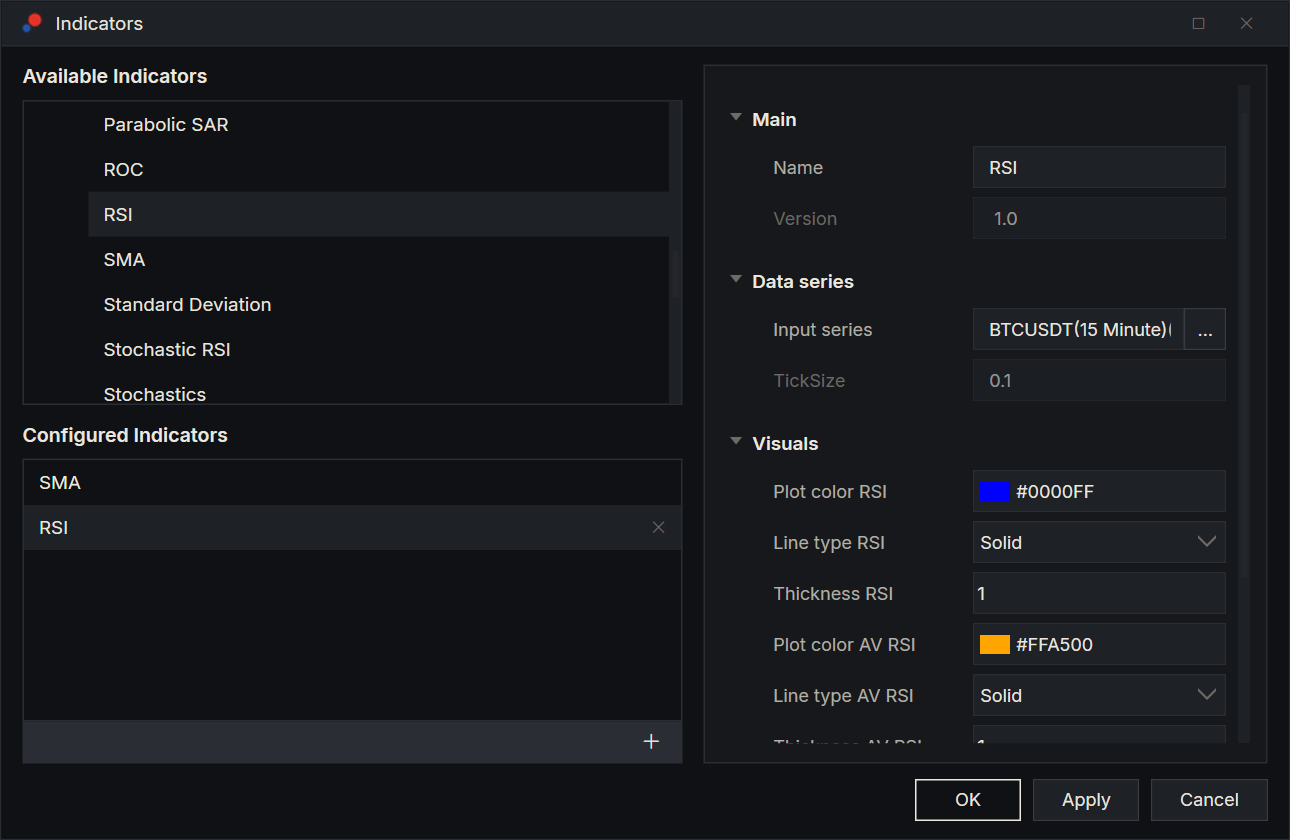
- Under Available Indicators, open the Default folder and double-click an indicator. It appears under Configured Indicators, with its settings on the right. You can also select it and choose + under the lower list.
- Change the settings if you want to. See Settings.
- Choose OK to add it and close the window, or Apply to see it on the chart and keep the window open.
The chart may show "Calculating..." while the indicator works through the history. A chart can carry as many indicators as you like, and the same indicator more than once with different settings.
To find an indicator quickly, click in the Available Indicators list and type the first letters of its name.
Settings
The settings on the right belong to the indicator selected under Configured Indicators. They come in groups, in this order; scroll down for Parameters:
| Group | What is in it |
|---|---|
| Main | Name: the name the indicator shows on the chart. Version: read only. |
| Data series | Input series: what the indicator is calculated from. TickSize: the instrument's tick size, read only. |
| Visuals | How each line looks: its colour, Line type (Solid or Dashed), Thickness, and for some lines Chart type (Linear for a line, Bars for a histogram). |
| Parameters | The values the calculation uses, for example Period. They differ from one indicator to the next. |
Input series starts on the bars' closing price. To change it, choose ... next to it. In the Input series window, the first entry under Available is the chart's price: select it and set Price type to Open, High, Low or Close. The entries below it are indicators, listed by name, so you can calculate this indicator from another one's values: select one and set its parameters on the right. Then choose OK.
Panes
Each indicator decides where it draws:
- Moving averages, bands and other price-level indicators draw over the bars in the price pane.
- Oscillators and volume draw in a pane of their own below the price pane. Each such indicator gets its own pane, so two RSIs make two panes.
The top-left corner of an indicator pane names the indicators drawn in it. Drag the line between two panes to change their heights. Removing an indicator removes its pane.
Change or remove an indicator
- Open the Indicators window again.
- Select the indicator under Configured Indicators.
- Change its settings, or choose the X at the right of its row to remove it.
- Choose OK or Apply.
Cancel closes the window without applying your changes.
Remove in the right-click menu of Available Indicators does not take an indicator off the chart. It deletes the indicator's script file from your computer; to take an indicator off the chart, use the X under Configured Indicators.
Remove acts on the indicator you right-clicked. It first asks whether to delete that indicator's script file, naming it, and warns "This cannot be undone." Choose Yes to go on or No to keep it. Removing a script compiles your scripts again, so if a live strategy has a position or working orders, the Stop live strategies question follows, as for Compile; Don't stop removes nothing. See Running a strategy live.
Right-click the Configured Indicators list, or a setting, for Presets: save an indicator's parameters under a name and load them again later. See Presets.
Reload Script
Reload Script in the chart's right-click menu rebuilds the chart's indicators from your scripts as they were last compiled. Their settings are kept, and they are calculated again over the history. On a chart that has a strategy, it reloads the strategy instead, and the indicators stay as they are.
You need it after changing an indicator's code only if Reload script on recompile is off in Options, Project. That option is on when AlgoDesk is installed, so every compile reloads the scripts on every chart. See Compiling.
Indicators and workspaces
When you save your workspace, each chart's indicators are saved with it, with their Parameters. Their Visuals are not saved: colours, line types and thickness go back to the indicator's own defaults when the workspace opens again.
Built-in indicators
These ship with AlgoDesk, in the Default folder.
In the price pane:
| Indicator | What it shows |
|---|---|
| Adaptive HMA | A Hull moving average whose length follows the dominant cycle the indicator measures in the price. |
| Bollinger Bands | A moving average with bands a number of standard deviations above and below it (St Dev Mult). |
| EMA | Exponential moving average. |
| HMA | Hull moving average. |
| Keltner Channel | The average of the typical price, with bands above and below at the average bar range times Offset Multiplier. |
| MAX | The highest value over the last Period bars. |
| MIN | The lowest value over the last Period bars. |
| Parabolic SAR | Stop-and-reverse points (Acceleration, Acceleration Max, Acceleration Step). |
| SMA | Simple moving average. |
| Swing | Lines at the latest swing high and swing low: a bar whose high or low is beyond the Strength bars on each side of it. |
| TEMA | Triple exponential moving average. |
| TMA | Triangular moving average: an average of an average. |
| Typical | The typical price of each bar: (high + low + close) / 3. |
| VWAP | Volume-weighted average price. It starts again at the first bar of each day. |
| VWMA | Volume-weighted moving average. |
| WMA | Weighted moving average. |
| Zigzag | Lines joining highs and lows, ignoring moves smaller than a minimum you set in points, percent or ATRs (Deviation Type). |
In a pane of their own:
| Indicator | What it shows |
|---|---|
| ADX Suit | ADX with the DI+ and DI- lines. |
| ATR | Average true range. |
| ATR Percent | ATR as a percentage of the closing price, times Multiplier. |
| CCI | Commodity channel index. |
| HMA Cycle Oscillator | A cycle oscillator built on an adaptive Hull moving average, with a lead line and a cycle window line. |
| Leader | A MACD-style line from a fast and a slow EMA (Fast, Slow). |
| MACD | The MACD line, its average and the difference between them. |
| Momentum | The input now minus the input Period bars ago. |
| ROC | Rate of change: the percentage change over Period bars. |
| RSI | Relative strength index, with a smoothed average line. |
| Standard Deviation | The standard deviation of the input over Period bars. |
| Stochastic RSI | The stochastic of the RSI. |
| Stochastics | The %K and %D lines (Period K, Period D, Smooth). |
| Volume | Volume bars, coloured by whether the bar closed above its open. |
| Volume EMA | An exponential average of volume, coloured by whether volume rose from the bar before. |
Your own indicators
Indicators are scripts, so you can change a copy of a built-in one or write a new one. Your own indicators appear in Available Indicators next to the Default folder. See How scripts work.