Data box
The Data box is a small window that shows the values of the bar under the mouse: its time, open, high, low, close and volume, and the value of every indicator line on the chart at that bar.
Open and close it
On the chart's toolbar, choose Data box (the clipboard icon). The Data box window opens and the button stays highlighted. Choose the button again, or close the window, to put it away.
Each chart has its own Data box. It stays on top of other windows, and it opens again where you last left it for as long as the chart is open.
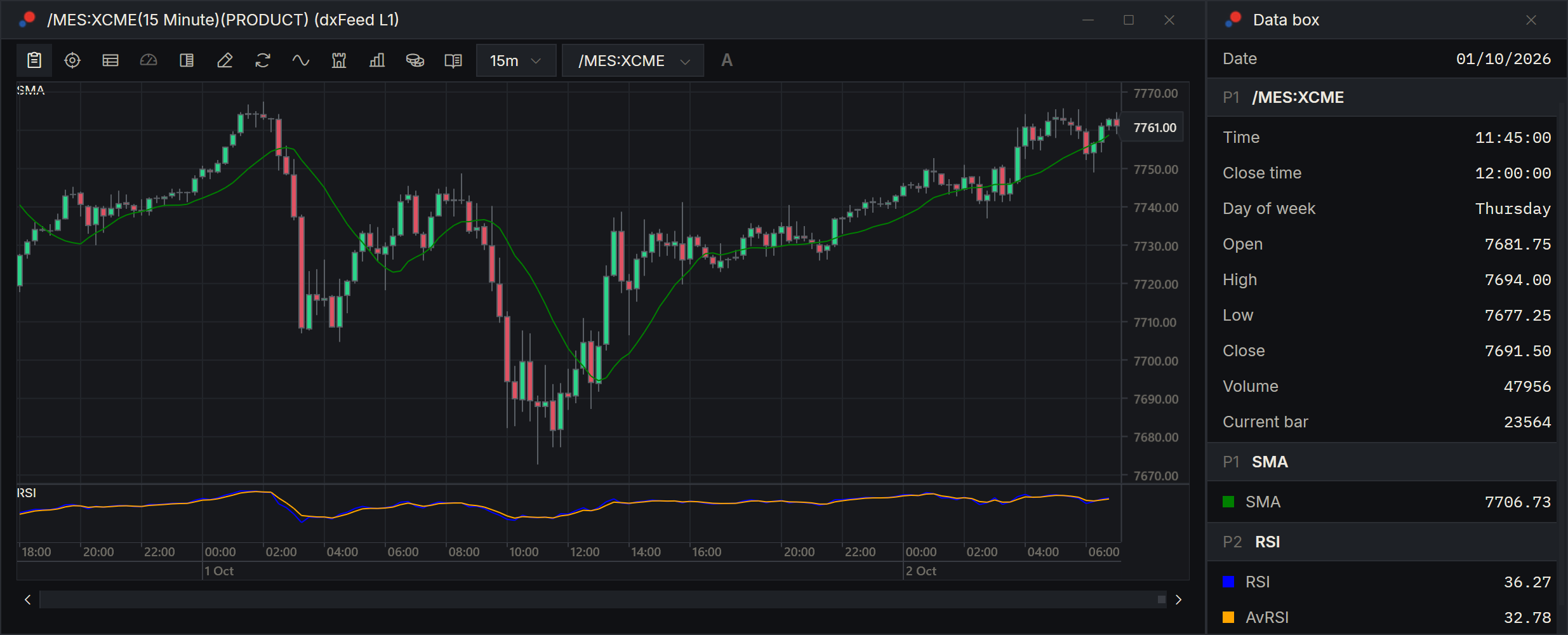
What it shows
Move the mouse over the chart. The Data box follows the bar under the mouse.
At the top, Date is the bar's date, in the date format of your Windows settings.
Below it are sections. Each section header has a pane tag, P1 for the price pane, P2 for the first indicator pane and so on, and a name.
The first section is the bar itself, under the instrument's symbol:
| Row | What it is |
|---|---|
| Time | When the bar opened. |
| Close time | When the bar closed. |
| Day of week | The bar's day. |
| Open, High, Low, Close | The bar's prices. |
| Volume | The volume traded in the bar. |
| Current bar | The bar's number, counting from the first bar loaded on the chart, which is 0. |
After it comes one section for each indicator, and for each strategy that draws lines, under its name. Indicators on the price pane are tagged P1; each indicator pane has its own tag. Every line is a row with its name, a small square in the line's colour, and its value at that bar.
Prices and indicator values are shown with as many decimal places as the instrument's tick size, and follow the new instrument when you change the chart's symbol. Volume is a plain number, without price decimals; a fractional volume, as on a crypto pair, keeps its digits.
When it helps
- Read the exact high and low of a bar without zooming in.
- Check an indicator's value at a past bar, for example whether RSI was above 70 when a trade was entered.
- See which lines belong to which pane when several indicators share the price pane.
For the trades as they happen, rather than bar by bar, use the Time And Sale window.