Install AlgoDesk
AlgoDesk runs on 64-bit Windows 10 and Windows 11. You download the installer from algo-desk.com, run it once, and it sets up everything AlgoDesk needs.
What you need
- A PC with 64-bit Windows 10 or Windows 11.
- Permission to install software on it. Windows asks you to confirm before setup starts.
- An internet connection. Setup may need to download parts of Windows that AlgoDesk relies on, and AlgoDesk checks your account each time you sign in.
- An account at algo-desk.com, to sign in to AlgoDesk. Creating one starts your free month. You can download the installer before you have one.
Get the installer
Go to algo-desk.com/download. The download starts by itself; you do not need to sign in. Your browser may stop the file with a warning such as "Suspicious download blocked". That is normal for a new release; see If your browser blocks the download.
To sign in to AlgoDesk you need an account. If you do not have one yet:
- Choose Create account on the download page, or Sign in at the top of any page of algo-desk.com and then the Create account tab.
- Enter your email, tick the box to accept the Terms and the Privacy notice, and choose Email me the link. No card is needed.
- Open the link we send you, on the computer where you will use AlgoDesk. The link works once and expires after 30 minutes.
- Set a password and choose Create account and download. Your free month starts now, and the installer downloads again; one copy is enough.
The email and password you set here are the ones AlgoDesk asks for when it starts.
If you already have an account, you can also sign in at algo-desk.com, open Downloads in your account and choose Download installer. It is always the current release. The Release notes row there shows what changed in each release.
If your browser blocks the download
Browsers warn about files they have seen only a few times. Every AlgoDesk release is a new file, so in its first weeks your browser may stop it with a warning. The warning does not mean the file is harmful: it means the browser does not know it yet. Keep the file only if you downloaded it from algo-desk.com.
Chrome
Chrome shows Suspicious download blocked in its download list.
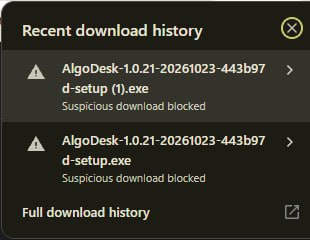
- Click the arrow › next to the AlgoDesk file. If the list has closed, click the download icon at the top right of Chrome to open it again.
- Choose Download suspicious file. If Chrome asks you to confirm, confirm.
The installer is then in your Downloads folder.
Edge
Edge says the file isn't commonly downloaded.
- Point at the message, click ... next to it, then Keep.
- Edge asks you to make sure you trust the file. Choose Show more, then Keep anyway.
"Windows protected your PC"
When you open the installer, Windows may show a blue Windows protected your PC window, for the same reason.
- Choose More info.
- Check that Publisher says System Elements FZ-LLC. If it names anyone else, or says Unknown publisher, do not go on: that file did not come from us.
- Choose Run anyway.
Run the installer
- Open the file you downloaded. Its name ends in
setup.exe. - Windows asks whether to let the app make changes to your device. Check that it names the verified publisher System Elements FZ-LLC, then choose Yes.
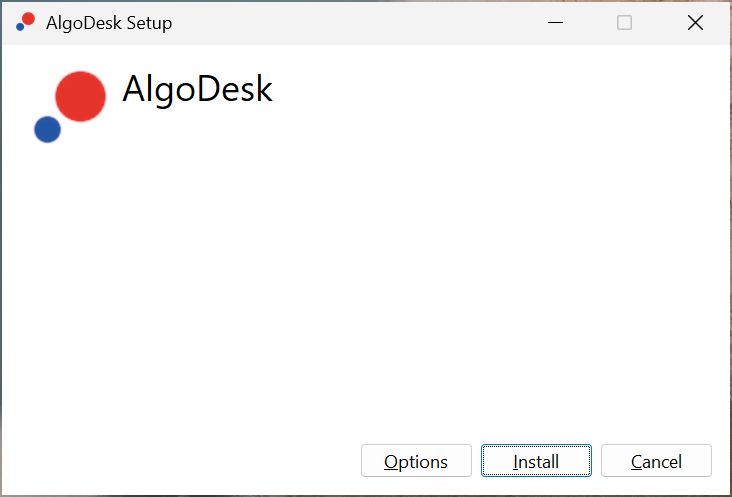
- In the setup window, choose Install. To install somewhere other than
C:\Program Files\AlgoDesk, choose Options first and pick a folder. - Wait while setup works. If your PC is missing the .NET 8 Desktop Runtime or the Microsoft Visual C++ runtime, setup downloads them from Microsoft and installs them.
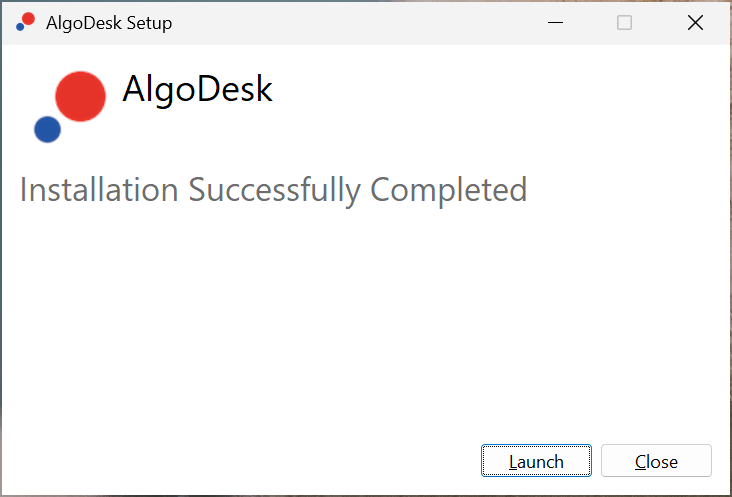
- When setup has finished, choose Launch to start AlgoDesk.
If the Windows prompt names any other publisher, or says the publisher is unknown, do not go on: that file did not come from us. Download the installer again from algo-desk.com.
On rare occasions Windows needs a restart to finish installing the Microsoft runtimes. Setup tells you when it does.
What goes where
| What | Where |
|---|---|
| The program | C:\Program Files\AlgoDesk, or the folder you chose |
| Shortcuts | AlgoDesk on the desktop and in the Start menu |
| Built-in strategies, indicators, commissions and fitness functions | Documents\AlgoDesk\bin\Custom |
| Your data: database, price history, workspaces, presets, logs, saved optimisation runs | Documents\AlgoDesk, created the first time AlgoDesk starts |
Your own scripts go in Documents\AlgoDesk\bin\Custom too, next to the built-in ones. See How scripts work.
Updating and reinstalling
AlgoDesk looks for a new version each time you sign in and offers to install it. See Updates.
You can also run a newer installer yourself. It replaces the version you have and keeps your data.
- Running the same installer again offers Repair or Uninstall.
- An older installer will not run over a newer version. It says "A newer version of AlgoDesk is already installed."
Every update replaces the built-in scripts in Documents\AlgoDesk\bin\Custom, even if you changed them. To change a built-in strategy or indicator, make your own copy under a new name and change that. Updates never touch your own scripts.
Uninstall
Open Windows Settings, then Apps, find AlgoDesk and choose Uninstall.
Uninstalling removes the program and the shortcuts. It leaves Documents\AlgoDesk where it is, with your scripts, data and workspaces, so a later install picks them up again. If you want everything gone, delete that folder yourself after uninstalling.