Your first chart
To see a live chart you add a connection, connect it, add an instrument from it and open a chart. This page walks through all four steps with a dxFeed example, a 15-minute chart of the Micro E-mini S&P 500 future.
dxFeed is coming soon: it is not yet open to every AlgoDesk user. The steps are the same with the other providers, and where they differ this page says how.
Before you start
You need an account with one of the providers AlgoDesk connects to:
- dxFeed (coming soon): your dxFeed user name and password.
- Interactive Brokers: Trader Workstation or IB Gateway running on this computer, with API connections allowed.
- Bybit: an API key and secret from your Bybit account.
- Tradovate: your Tradovate or NinjaTrader login. You sign in on Tradovate's page in your browser, so AlgoDesk needs no password or key.
- TopstepX: your TopstepX user name and an API key made in TopstepX.
The provider pages explain where to find these: Interactive Brokers, dxFeed, Bybit, Tradovate and TopstepX.
Add a connection
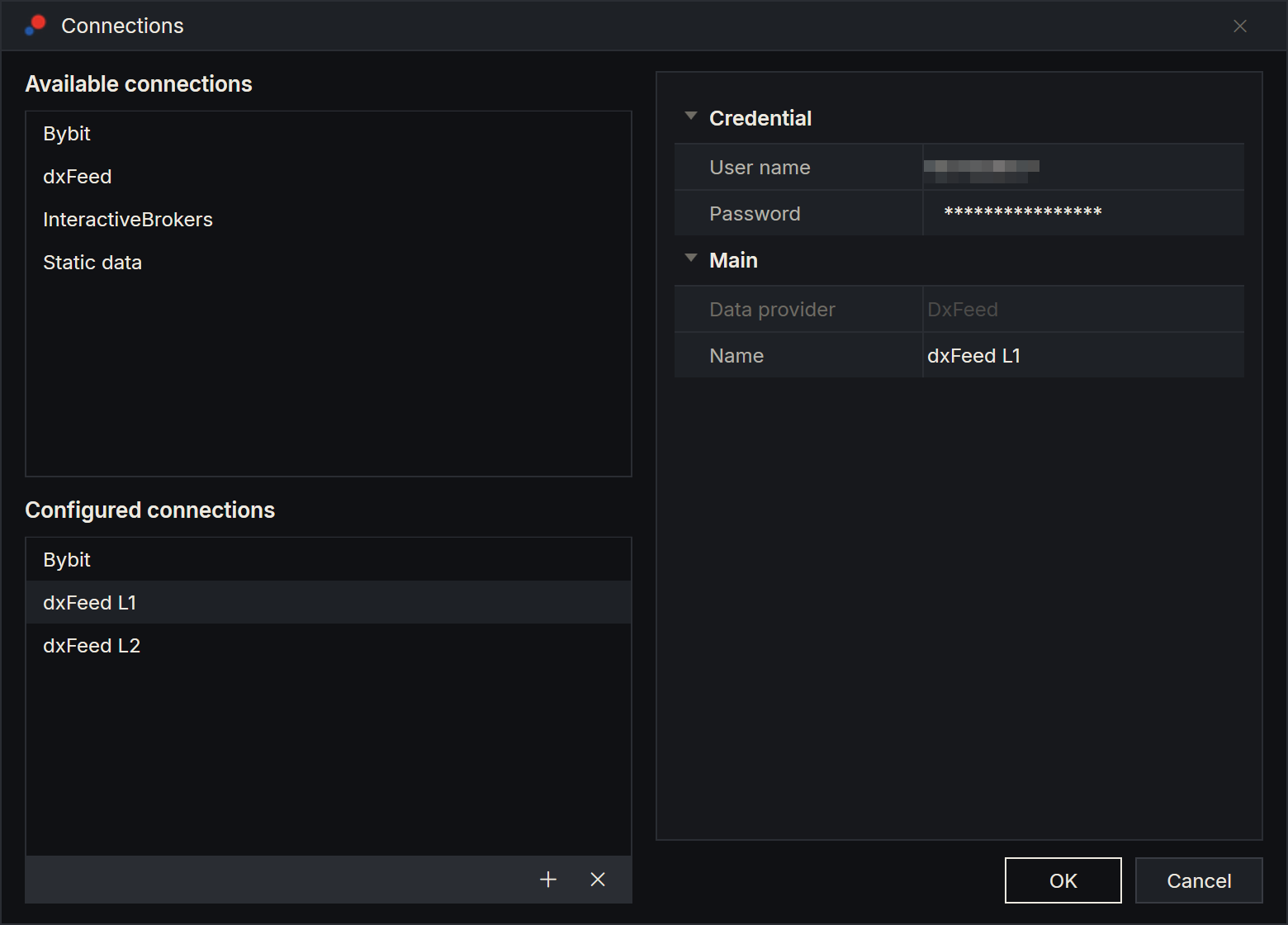
- On the toolbar, choose Connections, then Configure....
- Under Available connections, double-click your provider: dxFeed (coming soon), InteractiveBrokers, Bybit, Tradovate or TopstepX. It appears under Configured connections, with its settings on the right.
- Fill in the settings. For dxFeed, that is User name and Password. For Interactive Brokers, the defaults work when Trader Workstation runs on this computer; IB Gateway uses other ports. For Bybit, API Key and API Secret. For Tradovate, the defaults work: your browser opens Tradovate's sign-in page the first time you turn the connection on. For TopstepX, User name and API key.
- Choose OK.
The connection is named after the provider. You can change the name in Name while the window is open.
Connect
- On the toolbar, choose Connections.
- Turn on the switch next to your connection.
The connection icon on the toolbar turns yellow while AlgoDesk connects, then green. If the connection fails, a message tells you why. See Connection status and reconnecting.
AlgoDesk does not turn your dxFeed connection on by itself when it starts. Turn your connections on each time you start AlgoDesk.
Add an instrument
AlgoDesk charts the instruments you have added from a connection. For dxFeed you add them yourself. Bybit adds a few popular pairs, such as BTCUSDT and ETHUSDT, the first time you connect, so with Bybit you can skip to Open the chart. Tradovate and TopstepX do the same with the front contracts of ES, NQ, MES and MNQ.
- On the toolbar, choose Tools, then Instruments.
- The right side of the window belongs to your connection. Choose the instrument type, type part of the symbol and choose Find. For the example, choose the type PRODUCT and type
/MES:XCME. - Select the row you want and choose Add. It appears under AlgoDesk Symbols on the left.
- Choose OK.
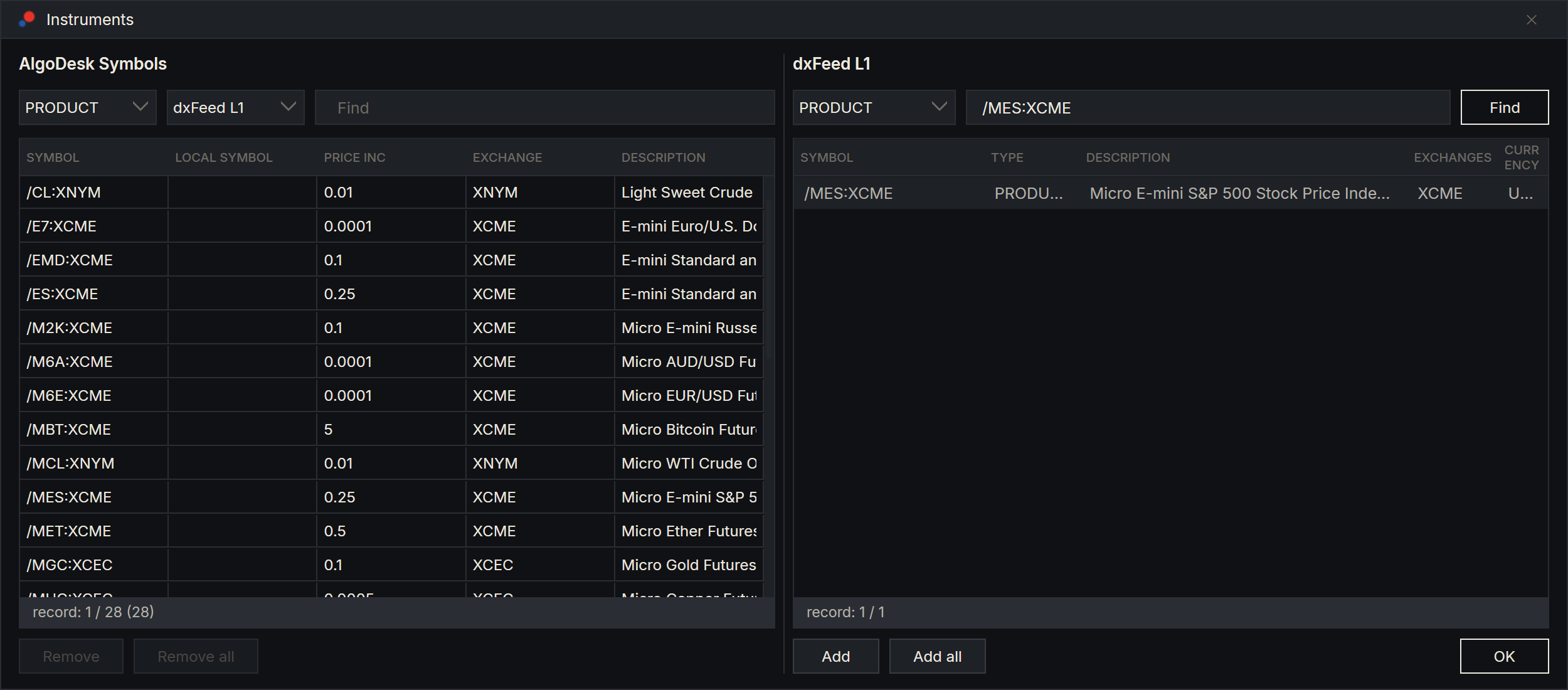
On dxFeed, /MES:XCME is the continuous future: it rolls from one contract to the next by itself. A single contract, such as /MESZ26:XCME for December 2026, has the type FUTURE. See Finding and adding instruments.
Open the chart
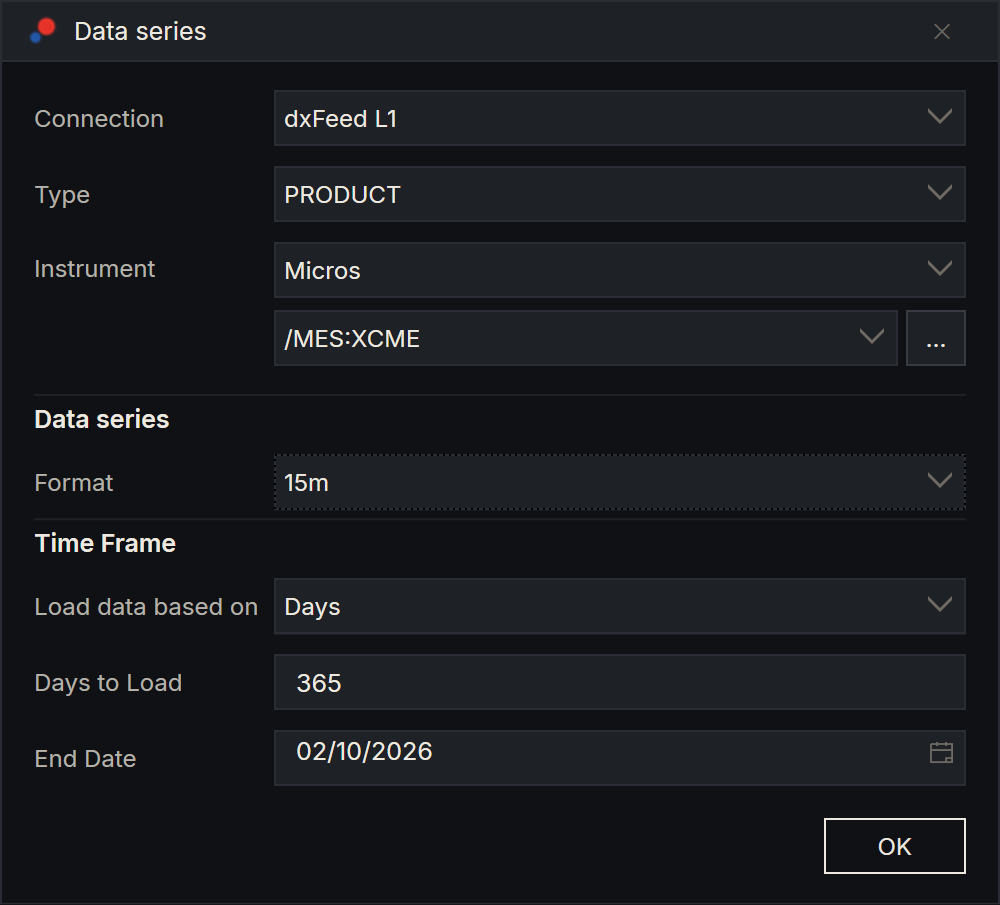
- On the toolbar, choose New, then Chart. The Data series window opens.
- Check Connection and choose the instrument's Type, here PRODUCT.
- Next to Instrument, choose …, select the instrument under AlgoDesk Symbols and choose OK. The … button opens the same Instruments window as before, so you can also find and add an instrument from here. Its search starts on the first type again, so set the type there too. If the instrument is in one of your instrument lists, you can instead pick the list and type the symbol.
- Under Data series, choose the Format: the size of each bar. Here 15m. It starts at one day, 1d.
- Under Time Frame, set how much history to load. Days to Load starts at 365 days, up to the End Date, today. Choose Custom Range in Load data based on to give a Start Date instead.
- Choose OK.
The chart opens and downloads the history it needs. The first time this can take a while; you see "Downloading historical data from exchange..." with its progress. AlgoDesk keeps the history on your computer, so the next chart of the same instrument opens faster. Once the history is in, new bars arrive live.
What you see
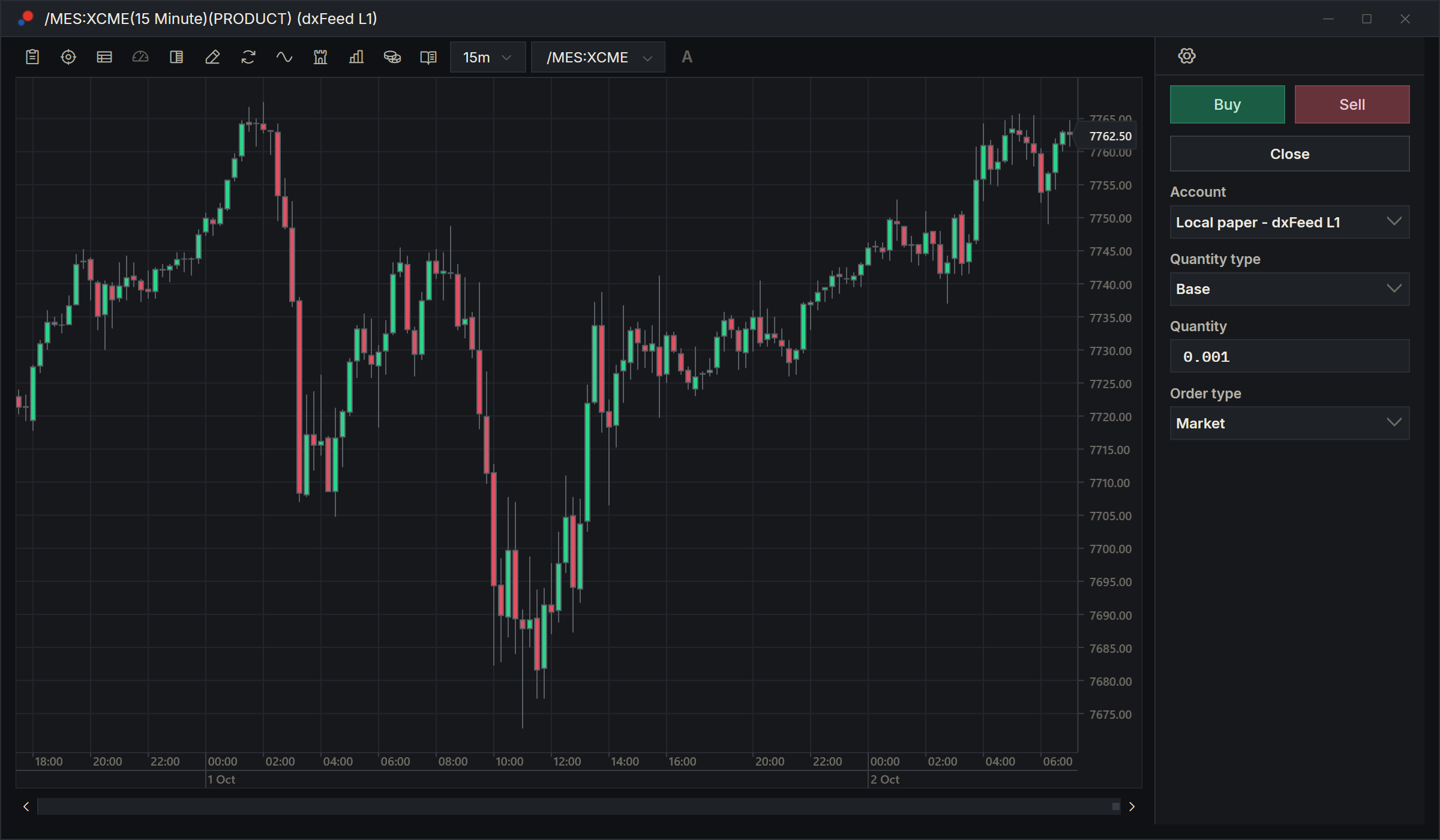
- The window title names the instrument, the bar size and the connection.
- The buttons along the top of the chart open the data box, the crosshair, time and sales, the chart's performance, Chart Trader, the drawing tools, the ruler, indicators, strategies, the chart style and the Book Trader for this instrument. Hold the mouse over a button to see its name.
- The panel on the right is Chart Trader, for placing orders from the chart. If you only want to watch, hide it with the Chart trader button. See Chart Trader.
- Right-click the chart to change its Data series..., add Indicators... or Strategies..., and set its display and trading options.
Next
- Add indicators to the chart.
- Backtest a strategy on this instrument.
- Connect Claude and ask it to do the clicking for you.