Updates
AlgoDesk looks for a new version each time it starts, once you have signed in, and offers to install it. You decide: on Update it downloads the new version, closes, installs it and starts again.
The check after you sign in
Once per start, after you sign in, AlgoDesk asks algo-desk.com for the newest version. It does this in the background: your workspace opens without waiting.
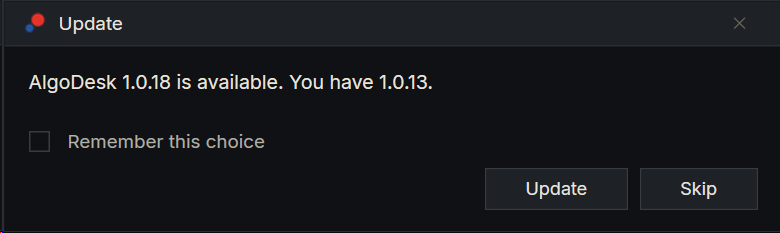
If a newer version exists, the Update window opens:
| You choose | What happens |
|---|---|
| Update | The download starts. See The download. |
| Skip | Nothing. The next start asks again. |
| Remember this choice, then Skip | AlgoDesk stops checking at start, for this version and every later one. Help > Check for updates still works. |
If you are up to date, or the update server cannot be reached, the startup check shows nothing.
The check runs once per start: signing out and in again does not repeat it.
To turn the startup check off or back on, use Check for updates at startup in Tools > Options > Preferences. It is ticked at first, and a remembered Skip unticks it. See Options.
Check for updates yourself
Choose Help > Check for updates. This always asks the server, whatever the Options setting, and always answers:
- a newer version: the Update window, without the Remember this choice box;
- no newer version: "AlgoDesk is up to date (1.0.17)." with your version;
- no answer: "Could not reach the update server. Try again later."
The Help menu works while you are signed out, so you can check before you sign in.
The download
The download window shows "Downloading AlgoDesk" with the new version, a progress bar and how much has arrived, for example "23.4 of 51.5 MB".
AlgoDesk keeps running behind it, live strategies included. Nothing closes until the download is complete.
- Cancel stops the download and deletes what has arrived. Nothing changes.
- If the download fails, AlgoDesk says "The download failed. AlgoDesk was not changed. Try again later from Help > Check for updates."
AlgoDesk closes
When the download is complete, AlgoDesk closes the way it does when you exit, with one difference: it does not ask "Are you sure you want to close the application?", because you already chose Update.
- If strategies are running, it still asks. Answering No calls the update off, and AlgoDesk keeps running.
- If a live strategy has a position or working orders, the Stop live strategies question opens with Close position, Cancel orders, keep position, Keep everything working and Don't stop. Don't stop calls the update off. See Running a strategy live.
- If your workspace has changed, AlgoDesk offers to save it, as on exit. See Workspaces.
Then AlgoDesk closes and hands over to the updater.
The updater window
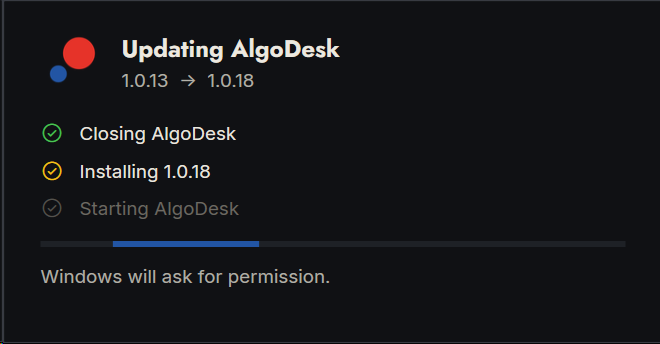
A small window titled "Updating AlgoDesk" shows the two versions, for example "1.0.17 → 1.0.18", and ticks off three steps:
- Closing AlgoDesk: it waits for AlgoDesk to finish closing.
- Installing 1.0.18: it runs the new installer. The window says "Windows will ask for permission." Windows asks whether to let the app make changes to your device: choose Yes.
- Starting AlgoDesk: it starts the new version.
How it can end:
| The window says | What to do |
|---|---|
| AlgoDesk 1.0.18 is installed. | Nothing. AlgoDesk starts and the window closes itself after a few seconds. |
| Installed. Restart Windows when convenient to finish. | AlgoDesk starts. Restart Windows when it suits you. |
| Update cancelled. AlgoDesk was not changed. | You chose No at the Windows prompt, or the install was cancelled. Start AlgoDesk starts the version you had; Close closes the window. |
| The update failed (code …). AlgoDesk was not changed. | The installer's log is named below the message. Open log opens it; Start AlgoDesk starts the version you had. |
| AlgoDesk did not close, so nothing was installed. | AlgoDesk was still running after a minute. Choose Close, then try again from Help > Check for updates. |
If the new version is installed but cannot be started, the window adds "Start AlgoDesk from the Start menu."
If AlgoDesk cannot start the updater, it tells you and names the installer it downloaded. Run that file yourself to update.
After the update
- The first start of the new version takes a little longer: AlgoDesk compiles your scripts against it.
- AlgoDesk signs you in as usual, by itself if you ticked Remember me.
- Your workspace opens as it was last saved. Strategies come back on their charts switched off: turn on the ones you want to trade again.
- Your data in
Documents\AlgoDeskis kept. The built-in scripts are replaced, as with every install; see Install AlgoDesk. The update goes into the same install folder, and the scripts into the folder set as Path to Custom Project in Tools > Options > Project.
You can also update by hand at any time: download the installer from algo-desk.com/download or from your account, and run it.
Release notes
AlgoDesk itself does not show what changed. Your account at algo-desk.com does: open Downloads and choose Read → in the Release notes row. The page lists what changed in the newest releases, newest first, with the current one marked.