Sign in
AlgoDesk asks for the email and password of your algo-desk.com account. Signing in checks your licence and ties your account to this computer.
Signing in
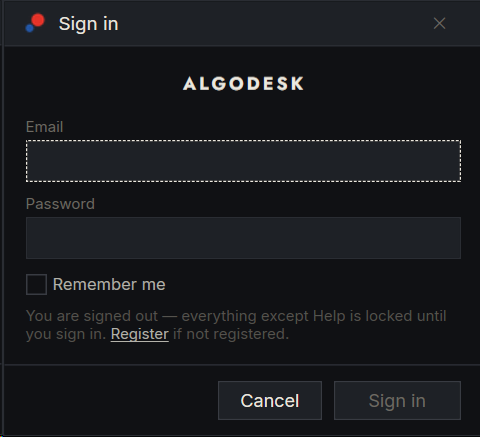
When AlgoDesk starts, it shows a splash screen and then the Sign in window.
- Enter your Email and Password: the ones you set at algo-desk.com.
- Tick Remember me if you want AlgoDesk to sign you in by itself next time.
- Choose Sign in. The button reads Signing in… while AlgoDesk checks your account.
No account yet? Choose Register in the window. It opens the page at algo-desk.com where you create one.
Once you are signed in, AlgoDesk:
- compiles your strategies and indicators;
- opens your workspace and the Control Center;
- checks for a new version in the background.
The first start, and the first start after each update, take a little longer while the scripts compile.
Remember me
With Remember me ticked, AlgoDesk keeps your password on this computer, encrypted so that only your Windows user can read it. At the next start it signs you in behind the splash screen, without asking.
If that automatic sign-in fails, for example because the internet is down, the Sign in window opens with the reason and your password already filled in.
Signing out forgets the password.
If you close the window without signing in
Choosing Cancel leaves you signed out. While you are signed out, the toolbar is locked: everything except Help and the exit button reopens the Sign in window.
Sign out or switch account
The user icon at the right end of the toolbar shows whether you are signed in. It is green when you are, and a dashed outline when you are not. Hold the mouse over it to see the email you are signed in with.
To sign out, click the icon and confirm. AlgoDesk asks first, because signing out closes all open windows and disconnects every connection. If strategies are running, it warns you about that too. If your workspace has changed, it offers to save it.
To switch to another account, sign out, then sign in with the other email.
If sign-in is refused
The Sign in window shows the reason. The most common ones are in this table.
| Message | What to do |
|---|---|
| That email and password do not match. | Check both and try again. If you forgot the password, reset it in your account at algo-desk.com. |
| Too many attempts. Try again in a few minutes. | Wait a few minutes, then try again. |
| This account is registered to another machine. … | Your account is tied to a different computer. See Moving to another computer. |
| The free month has already been used on this computer. … | Choose a plan in your account at algo-desk.com, then sign in again. |
| No active plan on this account. … | Choose a plan in your account at algo-desk.com, then sign in again. |
| The sign-in could not be verified. Check your internet connection and try again. | AlgoDesk could not reach algo-desk.com. Check the internet connection, and any firewall or proxy, then try again. |
Your licence and machine ID
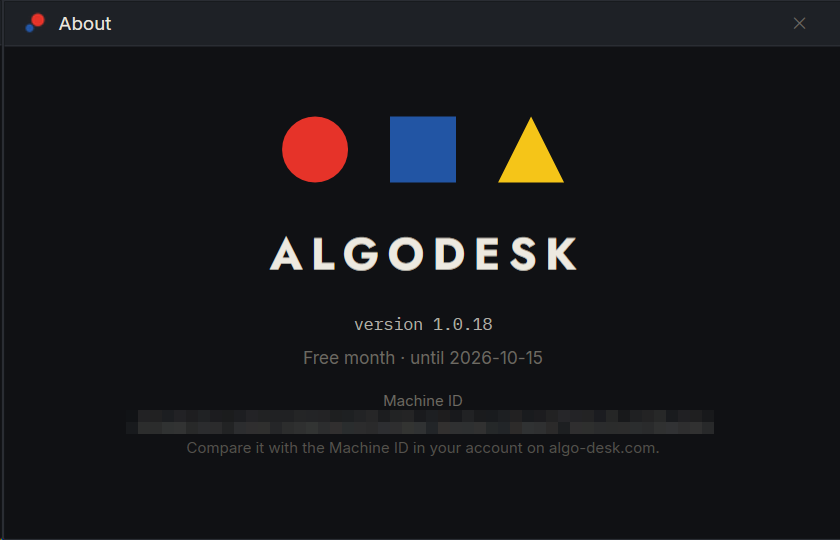
AlgoDesk checks your licence each time you sign in. To see what you have, choose Help, then About on the toolbar. The window shows:
- the AlgoDesk version;
- your licence, for example "Free month · until 2026-11-01" or "Lifetime · active";
- the Machine ID of this computer.
Your account works on one computer at a time. AlgoDesk recognises the computer by its Machine ID, which comes from the hardware, so it stays the same when you reinstall Windows or AlgoDesk. Your account page at algo-desk.com shows the Machine ID your account is tied to. See Your account and licence.