Commissions
A commission script works out what each trade costs, so that backtest and optimisation results are net of costs. Every new strategy starts with No commission: choose the one that matches your broker before you trust the numbers.
Choosing the commission for a backtest
- In the Backtester, select the row whose strategy you are setting up: the list while its Apply to all instruments switch is on, otherwise the instrument.
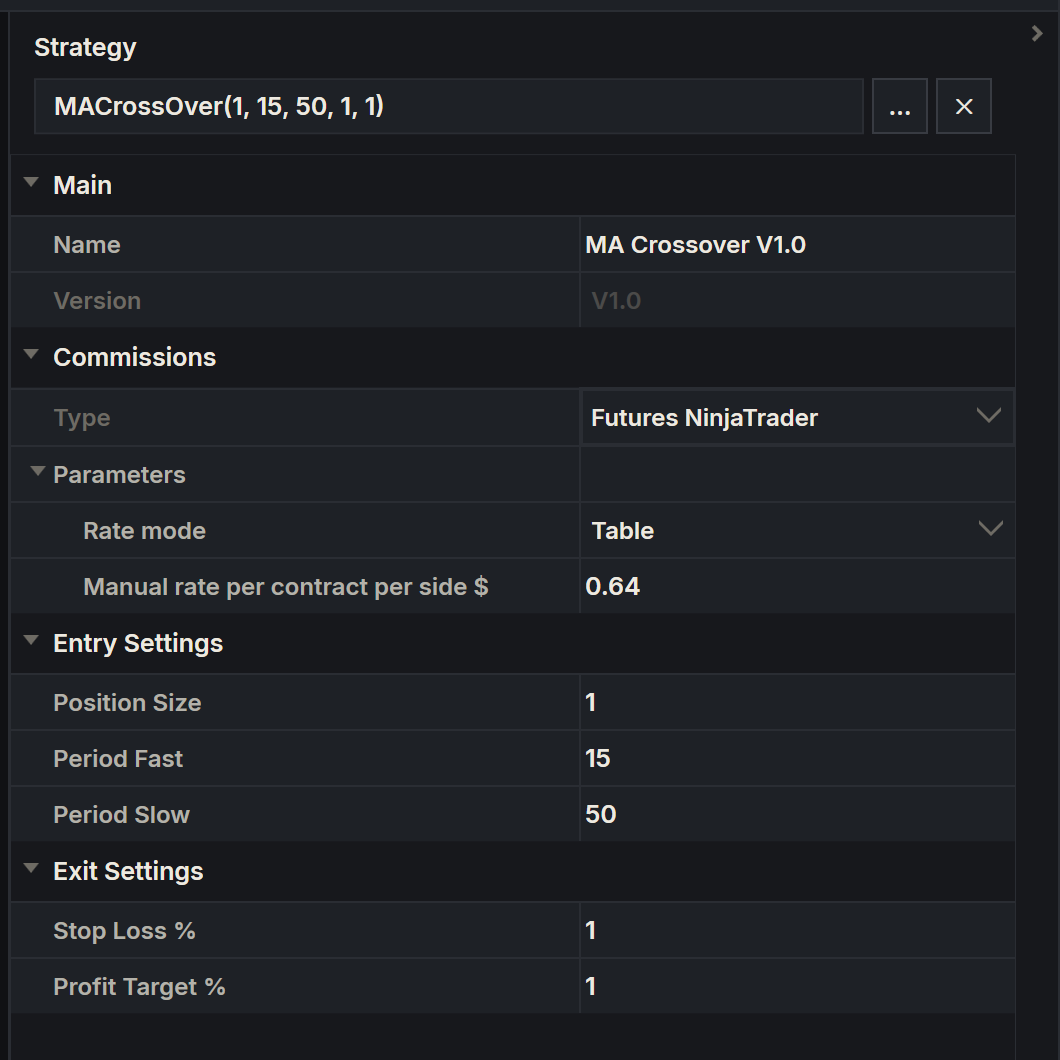
- In the Strategy panel, under Commissions, choose a script in Type.
- Expand Parameters and set its values.
- Run again to see the results with the new commission.
While the switch is on, the list's commission applies to every instrument in it. While it is off, each instrument's strategy has a commission of its own. See Setting up a backtest.
AlgoDesk charges the commission on each trade when it closes. A trade that closes in parts is charged for each part. In the results, Commission shows the total, and Net Profit $ and every trade's Profit are after commission. See Backtest results.
Backtester presets and workspaces do not keep the commission. A Backtester they bring back starts with No commission, so check Commissions before you run.
Choosing the commission for an optimisation
The Optimizer shows the same Commissions group in the strategy's settings, and every test in the optimisation uses it. Optimizer presets keep the commission with the strategy. See Setting up an optimisation.
Commission is counted once
Each trade's commission comes off its profit once, also where AlgoDesk puts results together: the combined results of a Backtester list, the compare graphs in Analysis, and the walk-forward total of an optimisation.
The built-in commission scripts
| Type | What it charges | Parameters |
|---|---|---|
| No commission | Nothing. | None |
| Crypto Futures | A percentage of the traded value, quantity times price, once on entry and once on exit. | Futures %, 0.05 to start |
| Crypto Spot | The same, for spot trading. | Spot %, 0.1 to start |
| Futures NinjaTrader | A fixed amount per contract, once on entry and once on exit. | Rate mode, Manual rate per contract per side $ |
| Stocks Per Share | An amount per share with a minimum and a maximum per order, plus slippage per share, once on entry and once on exit. | Per share $, Minimum per order $, Maximum % of trade value, Slippage per share $ |
With Crypto Futures at 0.05, buying 1 BTC at 60 000 and selling it at the same price costs 30 on entry and 30 on exit: 60 in all.
Futures NinjaTrader
This script charges what NinjaTrader Brokerage charges a Lifetime licence holder, all-in: NinjaTrader's commission plus the exchange, NFA and clearing fees. The rates come from NinjaTrader's published table as of 14 August 2026, and are per contract, per side.
| Market | Rate per contract per side, USD |
|---|---|
| Equity index | ES, NQ, RTY, YM 2.17. Micros MES, MNQ, M2K, MYM 0.64 |
| Interest rates | ZT 1.44, ZF 1.38, ZN 1.59, ZB 1.66 |
| Energy | CL 2.29, HO 2.23, RB 2.29, NG 2.33. Micros MCL 0.79, MNG 0.89 |
| Metals | GC 2.44, SI 2.38, HG 2.38. Micros MGC 0.99, SIL 1.39, MHG 0.99 |
| Currencies | 6E 2.33, 6J 2.39. Micros M6E, MJY and M6J 0.53 |
| Crypto | BTC 8.29. Micros MBT 1.44, MET 0.39 |
A round trip costs twice the rate: 1.28 for one MES contract, 4.34 for one ES.
Rate mode decides where the rate comes from:
- Table, the starting setting, looks up the contract by the start of its symbol, so
MESZ6,MES 12-26and/MESZ26:XCMEall count as MES. Longer roots are tried first, so MES is never taken for ES. A symbol that is not in the table is charged the manual rate. - Manual charges Manual rate per contract per side $ on every trade, whatever the symbol. It starts at 0.64, the MES rate.
The script is meant for CME futures. A crypto pair such as BTCUSDT starts with BTC, so in Table mode it would be charged the BTC futures rate.
The rates are written into the script. They change only when an AlgoDesk update brings new ones, or when you change them in a copy of the script.
Stocks Per Share
This script charges a stock trade the way most US brokers do: an amount per share on each order, never less than a minimum and never more than a percentage of the order's value. It also adds slippage, a cost per share for getting filled at a worse price than the order's. Entry and exit are each charged for the shares that traded.
| Parameter | Starts at | What it does |
|---|---|---|
| Per share $ | 0.005 | The commission per share, on each order. |
| Minimum per order $ | 1.00 | No order is charged less than this. |
| Maximum % of trade value | 1.0 | No order is charged more than this percentage of its value. 0 means no maximum. |
| Slippage per share $ | 0.01 | Added to every share on each order, on top of the commission and not limited by the maximum. 0 turns it off. |
The starting values are a typical US per-share plan. Check them against your broker's current rates. Regulatory fees on sales are left out.
Some examples with the starting values:
- 40 shares of a $250 stock: 40 × 0.005 is 0.20, so the minimum of 1.00 applies, plus 0.40 of slippage. That is 1.40 on entry and 1.40 on exit: 2.80 in all.
- 500 shares of a $20 stock: 2.50 of commission and 5.00 of slippage on each order: 15.00 in all.
- 10 shares of a $5 stock: the order is worth $50, so the maximum of 1% caps the commission at 0.50 an order.
The Backtester adds no slippage of its own: an order fills at its price, except a stop that a bar opens beyond, which fills at that bar's open. Slippage per share $ is how to see what worse fills would cost.
Writing your own
A commission script is a C# class based on Commission, with one method, GetCommission, that returns the cost of one closed trade. CommissionName is the name you see in Type. This is the whole No commission script:
using AlgoDesk.Core.DataCalc.Commissions;
using AlgoDesk.Core.Market;

namespace AlgoDesk.Custom.Commissions
{
    public class NoCommission: Commission
    {
        private const string CommissionName = "No commission";


        public override double GetCommission(Trade trade)
        {
            return 0;
        }
    }
}
To give your script settings, add public properties marked [Browsable(true)], [Display(Name = ...)] and [DataMember], as Crypto Futures does with Futures %. They appear under Parameters.
Save the file in your scripts folder and compile; the new commission appears in Type. See How scripts work for where to put it and how to edit it.