Setting up the Optimizer
The Optimizer searches a strategy's parameters for the values that did best on one stretch of history, then tests them on the history that followed. This page covers opening the window and setting up the strategy, instrument, parameters, commission and filters.
Open the Optimizer
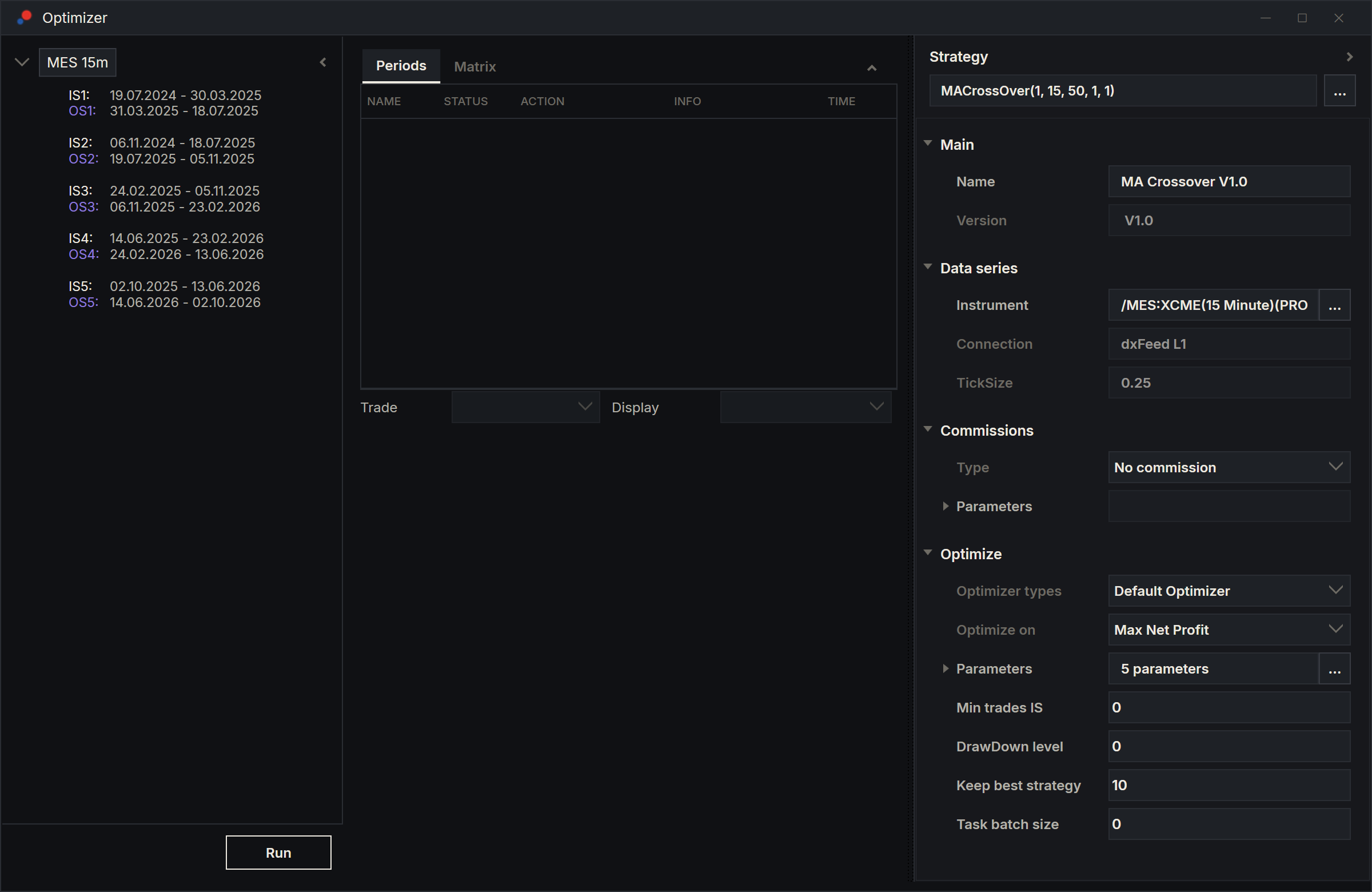
- On the toolbar, choose New, then Optimizer. The Optimizer window opens with three panels: the periods on the left, the results in the middle and the Strategy panel on the right.
- Right-click the left panel and choose Create test. Type a name in Name: and choose OK. The name appears at the top of the left panel.
- Choose Select strategy in the middle of the window, or ... next to the strategy box at the top of the Strategy panel. In the Select strategy window, double-click the strategy.
If you choose Select strategy before Create test, AlgoDesk asks for the test's name first.
A window holds one test. To set up a second strategy or instrument side by side, open another Optimizer window.
Choose the instrument and bar size
In the Data series group of the Strategy panel, choose ... in the Instrument row. The Instrument parameters window opens. It has the same fields as a chart's Data series window, without the Time Frame part: the periods set the dates instead.
Choose the Connection, the Type and the Instrument, then the bar size in Format, and choose OK. The Connection row below shows the connection the instrument belongs to. See Your first chart for how those fields work.
The Strategy panel
| Setting | What it does |
|---|---|
| Type (Commissions) | The commission charged on every trade. It starts at No commission. Every result the Optimizer shows is after commission. See Commissions. |
| Parameters (Commissions) | The settings of the commission you chose. |
| Optimizer types | Default Optimizer tries every combination; Genetic Optimizer tests a guided sample. See Full and genetic search. |
| Optimize on | The fitness function that scores each combination. See Fitness functions. |
| Parameters (Optimize) | Which strategy parameters to optimise, and over which values. The box shows how many parameters the strategy has; ... opens the Optimizer parameters window. |
| Min trades IS, DrawDown level | Filters that drop combinations. 0 turns each off. See Filters and Keep best. |
| Keep best strategy | How many candidates each period keeps, best first. It starts at 10. |
| Task batch size | How many backtests each period runs at the same time. At 0, the default, AlgoDesk uses one per logical processor of your computer, less one. The periods of a run search at the same time, each with this many. |
Choose the parameters to optimise
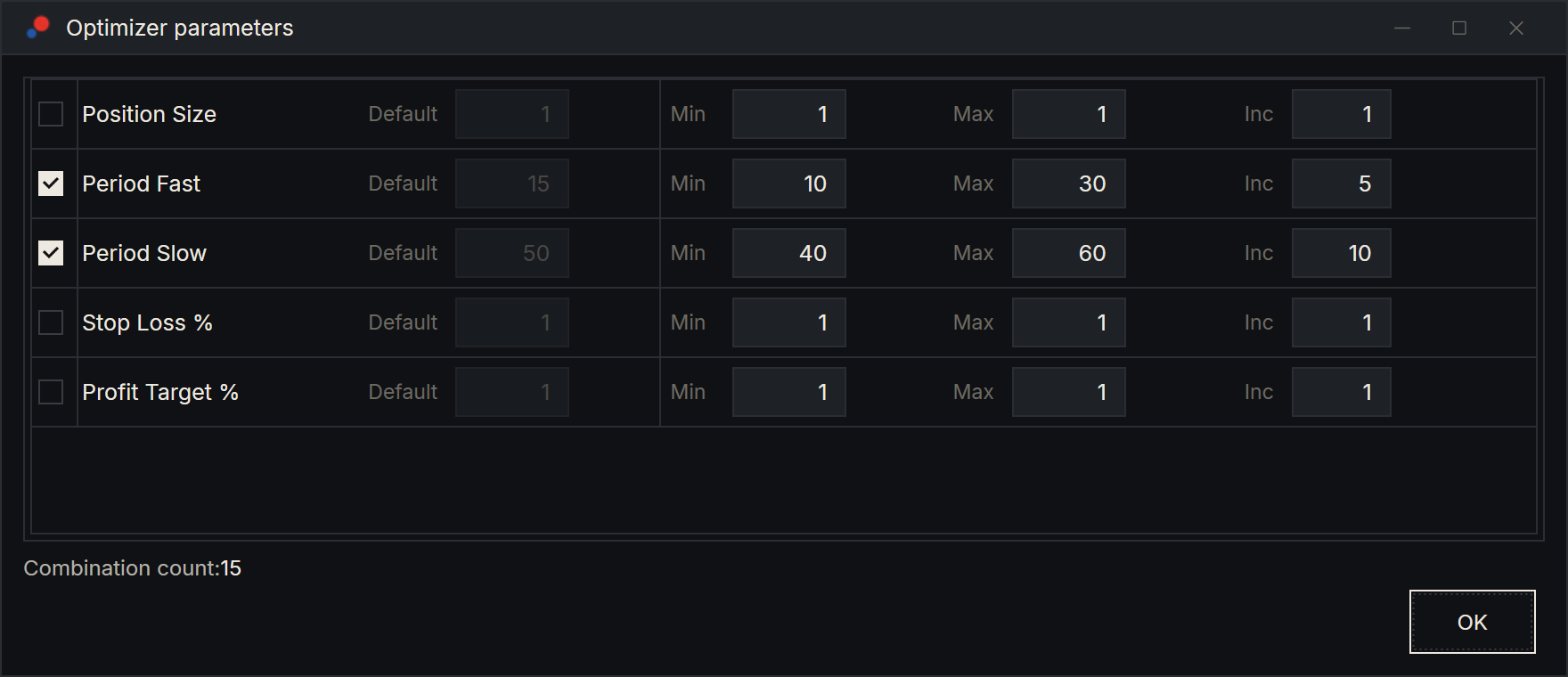
Choose ... in the Parameters row of the Optimize group. The Optimizer parameters window lists one row for each parameter of the strategy that is a whole number, a decimal number, a choice from a list, or an on/off switch. Other parameters always run with the strategy's own value.
Tick a row to optimise that parameter. Default shows the strategy's own value, and an unticked row runs with it.
| Row | How to set it |
|---|---|
| Number | Min, Max and Inc, the step. Min 10, Max 30, Inc 5 tries 10, 15, 20, 25 and 30. |
| Choice | One box per value. Tick each value to try. A new row starts with the default value ticked, and the last ticked value cannot be unticked. |
| On/off | The first box sets the value used. Tick Optimize to try both off and on. |
Combination count: at the bottom is the number of combinations each period tries with the Default Optimizer: the number of values of every ticked row, multiplied together. Two rows with 5 and 3 values make 15 combinations. A walk-forward with 12 periods then runs 180 in-sample backtests in all.
Your changes apply as you make them. OK closes the window.
Hold a parameter at another value
To run every combination with a parameter fixed at a value other than its default, tick its row and give it a single value: set Min and Max to that value and keep Inc above 0. For a choice, tick only that value; for an on/off row, set the value and leave Optimize unticked. The row then counts as one value.
Filters and Keep best
The filters drop a combination from the period's list before it can become a candidate:
- Min trades IS: too few in-sample trades. A combination that trades twice can look excellent by luck.
- DrawDown level: an amount in your account currency. With 2000, any combination whose largest open drawdown went more than 2,000 down is dropped. Where there is no open drawdown figure, the closed drawdown counts.
Keep best strategy sets how many candidates survive in each period, ranked by the fitness function. The period's Info tab shows how many combinations were checked and how many each filter removed. If the filters remove every combination, the period shows Emptied by the filters and the walk-forward total leaves it out. See Running an optimisation.
Setup presets
A setup preset keeps the whole Strategy panel: the strategy, instrument, connection and bar size, the optimizer and its settings, the fitness function, the filters, Keep best strategy, Task batch size, the parameter rows and the commission.
Right-click the Strategy panel and choose Presets:
- Save stores the setup under a name.
- Load puts a saved setup into the window. Once a strategy is chosen, the list shows only that strategy's presets.
- Export writes a preset to a .json file. Import in the Load window reads one back.
The periods have presets of their own. See Walk-forward periods. A workspace also remembers each Optimizer window's setup and periods, but not its results.
Before you press Run
Run, at the bottom of the left panel, stays greyed out until the window has a test with at least one period, an instrument, Keep best strategy above 0 and at least one ticked parameter. Next, set up the walk-forward periods, then run the optimisation.
Claude can set up an Optimizer window for you to check and run. See Claude and the Optimizer.