Backtest results
After a run, the middle of the Backtester shows what the strategy would have done: summary figures, the chart with its trades, graphs, and lists of trades and orders. The same views show the results of strategies on your charts and of everything you have traded.
Choosing a view
Select an instrument or a list in the left panel, then choose a view in Display above the results.
| View | What it shows |
|---|---|
| Summary | The figures below, for all trades, long trades and short trades. |
| Chart | The instrument's chart with the strategy's indicators and its trades. |
| Analysis | Equity and drawdown graphs. |
| Trades ($) | Every trade. |
| Orders ($) | Every order the strategy placed. |
A list shows the results of all its instruments together, in Summary, Analysis and Trades ($). Select an instrument for its own results and its chart.
The summary
The summary has a column each for All Trades, Long Trades and Short Trades, with the rows in groups. Hold the mouse over a row's name to read how it is worked out. Money figures are in the account currency, and drawdowns are negative numbers.
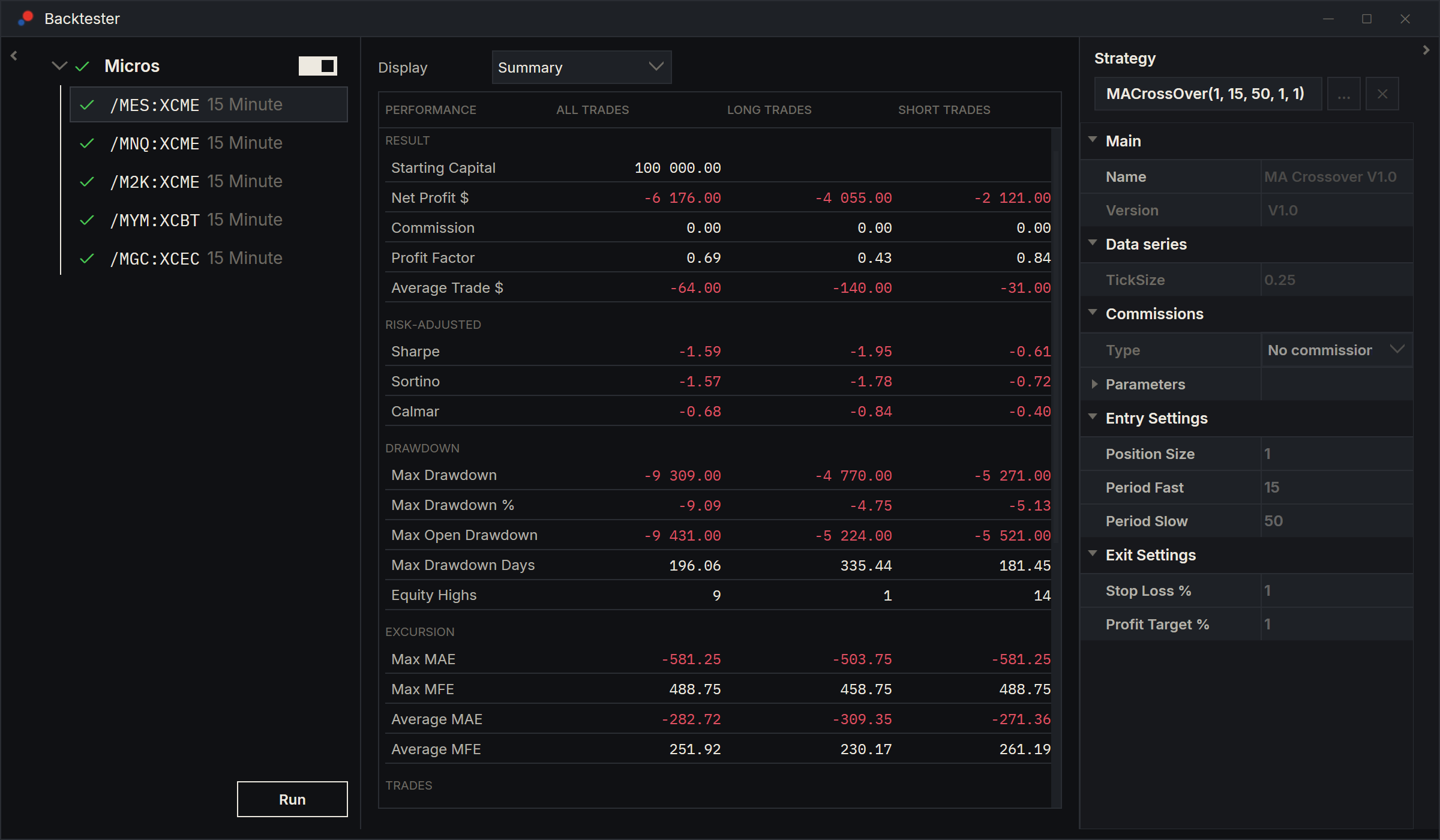
| Row | What it means |
|---|---|
| Starting Capital | The account size the percentage figures assume. Set it as Starting capital in Tools, Options, under General, Preferences; it starts at 100 000. |
| Net Profit $ | The profit of all closed trades, after commission. |
| Commission | The total commission charged on closed trades. |
| Profit Factor | Gross profit divided by gross loss. Above 1, the strategy made money; ∞ means it had no losing trades. |
| Average Trade $ | Net profit divided by the number of trades. |
| Sharpe | Average monthly net profit divided by how much it varies from month to month, scaled to a year. Months without trades count as zero. |
| Sortino | Like Sharpe, but only the losing months count as variation. |
| Calmar | Net profit per year divided by the Max Open Drawdown, or by the Max Drawdown where that is blank. |
| Max Drawdown | The largest fall of closed-trade equity from a peak to a low. Open positions are not counted. |
| Max Drawdown % | Max Drawdown as a percentage of the equity at the peak it fell from, starting capital included. |
| Max Open Drawdown | The largest fall of equity including open positions, measured on the high and low of every bar. See below. |
| Max Drawdown Days | The longest time, in calendar days, from an equity peak to the trade that made it back. |
| Equity Highs | How many closed trades set a new equity high. |
| Max MAE | The deepest open loss any trade showed while it was open. |
| Max MFE | The largest open profit any trade showed while it was open. |
| Average MAE | The average of each trade's deepest open loss. Compare it with your stop distance. |
| Average MFE | The average of each trade's largest open profit. Compare it with the average winning trade. |
| Total Trades | The number of closed trades. |
| Wins % | The share of closed trades with a profit after commission. |
| Average Trades in Year | Trades per year, counted on calendar days from the first entry to the last exit. |
| Average Trade Duration | The average time from entry to exit, in hours when under a day, otherwise in days. |
| Max Cons Wins | The longest run of winning trades in a row. A trade with no profit ends a run. |
| Max Cons Loss | The longest run of losing trades in a row. |
| Average Winning Trade $ | The average net profit of the winning trades. |
| Largest Winning Trade $ | The largest net profit of a single trade. |
| Average Losing Trade $ | The average net loss of the losing trades. |
| Largest Losing Trade $ | The largest net loss of a single trade. |
| Date First Trade | When the first closed trade was entered. |
| Date Last Trade | When the last closed trade was exited. |
Max Open Drawdown
Max Open Drawdown shows how deep your account went while positions were open, not only after they closed. AlgoDesk adds the closed profit to the open profit or loss of every part of the position, on the high and the low of every bar, the entry and exit bars included. A position that was scaled into and closed in profit still shows how far it went against you. Commission counts when the position closes. A position still open at the end of the test is not included.
This is the drawdown the Min Draw Down fitness function and the Optimizer's DrawDown level use. It is blank where AlgoDesk rebuilt the trades from orders, as in Global Performance. Where it is blank, Calmar and Min Draw Down use Max Drawdown instead.
The chart
Chart shows the instrument with what the strategy shows on a chart it runs on: its indicators, its own plots, and the text, arrows and lines its code draws, whether the strategy is the instrument's own or its list's. Its trades are marked with:
- an arrow at the bar where each trade entered and where it left, pointing up for a buy and down for a sell;
- by each arrow, the order's name and, under it, the quantity and price, such as "1 @ 6712.25";
- a dotted line from entry to exit, in one colour for a winning trade and another for a losing one.
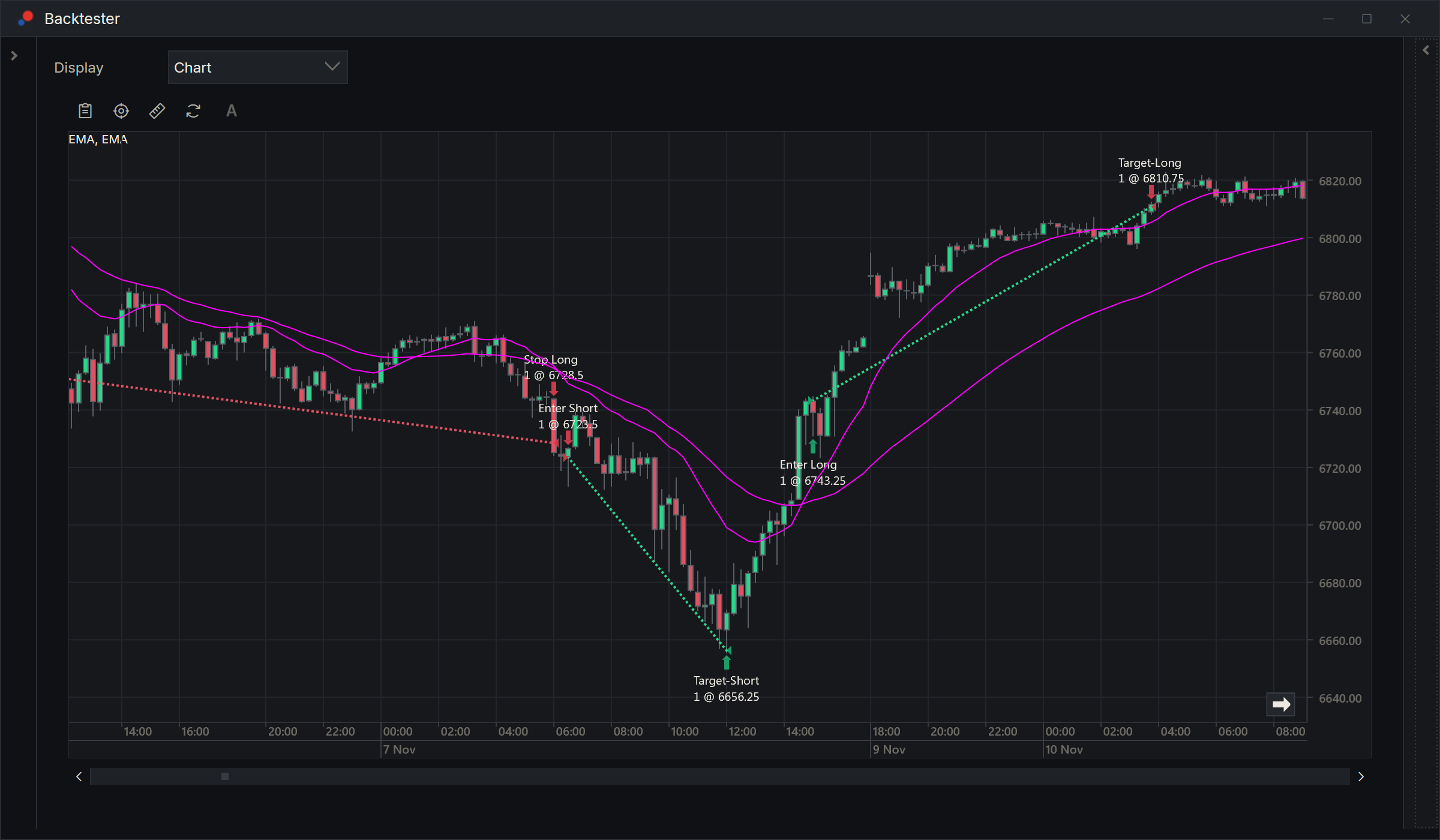
To show the arrows without the text, or nothing at all, change Plot executions in Tools, Options, under General, Display, Trades styles. The colours of the buy and sell arrows are set there too.
Analysis
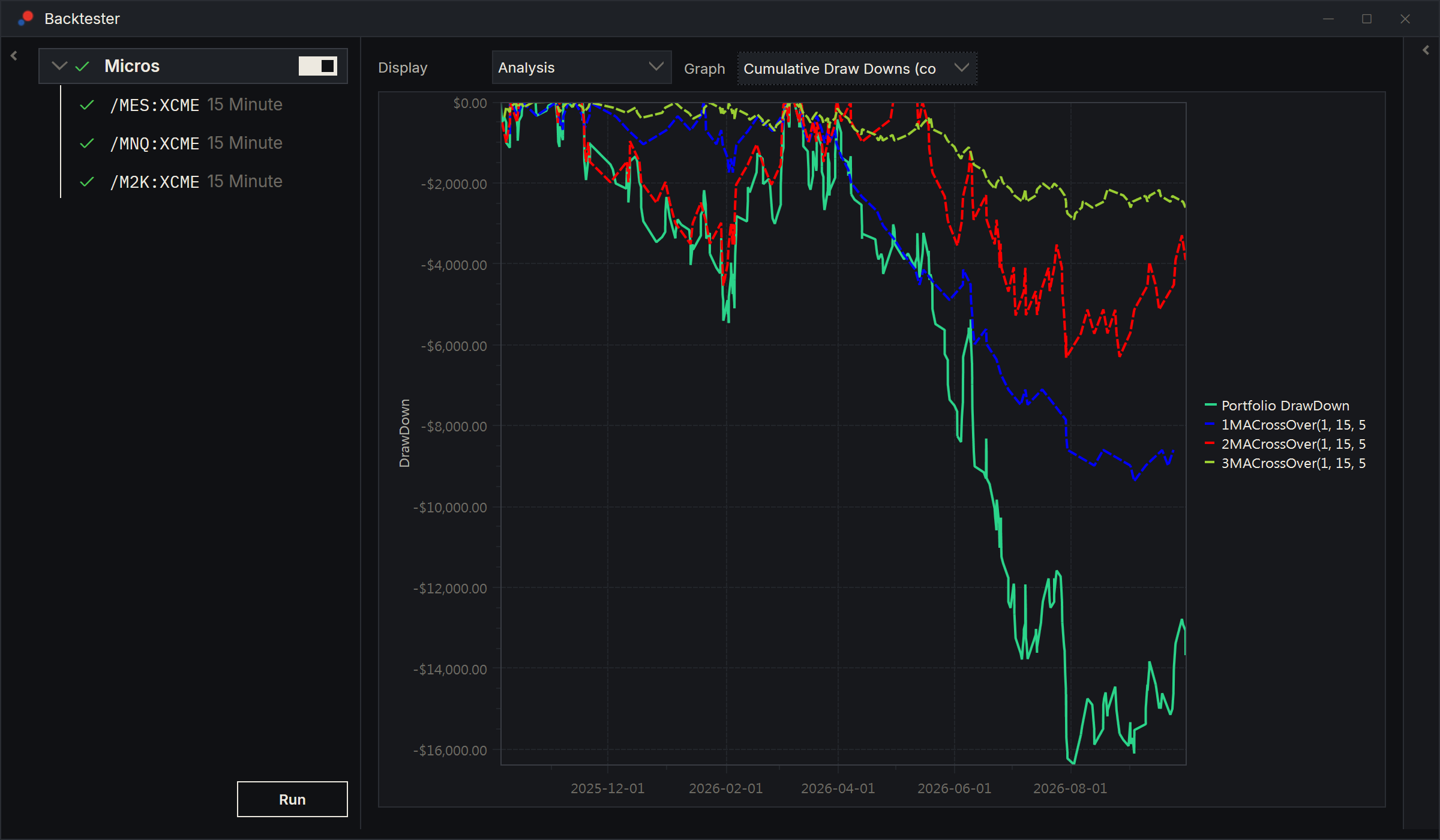
Choose a graph in Graph. Hold the mouse over a point to see its date, value and trade number.
| Graph | Shows | For |
|---|---|---|
| Equity Trades | The running total of profit after each trade. | An instrument |
| Cumulative Draw Downs | How far below its last high the equity was after each trade. | An instrument or a list |
| Portfolio equity | The running total of the whole list. | A list |
| Portfolio equity (compare) | The list's running total, with one line for each instrument. | A list |
| Cumulative Draw Downs (compare) | The list's drawdown, with one line for each instrument. | A list |
In the compare graphs, each instrument's line is labelled with its place in the run, the strategy and the instrument. Each line counts that strategy's commission once.
Trades and orders
Trades ($) lists every trade with its number, quantity, symbol, entry and exit prices and dates, the names of the entry and exit orders, Profit after commission, Commission and Cum. profit. Click a column header to sort by it. For an instrument, double-click a trade to see it on the chart.
Orders ($) lists every order with its action, type, quantity, limit and stop prices, state, average fill price, name, ID and times.
Results of a strategy on a chart
To see how a strategy on a chart has done, choose the performance button on the chart's toolbar, a gauge, or right-click the strategy on the Strategies tab of the Control Center and choose Performance.
The window has the same views, without Chart. In Trade, choose Total for all its trades, Historical for those from its run through history, or RealTime for those since it started trading in real time. See Running a strategy live.
Orders and trades from the run through history show bar times, in the Time zone set in Options. Real-time ones show when they really happened, on your computer's clock: a real-time trade's Entry Date and Exit Date are the times its orders filled.
Global Performance
Tools, Global Performance shows the results of everything AlgoDesk has recorded on your accounts: the orders you placed yourself and the orders from your strategies. It rebuilds trades from the filled orders. All its times, in the lists and on the graphs, are on your computer's clock, in its Windows time zone.
Narrow it down with the tick boxes under Accounts, Instrument Types, Origins and Instruments, then choose Calculate. It opens on Orders ($). Its figures do not include commission.
An order on a connection or instrument you have since removed is left out, and the log names it.
Clear in Global Performance deletes every order AlgoDesk has recorded, on every account, whatever the tick boxes show. It asks first: "Clear every recorded order, on every account, whatever the filters show? This cannot be undone." Choose Yes only if you mean it.