Options
Tools > Options holds AlgoDesk's own settings: your time zone, how charts look and scroll, what happens to a live strategy after an error or a reconnect, hot keys, email and stored price history.
The Options window
Choose Tools > Options. The pages are listed on the left under General: Project, Preferences, Display, Hot Keys, Email and Historical Data.
- OK saves your changes. Open charts take the new look and scrolling at once.
- Cancel throws your changes away, except price history you deleted (see Historical Data).
- After you change the language, AlgoDesk asks you to restart it.
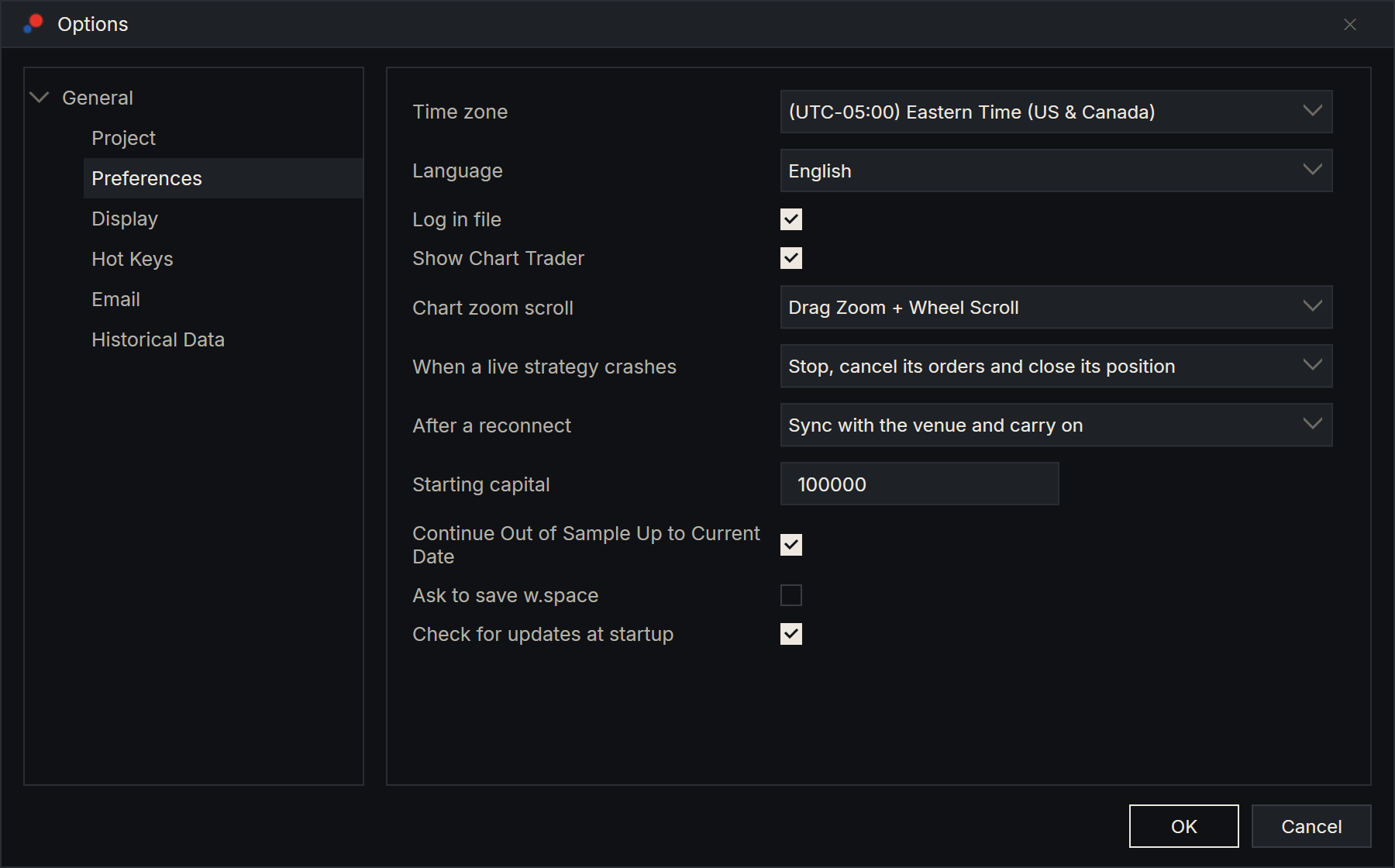
Preferences
The settings a trader is most likely to change.
| Setting | What it does |
|---|---|
| Time zone | The time zone of charts and backtests: bar times, and the times of a backtest's orders and trades. Dates you enter, such as the periods of an optimisation, are read in this zone too. The times of your live orders and trades are on your computer's clock instead, in its Windows time zone; see Orders. It starts as your Windows time zone. |
| Language | The language of menus and windows. AlgoDesk is written in English; in the other languages some text stays in English. |
| Log in file | Also writes the messages of the Control Center's Log tab to a text file in Documents\AlgoDesk\Log, a new file each time AlgoDesk starts. Ticked at first. |
| Show Chart Trader | New charts open with the Chart Trader panel showing. Untick it if you mostly watch charts. See Chart Trader. |
| Chart zoom scroll | How the mouse moves a chart. Drag Zoom + Wheel Scroll, the first choice: the mouse wheel scrolls through time and dragging the time axis zooms. Drag Scroll + Wheel Zoom: the wheel zooms and dragging the time axis scrolls. Dragging the chart itself scrolls either way. |
| When a live strategy crashes | What happens when a live strategy's own code hits an error. See Live strategy errors. |
| After a reconnect | What happens to live strategies when a lost connection comes back. See After a reconnect. |
| Starting capital | The account size used for the percentage figures in performance results, such as drawdown in percent. It changes no figure in money. 100000 at first. |
| Continue Out of Sample Up to Current Date | In a walk-forward optimisation, keeps trading each period's chosen settings after its out-of-sample window, up to today. A run reads this when it starts. See Continuing to today. |
| Ask to save w.space | Asks whether to save a changed workspace when you exit or sign out. See Workspaces. |
| Check for updates at startup | Looks for a new version after each sign-in. See Updates. |
Live strategy errors
When a live strategy crashes decides what AlgoDesk does when a live strategy's code fails. AlgoDesk reads the setting at the moment of the error, so a change applies to the next error.
| Choice | What happens |
|---|---|
| Keep running | The strategy keeps trading. A notice shows the error. |
| Stop the strategy | The strategy stops. Its orders and position stay at your broker or exchange. |
| Stop and cancel its orders | The strategy stops and cancels its working orders. Its position stays open. |
| Stop, cancel its orders and close its position | The strategy stops, cancels its orders and closes its position. This is the first choice. |
Every error is written to the log in full.
After a reconnect
After a reconnect decides what happens to live strategies when a lost connection comes back.
- Sync with the venue and carry on, the first choice: AlgoDesk fills in what it missed, checks each strategy's position against your account and lets the strategies carry on when they match. A strategy that does not match is stopped in AlgoDesk, with its orders left working, and a notice says why.
- Stop the strategy: every strategy on that account is stopped and its orders cancelled. Its position is left as it is.
See Connection status and reconnecting.
Display
- Chart styles: the colours of up and down bars, candle outlines and wicks, the background, the axes and their text, the grid lines and price labels, and the line between the price pane and indicator panes, with its width. Reset to Default puts all of these back.
- Trades styles: the colours of buy and sell executions and of their text.
- Plot executions: how your fills appear on a chart: Text and markers, Markers only or Do not plot.
- Plot executions autoscale: stretches the price scale so execution markers and their text fit on the chart.
Hot Keys
Keyboard shortcuts for the chart drawing tools. Under Categories, Chart holds Drawing Tools: Line, Horizontal Line, Vertical Line, Ray, Arrow, Text, Rectangle, Ruler and Risk Reward.
- To change a key, click its box. It says "Press a key combination..."; press the keys you want.
- The small delete button next to a box removes that shortcut. The box then says "None".
- Reset to Default puts every shortcut back.
The keys are listed in Hotkeys, and the tools in Drawing tools.
A strategy or indicator can send email while it runs live; the script decides when and to whom. In a backtest or an optimisation it sends nothing. AlgoDesk sends it through your own mail provider, set up here.
| Setting | What to enter |
|---|---|
| Host | Your provider's outgoing (SMTP) mail server. |
| Port | Use your provider's port 587. AlgoDesk always uses an encrypted connection (STARTTLS); port 465 does not work. |
| Username | Your login at the provider. Mail is sent from this address. |
| Password | The password for that login. AlgoDesk stores it encrypted for your Windows user, as it stores connection passwords. |
To check the settings, type an address under Test email and choose Send. AlgoDesk says "Test successful!", or that the test failed and why.
Historical Data
The price history stored on this computer. The tree on the left groups it by provider, network, instrument type, symbol and bar size; the list on the right shows the date ranges stored, in UTC.
- Right-click an item and choose Add to download more history for it. Add and Remove act on the item you right-clicked.
- Right-click an item and choose Remove to delete its stored history. AlgoDesk asks first, naming the item.
- Remove all deletes all stored history, including any bars you imported into Static data connections. AlgoDesk asks first: "Delete all stored historical data?" When imported bars are stored, the question says so and adds "Imported bars cannot be downloaded again." See Historical data.
Once you choose Yes, the files are deleted at once and Cancel in Options does not bring them back. Charts download the history again when they need it, except for imported Static data bars, which you import again.
More in Historical data.
Project
Where your scripts live and how they compile. Leave the two folders as they are unless you keep your scripts somewhere else.
| Setting | What it does |
|---|---|
| Path to Custom Project | The folder of your strategies, indicators and other scripts. It starts as Documents\AlgoDesk\bin\Custom. Updates put the built-in scripts here. |
| Path to Custom Project dll | Where the compiled scripts go, a folder inside the one above. |
| Compile in debug | Compiles your scripts with debugging information and without optimisation, for stepping through a script in a debugger. Leave it unticked otherwise. |
| Reload script on recompile | After each compile, rebuilds the indicators and strategies on your open charts from the new code, keeping their parameter values. Unticked, open charts keep the version they started with. Ticked at first. |
See Compiling.
Settings kept elsewhere
- Connections and their logins: Connections > Configure.... See Setting up a connection.
- A chart's order settings, such as time in force and leverage: on the chart. See Chart Trader.
- Window layouts: the Workspaces menu. See Workspaces.