Running a strategy live
A strategy runs on a chart. When you enable it, it first works through the chart's history, then trades on the account you chose until you stop it. This page covers putting a strategy on a chart, switching it on and off, and what happens when something goes wrong.
Before you start
- Your strategies are compiled: the scripts icon on the toolbar is green. See Compiling.
- A chart of the instrument is open, with the bar size the strategy expects. See Opening a chart.
- The chart's connection, and the connection of the account the strategy will trade, are connected.
Paper and real accounts
Every connection except Static data has a Local paper account: practice inside AlgoDesk, against live prices, where nothing reaches your broker. A connection whose Connection type is Paper adds a Server paper account, your paper or test account at the broker. One whose Connection type is Real adds a Broker account, your real account. See Accounts and Setting up a connection.
Run a new strategy on Local paper first.
On a Broker account the strategy sends real orders on its own, without asking you. Check its Account every time before you enable it.
Put a strategy on a chart
- Right-click the chart and choose Strategies..., or choose the Strategies button on the chart's toolbar. The Strategies window opens.
- Under Available Strategies, double-click the strategy. It is added under Configured Strategies. A chart runs one strategy at a time; adding a second says "Currently it is only possible to run 1 strategy per chart".
- On the right, set the strategy's parameters. Under Main, Account chooses where its orders go. A new strategy starts on the Local paper account of the chart's connection; AlgoDesk never picks a Broker account for you. A connection that carries several accounts at its venue lists each of them by name; pick the one the strategy should trade. An account that is not connected reads "(not connected)".
- Tick Enabled to start it now, or leave it off and enable it later.
- Choose OK to apply and close the window, or Apply to apply and keep it open.
The account you choose stays when the chart reloads, for example for a new bar size.
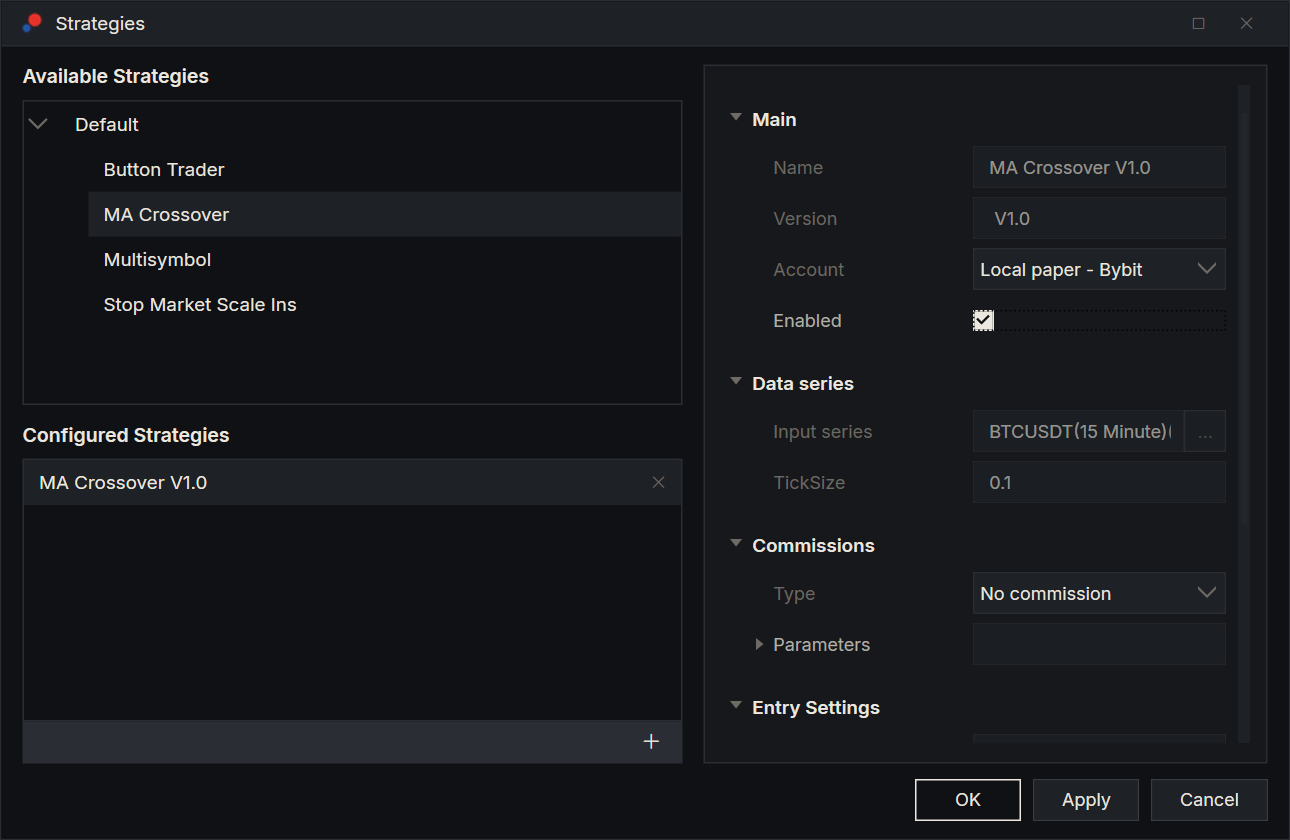
To take a strategy off in this window, select it under Configured Strategies and choose the ✕ on its row.
While the strategy is running, Apply changes nothing and a notice says "Stop the strategy first". To stop it from this window, untick Enabled and choose Apply.
The Strategies tab
Every strategy on a chart has a row on the Strategies tab of the Control Center.
| Column | What it shows |
|---|---|
| Strategy | The strategy's name. |
| Origin | Where it runs: Chart. |
| Instrument, Data series | The chart's instrument and bar size. |
| Position | The strategy's own position: "1L" is long 1, "2S" is short 2. |
| Unrealized, Realized | The strategy's open and closed profit or loss, green or red. |
| Account, Connection | The account it trades and that account's connection. |
| Enabled | The switch that starts and stops it. |
Right-click a row for Show chart (double-clicking does the same), Remove (the Delete key too) and Performance.
Enable and disable
Turn the Enabled switch on the Strategies tab, or tick Enabled in the Strategies window and choose Apply.
If the strategy's account is not connected, it does not start. A notice says the strategy was not started because its account is not connected: connect it, or choose another account.
While a strategy is enabled, you cannot change its chart's instrument: a notice says, for example, "Stop the strategy first: it is live on BTCUSDT". While it holds a position or working orders you cannot change its account either: a notice titled "Account not changed" says why.
What happens when you enable it
- The history run. The strategy works through the history loaded on the chart, as in a backtest. Its fills are simulated and nothing is sent anywhere. Bars that close during this run count as history too.
- The switch. If the history run ends flat, with no working orders, the strategy goes live at once.
- Finishing on paper. If the history run ends with a position or working orders, the strategy finishes them on a private paper book first, and its row turns amber. Hold the mouse over the row: it says which account it goes live on and what it is waiting for. Nothing from the history run is ever sent to your account. The strategy goes live when it is flat with nothing working; until then it stays amber.
- Live. From the next bar that closes, the strategy's orders go to its account.
Stop a strategy
Untick Enabled, or right-click the row and choose Remove. If the strategy has a position or working orders at its account, AlgoDesk asks first, in the Stop live strategies window. It lists each strategy with its account, its position and how many working orders it has.
| Button | What happens |
|---|---|
| Close position | The strategy cancels its working orders, then closes its own position with a market order. |
| Cancel orders, keep position | It cancels its working orders. The position stays open at your account, and nothing manages it any more. |
| Keep everything working | It stops. Its orders stay working and its position stays open at your account. |
| Don't stop | Nothing changes, and what you were doing is called off. This is the default, and what Esc does. |
Close position closes only the strategy's own position, not everything on the account. A strategy that is flat with nothing working, or still finishing on paper, stops without the question. If an order could not be cancelled or the position could not be closed, a notice says what was left at the account.
After Keep everything working, the strategy remembers what it left. Hold the mouse over its row to see it: the tooltip starts "Stopped without touching the venue; the next start adopts:" and lists the position and working orders. When you enable it again on the same chart and account, it takes that position and those orders back and manages them again. A Compile or a restart of AlgoDesk clears the memory: the strategy then starts flat, and what it left at your account is yours to close or cancel.
The same question comes before everything else that stops a strategy: changing the chart's bar size or choosing OK in Data series... (both reload the chart), Compile and the three actions that also compile your scripts (Tools > Export, Tools > Import, and Remove on a script in the Indicators or Strategies window), turning a connection off or removing it while it is on, switching or closing the workspace, signing out and exiting. Its first line says which of these you are doing. Don't stop calls off the whole action: nothing is exported, imported, removed or disconnected.
- Changing the bar size starts the strategy again after the reload. If you chose Keep everything working, it takes back its position and orders.
- After a Compile, or an export, import or script removal, the strategy starts flat, so a position you keep is no longer managed by it. The question says so.
Coloured rows
| Row | Meaning |
|---|---|
| Amber | Finishing on paper, see above. |
| Red, after an error | The strategy's code failed. The tooltip is the error. |
| Red, out of sync | After a reconnect the account and the strategy did not agree about the position, so the strategy was stopped without sending anything. The tooltip starts "Out of sync with the venue - stopped locally, nothing sent:" and gives the reason. See If the connection drops. |
Turning Enabled on again clears a red row and starts the strategy afresh.
When the code fails
What happens to a strategy whose code fails while live is set by When a live strategy crashes in Tools > Options, General, Preferences:
| Choice | What happens |
|---|---|
| Keep running | The failed step is skipped and the strategy carries on. |
| Stop the strategy | It stops; orders and position stay at the account. |
| Stop and cancel its orders | It stops and cancels its working orders. |
| Stop, cancel its orders and close its position | It stops, cancels and closes its position. This is the default. |
A notice names the strategy and the error.
If the connection drops
When a connection drops and comes back by itself, a live strategy waits, and the connection icon on the toolbar turns yellow until the line is back. Hold the mouse over the strategy's row to see why it waits: the tooltip starts "Catching up:". When the line is back, AlgoDesk:
- asks your broker what happened to the strategy's orders while the line was down, and books any fills as the strategy's own;
- runs the strategy over the bars it missed, refusing any order it tries to send then;
- checks that the position at the account matches what the strategies on that instrument hold.
If it matches, the strategy trades again from the next bar. If not, the strategies on that instrument are stopped without sending anything, their orders stay working, their rows turn red, and a notice titled "Out of sync with the venue on" and the symbol gives the reason.
After a reconnect, in the same place in Options, can instead stop the strategy on every reconnect: Stop the strategy cancels its orders and keeps its position. The default is Sync with the venue and carry on.
If a connection goes down for good, its live strategies stop without sending anything, and a notice names what each one left at your account. If you turn a connection off yourself, or remove it while it is on, you get the stop question first. Either way, connecting again does not start the strategies: enable them yourself. See Connection status and reconnecting.
The performance window
Right-click an enabled strategy and choose Performance, or choose the performance button on its chart's toolbar. The window, titled with the strategy's name, shows its results. Trade chooses Total, Historical (the history run) or RealTime (live trades); Display chooses Summary, Analysis, Trades ($) or Orders ($). See Backtest results for what the figures mean.
Its live orders and trades show their times on your computer's clock, in its Windows time zone, like the Orders tab; those from the history run show bar times, in the AlgoDesk Time zone. See Results of a strategy on a chart.
Closing the chart, exiting and signing out
- Closing the chart window of a strategy only hides the chart. The strategy keeps running. Show chart on the Strategies tab brings the chart back.
- Exit and sign out ask the stop question for strategies with something at their account. Your answer is carried out before AlgoDesk closes; Keep everything working leaves the orders and position at your account.
- Windows shutting down stops nothing and asks nothing. Orders and positions stay at your account, the workspace is not saved, and the log lists what was left.
When AlgoDesk starts again, a saved workspace brings the chart and its strategy back with their parameters, switched off. Set the Account before you enable it. The strategy starts flat: it does not know about any position or orders it left at your account.
Claude and live strategies
On a chart whose connection trades your real account, or whose strategy trades a connected Broker account on another connection, Claude cannot enable or disable the strategy, or change its parameters while it is enabled. You do that yourself in AlgoDesk.
When Claude changes the parameters of a strategy that is switched off, the strategy stays off. See What Claude will not do.