Book Trader
The Book Trader shows the live order book of one instrument as a price ladder, with your working orders beside it. You place, move, resize and cancel orders by clicking on the ladder.
Open a Book Trader
There are two ways to open one. Each opens a new window, so you can have several at once.
- On the toolbar, choose New, then Book Trader. The window opens empty, titled Book Trader. Choose the Connection, the Type and the Instrument at the top. They work as in New > Chart: pick an instrument list and a symbol, or choose … (Browse all instruments) to open the Instruments window.
- On a chart, choose the Open Book Trader for this instrument button on the chart's toolbar. The Book Trader opens on the chart's instrument and connection.
Once an instrument is chosen, the window title shows the symbol, its type and the connection.
Market depth
The ladder needs Level 2 market depth: the size waiting at each price. All five connections supply it: dxFeed and Bybit up to 50 prices on each side of the book, Interactive Brokers, Tradovate and TopstepX up to 20. Your data plan must include depth for the market you open.
While the book loads, and when it cannot, the ladder shows one of these messages:
| Message | What it means |
|---|---|
| "Loading the order book…" | AlgoDesk is waiting for the first book. |
| "No market depth received from dxFeed for this instrument. Your plan may not include Level 2 for this market." | No book arrived within 10 seconds. The connection's name replaces dxFeed. |
| "dxFeed is not connected. The order book loads when it connects." | The connection is down. The book comes back by itself when it reconnects. |
The ladder
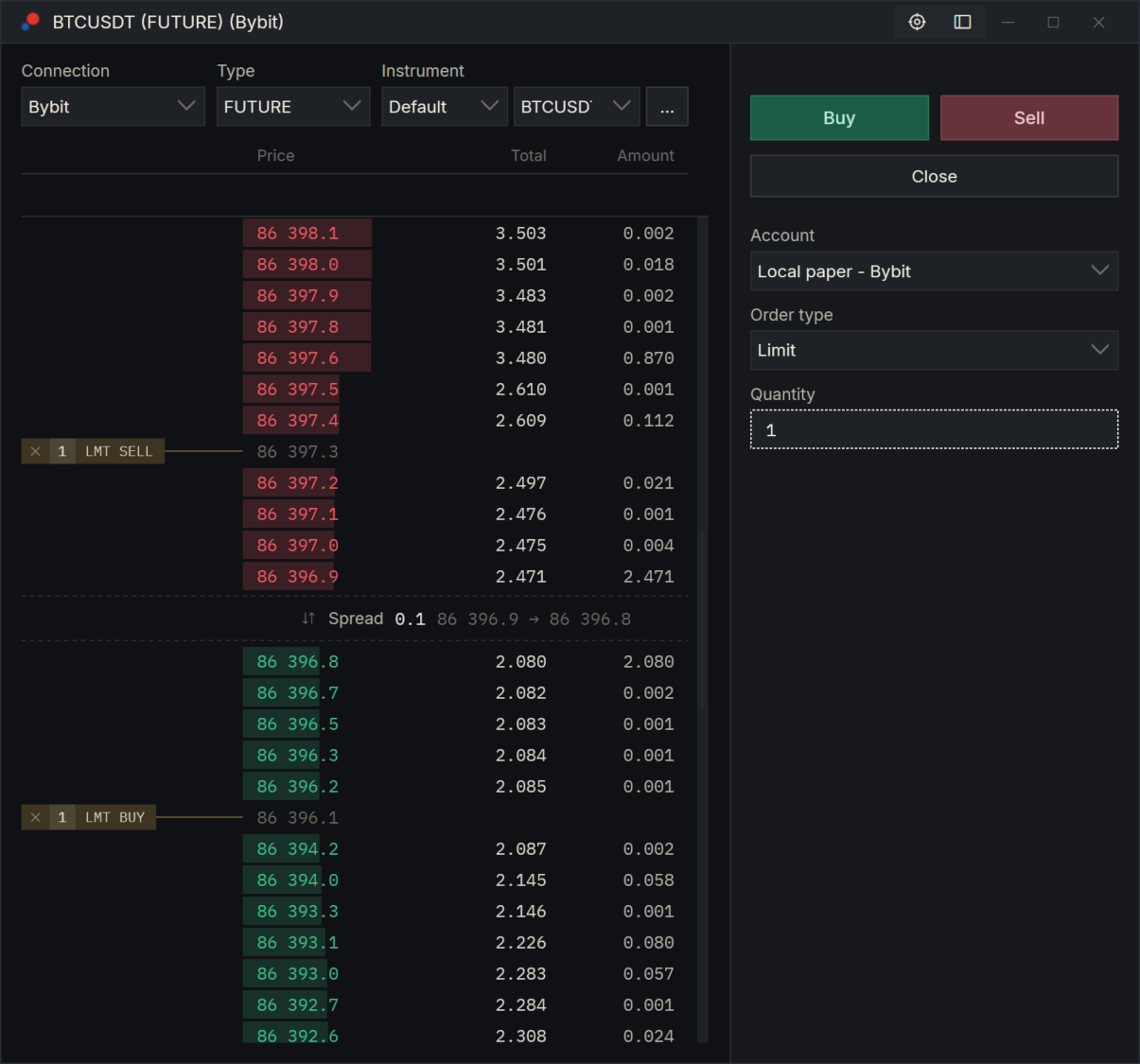
From left to right, each row has:
| Column | What it shows |
|---|---|
| Orders column (no heading) | Your working orders at that price, and where you click to place one. |
| Price | The price. Sell offers (asks) are red, buy bids are green. |
| Total | The size added up from the spread outward to this price. |
| Amount | The size waiting at this price alone. |
The asks sit at the top under Asks, highest price first. The bids sit at the bottom above Bids, highest price first. A shaded bar behind each row shows its Total against the largest total in the book.
Between them is the spread row. It reads Spread, then the gap between the best ask and the best bid, then the best ask → best bid. With one side of the book empty it reads "Spread —".
If one of your orders sits at a price that is not in the book, it gets a row of its own, showing only the price in grey. Stop orders sit at their trigger price.
Auto-centre
The crosshair button in the title bar, Auto-centre, keeps the spread row in the middle of the ladder. It is on when a window opens. Scrolling the ladder with the mouse wheel or the scrollbar turns it off. Click it again to centre the spread at once.
The trade panel
The panel on the right holds the buttons and settings. The sidebar button in the title bar (Hide trade panel / Show trade panel) hides it and narrows the window. Drag the panel's left edge to make it wider or narrower.
| Item | What it does |
|---|---|
| Buy | Sends a market order to buy Quantity. |
| Sell | Sends a market order to sell Quantity. |
| Close | Closes your position in this instrument at market. Working orders stay. Not shown for spot instruments. |
| Account | The account every order from this window goes to. |
| Order type | Limit, Stop Market or Stop Limit. It applies to clicks on the ladder only; Buy and Sell always send market orders. |
| Quantity | The size of every order from this window, in units of the instrument. It starts at the instrument's minimum size, or 1. |
None of these asks you to confirm. If you press Buy or Sell while the connection is down, or with no account chosen, AlgoDesk says "You are not connected to data provider".
The Account list holds the connected accounts of the window's connection. If that connection does not trade a real account itself, the list also holds any Broker account on another connection that the instrument is mapped to (see Instrument map). It starts on Local paper each time the window opens. A connection that carries several accounts at its venue lists each of them by name. What each account is: Accounts.
With a Broker account on another connection, Close closes the position in the instrument this one is mapped to there, and no other. If the map has been removed, nothing is sent and a notice says the instrument is not mapped.
Place an order on the ladder
- Set Order type and Quantity in the trade panel.
- Move the mouse over the orders column, on the row of the price you want. A dashed preview tag shows the exact order, for example "+ BUY LMT 97 172.0", and the cursor becomes a crosshair.
- Click. The order is sent at once, at the price the preview shows at that moment.
Rows keep their place on screen while their prices change with the market, so the preview can change under a still mouse. Check it before you click.
Which side the order takes depends on the row and the order type, so that the order always waits in the book:
| Order type | Click on an ask row | Click on a bid row |
|---|---|---|
| Limit | Sell limit | Buy limit |
| Stop Market | Buy stop | Sell stop |
| Stop Limit | Buy stop limit | Sell stop limit |
A stop limit placed from the ladder has its trigger and its limit at the same price.
You can place an order only on a row that is in the book and has no order on it yet, and only while the connection is up, an account is chosen and Quantity is above 0. The spread row, the Asks and Bids rows and the grey order-only rows never place. A double-click places one order, not two.
There is no confirmation. On a Broker account, one click on the ladder sends a real order.
Your working orders
Every working order of the chosen account in this instrument shows as a tag in the orders column, including orders your strategies placed. Market orders do not show. A thin line joins the tag to its price.
A tag has three parts: ✕, the quantity, and a label such as "LMT BUY", "STPM SELL" or "STPL BUY". Limit orders are amber-brown, stop orders violet.
Cancel an order
Click the ✕ on its tag (Cancel order). The tag goes when the account confirms the cancel.
Change the quantity
- Click the number on the tag. An edit box opens with the quantity selected.
- Type the new quantity and press Enter.
Esc, or a click elsewhere, closes the box and sends nothing. A value that is not a number above 0 turns red and is not sent.
Move an order
- Press on the tag's label and drag up or down. A dashed copy follows the mouse and shows the new price; the original tag dims.
- Release on the row of the new price.
Nothing is sent if you release at the same price, off the ladder, on the spread row or on the Asks or Bids row, or if you press Esc. You can drag across the spread: a buy limit dropped above the market fills at once. Moving a stop limit puts both its trigger and its limit at the new price.
If your broker refuses a change, the tag jumps back and a notice in the bottom-right corner of the screen says why.
Several orders at one price
The row shows the oldest order's tag and a chip such as +2. Click the chip to open a list of the other orders at that price. Each has the full tag: cancel, change its quantity or drag it as above. The list closes when you click elsewhere, press Esc, or the last of its orders goes.
While an edit box, a list or a drag is open, the preview and click-to-place are off and auto-centre waits.
What the workspace keeps
A saved workspace keeps each Book Trader's place on the screen, its instrument, whether the trade panel is open and how wide, auto-centre, the order type and a quantity you typed. It does not keep the account: a reopened Book Trader starts on Local paper.
Related
- Chart Trader places orders from a chart.
- Orders, positions and accounts lists every order, wherever it was placed.