Moving to another computer
Your account runs AlgoDesk on one computer at a time. To move, export your work, clear the machine ID in your account at algo-desk.com, and sign in on the new computer.
One account, one computer
The first time AlgoDesk signs in to your account, the account records that computer's Machine ID. From then on, the account signs in only on that computer.
AlgoDesk works the Machine ID out from the hardware: the processor, the motherboard and the BIOS. It stays the same when you reinstall AlgoDesk or Windows. New hardware, such as a new motherboard, can give a new Machine ID.
You can see the Machine ID in two places:
- In AlgoDesk, under Help > About. The window says "Compare it with the Machine ID in your account on algo-desk.com."
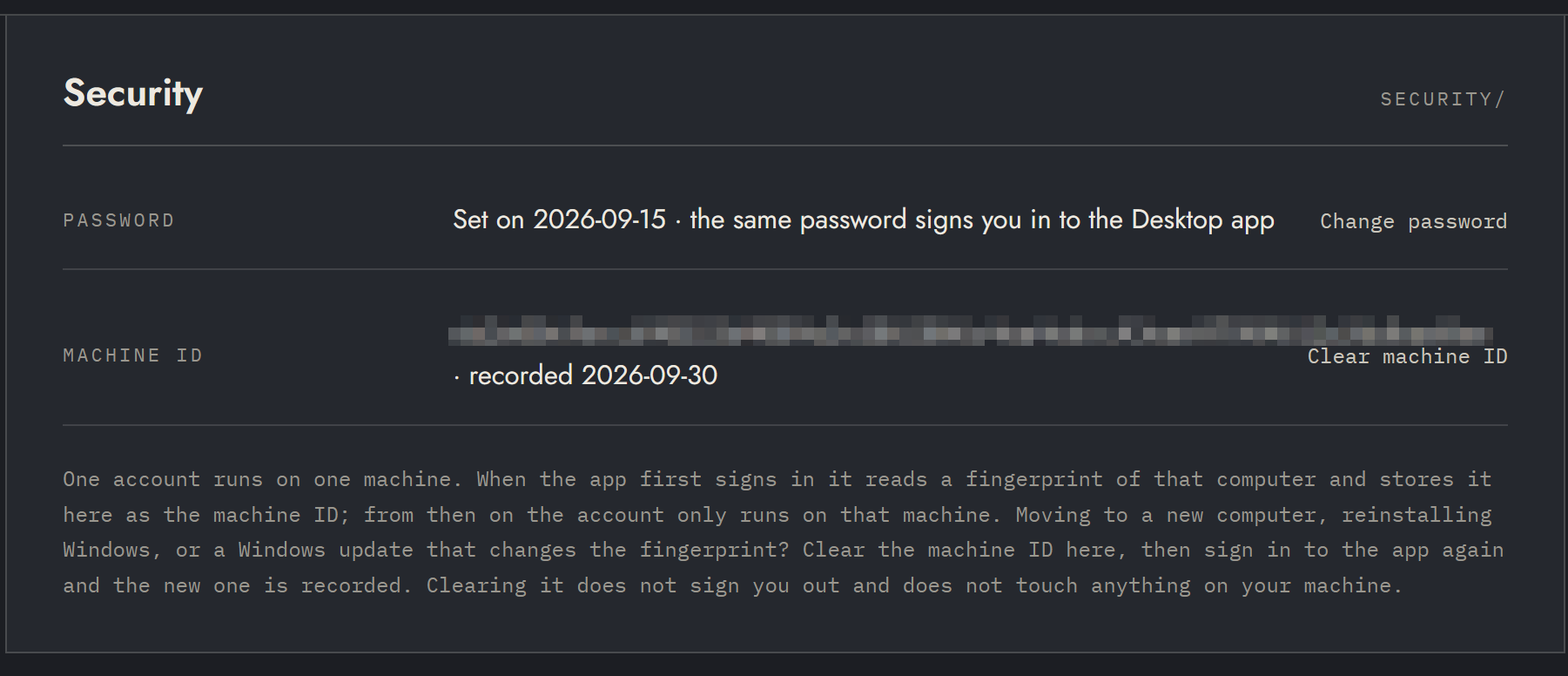
- In your account at algo-desk.com, under Security, in the Machine ID row, with the date it was recorded. Before your first sign-in the row says "Not set yet".
Sign-in messages about the computer
| Message | What it means |
|---|---|
| This account is registered to another machine. Clear the machine ID in your account at algo-desk.com and sign in again. | Your account is tied to a different computer, or this computer's Machine ID has changed. Follow Move your account. |
| The free month has already been used on this computer. Choose a plan in your account at algo-desk.com, then sign in again. | Each computer gets one free month, and another account has used it here. Choose a plan; see Your account and licence. |
If you move your own account during its free month, the free month carries on on the new computer.
Move your account
- On the old computer, export the work you want to keep (see the next section) and copy the files somewhere the new computer can reach.
- Still on the old computer, sign out if you ticked Remember me, then exit AlgoDesk. Signing out forgets the saved password, so the old computer cannot sign in by itself later.
- Install AlgoDesk on the new computer: in your account, open Downloads and choose Download installer. See Install AlgoDesk.
- In your account, open Security and choose Clear machine ID. The row now says "Not set yet".
- Start AlgoDesk on the new computer and sign in. Your account records the new Machine ID.
- Set up your connections and instruments, then import your work. See Set up again on the new computer.
Clearing the machine ID does not sign you out anywhere and changes nothing on either computer.
Whichever computer signs in first after you clear the ID takes the account. If the old computer signs in first, for example by itself with Remember me, clear the ID again before you sign in on the new one.
Use the same steps when new hardware has changed the Machine ID of the computer you already use: clear the ID, then sign in.
Bring your work along
AlgoDesk has no single command that moves everything. These exports and imports do the job:
| What | On the old computer | On the new computer |
|---|---|---|
| Your scripts | Tools > Export. Tick the scripts, choose OK and save the .zip file. The save box starts in Documents\AlgoDesk\Exports. |
Tools > Import and pick the .zip file. |
| Workspaces | Workspaces > Configure. Select a workspace and choose Export. Each workspace is one .json file; the save box starts in Documents\AlgoDesk\Workspaces. |
Workspaces > Configure > Import and pick the .json file. |
| Presets | See Presets. | See Presets. |
| Saved optimisation runs | See saved runs. | See saved runs. |
Export compiles your scripts first, and stops if they do not compile. Import asks before it replaces a script of the same name, then compiles. If the scripts do not compile after the import, AlgoDesk puts everything back as it was and says so. Because both compile, they first ask the Stop live strategies question when a running strategy has a position or working orders, as the Compile button does; Don't stop exports or imports nothing. More in exporting and importing scripts.
An imported workspace appears in the Workspaces menu; choose it there to open it. If you already have a workspace of that name, the imported one gets "(1)" after its name, or the next free number. Import your scripts before you open the workspace: an indicator or strategy whose script is missing is left off its chart, and the Log tab says so.
Set up again on the new computer
Some things are not part of any export. Set them up again, in this order:
- Connections. Add them under Connections > Configure..., with your user names, passwords and API keys. See Setting up a connection.
- Instruments. Add the instruments you trade under Tools > Instruments. See Finding and adding instruments.
- Workspaces. Import them now. A workspace finds each chart's instrument by its symbol on the connection, so the connections and instruments must be there first.
- Options. Set your time zone and other preferences again under Tools > Options. See Options.
Price history is not moved either. Each chart downloads the history it needs the first time you open it, as it did on the old computer.
Static data is the exception: there is nothing to download its bars from, so import its files again with Tools > Import data.... A chart or preset saved on a Static data connection finds it on the new computer only when a Static data connection there has the same number; otherwise it opens with no symbol. It never moves to another Static data connection. See Static data.