Presets
A preset is a set of settings saved under a name, so you can load it again later instead of entering it by hand: an indicator's parameters, a strategy's parameters, an instrument list, or a whole Backtester or Optimizer setup.
Where you find presets
You reach presets from a right-click menu: in most places, Presets with Load, Save and Export under it. Each kind of preset has its own list.
| Where | Right-click | What the preset keeps |
|---|---|---|
| Indicators window on a chart | The Configured Indicators list, or a setting | The indicator's Parameters, such as Period. Not its colours or line styles. |
| Strategies window on a chart | The Configured Strategies list, or a setting | The strategy's parameters. |
| Backtester | A strategy's settings | The strategy's parameters. |
| Backtester | The instrument tree | Every root in the tree: its name, its strategy and whether Apply to all instruments is on, and each instrument with its bar size, dates and strategy. |
| Optimizer | The strategy's settings | The optimiser setup: the strategy, the instrument and bar size, the fitness function and the parameters with their ranges. |
| Optimizer | The tree of tests and periods | The walk-forward test and its periods. |
| Optimizer | A result in a period's list | Preset save saves that result's parameters as a strategy preset. |
| Instrument Lists window | A list | The list's name, type and symbols. Only for Bybit, Tradovate and TopstepX lists: for other connections AlgoDesk says "Operation not supported for this connection". |
Strategy presets are shared. A strategy preset saved in the Backtester, or from an Optimizer result, can be loaded in a chart's Strategies window for the same strategy, and the other way round.
Presets are kept in AlgoDesk's database on this computer, under Documents\AlgoDesk.
Save a preset
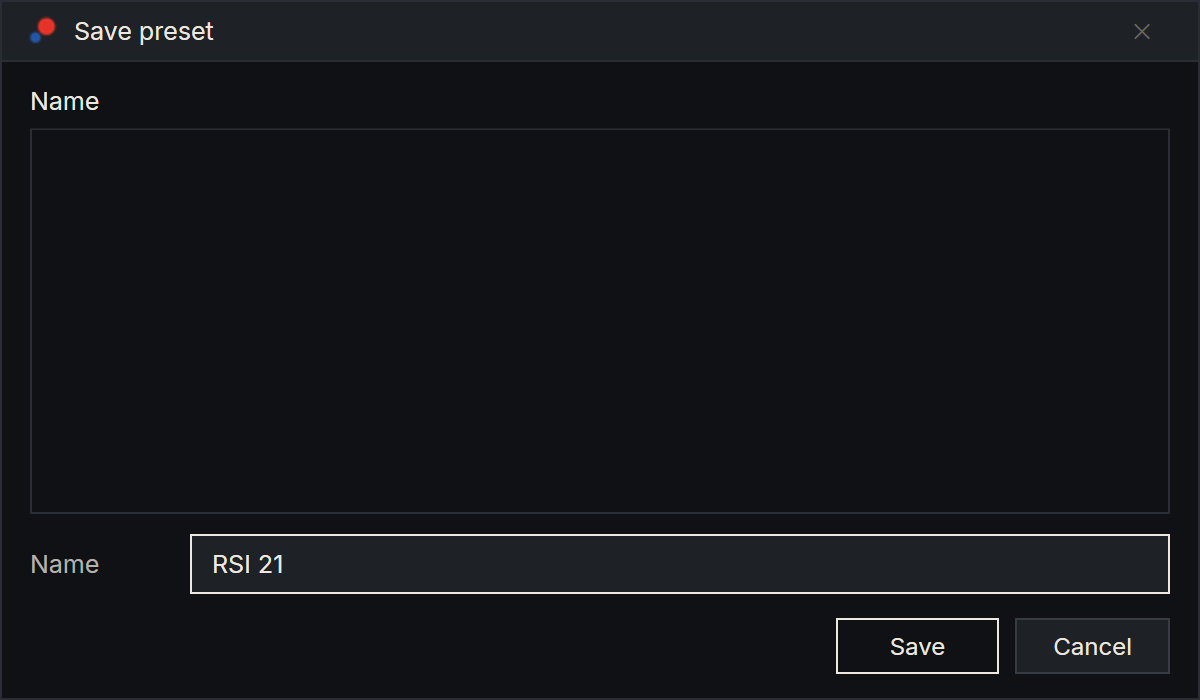
- Right-click the place from the table and choose Presets, then Save. The Save preset window opens.
- The list shows the presets of this kind you already have. Under it, Name starts with the name of what you are saving.
- Type a name, or click a preset in the list to save over it.
- Choose Save.
If a preset with that name exists, AlgoDesk asks "A preset with this name already exists. Do you want to rewrite it?". Choose Yes to replace it.
Load a preset
- Right-click and choose Presets, then Load. The Load preset window opens.
- Select a preset and choose Load, or double-click it.
What loading does depends on where you are:
- In the Indicators or Strategies window, the list shows the presets of the selected indicator or strategy. Loading replaces the selected one with a new copy set from the preset. With nothing selected, the list shows all presets of that kind and loading adds one. Then choose OK or Apply as usual.
- In the Backtester's instrument tree, loading replaces the whole tree.
- In the Optimizer's tree, loading replaces the test and its periods.
- In the Instrument Lists window, loading adds a new list.
When you load a Backtester instrument tree or an Optimizer test, the Load preset window has a Sync box, ticked at the start. Its tooltip says "If checked will sync end date to today's date":
- In the Backtester, each instrument's end date becomes today.
- In the Optimizer, the last period becomes live: its in-sample part ends today. See The live period.
Untick Sync to load the dates as they were saved.
Rename and remove
In any preset window, right-click a preset:
- Rename opens the Preset rename window. Type the new Name and choose OK.
- Remove deletes the preset. AlgoDesk asks first, naming the preset and warning "This cannot be undone." Choose Yes to delete it.
Export and import
Presets can be saved as files, to keep a copy or to move them to another computer.
- Export: right-click, choose Presets, then Export. In the Export preset window, select a preset and choose Export, then choose where to save the
.jsonfile. The save window starts inDocuments\AlgoDesk\Presetsor a folder inside it. Once the file is saved, AlgoDesk says "Preset successfully exported"; if you cancel the save window, nothing is exported. - Import: in the Load preset window, choose Import and pick a
.jsonfile. The preset is added under the file's name. If the file holds another kind of preset than the window you are in, AlgoDesk imports it anyway, into its own kind, and tells you it is a different type.
The Backtester, the Optimizer and instrument lists pages say more about what you set up there.