Instrument lists
An instrument list is a named group of instruments of one type from one connection, such as the equity index futures you follow on dxFeed. Lists make it quicker to pick an instrument, and they let the Backtester add a whole group at once.
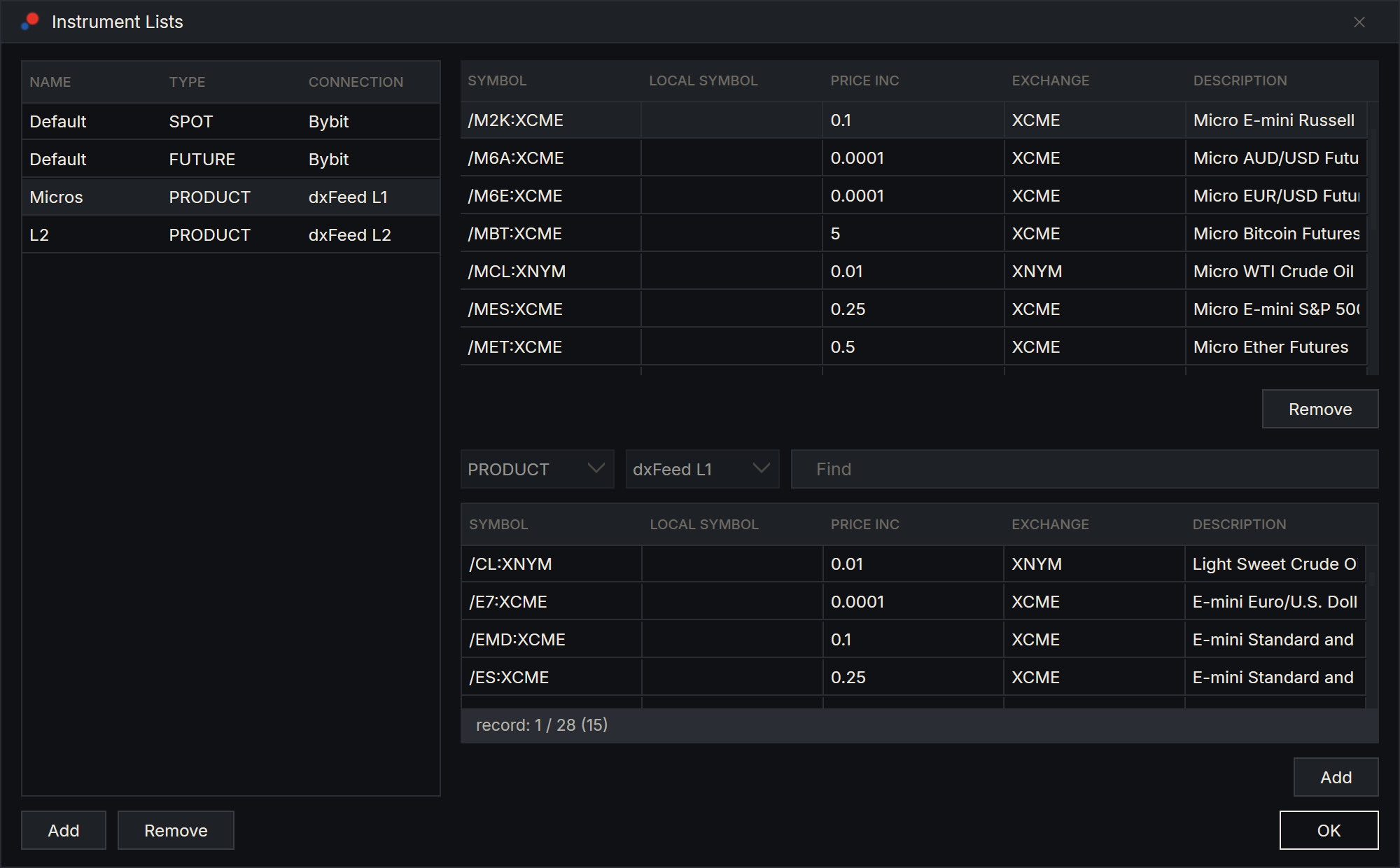
The Instrument Lists window
On the toolbar, choose Tools, then Instrument Lists.
| Part | What it does |
|---|---|
| The lists, on the left | Every list, with its Name, Type and Connection. Add and Remove below it create and delete lists. Right-click a list for the same commands and Presets. |
| The upper grid, on the right | The instruments in the selected list. Remove below it takes the selected ones out. |
| The lower grid, on the right | The instruments you have added for the list's connection and type, with a Find box to filter them. Add below it puts the selected ones in the list. |
Everything you change is saved at once; OK closes the window.
Create a list
- Under the lists, choose Add. The Add Instrument List window opens.
- Type a Name.
- Choose the Connection and the Type. Every instrument in the list must be of this connection and type.
- Choose OK. The new, empty list is selected.
The lower grid only offers instruments you have already added. If the one you want is missing, add it first in the Instruments window. See Finding and adding instruments.
Add and remove instruments
- Select the list.
- In the lower grid, select one or more instruments. Use Ctrl or Shift to select several, and the Find box to narrow the grid.
- Choose Add below the lower grid.
If an instrument is already in the list, AlgoDesk says "Symbol … already in list", or "Symbols already in list" for several.
To take instruments out, select them in the upper grid and choose Remove, or press Delete. They stay in AlgoDesk; only the list changes.
Rename or delete a list
To rename a list, double-click it. In the Edit Instrument List window, change the Name and choose OK. Only the name can change: Connection and Type are greyed out, so for another connection or type, create a new list.
To delete a list, select it and choose Remove, then confirm. The instruments in it stay in AlgoDesk.
Default lists
Each time you connect Bybit, AlgoDesk makes sure it has a list named Default for SPOT and one for FUTURE. Each holds the pairs among BTCUSDT, ETHUSDT, BNBUSDT, ATOMUSDT, DASHUSDT, SOLUSDT, LYCUSDT, TRXUSDT and DOGEUSDT that Bybit lists for that type, and AlgoDesk adds them to your instruments.
Each time you connect Tradovate or TopstepX, AlgoDesk makes sure it has a list named Default of type FUTURE, holding the front contracts of ES, NQ, MES and MNQ. When a front contract changes, the next connect adds the new one; the old one stays in the list until you remove it.
- A Default list cannot be deleted: AlgoDesk says "Can't delete the default list".
- An instrument you remove from a Default list comes back the next time you connect, if it is still one of the defaults.
- You can rename a Default list. It stays the Default list, and the next connect does not make another.
dxFeed and Interactive Brokers have no Default lists. You create your own.
Where you use lists
| Where | How |
|---|---|
| The Data series window of a chart, and the Backtester's Instrument parameters window | After Connection and Type, the first box under Instrument offers your lists for that connection and type. Pick a list, then pick the instrument in the box below it. |
| The symbol box on a chart's toolbar | The arrow next to the symbol opens a menu of connections, types and lists. Choose an instrument to switch the chart to it. |
| The Backtester's Add instruments | Right-click in the Backtester and choose Add instruments. Pick an Instrument list: AlgoDesk adds every instrument in it. |
The Backtester's own Add instrument list command is different: it creates a new group in the Backtester and does not use these lists. See Setting up a backtest.
Claude can create lists and add or remove instruments for you. See What Claude can do.
Presets
Right-click a list and choose Presets to keep it as a preset or rebuild it from one.
| Command | What it does |
|---|---|
| Save | Saves the list's name, type, provider and symbols as a preset. |
| Load | Creates a new list from a preset, on a connection of the preset's provider, and adds any instruments you do not have yet. That connection must be connected. Import in that window reads a preset from a .json file. |
| Export | Saves a preset to a .json file, to keep or move to another computer. |
Presets work for Bybit, Tradovate and TopstepX lists. On Tradovate, Load brings back only the front contracts that choosing the type lists (ES, NQ, MES and MNQ); any other contract in the preset is left out of the new list. On TopstepX, Load brings back every contract of the preset that TopstepX lists. For dxFeed and Interactive Brokers, Save and Load say "Operation not supported for this connection" and create nothing.