Walk-forward periods
A walk-forward test optimises a strategy on one stretch of history, trades the result on the stretch that follows, then moves forward and does it again. The periods set those stretches.
What walk-forward is
Each period has two parts:
- the in-sample part, where the Optimizer searches for the best parameter values;
- the out-of-sample part, which starts the day after. The best candidate from the in-sample search trades it with no further changes, on history the search never saw.
The next period moves forward and repeats. Joined end to end, the out-of-sample results show how the method would have done if you had re-optimised on that schedule and traded each result. That joined result is the walk-forward total. See Reading the results.
For example, six months in-sample and one month out-of-sample, moving forward a month at a time:
| Period | In-sample | Out-of-sample |
|---|---|---|
| 1 | 1 Jan 2025 to 30 Jun 2025 | 1 Jul 2025 to 31 Jul 2025 |
| 2 | 1 Feb 2025 to 31 Jul 2025 | 1 Aug 2025 to 31 Aug 2025 |
| 3 | 1 Mar 2025 to 31 Aug 2025 | 1 Sep 2025 to 30 Sep 2025 |
The total covers 1 July to 30 September 2025: three months of trading, each month with parameters chosen only from the six months before it.
This example is rolling: the in-sample part keeps its length and moves forward. In an anchored walk-forward, every in-sample part starts on the same day and grows: period 2 would be in-sample from 1 January to 31 July.
Periods in the window
The periods are listed under the test in the left panel. Each shows its in-sample dates (IS1, IS2 and so on) and its out-of-sample dates (OS1, OS2). Right-click the panel to work on them:
| Menu item | What it does |
|---|---|
| Add period | Adds one period after the last, in the Optimizer period window. |
| Edit | Changes the selected period's dates. Double-clicking a period does the same. Edit on the test renames it. |
| Remove | Removes the selected period. The periods after it are renumbered. Remove on the test removes the whole test. |
| Period constructor | Opens all periods on one timeline. |
Add or edit one period
The Optimizer period window has IS Start date, IS End date, OS Start date and OS End date. The out-of-sample part always starts the day after the in-sample part ends: change one and the other follows.
For the second period and later, Add period proposes the next step of an anchored walk-forward: the same in-sample start as the period before, with the in-sample ending where that period's out-of-sample ended. Set the OS End date and choose OK.
The Period constructor
The Period constructor shows every period as a bar on one time scale: in-sample in one colour, out-of-sample in another, as the legend at the top says.
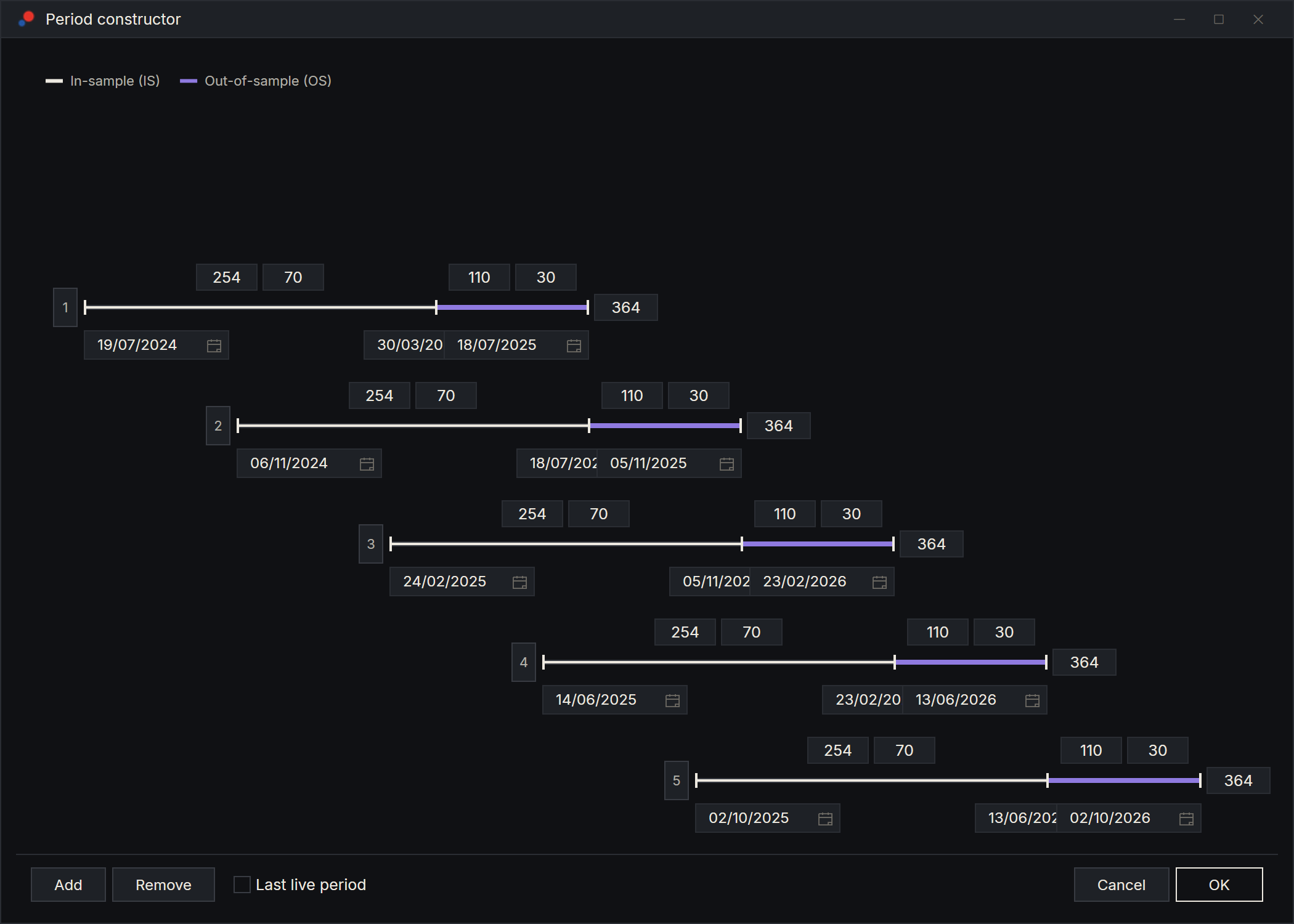
For each period you can type:
- the in-sample days and percentage, and the out-of-sample days and percentage, above the bars;
- the in-sample start, in-sample end and out-of-sample end dates, below the bars;
- the total days, at the right.
Day counts are calendar days. A change to one period does not move the others.
The buttons at the bottom:
- Add puts a new period before the first one. It has the same length and the same in-sample and out-of-sample split, and its out-of-sample ends where the next period's in-sample ends. Pressing Add again and again builds a rolling walk-forward backwards in time. So set up the latest period first, then add earlier ones until you reach the start you want.
- Remove removes the first period.
- Last live period makes the last period live. See The live period.
Choose OK to use the periods. Cancel, or Esc, leaves every period as it was before you opened the constructor: dates, numbers and the live period.
If the test has no periods yet, the constructor starts with one that ends today and covers the past twelve months, 30% of it out-of-sample.
The constructor builds rolling periods. For anchored periods, use Add period in the left panel, or set the dates by hand. Claude can also generate rolling or anchored periods from a start date, an end date and the two lengths. See Claude and the Optimizer.
The live period
Tick Last live period in the Period constructor to make the last period live. A live period has no out-of-sample part: its in-sample part ends today. AlgoDesk moves the earlier periods to line up with it; untick the box to move them back.
Use it to optimise on the most recent history and start trading the result, instead of testing it out of sample first. A live period is searched in-sample only and has no out-of-sample result. It answers the question "which parameters should I trade next?": its selection is that parameter set. The live period is not part of the walk-forward total. In the left panel it shows only its in-sample dates, and in the constructor its out-of-sample bar has a differently coloured outline.
Dates and time zone
Period dates are calendar days in the Time zone set in Options. Each date includes the whole day. The run loads the history it needs for the periods; if some is missing, it downloads it or asks first. See Running an optimisation.
Period presets
A periods preset keeps the test's name and its periods. Right-click the left panel and choose Presets:
- Save stores the periods under a name.
- Load replaces the test with the preset's periods. Sync, ticked by default, moves the periods so that they end today, with the last one live. Untick Sync to load the dates exactly as saved.
- Export writes a preset to a .json file. Import in the Load window reads one back.
Loading a periods preset replaces the whole test, so the strategy and its setup go too. Load the periods first, then the setup preset. See Setting up the Optimizer.
A run with many periods works, but the test's Matrix tab shows only the first 30. See Reading the results.