Importing data
Import data reads price bars from a file on your computer, a CSV or text file or a Parquet file from a data vendor, your own research or another platform, and stores them in a Static data connection. Charts, the Backtester and the Optimizer then use them like the history of any connection. This page walks through the Import data window, step by step.
What you can import
| What | What AlgoDesk accepts |
|---|---|
| Files | One file at a time: .csv, .txt or .parquet. See Character sets for the text files AlgoDesk reads, and When a file cannot be used for the one limit on Parquet files. |
| Contents | Bars: one row per bar, with a date and time (in one column or two) and a close price, and optionally open, high, low and volume. Ticks are not imported. |
| Bar sizes | 1 second; 1, 3, 5, 15 or 30 minutes; 1 hour; 1 day. One size per file. AlgoDesk does not build one size from another, so import each size from its own file. Weekly and monthly bars cannot be imported: see Data. |
| Where they go | Into a Static data connection of your choice, under a symbol you name. |
A file with no open, high or low column gives bars whose open, high and low are their close. A file with no volume column gives bars with no volume.
Bars dated before 2 January 1970, or after the end of tomorrow, are not imported: see Dates AlgoDesk accepts.
Character sets
A text file is read in one of these character sets, decided from the start of the file:
- UTF-16 (sometimes called Unicode) or UTF-8, when the file is marked as such at its very start, as the UTF-16 files that Notepad and Excel save are.
- UTF-8, when the file has no such mark and its first 64 KB are valid UTF-8. Most programs and data vendors write this.
- Otherwise, the character set this Windows uses for programs that do not use Unicode, its "language for non-Unicode programs" (in the Windows settings, under "Time & language", then "Language & region", then "Administrative language settings"): Windows-1252 on an English or Western European Windows, Windows-1251 on a Russian one, and so on. The regional format (how dates and numbers are shown) does not change it. This is what Excel's "CSV (Comma delimited)" writes on the same computer, so column names in German, French or Russian read correctly.
If the column names still look garbled, for example in a file saved on a computer with another language for non-Unicode programs, save the file again as UTF-8 (in Excel, "CSV UTF-8 (Comma delimited)") and import it again. Only the names and text are affected: dates and numbers are plain digits in every character set.
Open the window
On the toolbar, choose Tools, then Import data....
You can also start from the Instruments window: in Tools > Instruments, choose a Static data connection and choose Import data... on the right. The Instruments window closes and the Import data window opens with that connection already chosen. The button is not there when the Instruments window is open to pick an instrument for a chart or the Backtester.
Only one Import data window is open at a time: choosing Import data... again brings it to the front. If it is already open, the connection from the Instruments window is chosen in it only while it is on step 1 and nothing is being imported. The window is not modal, so you can keep working in AlgoDesk while it is open.
The window has four steps, listed down the left side: File, Columns, Instrument and Check & import. A step you have finished shows a tick, and you can choose it to go back. Steps you have not reached are dim. Move on with Next and back with Back; on the last step, Next is Import. When Next is greyed out, the line above the buttons says why, for example "Choose the time zone of the file"; several reasons are separated by dots. If you choose a different file in step 1, the later steps start again.
Nothing is stored until you choose Import. Cancel, at the bottom left, closes the window at any step; during an import it first asks, or waits, as Import describes.
Step 1: File
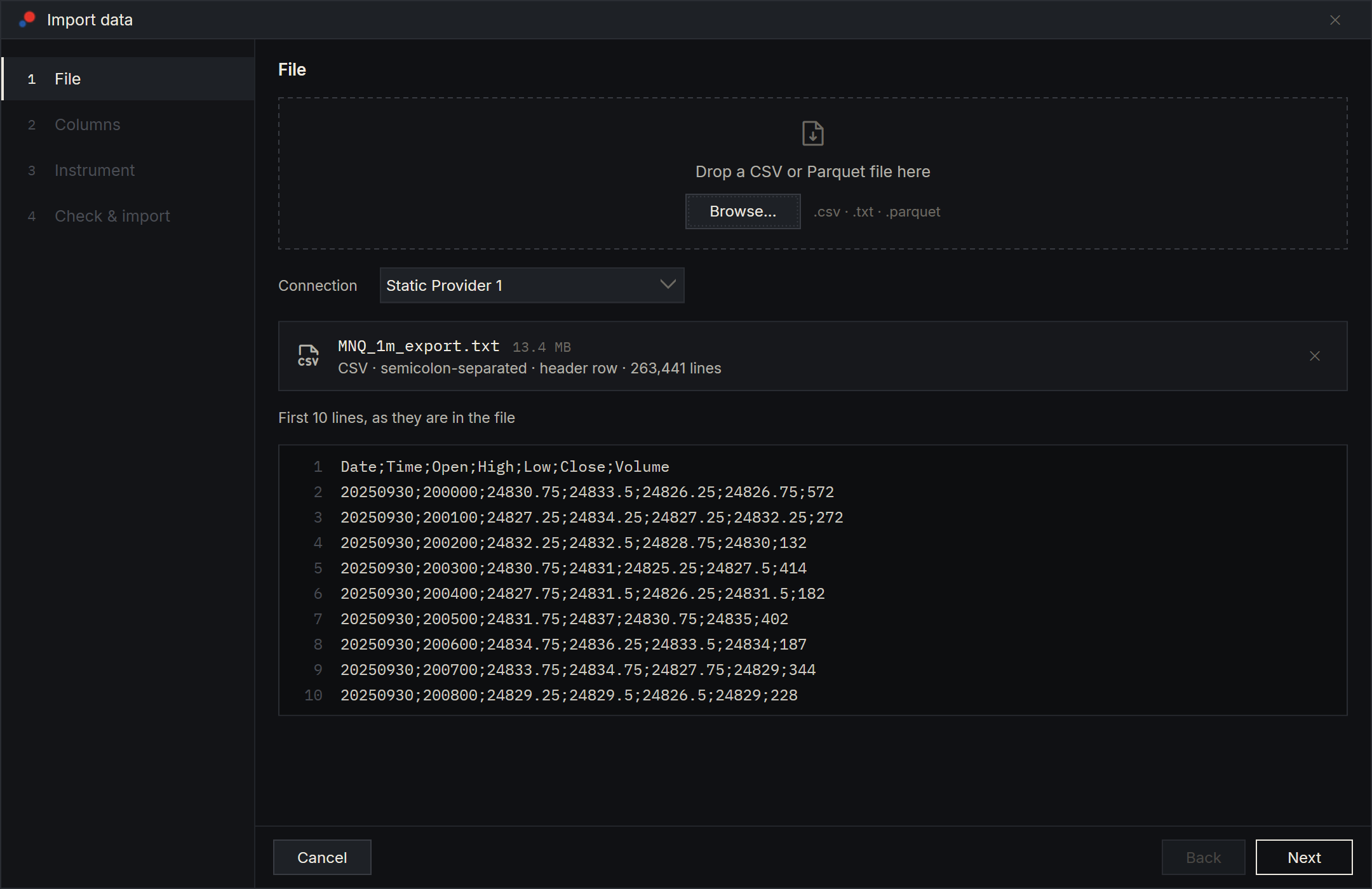
Drop a file on the dashed area ("Drop a CSV or Parquet file here"), or choose Browse.... Once AlgoDesk has read the file, a card shows its name and size, a line saying what it found, and an X button ("Remove file") that clears it so you can choose another file.
- For a CSV or text file, the line reads, for example, "CSV · semicolon-separated · no header row · 412,880 lines". The line count is worked out in the background and reads "counting..." until it is ready; you do not have to wait for it. Under the card are the first 10 lines of the file, as they are written, with their line numbers.
- For a Parquet file, the line reads, for example, "Parquet · 9 columns · 524,331 rows". Under the card is the file's schema: each column with the type the file stores it as.
Choose the connection
The Connection list shows your Static data connections by name. It starts on the connection you last imported into since AlgoDesk started, or on the first one in the list. Bars and symbols belong to one connection: two Static data connections never mix their bars, even for the same symbol, so it is worth keeping one connection per data vendor.
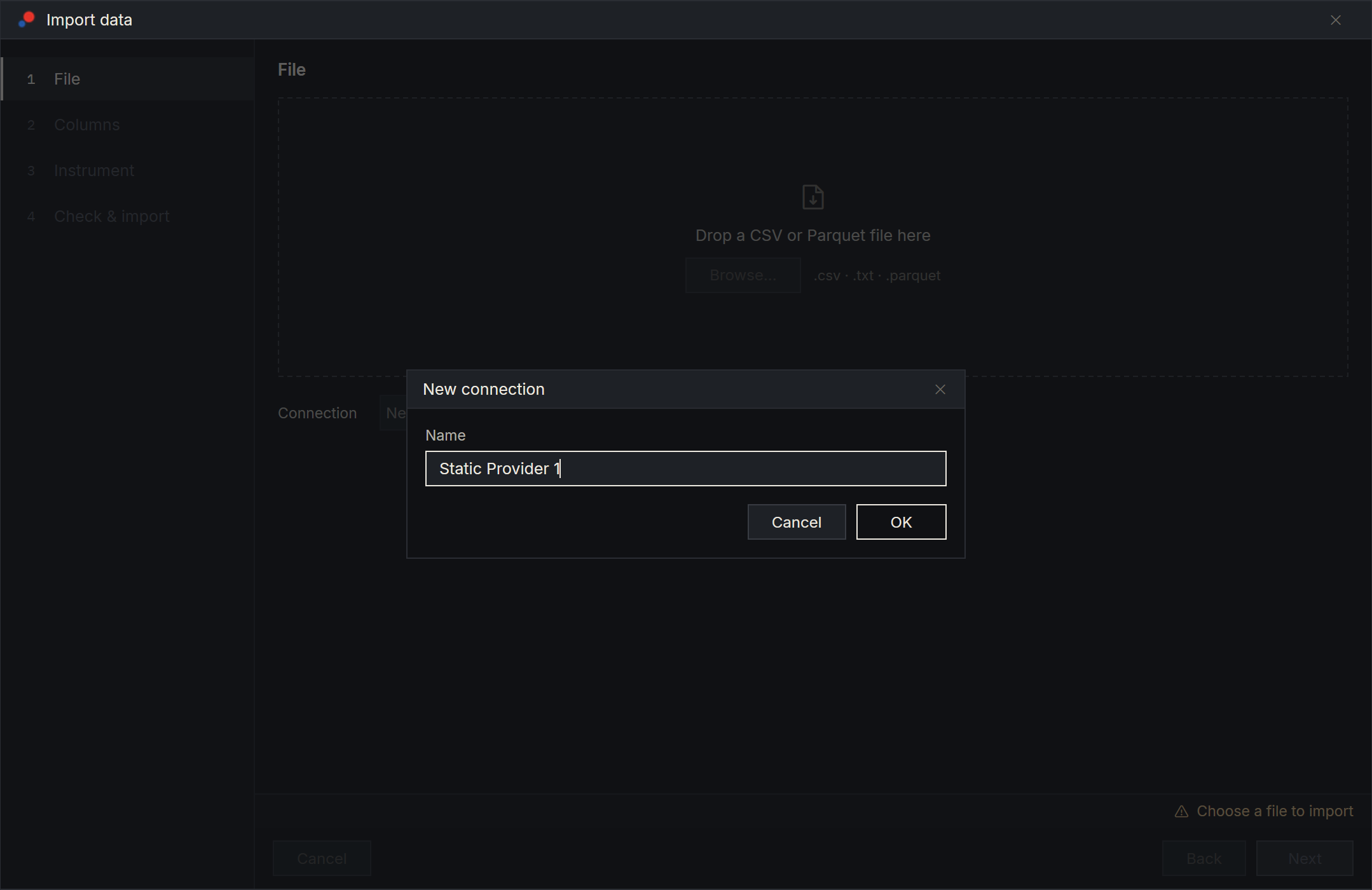
The last entry, New connection..., makes a new Static data connection without leaving the window. A small window asks for a Name, filled in with the next free name: "Static data", then "Static data 2". The usual rules apply: the name cannot be empty ("Connection name can't be empty") and cannot be one you already have ("A connection named ... already exists"). Choose OK and the connection is created, ready at once and chosen in the list. Cancel creates nothing. See Static data.
With no Static data connection at all, the list holds only New connection... and the line above the buttons says "Choose a connection".
When a file cannot be used
The card shows the reason in place of the detection line, and Next stays greyed out. (With no file at all, the line above the buttons says "Choose a file to import".)
| Message | What it means |
|---|---|
| "The file is empty." | The file has no content. |
| "The file was not found." | The file was moved or deleted after you chose it, or its folder or drive is not available. |
| "AlgoDesk is not allowed to read this file." | Windows does not let AlgoDesk read it. Copy the file to another folder and choose it again. |
| "Can't open this file: it is in use by another program." | Another program has the file open for writing, for example a CSV that is open in Excel. Close it in the other program first, then choose the file again. |
| "This is not a CSV or Parquet file." | The file does not end in .csv, .txt or .parquet, or a text file is really binary, or a Parquet file is damaged. |
| "This file keeps 12,000,000 rows in one block. Save it again with blocks of at most 1,000,000 rows, then import it." | A Parquet file stores its rows in blocks (row groups), and AlgoDesk holds one whole block in memory while it reads it, so a block can have at most 10,000,000 rows. Save the file again from the program that wrote it, with smaller blocks: in Python with pandas, for example, df.to_parquet("bars.parquet", row_group_size=1_000_000). |
| "AlgoDesk could not read this file." | Something else went wrong while reading, such as a disk error. The Log tab of the Control Center has the detail. |
Step 2: Columns
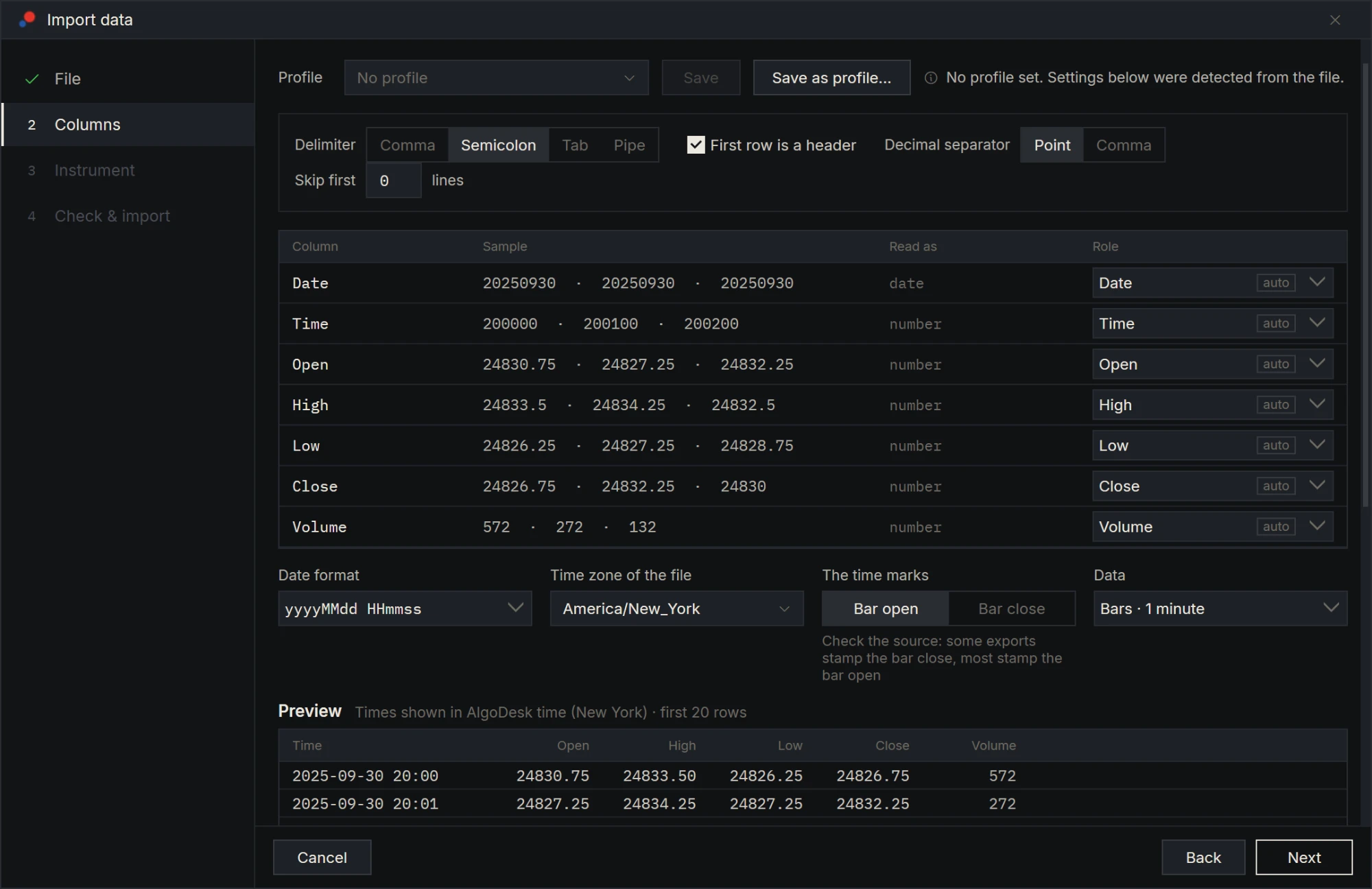
Step 2 tells AlgoDesk how to read the file. It detects what it can from the file's first lines and shows what it found: the roles it guessed carry an auto tag until you change them. This step works from the first 1,000 or so lines of the file (the delimiter and the roles come from the first 50 lines, the date format from the first 20 values, the bar size and whether dates are month first or day first from the first 1,000 rows). The whole file is read when you leave this step.
Profiles
A profile is a saved set of these settings for one vendor's file layout, so the next file from that vendor needs no work. The profile row is at the top.
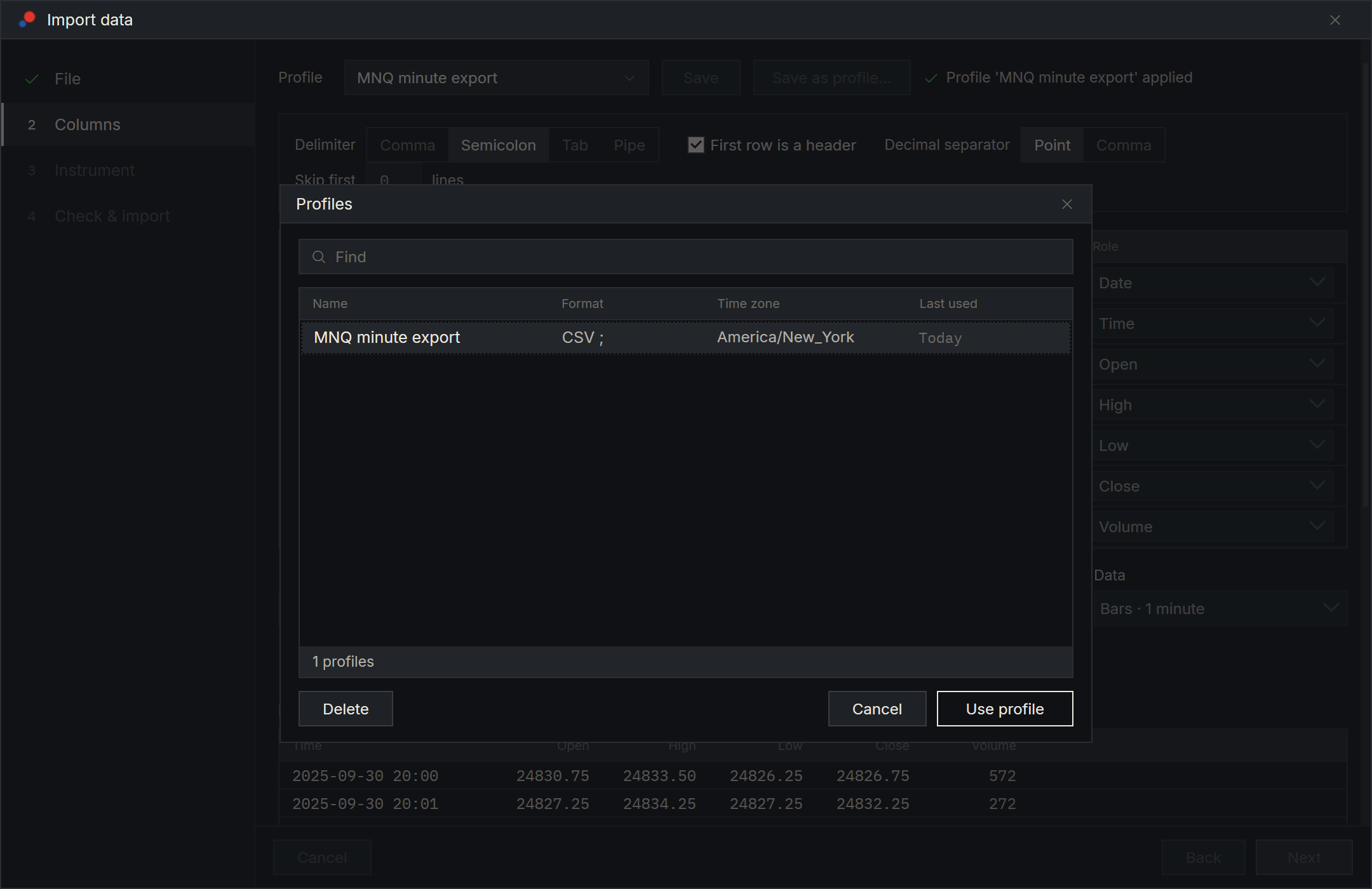
- The Profile box starts on No profile, with the note "No profile set. Settings below were detected from the file." Its list shows Recent, your five most recently used profiles, then No profile (offered once a profile is in use) and All profiles....
- Choosing a profile applies it and says "Profile '...' applied". It sets the CSV format (for a CSV file), the column roles, the date format, the time zone, the time marks and the bar size. Roles go to the column with the same name when the file has column names (a header row, or a Parquet file) and the profile remembered names; otherwise they go by position. A name that appears more than once, in the file or in the profile, cannot say which column is meant, so its role goes by position too. A role whose column the file does not have stays empty, and the line above the buttons says what is missing, for example "Choose a Close column". A time zone the file itself fixes (see below) stays as the file says.
- If a profile holds something this version of AlgoDesk does not know, it is applied without it, and the note says so: "Profile '...' applied, but left out what this version does not know: the bar size". A profile that cannot be read at all is not applied: "Profile '...' can't be read, so it was not applied".
- Save puts the settings as they are now into the profile in use. It is greyed out with No profile.
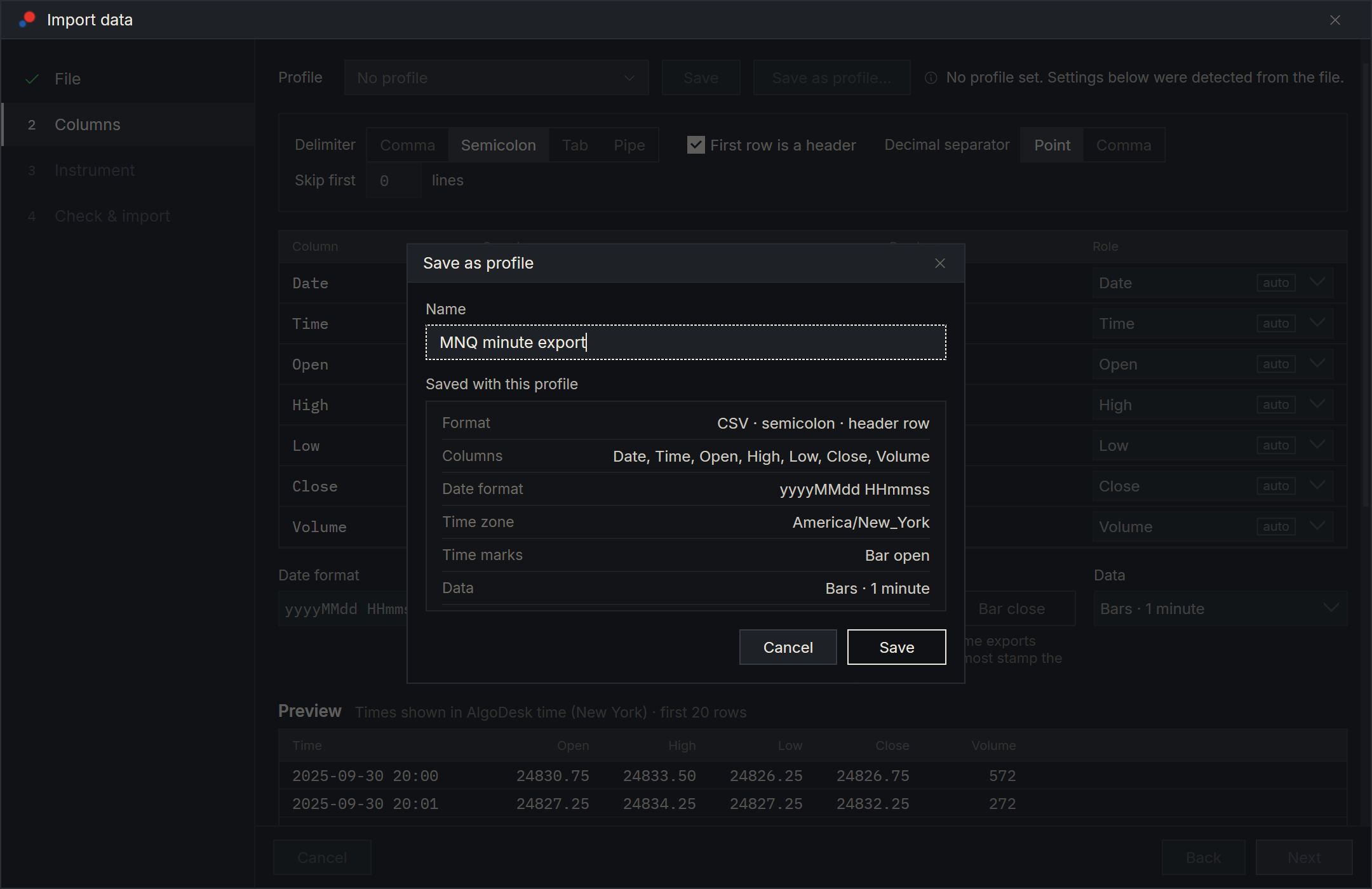
- Save as profile... opens a small window with a Name, filled in from the profile in use or the file's name. Under Saved with this profile it lists the Format, Columns, Date format, Time zone, Time marks and Data the profile will hold. If the name is taken (capital and small letters count the same), it says "A profile with this name exists. Saving replaces it." Choose Save: the profile is stored and becomes the one in use.
- All profiles... lists every profile with its Name, Format, Time zone and Last used, with a Find box and a count such as "8 profiles · 1 shown". Select one and choose Use profile, or double-click it. Delete removes the selected profile at once, without asking.
Profiles are kept on this computer and shared by all your Static data connections: a profile describes a vendor's file, not where it goes.
The CSV format
For a CSV or text file, four settings describe how it is laid out:
| Setting | What it does |
|---|---|
| Delimiter | Comma, Semicolon, Tab or Pipe: the character between the fields. |
| First row is a header | Tick it when the first line holds column names rather than numbers. |
| Decimal separator | Point or Comma, for numbers written 5890.25 or 5890,25. |
| Skip first ... lines | Lines at the top of the file to ignore, such as a title the vendor adds. |
A Parquet file shows "Parquet files store their own column types. Nothing to set here." instead.
Some vendors write a few lines above the header: CryptoDataDownload a web address, MOEX a block name and a blank line, Euronext a title, the dates and the ISIN, and some exports a few short key and value lines, such as Symbol,AAPL and Exported,2025-10-15. AlgoDesk finds them when it reads the file, up to 10 lines, blank ones included, and fills in Skip first ... lines with how many there are, so the header is the first line it reads. It skips lines only when the line after them is a header over rows that all split the same way, only when the file does not already read that way, and only when none of the lines it would skip looks like a line of the table, so a header or a row is never skipped, even when a note further down happens to look like a header. Check the number, and change it if the file needs another: the columns are split again at once. Blank lines, including lines of nothing but spaces or tabs, are never the header or a row. In a tab-separated file that includes a row of nothing but tabs; a row of nothing but commas or semicolons is a row, which step 4 counts as one that can't be read.
With the Decimal separator on Comma, a number that has a point in it cannot be read: 12.345 is not taken as twelve, because a file with decimal commas that writes 12.345 means twelve thousand three hundred and forty-five. Such rows are counted in step 4 as rows that can't be read, and in the column table their column reads as text. Thousands separators are not read with either setting, so 1,234.50 and 1.234,50 cannot be read. AlgoDesk starts the Decimal separator on Comma only when the delimiter is not a comma, numbers in the first lines carry a decimal comma and none carries a point: a semicolon file with prices like 5890.25 and a volume like 1,234 starts on Point. A volume written with dots between thousands, such as 1.234, does not count as a point: a file with prices like 5890,25 and such a volume starts on Comma, and its volume column, which cannot be read that way, starts on Ignore.
If you change the delimiter, the header setting or the lines to skip, AlgoDesk splits the lines again but does not detect the roles again: your roles stay on their columns. Check them, and set them yourself if the columns have moved.
Column roles
The table lists the file's columns: Column (the name from the header, or "Column 3"), Sample (the first three values), Read as (for a CSV file date, time, number or text; for a Parquet file the stored type) and Role.
Choose a Role for each column you need:
- Date and time, Date, Time, Open, High, Low, Close, Volume, or Ignore for a column you do not want.
- Each role goes to one column. Giving a role to a second column sets the first back to Ignore.
- The time is given one way only: one column holding both (Date and time), or two columns (Date and Time). Choosing one way sets the other back to Ignore. A column named "Date" that holds times as well is detected as Date and time.
- Close is required, and so is a time: Date and time, or Date and Time. For 1-day bars, Date alone is enough.
- In a Parquet file, columns that are not prices or times, such as
rtype,publisher_idandsymbol, start on Ignore. - When the header names the open, high, low and close but no time column, as MOEX's
open;close;high;low;value;volume;begin;enddoes, the prices go by their names and the first column holding dates and times, herebegin, starts on Date and time. - A column with the word "time" in its name, such as
time,open_time,open timeoropenTime, or whose name ends in "time", such asunixtimeorOPENTIME(but notlifetime,runtime,uptimeordowntime), whose values are Unix times that change from row to row (see Date format) starts on Date and time, also in a Parquet file. It wins over a column of dates written as text: in a file with a Unixtimecolumn and atimestamptext column in local time,timeis the time andtimestampstarts on Ignore. With bothopen_timeandclose_time,open_timeis the time. The end of the bar, such as Binance'sclose_timeor anend_time, never starts as the time. - A column whose name starts with "Volume" or with the word "Vol", such as
Volume,Volume BTC,Volume_(BTC)orVol., starts on Volume, and so does Euronext'sNumber of Shares. With several, the first one is the volume, which in most downloads is the volume in the base currency or in shares: CryptoDataDownload'sVolume BTCcomes before itsVolume USDT. Check it when a file writes its quote volume first. A name with "volume" further in, such as Binance'squote_volume, does not start on Volume. - A column whose values look like the bar's prices, within 10% of the row's close on at least nine rows in ten, never starts on Volume, whatever its name or position: the ask prices of a file of bid and ask bars, for example. With no other column for it, the bars have no volume. You can still give a column the Volume role yourself.
Date format
Date format says how the date and time are written. The list holds yyyyMMdd HHmmss, yyyyMMddHHmm, yyyy-MM-dd HH:mm:ss, yyyy-MM-dd HH:mm:ss.ffffff, yyyy-MM-dd HH:mm:sszzz, yyyy-MM-ddTHH:mm:ss.fffffff, yyyy-MM-ddTHH:mm:sszzz, dd.MM.yyyy HH:mm:ss.fff, dd.MM.yyyy HH:mm:ss, MM/dd/yyyy HH:mm, dd/MM/yyyy HH:mm, yyyy.MM.dd HH:mm:ss, yyyy.MM.dd HH:mm, yyyyMMdd, yyyy-MM-dd, dd.MM.yyyy, MM/dd/yyyy, dd/MM/yyyy, Unix seconds, Unix milliseconds, Unix microseconds and Unix nanoseconds. MM/dd is month first, as in the United States; dd/MM and dd.MM are day first, as in most of Europe. AlgoDesk starts on the first one that reads the first 20 values of your file.
Several of them are the layouts common vendors write:
| Format | Written by, for example |
|---|---|
yyyy.MM.dd HH:mm, yyyy.MM.dd HH:mm:ss |
MetaTrader exports, the date and time in one column (2025.01.02 09:31) or in two (2025.01.02 and 09:31) |
yyyyMMddHHmm |
MetaStock exports, such as HistData's: 202609010000 |
yyyy-MM-dd HH:mm:ss.ffffff |
Six decimals of a second, as NautilusTrader writes: 2021-12-31 23:01:00.000000 |
yyyy-MM-ddTHH:mm:ss.fffffff |
Seven decimals of a second with a T, as CoinAPI writes: 2025-09-11T00:00:00.0000000 |
yyyy-MM-dd HH:mm:sszzz, yyyy-MM-ddTHH:mm:sszzz |
Times with their offset from UTC, as pandas writes them: 2012-02-01 00:00:00+00:00. See Offsets written in the file. |
- With a Date and a Time column, the format reads the two values joined by one space, for example
20250102 093100. - Custom... shows a box where you type your own pattern, such as
dd-MM-yyyy HH:mm. Capital letters and small letters differ:MMis the month andmmthe minute. - The four Unix formats read a number counted from 1 January 1970 00:00 UTC, in seconds (such as 1735810260), milliseconds, microseconds or nanoseconds. A number of any length reads in the format you choose. Binance's spot kline files from 2025 on (data.binance.vision) write their open time in microseconds, for example 1788220800000000, which is 1 September 2026 00:00 UTC, and have no header; its USD-M and COIN-M futures kline files stay in milliseconds and have a header. Databento's CSV files write nanoseconds.
- A Unix number may have a decimal part after a point, as files from Kaggle write their seconds: 1325412060.0 is 1 January 2012 10:01:00 UTC. A fraction of a second is kept down to a ten-millionth of a second (100 nanoseconds); anything smaller is dropped. A decimal comma (1325412060,0) does not read. AlgoDesk picks a Unix format for numbers with a decimal part by itself when the column's name says it is a time, such as
Timestamp; for a column without such a name, only when every decimal part is zeros (1325412060.0), so a volume such as 1500000000.25 is not taken for a time. - The number of digits matters only when AlgoDesk picks the format for you: 10 digits are Unix seconds, 13 Unix milliseconds, 16 Unix microseconds and 19 Unix nanoseconds, counted before the decimal point, when every one of the first 20 values has that many and falls between 2 January 1970 and tomorrow. A long number outside those dates, such as an order number, is not taken for a time. In a Binance spot file the first column, the open time, starts on Date and time, and the close time further along the line, also in microseconds, starts on Ignore. A Unix time needs no time zone: the box says "UTC · Set by the date format" (see Time zone of the file).
- A Parquet timestamp needs no format: the box is greyed out and says "From the file (timestamp)".
- If no listed format fits, the box is empty and the line above the buttons says "Rows can't be read. Check the date format".
Month first or day first
A date such as 01/02/2025 is 2 January written month first, or 1 February written day first, and 05/05/2025 is 5 May either way. When every date in the first 1,000 rows reads both ways, AlgoDesk does not guess, whether the two ways give different dates or, as for a file whose dates are all 05/05/2025, nothing can tell them apart: the box starts empty and is marked, and the line above the buttons says "The dates read both month-first and day-first. Choose the date format." Choose the format your source uses, and check the preview: the dates must be the ones you expect. One date with a day above 12 anywhere in those rows, such as 13/02/2025, settles it, and AlgoDesk then starts on the format that reads it. (If one date reads only month first and another only day first, the file mixes the two, and AlgoDesk asks.) If you give the time to another column, AlgoDesk asks again only if that column's dates read both ways. A profile with a date format chooses it for you.
Offsets written in the file
Some files write each time with its offset from UTC, such as 2025-01-02 09:31:00+02:00, or with a Z for UTC, such as 2025-01-02T09:31:00Z. The list has yyyy-MM-dd HH:mm:sszzz and yyyy-MM-ddTHH:mm:sszzz for an offset after the seconds, and AlgoDesk starts on them when they read the file. For any other way of writing it, type a Custom... pattern that reads it:
| In the pattern | Reads |
|---|---|
zzz |
An offset with minutes: +02:00 or -05:00 |
zz |
An offset in hours: +02 or -05 |
K |
An offset, or a Z for UTC |
Z |
A Z for UTC |
o, as the whole pattern |
The whole time as .NET's round-trip format writes it, such as 2025-01-02T09:31:00.0000000+02:00, with an offset, a Z or nothing |
u, as the whole pattern |
A time such as 2025-01-02 09:31:00Z |
r, as the whole pattern |
A time such as Thu, 02 Jan 2025 09:31:00 GMT |
For example yyyy-MM-dd HH:mm:sszzz or yyyy-MM-ddTHH:mm:ssK. With such a pattern the offset in each row fixes the moment of the bar, before and after a change of the clocks alike, so the time zone of the file is not used: the box says "UTC · Set by the date format". A row that has no offset where the pattern has K, or with o, cannot be read; the preview says, for example, "Cannot read '2025-01-02T09:31:00' with yyyy-MM-ddTHH:mm:ssK: it has no offset or Z". A Z in quotes, as in yyyy-MM-dd'T'HH:mm:ss'Z', is just the letter Z in the text: the times are then read in the time zone you choose. Daily bars take the date as it is written, whatever the offset.
Time zone of the file
Time zone of the file says which clock the times in the file are on, so AlgoDesk can store them correctly. For a CSV file it starts empty ("Choose...") and is required.
The list holds UTC, This computer and, under Exchange time, America/Chicago, America/New_York and Europe/London. Show all time zones... opens the full list, and the search box ("Search time zones") finds a zone as you type: "new york" finds America/New_York.
Sometimes the zone is not yours to choose:
| The box says | When |
|---|---|
| UTC · Set by the file | A Parquet timestamp that the file marks as UTC. |
| UTC · Set by the date format | The date format is Unix seconds, Unix milliseconds, Unix microseconds or Unix nanoseconds, or reads an offset written in the file (see Offsets written in the file). |
| Not used for daily bars | The bar size is 1 day. |
A Parquet timestamp that carries no zone needs one, as a CSV file does.
When the clocks change, a time that does not exist (the hour skipped in spring) is read with the standard-time offset, and a time that happens twice (autumn) is read as standard time.
The time marks
The time marks has two choices: Bar open and Bar close, with the hint "Check the source: some exports stamp the bar close, most stamp the bar open". AlgoDesk stores every bar at its open. With Bar close, each time is moved back by one bar size: a 5-minute bar stamped 09:35 is stored at 09:30. It starts on Bar open, and for 1-day bars it says "Not used for daily bars".
If the first bar of a market's day is stamped one bar after the market opens, for example 09:31 on 1-minute bars for a market that opens at 09:30, the file stamps the bar close.
Data
Data is the bar size of the file: "Bars · 1 second", "Bars · 1 minute", "Bars · 3 minutes", "Bars · 5 minutes", "Bars · 15 minutes", "Bars · 30 minutes", "Bars · 1 hour" or "Bars · 1 day". AlgoDesk guesses it from the most common step between consecutive times in the first 1,000 rows, when that step is one of the eight sizes. Check it: a wrong size gives wrong bars.
When you change the time columns (Date and time, Date or Time) or the Date format, AlgoDesk works the bar size out again from the times as they now read, so a daily file whose date format you had to choose does not stay on 1-minute bars. It does not when you have chosen a bar size for this file yourself, or a profile set one: your choice stays. If the times still cannot be read, the size stays as it was.
A file of weekly or monthly bars cannot be imported. AlgoDesk takes a file for weekly or monthly when the first 1,000 rows hold at least four bars, the usual step between them is a week or more, and either most of the bars (four in five) fall on the same weekday, as weekly bars stamped each Friday do, or four in five of the steps are 6 to 8 days, as in a short weekly file with a holiday or two, or the usual step is 25 days or more. The line above the buttons then says only "The bars in this file are a week or more apart. A Static data connection holds bars from 1 second to 1 day." and Next stays greyed out, whatever bar size you choose. A daily file is not affected by its weekends and holidays, as AlgoDesk looks at the usual step, not the longest one, and neither is a daily file that trades only every week or so on any day.
1-day bars are stored at 00:00 UTC of their date, as dxFeed's and Interactive Brokers' daily bars are, and the zone and the time marks are not used. A daily bar takes the date as the file writes it. For a Parquet or Unix timestamp that is the date in UTC, so a timestamp at local midnight east of UTC, such as Tokyo's, is dated the day before.
With 1-day bars whose times, as the file holds them, are not all midnight, step 2 says so under the Preview caption, naming the first such time: "These daily bars are stamped at 23:00, not midnight. Each bar takes the date shown in the preview: check that the dates are right." It does not stop Next. A file that stamps London's midnight as 23:00 UTC in summer, or a US Pacific midnight as 16:00 the day before, puts those bars a day early. The window cannot shift the dates: fix them in the file, then import it. Dates alone, times of 00:00 and Unix times at 00:00 UTC show no note.
The preview
Preview shows the first 20 rows as AlgoDesk will store them: Time, Open, High, Low, Close and Volume. It changes with every setting you touch.
- The caption names the time zone the times are shown in, which is the one set in Options: "Times shown in AlgoDesk time (New York) · first 20 rows". Until you choose the time zone of the file, the caption says "Choose the time zone of the file to see AlgoDesk time · first 20 rows" and the times are the file's own.
- Times show minutes, seconds for 1-second bars, and the date alone for 1-day bars. Prices show as many decimals as the file writes.
- A row whose time cannot be read shows "—" and the reason, for example "Cannot read '20250102 093100' with yyyy-MM-dd HH:mm:ss".
- A row dated outside the dates AlgoDesk accepts shows "—" and, for example, "Date outside 2 Jan 1970 to 16 Oct 2026". Its date format is right, so it does not stop Next: step 4 counts it with the rows that can't be read.
- A row whose High is below its Open, Close or Low, or whose Low is above its Open or Close, shows its time and prices with the reason in red: "High below the Open, Close or Low" or "Low above the Open or Close". Step 4 skips such rows. A few of them do not stop Next: real data has them now and then.
- When every row that can be read, in the first 1,000 or so rows step 2 reads, has such a High or Low, the columns are almost certainly in the wrong roles, for example a file that writes its columns as time, volume, close, high, low, open, as Gate.io does. The line above the buttons then says "Every row in the preview has a High below its Open, Close or Low, or a Low above them. Check the column roles." Set each column's Role as the file's columns are. A file whose first rows break the rule but whose later rows do not, such as early history with an Open of 0, is not stopped: only its rows in the preview are marked.
Next waits for the reasons in this list to be cleared: "Rows can't be read. Check the date format" (any of the first 20 rows), "The dates read both month-first and day-first. Choose the date format.", "Choose a Date and time column, or a Date and a Time column", "Choose a Close column", "Choose the time zone of the file", and "Every row in the preview has a High below its Open, Close or Low, or a Low above them. Check the column roles." A file of weekly or monthly bars shows only "The bars in this file are a week or more apart. A Static data connection holds bars from 1 second to 1 day." (see Data), and a file of several symbols only the reason in One symbol per file. Rows further down the file that cannot be read do not stop you: step 4 counts them.
One symbol per file
A symbol's bars come from one instrument, so a file that holds the bars of several symbols is refused. AlgoDesk looks for a column that names the symbol of each row:
- in a file with column names, a column named
symbol,ticker,pair,instrument,sym,asset,coin,market,codeorsymbol_id, and a column namedtickwhen it holds text, such as CSCO, rather than numbers, such as a count of ticks; capital letters and punctuation do not count, so<TICKER>andSymbolare such names too. Its role does not matter. A column namedperiodorintervalis not one, and nor is an id such as Databento'sinstrument_id, which changes when a continuous contract rolls while its symbol stays the same; - in a file without a header, a column of text that is neither numbers nor dates nor times, once the file has a time column. A column you give a role to is not one.
When such a column holds more than one symbol in the lines step 2 reads, the line above the buttons says only, for example, "This file holds more than one symbol (column 'ticker': MMM, AOS, ABT). Import a file with one symbol." It names up to three of the symbols; a column without a name is named by its number. Capital and small letters count the same, and empty cells are not a symbol. Only rows that read as bars count: a line of credits at the end of a file, such as "Data provided by ...", is no second symbol, and step 4 counts it as a row that can't be read.
A file sorted by symbol may hold only one symbol in its first 1,000 or so rows. The check then reads the rest of the file when you leave step 2, stops at the first row with another symbol, and step 3 says the same, for example "This file holds more than one symbol (column 'ticker': MMM, AOS). Import a file with one symbol." Next stays greyed out.
In either case, split the file into one file per symbol, for example with a spreadsheet or a short script, and import each file into its own symbol. A continuous contract whose symbol column changes at each roll (ESH4, then ESM4) is refused too: put one symbol in that column, or delete the column, before you import it. A file whose symbol column holds one symbol all the way down, such as CryptoDataDownload's Symbol column or HistData's MetaStock files, imports as usual.
When the preview doesn't look right
Most problems with a file show in the preview, or in the line above the buttons. This table lists the common ones and what to change in the window, or else in the file.
| What you see | What to change |
|---|---|
| The column names are a web address, a title or a date range, or the first rows of the table are such lines | Set Skip first ... lines to the number of lines above the column names, and tick First row is a header. |
| Every row says "Cannot read '...' with ...", and the line above the buttons says "Rows can't be read. Check the date format" | Choose the Date format your file uses, or choose Custom... and type it, such as dd-MM-yyyy HH:mm. See Date format. |
| Prices in the wrong columns, or rows that say "High below the Open, Close or Low" or "Low above the Open or Close" | Set each column's Role to what the column holds, in the order the vendor writes them. See Column roles. |
| Volume shows a price | Set that column to Ignore, and give Volume to the real volume column if the file has one. |
| Every bar is one bar late: the first bar of a market's day is stamped one bar after the market opens, such as 09:31 on 1-minute bars for a 09:30 open | Choose Bar close if the source stamps the bar close. See The time marks. |
| Every time is off by the same few hours | Set Time zone of the file to the zone the file's times are written in. See Time zone of the file. |
| Daily bars are a day early, or step 2 says "These daily bars are stamped at ..., not midnight" | Fix the dates in the file: the window takes each daily bar's date as it is written and cannot shift it. See Data. |
| The wrong bar size in Data | Choose the size the file holds. |
| "This file holds more than one symbol ..." | Split the file into one file per symbol. See One symbol per file. |
| "The bars in this file are a week or more apart. ..." | Weekly and monthly bars cannot be imported. See Data. |
| Prices written with a comma, such as 5890,25, cannot be read, or read as other numbers | Set Decimal separator to Comma; for prices written 5890.25, set it to Point. See The CSV format. |
Dates AlgoDesk accepts
A bar is imported only when its time, in UTC, is between 2 January 1970 and the end of tomorrow. The time is checked after the time zone, a written offset and Bar close have been applied; for daily bars the date itself is checked. "Tomorrow" is the next calendar day in UTC, by this computer's clock.
Bars outside these dates cannot be read, and are counted in step 4. This catches the "no date" values some systems write in place of a real time, such as 1 January 1970 (time zero) or the years 1, 2554 and 9999, and a time column read with the wrong format, so they cannot stretch the days an import replaces. It also means that history before 1970 cannot be imported.
One UTC day can hold at most 200,000 bars. No bar size comes near that (a day of 1-second bars is 86,400), so more bars on one day means the dates or times are being read wrongly, for example with the time column left out or the volume read as the time. AlgoDesk then stops reading the file, and step 3 says, for example, "More than 200,000 bars fall on 2 Jan 2025. Check the date and time columns in step 2." Next stays greyed out. Choose Back, check the date and time columns and the date format in step 2, then go on again.
With 1-day bars the limit is 1,000 rows on one date. More than that usually means a file of minute or second bars imported as 1-day bars, or a file whose time column is left out. Step 3 then says, for example, "More than 1,000 rows fall on 2 Jan 2025 with 1-day bars. Check the bar size and the time column in step 2."
Step 3: Instrument
Step 3 says which instrument the bars belong to, on the connection you chose in step 1. The heading names it: "Instrument on Static provider 1". AlgoDesk starts reading the whole file in the background when you leave step 2, and again if you change step 2's settings. Until it is done the step says "Checking the file..." and Next waits ("Checking the file").
New symbol
Choose New symbol to make a new instrument.
| Field | What to enter |
|---|---|
| Symbol | Required. It starts as the letters at the beginning of the file's name: MES_1m_export.txt gives MES. It is stored in capitals. |
| Description | Optional text. |
| Type | STOCK, ETF, FUTURE, INDEX, FOREX or CRYPTO. It starts on the last type you used since AlgoDesk started, or STOCK. |
| Exchange | Optional. |
| Currency | USD first. Choose from the list or type your own. |
| Tick size | The smallest price step. It is filled in from the file and tagged "from data". |
| Point value | The money one contract gains or loses on a move of 1.00. It starts at 1. |
The tick size and point value become the instrument's Price increments and Multiplier. See Instrument details.
The tick size AlgoDesk suggests is the largest usual step (1, 0.5, 0.25, 0.2, 0.1, 0.05 and smaller, down to 0.00000001) that at least 99% of the prices in the first 10,000 bars sit on. A few bad prices therefore show up as off-tick problems in step 4 instead of shrinking the tick. If you type a different tick size, step 4 counts the prices against it, and Next waits for that count.
These rules decide what Next needs:
- "Enter a symbol".
- A symbol of the same type that already exists on this connection, whatever its capitals, is refused: "MES (FUTURE) already exists on Static provider 1. Choose Add to an existing symbol."
- A symbol is stored as a folder name, so Windows must accept it as one. A symbol is refused if it ends with a dot or a space, is a name Windows keeps for itself (CON, PRN, AUX, NUL, COM1 to COM9, LPT1 to LPT9), has a character Windows does not allow in file names (such as
\ * ? " |), or is longer than 100 characters. The messages are "This symbol can't be used as a folder name", "A symbol can have at most 100 characters" and "The folder for this symbol would be too long a path for Windows". - "Enter a tick size above 0" and "Enter a point value above 0".
The instrument is created only when the import is complete. Cancel creates nothing.
Add to an existing symbol
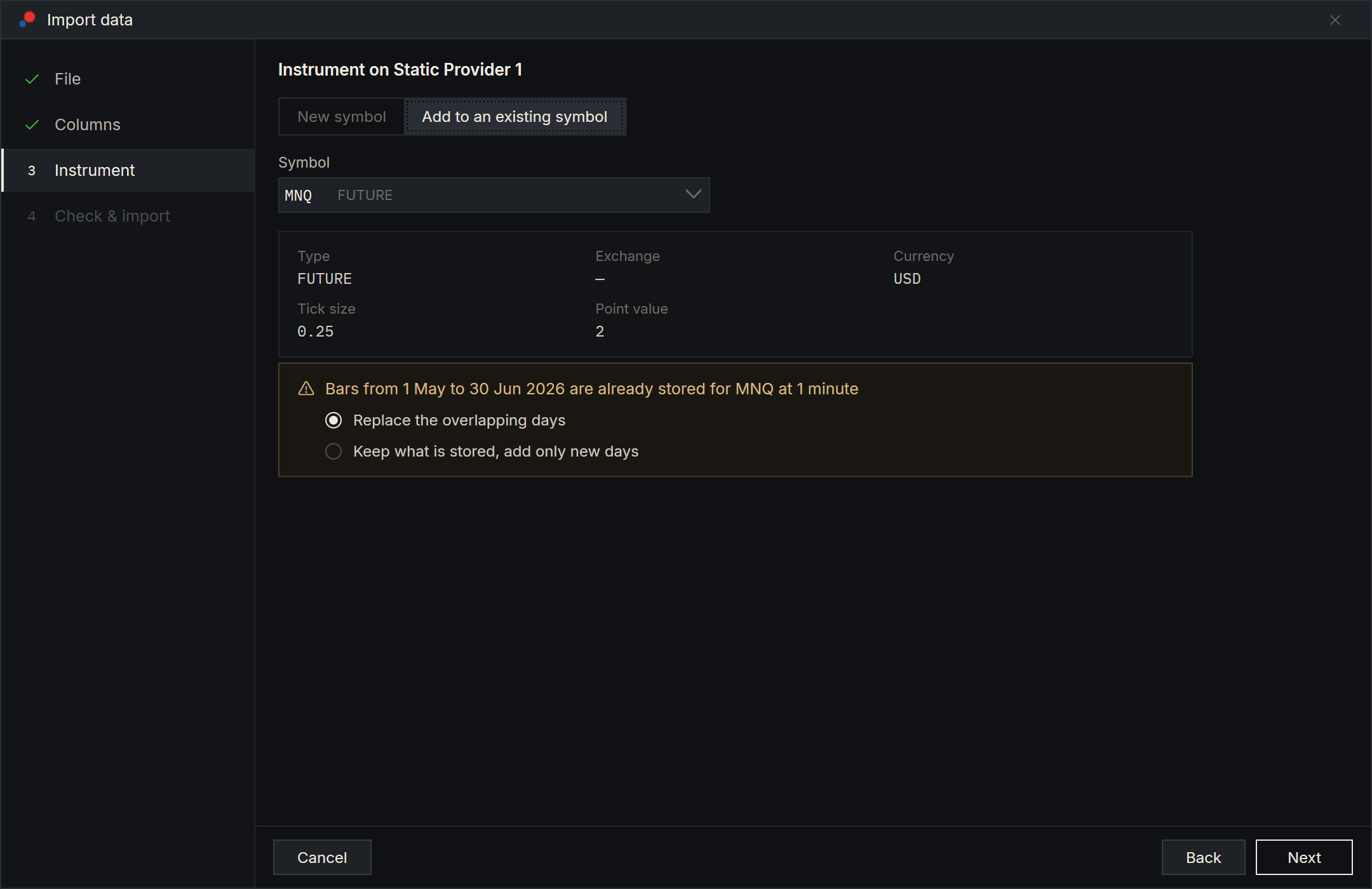
Choose Add to an existing symbol to put the bars under an instrument you already have. The list shows only the instruments of this connection, with their symbol and description, and below it the instrument's Type, Exchange, Currency, Tick size and Point value, read-only. An instrument belongs to one connection and each Static data connection keeps its own bars, so a symbol with the same name on another connection is another instrument. With none yet, the choice is greyed out and says "No symbols on Static provider 1 yet".
For an existing symbol, step 4 counts the off-tick prices against that instrument's own tick size.
Bars already stored
AlgoDesk stores bars by calendar day in UTC (Coordinated Universal Time), and this part of step 3 counts days the same way. If the UTC days from the file's first bar to its last include days already stored for this symbol, type and bar size on this connection, a notice appears, in both modes: "Bars from 2 Jan to 30 Jun 2025 are already stored for MES at 1 minute" (for a single day, "Bars on 3 Jan 2025 are already stored for MES at 1 minute"). Its dates are UTC days. Choose what happens to those days:
- Replace the overlapping days, the default. The stored bars from the time of the file's first bar to the time of its last are replaced by the file's. The UTC days in between are replaced whole: a day the file holds no bars for ends up with none. On the file's first UTC day, the bars stored before its first bar stay; on its last UTC day, the bars stored after its last bar stay.
- Keep what is stored, add only new days. Stored bars are never changed. Days not stored yet are added. On the file's first and last UTC day, if they are stored, the file's bars at times not stored yet are added beside the stored ones. Other stored days are left as they are.
A file of one day is both its first and its last day. For example, with bars stored up to 12:00 UTC on 3 March and a file that starts at 09:00 UTC on 3 March, Replace keeps the bars stored before 09:00 that day and replaces those from 09:00 on with the file's; Keep keeps all of the stored bars and adds the file's bars after 12:00 that day. Either way, a file that brings the latest bars on top of what is stored never wipes the earlier part of its first day.
The file's first and last day count as already stored only when the file's bars reach the stored bars there. A file that starts after the last bar stored on its first day, the usual way to add the latest bars, shows no notice for that day, and nothing stored is replaced. The same goes for a file that ends before the first bar stored on its last day.
If the stored file of the file's first or last day is damaged, AlgoDesk does not stop: it sets the damaged file aside when the import finishes, as it does when a chart finds one (see Historical data), and that day then holds the file's bars. The Log tab names the file and the day.
With 1-day bars, Replace and Keep work date by date: Replace replaces every date from the file's first to its last, and Keep keeps every stored date and adds the new ones. Step 4 repeats your choice as "Days already stored: 120, replaced" or "120, kept".
AlgoDesk looks up what is stored for the symbol in the form whenever it changes, and Next waits for the answer ("Checking what is already stored"). If the look-up fails, step 3 says "AlgoDesk could not check what is already stored for this symbol. Try again." with a Try again button, and Next stays greyed out until a look-up succeeds: choose Try again, or change the symbol.
Step 4: Check & import
Step 4 shows what AlgoDesk found in the whole file, before anything is stored.
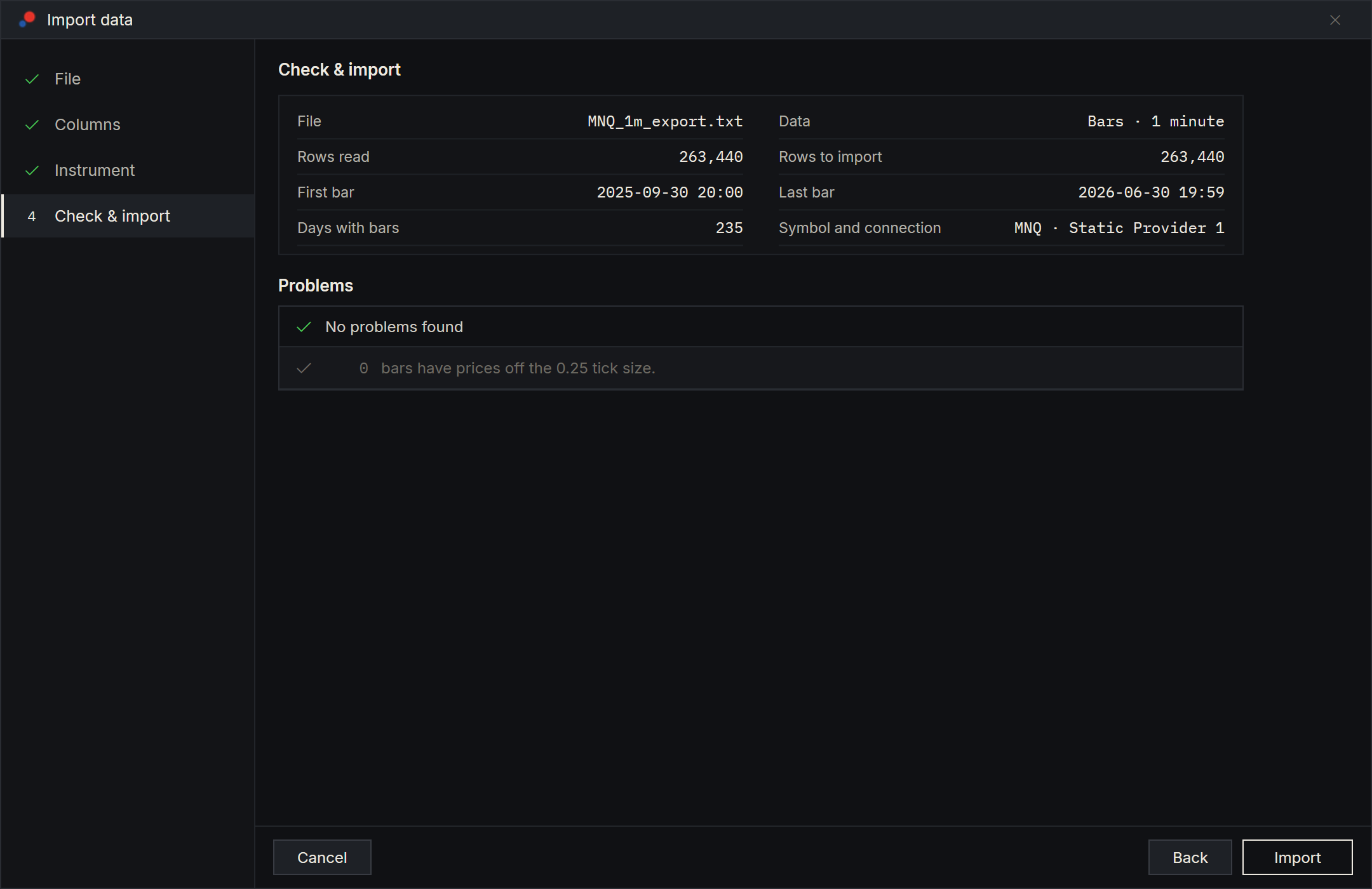
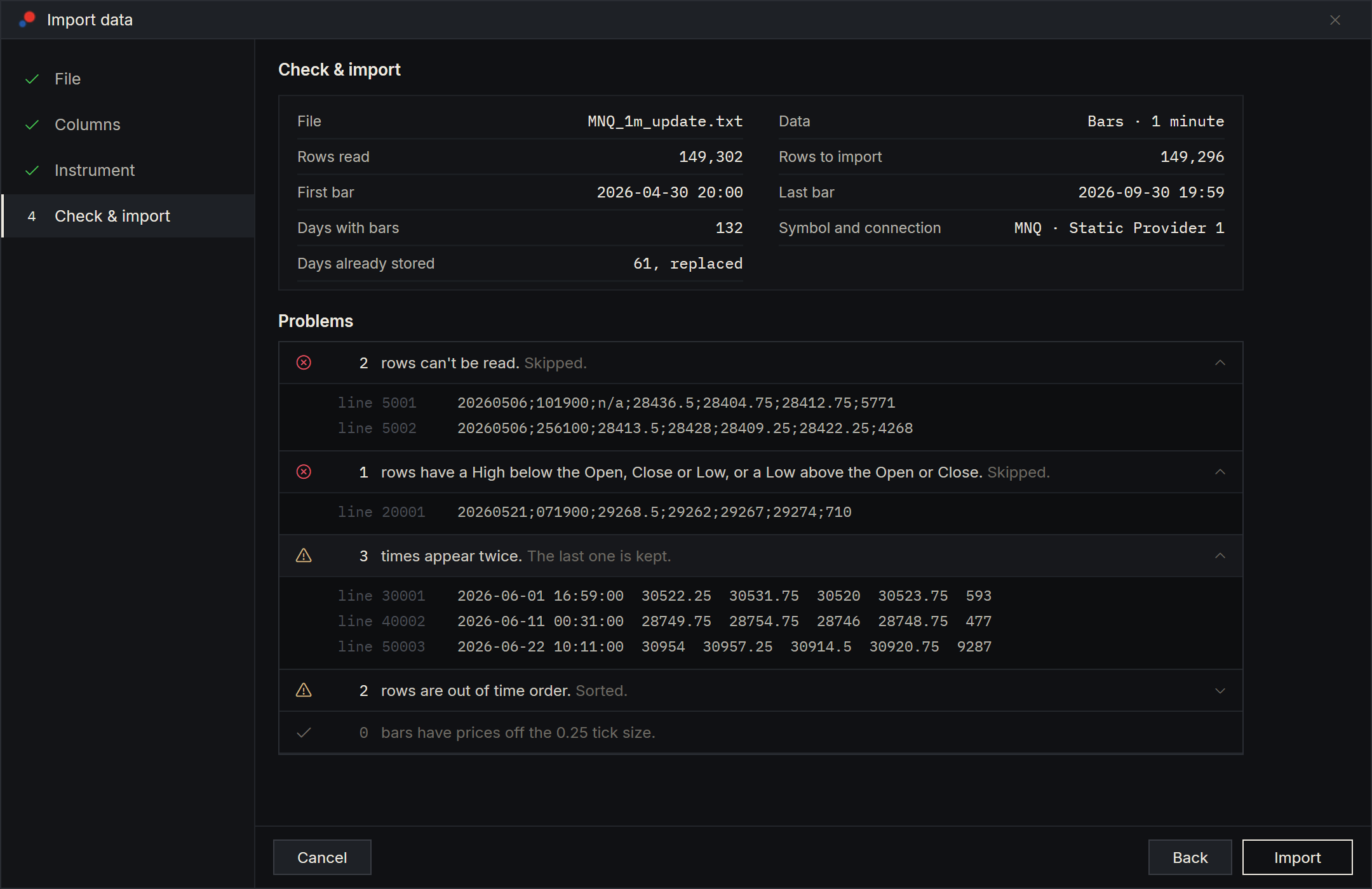
The summary
| Row | What it shows |
|---|---|
| File | The file's name. |
| Data | The bar size, such as "Bars · 1 minute". |
| Rows read | The data rows in the file. |
| Rows to import | The rows that become bars, after the problems below are dealt with. |
| First bar and Last bar | In AlgoDesk time. A daily bar shows its date. |
| Days with bars | How many days hold at least one bar, counted in AlgoDesk time. |
| Symbol and connection | For example "MES · Static provider 1". |
| Days already stored | Only when step 3 found an overlap: "120, replaced" or "120, kept", counted in UTC days. |
Problems
Under Problems, each kind of problem has a line with its count and what the import does about it. Choose a line to see up to 10 example rows, with their line number in a CSV file ("line 412") or their row number in a Parquet file ("row 412"). When there is nothing to report, the step says "No problems found".
| Problem | What happens |
|---|---|
| "N rows can't be read." A time or a price that is not valid, or a bar dated before 2 January 1970 or after tomorrow (see Dates AlgoDesk accepts). | Skipped. |
| "N rows have a High below the Open, Close or Low, or a Low above the Open or Close." | Skipped. |
| "N times appear twice." | The last one is kept. |
| "N rows are out of time order." | Sorted. |
| "N weekdays have no bars between the first and the last bar (holidays or missing data)." Weekdays are counted in AlgoDesk time. | Imported as is. |
| "N bars have prices off the 0.25 tick size." The line names the tick size you chose in step 3 and shows even when the count is 0. | Imported as is. |
If no row is left to import, Import is greyed out and the line above the buttons says "No rows to import".
Import
Choose Import. The bottom of the window shows "Writing day 12 of 380" ("Writing year 1 of 3" for 1-day bars), a progress bar and Cancel. Back and Next are hidden, and the list of steps cannot be clicked.
AlgoDesk first writes the bars aside, in a temporary folder, a day at a time. Nothing among your stored bars changes until every day is written. Then a final step, "Finishing the import...", moves the files into place, adds the symbol (for a new one) and records the days as stored. It is quick.
- Cancel next to the progress bar stops the import. Your stored bars are untouched: step 4 says "Import cancelled. Nothing was changed." and Import is offered again at once. The files the import had written aside are not removed at once: they stay in a temporary folder until you choose Import again, go back to step 1 or 2, or close the window. If you cancel just as the last day is written, AlgoDesk checks the file again first ("Checking the file..."), then offers Import. Cancel is greyed out during the final step.
- If you close the window while the days are being written, with Cancel at the bottom left or the window's close button, it asks "An import is running. Cancel it and close?" Yes cancels the import and closes the window, with nothing changed. No keeps importing. During the final step there is no question: the window says "Finishing the import. The window closes when it is done." and closes by itself when it is.
- If you exit AlgoDesk while the days are being written, a question joins the usual exit questions: "An import is running. Cancel it and exit?" Yes cancels the import and exits. No keeps AlgoDesk open and the import going. During the final step AlgoDesk waits for it to finish, then exits.
If the import stops
If something stops the writing, the step says what and that nothing was changed, and Import is offered again:
| Message | What to do |
|---|---|
| "The import stopped: AlgoDesk could not write its files (the disk may be full, or a file is in use). Nothing was changed." | Free some disk space or close the program that holds a file, then choose Import again. |
| "The import stopped: AlgoDesk is not allowed to write to its data folder. Nothing was changed." | Windows refuses AlgoDesk write access to its Documents\AlgoDesk\DB folder. Fix the folder's permissions. |
| "The import stopped: a stored file of this symbol is damaged, so the bars could not be merged into it. Nothing was changed." | Happens with 1-day bars when a stored year file the import reaches into is damaged. Delete that bar size under Options > Historical Data, then import again. (With smaller bars, a damaged stored first or last day does not stop the import: see Bars already stored.) |
| "The import stopped because of an error. Nothing was changed. The Log tab has the details." | Read the detail on the Log tab. |
| "An earlier import of MES at 1 minute is not finished, so this file was not imported. AlgoDesk finishes the earlier import when it starts; then import this file again." | Restart AlgoDesk, then import the file again. If the earlier import still cannot be finished, choose Discard the unfinished import (see below), then Import. |
| "The check's data was gone, so AlgoDesk checks the file again before importing." | Nothing: AlgoDesk checks the file again by itself, and you can then choose Import. |
If the final step cannot finish, usually because another program, such as an antivirus scanner, holds one of the stored files, the step says "AlgoDesk could not finish writing the imported bars. It tries again when it starts." Import becomes Try again, and Back and the list of steps are off. Choose Try again to finish the import. If it fails again, the same message returns. You can close the window instead: AlgoDesk finishes the import the next time it starts. If the import cannot be finished at all, the step says "The import could not be finished. The Log tab has the details."
Discard the unfinished import
An import that keeps failing in its final step, for example because another program keeps a stored file locked, can be given up. Below the message, choose Discard the unfinished import. It is offered after "AlgoDesk could not finish writing the imported bars. It tries again when it starts." and after "An earlier import of MES at 1 minute is not finished...", where it discards that earlier import. It is never offered while the final step is running.
AlgoDesk asks first: "Discard the unfinished import of MES at 1 minute? AlgoDesk stops trying to finish it. The days it already wrote stay as they are: they may mix two imports and may not count as stored, and a new symbol it created stays. Import this file again with Replace to put those days right." For an earlier import the question starts "Discard the earlier unfinished import of MES at 1 minute?" and ends "Import the earlier import's file again with Replace to put those days right."
Yes removes what AlgoDesk kept aside to finish that import, so neither Try again nor the next start finishes it. What its final step had already done stays:
- The days it had already written keep the new bars, so a symbol's history may be a mix of the earlier bars and the new ones. Such a day may also not count as stored: step 3 does not list it among the bars already stored.
- A new symbol it had already created stays in the Instruments window.
To put this right, import that import's file again with Replace the overlapping days. After your own import, that is the file in this window. After an earlier import, it is the file you imported then. The Log tab names the symbol and its days: "Import data: the unfinished import of MES at 1 minute (2 Jan 2025 to 30 Jun 2025, UTC days) was discarded. ..."
After your own import was discarded, the step says "The unfinished import was discarded. Import this file again with Replace to put the days it had already written right." AlgoDesk checks the file again ("Checking the file...") before it offers Import, and Back works again. After an earlier import was discarded, it says "The earlier import was discarded. Import its file again with Replace to put the days it had already written right." and Import is offered at once for this file. If the import cannot be discarded, the step says "The unfinished import could not be discarded. The Log tab has the details." and nothing changes.
When it is done
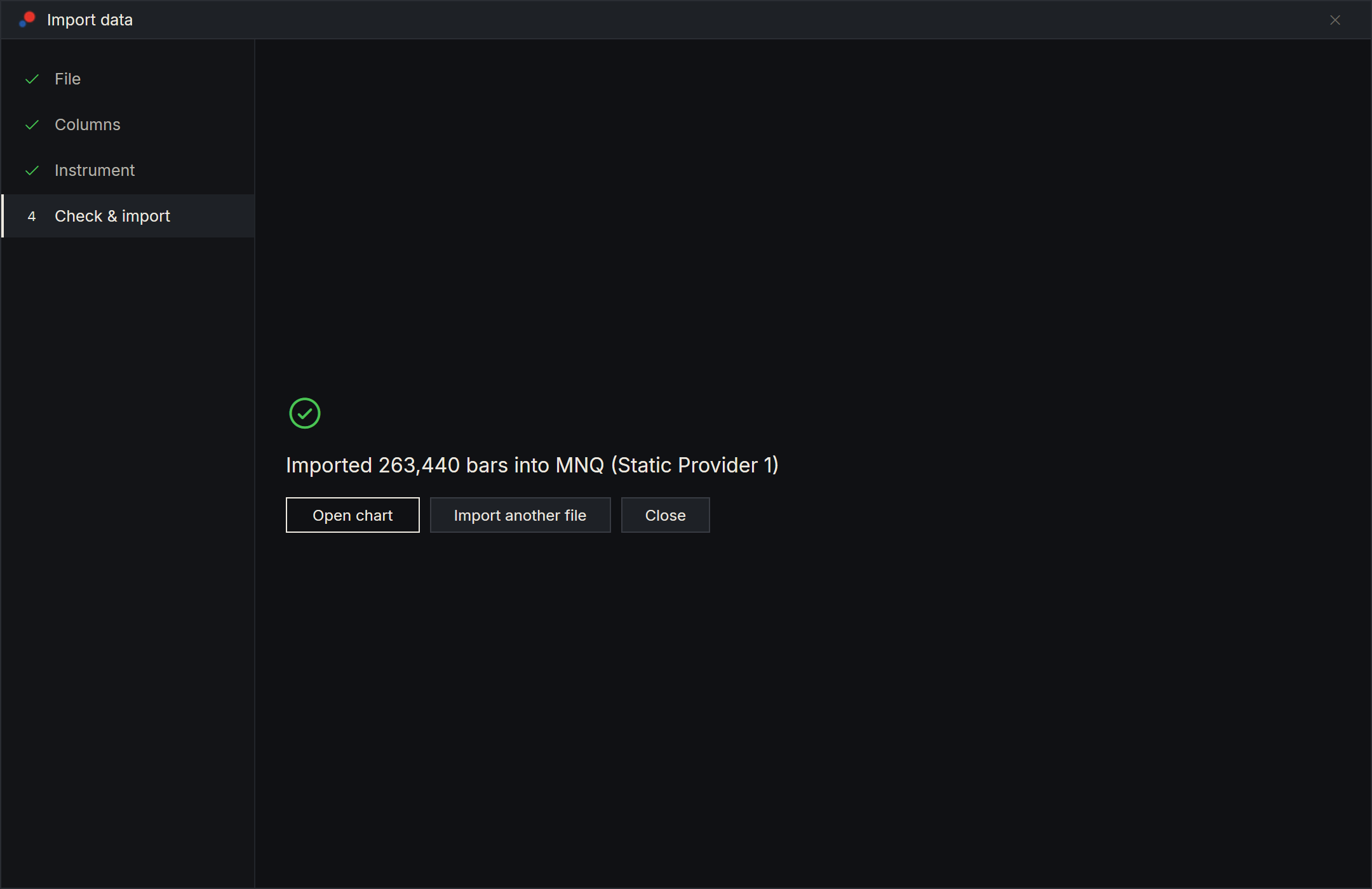
The step says "Imported 524,307 bars into MES (Static provider 1)", with three buttons:
- Open chart opens a new chart of that instrument and bar size, with fixed dates, because a chart otherwise counts back from today and would show nothing for bars from the past. The chart ends on the date of the last imported bar and starts up to 365 days earlier, or on the date of the first imported bar if that is later. The dates are in AlgoDesk time.
- Import another file returns to step 1 with the same connection.
- Close closes the window.
The new symbol is in the Instruments window, under AlgoDesk Symbols. The number of bars in that sentence counts the file's bars that were written: with Keep what is stored, add only new days, only the bars that were added, and never the stored bars kept on the file's first and last day.
If AlgoDesk stops during an import
An import is all or nothing. If AlgoDesk or the computer stops while the days are being written aside, the next start deletes what was left, and your stored bars are as they were. Once every day has been written, the import is ready to finish: if AlgoDesk or the computer stops from then on, just before or during the final step, "Finishing the import...", the next start finishes the import: the symbol, the bars and the record of which days are stored.
If Windows shuts down, restarts or signs you out during an import, AlgoDesk cannot ask its question, so it cancels the import, and what was written aside is deleted then or at the next start. An import that had already written every day may be finished at the next start instead, and one that was in its final step always is.
What the next start does is noted on the Log tab of the Control Center: "Import data: an interrupted import of MES was finished." or "Import data: an import interrupted before it changed anything was cleared." An import you discarded (see Discard the unfinished import) is not finished at the next start.
Where the bars go, and deleting them
The bars are kept in the connection's own folder and charts, the Backtester and the Optimizer read them from there. See Static data. A chart counts back from today, as every chart does. If your bars are older, use Open chart or set the chart's dates in the Data series window.
Delete imported bars in Tools > Options > Historical Data, not by hand. See Historical data. While an import is running, or waiting for Try again, Remove and Remove all there say "An import is running. Try again when it has finished." and delete nothing.
Removing an instrument keeps its bars. If you later import the same symbol again on the same connection, step 3 finds them and shows the notice about bars already stored.