Finding and adding instruments
AlgoDesk charts, backtests and trades only the instruments you have added from a connection. You find and add them in the Instruments window, where you can also check the tick size and multiplier AlgoDesk uses for each one. A Static data connection has no list to search: its instruments are created when you import a file.
The Instruments window
On the toolbar, choose Tools, then Instruments. The same window opens from the … button next to Instrument in the Data series window. Opened from there, it picks an instrument for you: select one under AlgoDesk Symbols and choose OK, or double-click it.
The window has two halves.
| Half | What it shows |
|---|---|
| AlgoDesk Symbols, on the left | The instruments you have added, for one connection and one type. A type box, a connection box and a Find box filter the list. |
| The right half, headed with the connection's name | The provider's own list, where you search and add. It says "You are not connected to this provider" until that connection is connected. |
On a Static data connection the right half says "Static data has no list to search. Its symbols are created when you import data." Under the text is an Import data... button: it closes the Instruments window and opens the Import data window with this connection chosen. See Importing data. The button is not offered when the Instruments window is open to pick an instrument for a chart or the Backtester, and the right half then shows only the text. The left half works as for any other connection, so you can still change an instrument's Price increments and Multiplier (see Instrument details) or remove it.
The connection box on the left decides which connection both halves show. Everything you add or remove is saved at once; OK closes the window.
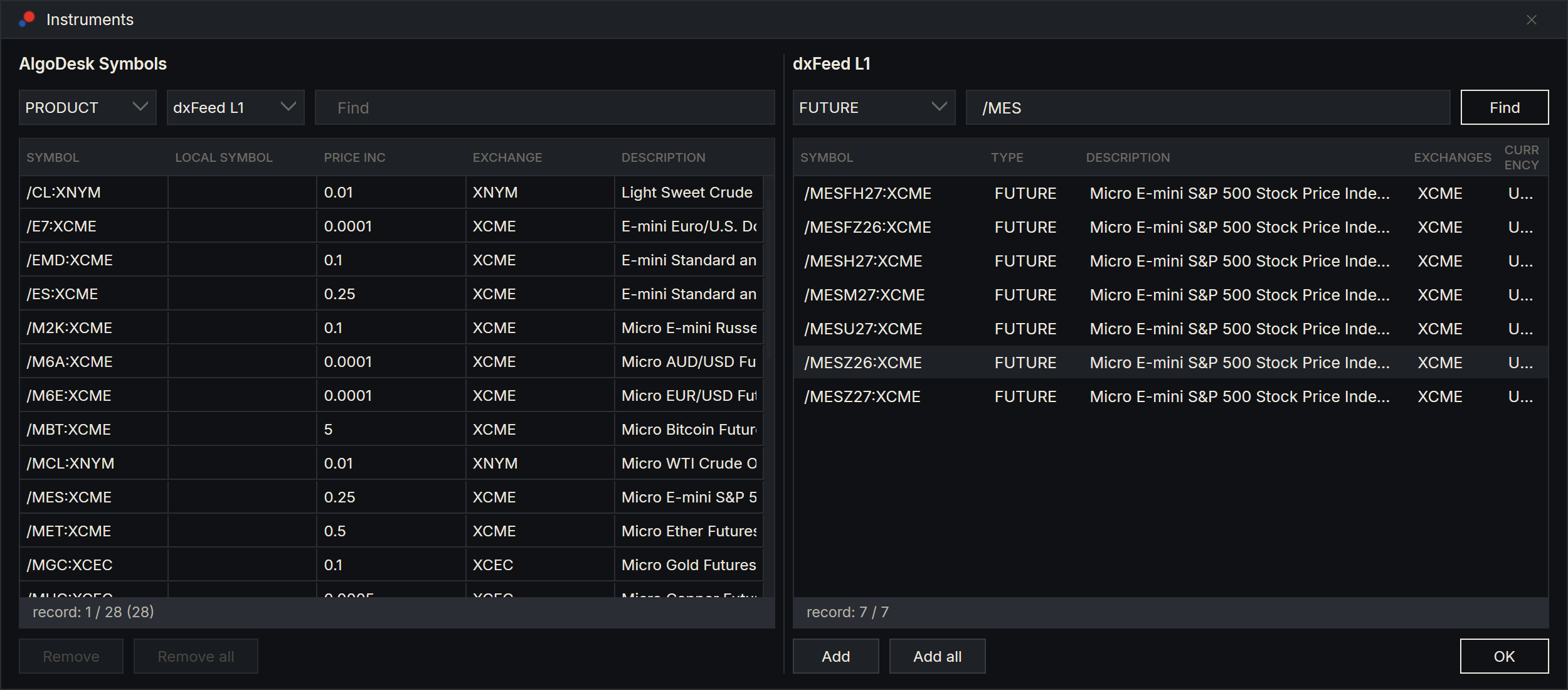
Search and add
- In the connection box on the left, choose the connection. It must be connected.
- On the right, choose the instrument type. It starts on the connection's first type: STOCK for dxFeed and Interactive Brokers, SPOT for Bybit, FUTURE for Tradovate and TopstepX.
- Type the symbol, or part of it, in the Find box and choose Find, or press Enter.
- Select one or more rows, using Ctrl or Shift for several, and choose Add. Add all adds every row listed.
The new instruments appear under AlgoDesk Symbols. On the right, rows you have already added are greyed. Typing in the Find box also narrows the rows already listed, without asking the provider again. Double-click a row on the right to see everything the provider says about that instrument, read-only.
Each provider searches in its own way.
dxFeed
- The list stays empty until you search: dxFeed cannot list a whole type.
- Find returns every symbol of the chosen type that contains your text, sorted by symbol. It searches symbols, not descriptions, and ignores upper and lower case.
- A blank search sends nothing. The Log tab of the Control Center says that a symbol is needed.
- A search shows at most 2,000 rows. When more match, the Log tab says how many, and you narrow the search.
- What you can find depends on your dxFeed subscription.
The columns are Symbol, Type, Description, Exchanges and Currency.
Interactive Brokers
- The list stays empty until you search. Trader Workstation or IB Gateway answers the search.
- Type the symbol exactly, such as
AAPL,ESorSPX, not a part of it. A search that matches nothing leaves the list empty. - FUTURE lists every contract of the root, the nearest expiry first. Every contract has the same Symbol, such as ES; the Local symbol and Expiry columns tell them apart.
- For CASH, type the pair as
EUR.USD, or justEURfor every currency quoted against the euro.
The columns are Symbol, Local symbol, Description, Exchange, Currency, Expiry and Multiplier.
Bybit
- The types are SPOT and FUTURE, Bybit's linear contracts.
- Choosing a type loads every instrument Bybit is trading in it. Typing in the Find box narrows the list as you type.
- The columns are Symbol, Base, Quote, Vol 24h and Last price.
Bybit also adds a few popular pairs, such as BTCUSDT and ETHUSDT, each time you connect. See Instrument lists.
Tradovate
- The one type is FUTURE: Tradovate's futures contracts, one row per expiry.
- Choosing the type lists the front contracts of ES, NQ, MES and MNQ. To find others, type a product's symbol, such as
ESorNQ, and choose Find: it lists that product's expiries that have not expired, nearest first, and those of any product whose symbol starts with what you typed. Type a contract's name, such asESZ6, to find that one contract. - The Product and Expiry columns tell the expiries apart; the nearest expiry is the first row of its product.
- The columns are Symbol, Product, Expiry, Exchange, Currency, Description, Tick size and Point value.
Tradovate also adds the front contracts of ES, NQ, MES and MNQ each time you connect. See Instrument lists.
TopstepX
- The one type is FUTURE: the futures contracts TopstepX trades, one row per expiry.
- Choosing the type lists every contract TopstepX trades, read once each time you connect. Find asks TopstepX as well, which answers up to 20 contracts, and keeps the listed contracts whose names start with what you typed. Type a product's symbol, such as
ES, to list its expiries, or a contract's name, such asESZ6, to find that one. - The Product and Expiry columns tell the expiries apart. Find sorts its answer by product, then by expiry, nearest first.
- The columns are Symbol, Product, Expiry, Description, Tick size and Point value. TopstepX names no exchange, so there is no Exchange column.
TopstepX also adds the front contracts of ES, NQ, MES and MNQ each time you connect. See Instrument lists.
dxFeed symbols
dxFeed uses its own types and spells symbols its own way. Search with the type and the symbol shape in this table.
| Type | What it holds | Example |
|---|---|---|
| STOCK | US stocks | AAPL |
| ETF | US exchange-traded funds | SPY |
| FUTURE | One futures contract: root, month code, two-digit year and exchange | /ESZ26:XCME, December 2026 |
| PRODUCT | The continuous future, which moves to the next contract by itself | /ES:XCME |
| OPTION | Options on US stocks, starting with ., and options on futures, starting with ./ |
.AAPL…, ./ES… |
| INDEX | S&P Dow Jones indices, dxFeed market indicators and dxFeed crypto indices | $TICK, $BTC/USD:CXDXF |
| FOREX | Crypto pairs from Kraken. Bitcoin is XBT. | XBT/USD:CXKBE |
The exchange codes for futures are XCME (CME), XCBT (CBOT), XNYM (NYMEX) and XCEC (COMEX).
To find an option, type as much of the start of its symbol as you know, for example .AAPL261218C, so the search stays under 2,000 rows.
A PRODUCT series is not adjusted when it moves to the next contract: the price gap between the two contracts shows as a jump. See Historical data.
Instrument details
Double-click an instrument under AlgoDesk Symbols to open the Instrument window. These values matter most:
| Field | What AlgoDesk uses it for |
|---|---|
| Price increments | The tick size. It sets how many decimals charts, the Book Trader, orders and positions show, and strategies read it as their tick size. |
| Multiplier | The value of a one-point move for one contract. A trade's profit is the price move times the quantity times the multiplier, in backtests, strategies and paper accounts. With a multiplier of 5, a 10-point move on one contract is 50. |
| Min lot size | The smallest order quantity. Order sizes are rounded to it. The Book Trader starts with it, and so does Chart Trader on a chart of type FUTURE. |
| Notional | The smallest order value, as Bybit reports it. |
| Symbol, Type, Exchange, Currency | What AlgoDesk sends the provider to ask for this instrument's prices. |
Under Provider specific, Fields shows the provider's own record for the instrument, read-only.
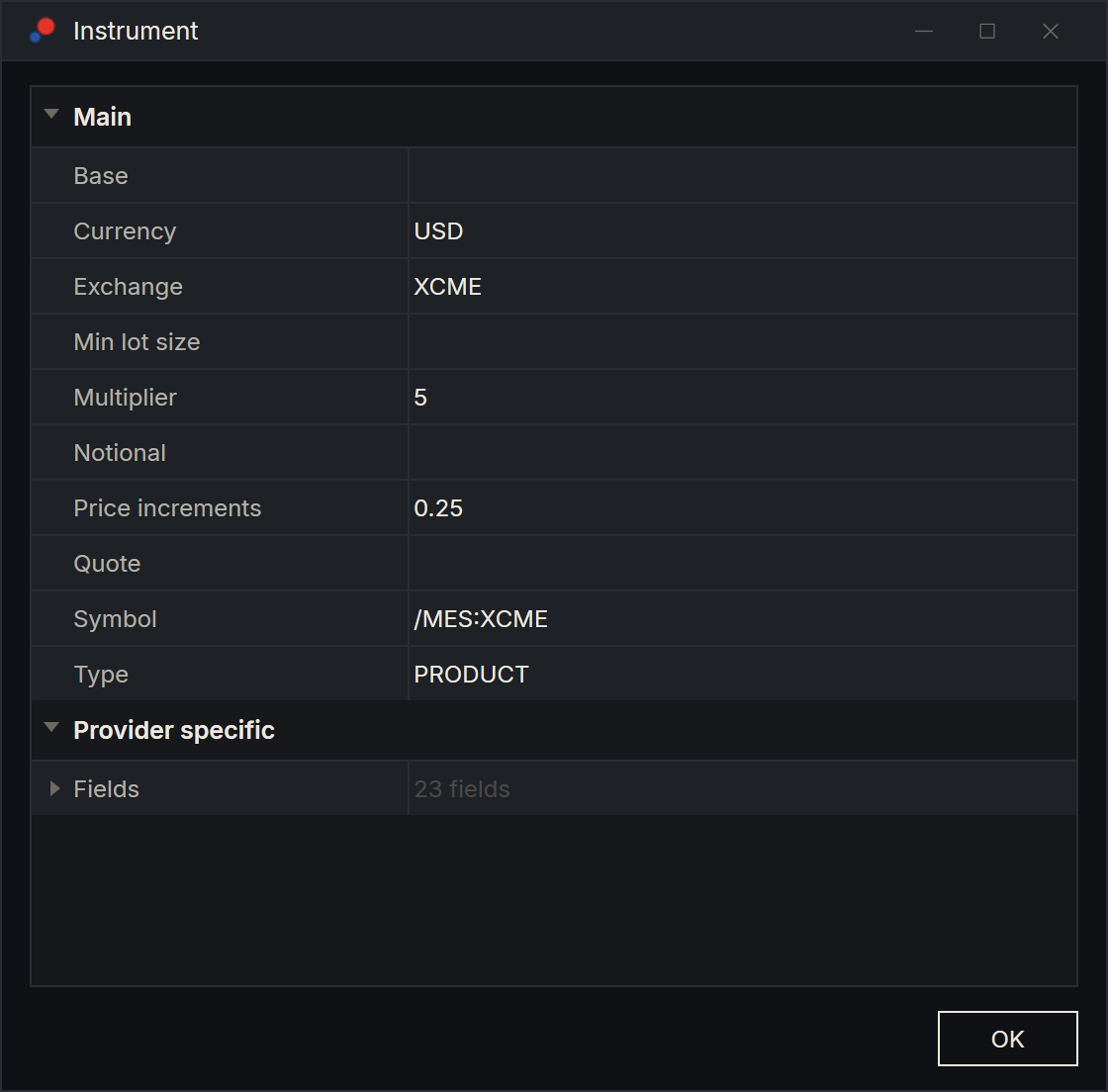
You can change a value and choose OK to save it. AlgoDesk uses the new value at once, without a restart; a chart that is already open keeps the old one until you close it and open it again. Correct Multiplier or Price increments only when the provider sent a wrong value: every backtest result depends on them. Leave Symbol, Type, Exchange and Currency as the provider sent them, or they point at a different instrument.
On dxFeed, a PRODUCT takes the multiplier of its nearest-expiring contract, and an instrument sent without a multiplier gets 1. Check the multiplier once after you add a future.
Remove instruments
Select one or more instruments under AlgoDesk Symbols and choose Remove, or press Delete.
Remove all removes the instruments listed under AlgoDesk Symbols: the connection and type on screen, narrowed by the Find box. It asks first: "Remove the … instruments shown? They also leave every instrument list and instrument map. This cannot be undone."
- Removing an instrument also takes it out of your instrument lists and instrument maps.
- Its stored price history stays on your computer. See Historical data to delete it.
- On Bybit, Tradovate and TopstepX, the instruments AlgoDesk adds when you connect are default instruments and cannot be removed: Remove says "Can't delete the default instrument", and Remove all leaves them out. On Tradovate and TopstepX they are the current front contracts: after a contract expires and the next connect names a newer front, the old one can be removed. dxFeed and Interactive Brokers have no default instruments.
- Removing a connection in Connections > Configure... removes all its instruments and lists.
Other ways to find an instrument
- The symbol box on a chart's toolbar searches only the instruments you have added. See Opening a chart.
- Claude can search a connection and add instruments for you, after you confirm the list. See What Claude can do.