Historical data
AlgoDesk downloads price history from your connection the first time a chart, the Backtester or the Optimizer needs it, and keeps it on your computer for next time. This page explains when it downloads, what the progress messages mean, where the history is kept and how to delete it.
When AlgoDesk downloads history
Whenever a chart opens or changes its data series, or the Backtester or Optimizer loads an instrument, AlgoDesk works out which days of the period it does not hold yet and downloads only those.
- History is kept for each instrument and bar size. A 15-minute and a 1-hour series of the same instrument are stored separately.
- It belongs to the provider, not to the connection: two dxFeed connections share the same history. Connections set to Real and to Paper keep separate history. Static data connections are the exception: each keeps its own bars, and AlgoDesk never downloads them.
- The current day, counted in UTC, is never stored. AlgoDesk downloads it again each time.
- Charts, the Backtester and the Optimizer share the same store. Once a chart has loaded a year of 15-minute bars, a backtest of the same instrument and bar size over that year downloads at most the current day.
Progress messages
While history loads, the chart, the Backtester or the Optimizer shows what it is doing.
| Message | What it means |
|---|---|
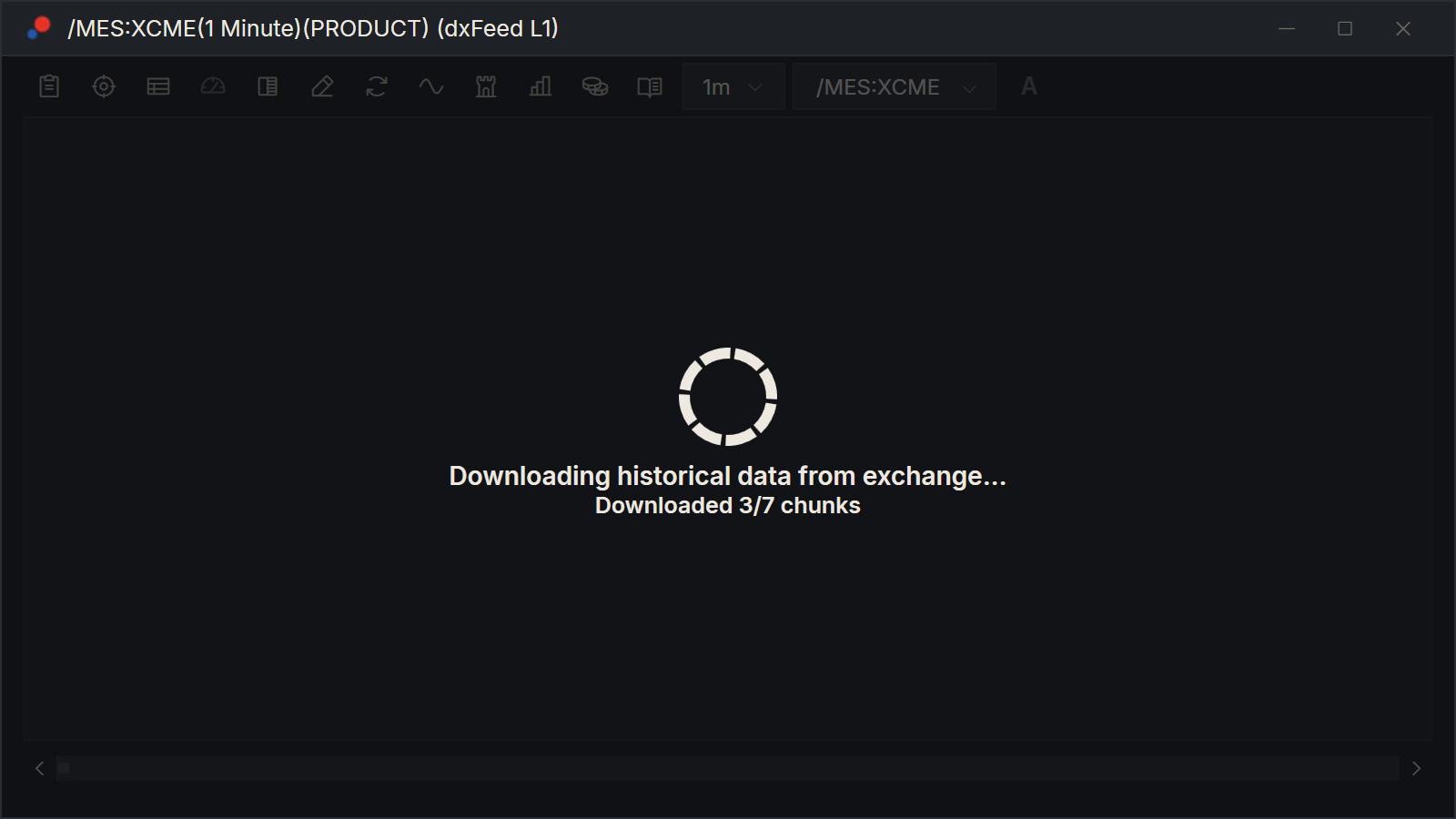
| "Downloading historical data from exchange..." with "Downloaded 3/12 chunks" | AlgoDesk is downloading the missing days in chunks. A chunk is up to 5 days of tick or second bars, 60 days of minute bars, 365 days of hourly bars or 1,000 days of daily and longer bars. |
| "Downloading historical data from exchange..." with "today" | It is downloading the current day. |
| "Get data from db..." with "Reading 250 day files" | It is reading history already on your computer. |
| "Corrupt history file - re-downloading" | A stored file was damaged. AlgoDesk deletes it and downloads that day again. |
| "dxFeed is responding slowly (high load)" with "Waiting up to 5 minutes: 4:21 left" | dxFeed is slow to answer. See Slow dxFeed responses. |
In the Optimizer the messages start with "IS: ", "OS: " or "Sim: ", for the period being loaded.
Static data is the exception to "Corrupt history file - re-downloading": there is nothing to download its bars from, so a damaged day file of a Static data connection is never deleted. AlgoDesk renames it with .corrupt at the end, for example 20250303.csv.corrupt, and keeps it; the chart shows no bars for that day. The Log tab of the Control Center names the file and says to import that period again. See Static data. A damaged 1-day file is not set aside, because it holds a whole year: it stays where it is, the chart or the Backtester reports an error that names the file, and the Log tab names it too. Delete that bar size under Options > Historical Data (see below) and import it again. Until then, an import of 1-day bars for that symbol stops and changes nothing if it reaches into the damaged year. An import with smaller bars whose first or last day is a damaged day file that has not been set aside yet sets that file aside the same way when it finishes, and the day then holds the imported bars (see Bars already stored).
If a download fails, AlgoDesk shows the error. The chunks that arrived before it stay stored, so the next attempt downloads only what is still missing.
Without a connection
If the instrument's connection is not connected, AlgoDesk downloads nothing. A chart then shows only the bars stored on your computer, up to the last stored day, and no live bars. The Backtester and the Optimizer use only the stored days.
To fill in what is missing, connect, then open the chart again. In the Backtester, right-click the instrument, choose Edit and then OK. See Connection status and reconnecting.
Where history is kept
The bars are in Documents\AlgoDesk\DB\HistoricalData, in folders by provider, then Mainnet (Real connections) or Testnet (Paper connections), then type, symbol and bar size. For Tradovate, Mainnet is the Live connection and Testnet the Demo one. A TopstepX connection is always Real, so its bars are under Mainnet. The record of which days are stored is in the database, Documents\AlgoDesk\DB\AlgoDesk.db3.
Static data bars are in the StaticData folder, one folder per connection, and are never downloaded. See Static data.
Removing an instrument or a connection does not delete its history.
Do not delete history folders by hand. The database still records those days as stored, so AlgoDesk does not download them again and the chart shows gaps. Delete history in Options instead.
See and delete stored history
On the toolbar, choose Tools, then Options, and under General select Historical Data.
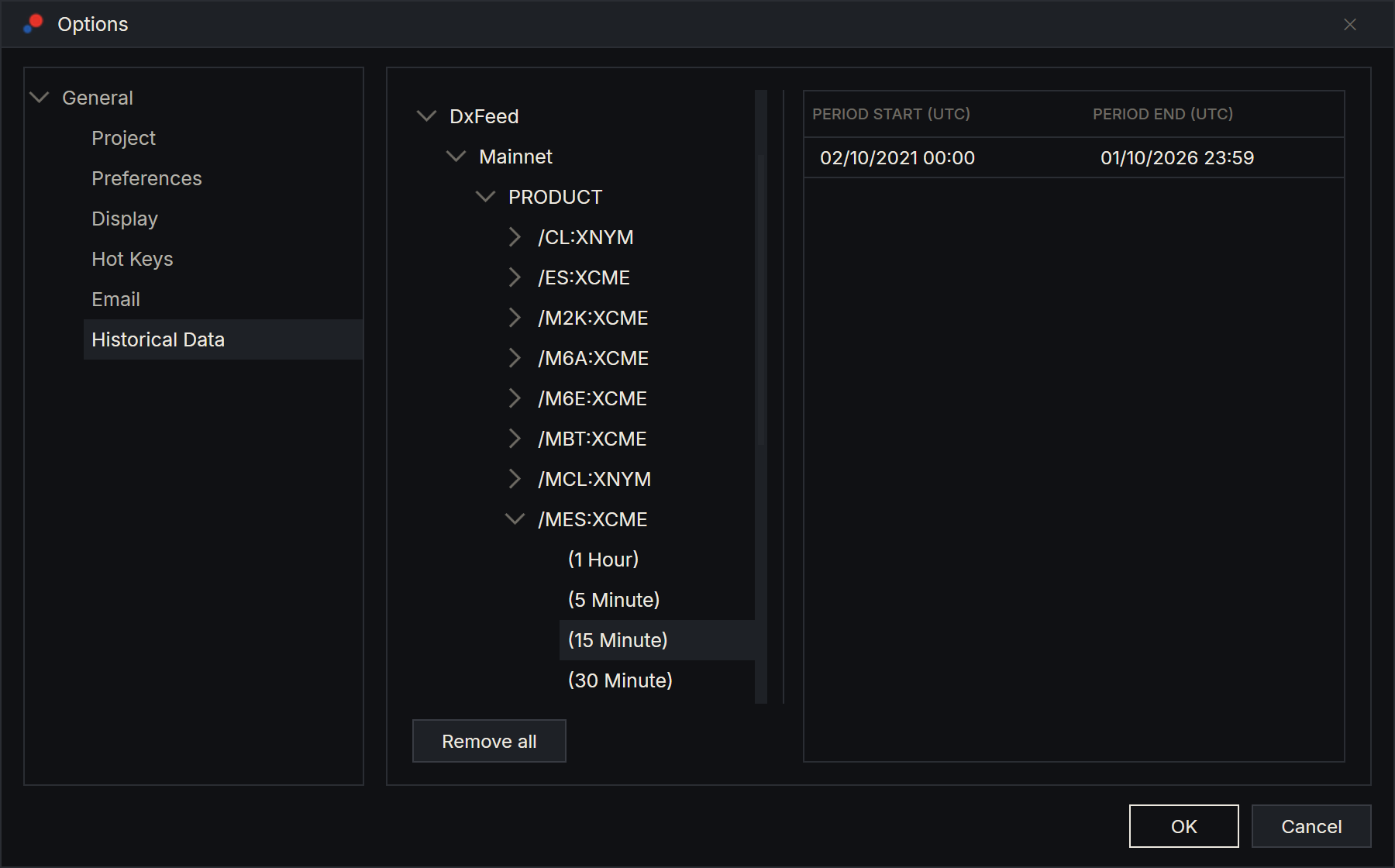
The tree on the left shows everything stored: the provider (DxFeed, Bybit, InteractiveBrokers, Topstep or Tradovate), then Mainnet or Testnet, the type, the symbol and each bar size, such as "(15 Minute)". Select a bar size to list the stored periods on the right, with Period start (UTC) and Period end (UTC). Each row is a run of days with no gap.
Each Static data connection that has bars has a branch of its own, for example "Static data · Static provider 1", with the type, the symbol and the bar sizes straight under it: it has no Mainnet or Testnet level. The bars of a connection you removed show as "Static data (removed connection 4)"; the number tells two removed connections apart.
Right-click a node in the tree for two commands. They act on the node you right-clicked.
| Command | What it does |
|---|---|
| Remove | Deletes the node and everything under it: one bar size, a symbol, a type, or a whole provider. AlgoDesk downloads it again the next time a chart or the Backtester needs it. Bars on a Static data branch are not downloaded again: they are gone until you import them again. |
| Add | Opens Instrument parameters, filled in from the node. Choose the instrument, bar size and period, then OK: AlgoDesk downloads that history now, without the current day. The connection must be connected. Use it to prepare a backtest in advance. There is no Add on a Static data branch, and if you pick a Static data connection in Instrument parameters, AlgoDesk says "Static data has nothing to download. Import its bars with Tools > Import data." and downloads nothing. |
Remove all, below the tree, deletes all stored history, including the bars you imported into Static data connections. Those cannot be downloaded again, only imported again.
Both ask first. Remove names the node; on a Static data branch it also says that imported bars cannot be downloaded again, for example "Delete the stored data of "Static data · Static provider 1 / FUTURE / MES"? Imported bars cannot be downloaded again. The files are deleted now: Cancel in Options does not bring them back." Remove all asks "Delete all stored historical data? The files are deleted now: Cancel in Options does not bring them back." When bars imported into Static data connections are stored, it says so in the question: "Delete all stored historical data, including the bars imported into Static data connections? Imported bars cannot be downloaded again. The files are deleted now: Cancel in Options does not bring them back." Once you choose Yes, the files are gone: choosing Cancel in Options does not bring the history back.
While an import is running, or is waiting for you to choose Try again, Remove and Remove all delete nothing: a message says "An import is running. Try again when it has finished."
To download an instrument's history afresh, remove its node, then open the chart again.
dxFeed
Slow dxFeed responses
When dxFeed is busy, a history request can wait. After 30 seconds with no answer, the loader shows "dxFeed is responding slowly (high load)" and "Waiting up to 5 minutes: 4:21 left", counting down each second. As soon as dxFeed answers, the normal progress comes back.
If dxFeed has not answered after five minutes, the download stops with an error. The days already downloaded stay stored. Try again later.
How far back dxFeed goes
| Bar size | History available |
|---|---|
| Tick and second | 750 days |
| Minute and hour | 3,650 days, about 10 years |
| Day and longer | Everything dxFeed has |
If you ask for more, AlgoDesk starts at the limit and the Log tab of the Control Center says so.
Continuous futures jump at each roll
A dxFeed PRODUCT, such as /MES:XCME, follows one contract until dxFeed switches it to the next. The bars are not adjusted at the switch, and AlgoDesk does not adjust them either. The price difference between the old and the new contract shows as a jump in the chart, once at every roll.
This matters for backtests and optimisations:
- A position held across a roll books the jump as profit or loss, although the market did not move by that much.
- Indicators and strategy rules see the jump as a real price move.
To avoid it, keep your strategy flat across roll days, or test on a single contract (type FUTURE) over a period inside its life. See Finding and adding instruments.
Claude and stored history
Claude can tell you which days are stored for an instrument and download history for you. See What Claude can do.