Chart Trader
Chart Trader is the order panel on the right of a chart. It places orders in the chart's instrument and draws your working orders and position on the chart, where you can move, resize and cancel them.
Show or hide Chart Trader
The Chart trader button on the chart's toolbar opens a menu with three choices:
| Choice | What you get |
|---|---|
| Chart only | No panel. Orders and the position are not drawn, and the right-click menu has no order items. |
| Chart trader | The panel, with your orders and position drawn on the chart. |
| Chart trader (Hidden) | No panel, but your orders and position are still drawn and the right-click order items are still there. |
Whether a new chart opens with the panel is set by Show Chart Trader in Tools > Options. See Options.
The panel
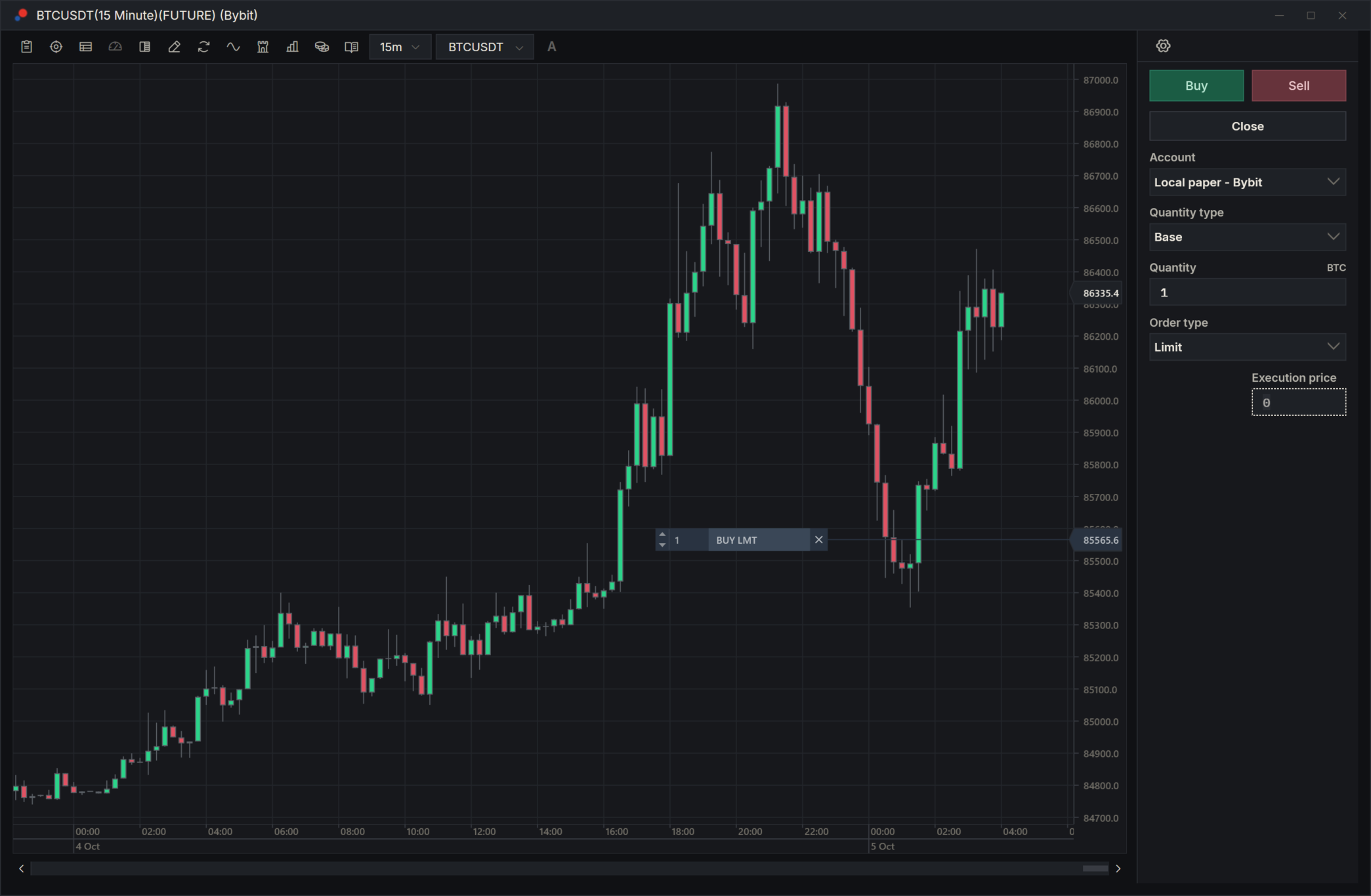
From top to bottom:
| Item | What it does |
|---|---|
| Buy, Sell | Send an order of the chosen Order type for Quantity. |
| Close | Closes your position in this instrument on the chosen account with a market order. Working orders stay. Not shown for spot instruments. See Account for an account on another connection. |
| Account | Where the orders go. |
| Quantity type | Base or Quote. See Quantity. |
| Quantity | The size of each order. The unit shows to the right of the label. |
| Order type | Limit, Market, Stop Limit or Stop Market. It starts on Market. |
| Trigger price, Execution price | The prices of the order. Which ones show depends on the order type. |
The gear at the top of the panel opens Trading options.
Order types and their prices
| Order type | Prices you fill in |
|---|---|
| Market | None. It fills at the market. |
| Limit | Execution price: the price you buy at or below, or sell at or above. |
| Stop Market | Trigger price: when the market reaches it, a market order is sent. |
| Stop Limit | Trigger price, then a limit order at the Execution price. |
Account
The Account list holds the connected accounts of the chart's connection. If that connection does not trade a real account itself, the list also holds any Broker account on another connection that the instrument is mapped to (see Instrument map). It starts on Local paper. A connection that carries several accounts at its venue lists each of them by name. When you choose another account, the chart redraws that account's orders and position. What each account is: Accounts.
With a Broker account on another connection, orders and Close go to the instrument the chart's instrument is mapped to there: Close closes the position in that instrument and no other. If you remove the map, orders for that account are refused at once and a notice says the instrument is not mapped.
Quantity
On a chart of a futures contract (type FUTURE), Quantity starts at the contract's minimum lot size, or at 1 when the instrument does not give one. On every other chart it starts at 0.001, including a dxFeed continuous contract such as /MES:XCME, whose type is PRODUCT. Set it to the size you want before you place an order. A size you typed stays when you switch the chart to another instrument.
- Base: the quantity is in units of the instrument. For BTCUSDT, that is bitcoin.
- Quote: the quantity is an amount of the quote currency, for BTCUSDT tether. AlgoDesk turns it into units at the order's price, the last price for a market order, rounded down to the instrument's minimum size.
Place an order
From the panel:
- Choose the Account.
- Set Quantity type, Quantity and Order type, and the prices the order type needs.
- Choose Buy or Sell.
From the chart, at a price:
- Right-click the chart at the price you want.
- Choose one of Buy Limit, Buy Stop Limit, Buy Stop Market, Sell Limit, Sell Stop Limit or Sell Stop Market. Each item shows the price under the mouse, rounded to the instrument's tick.
The right-click items use the panel's Account, Quantity and Quantity type. A stop limit from the right-click menu has its trigger and its limit at the same price. The items are not there in Chart only.
Nothing asks you to confirm. If you place an order while the chart's connection is down, or with no account chosen, AlgoDesk says "You are not connected to data provider". If your broker refuses an order, a notice in the bottom-right corner of the screen says why.
On a Broker account every order is real. Check Account and Quantity before you click.
Orders and position on the chart
Every working order of the chosen account in this instrument is drawn on the chart at its price, including orders your strategies placed. Market orders are not drawn. Each marker joins the price axis with a line and has four parts, from left to right:
| Part | What it does |
|---|---|
| Up and down arrows | Raise or lower the order's quantity by the panel's Quantity. It never goes to zero; use ✕ to remove an order. |
| Quantity | Click it to type a new quantity, then press Enter. |
| Label | "BUY LMT", "SELL STPM", "BUY STPL" and so on. Click it to move the order. |
| ✕ | Cancels the order. |
Limit orders and the two kinds of stop order have different colours.
Your open position on the chosen account is drawn as a marker at its average entry price, coloured for long or short, with its open profit or loss (followed by the instrument's currency, such as USDT, when AlgoDesk knows it) and its quantity.
Cancel an order
Click the ✕ on the marker. The order is cancelled at once, without a question.
Move an order
- Click the order's label, or the line next to it. The marker turns dashed and follows the mouse.
- Click at the new price. The price is rounded to the instrument's tick and the change is sent.
Press Esc, or right-click, to cancel the move; nothing is sent. Moving a stop limit puts both its trigger and its limit at the new price.
Trading options
Trading options sets how orders from this chart's Chart Trader are sent to your broker. Open it with the gear at the top of the panel, or right-click the chart and choose Trading options....
It opens only when the chosen account's connection trades at your broker: its Connection type is Real and it can place orders, as Interactive Brokers, Tradovate and TopstepX can, or Bybit with an API key. For any other connection nothing happens. With Local paper chosen on such a connection the window still opens, but without the Leverage box: a paper account never reads or changes your leverage at the exchange. Its other settings still apply to the paper orders.
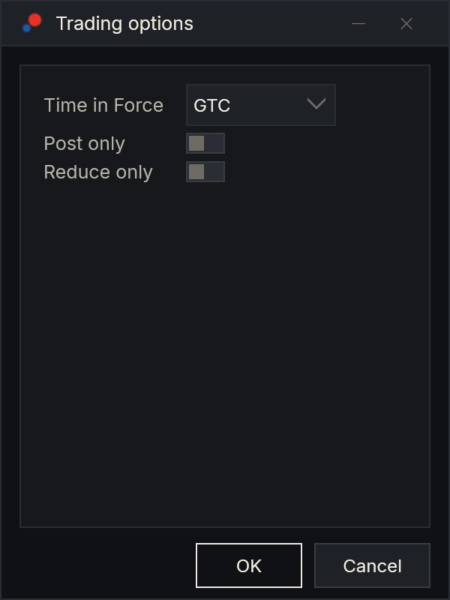
| Setting | What it does |
|---|---|
| Time in Force | GTC (good till cancelled), IOC (immediate or cancel) or FOK (fill or kill). It starts on GTC. TopstepX takes neither IOC nor FOK: see TopstepX. |
| Post only | The order must add to the book, not take from it. Turning it on sets Time in Force to GTC and locks it. |
| Reduce only | Futures only. The order may only make your position smaller. |
| Margin | Non-futures instruments only. Trades on margin. |
| Leverage | Futures only, and only with the Broker account chosen. Your leverage at the exchange for this instrument; type a new value to change it. |
Choose OK to keep the settings, or Cancel to drop them. With the Broker account chosen, OK also sends the Leverage value to the exchange.
The settings apply to the panel's Buy, Sell and Close and to the right-click order items. They start again from the defaults when you choose another account.
Related
- Book Trader places orders from the order book.
- Setup Helper adds a panel here for planning a trade on the chart: its entry, stop and target, with the money at risk.
- Orders, positions and accounts lists every order and position.