Setup Helper
Setup Helper is a built-in strategy for trading by hand from price levels you choose in advance. You click the entry, stop and target on the chart, see the money at risk and to gain, and send the plan with one click; Setup Helper then looks after it.
What it does
- It never trades by itself. No order reaches your account until you choose Finish setup.
- A plan is one entry, or a bracket of two: one entry below the price and one above it. Each entry has its own stop and target.
- When an entry fills, Setup Helper cancels the other entry of a bracket, then places a stop and a target for the position.
- When the stop or the target fills, it cancels the other one. The plan then ends.
It works only while it runs live, on a paper or a real account. In a backtest or in the Optimizer it does nothing. It has no parameters of its own: you make every choice in its panel.
Put it on a chart
- Open a chart of the instrument and show Chart Trader with the Chart trader choice. See Show or hide Chart Trader.
- Right-click the chart and choose Strategies.... Under Available Strategies, open the Default folder and double-click Setup Helper.
- Under Main, set Account. Start with Local paper.
- Tick Enabled and choose OK.
See Running a strategy live for the Strategies window and the history run.
On a Broker account the orders of a plan are real. Check Account before you enable Setup Helper.
Setup Helper's panel appears at the bottom of Chart Trader. Until the strategy is live, Set up does nothing but say "Setup Helper: the strategy is not live".
Chart Trader draws the orders of the account chosen in its own Account list. Choose the account Setup Helper trades there, so that you see its orders on the chart and can change them. The Drawing Tools panel opens in place of Chart Trader, so close it to see Setup Helper's panel.
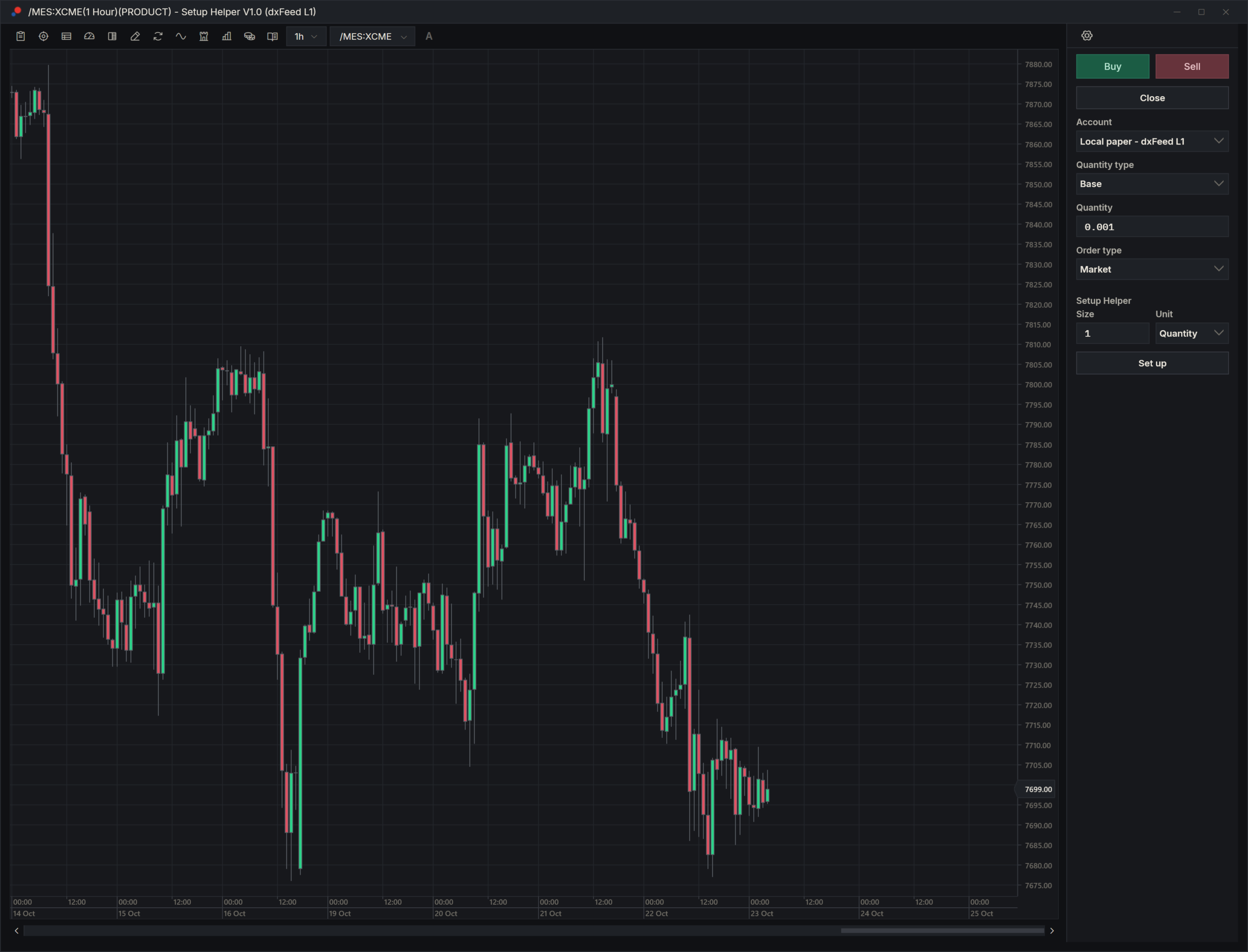
The panel
| Item | What it does |
|---|---|
| Size | How much each entry trades. It starts at 1. |
| Unit | What Size counts. See Size and Unit. |
| Status line | What to do next, or what the plan is doing. |
| Buttons | They change at each step: Set up to start, then the choices of the step you are on. |
Size and Unit
Unit offers Quantity: contracts for a future, shares for a stock. On an instrument with both a base and a quote currency, such as BTCUSDT on Bybit, it offers the two currencies instead, here BTC and USDT. Size starts at 1 in the first of them, which on BTCUSDT is 1 BTC.
The quantity each entry is sent with:
- Quantity, or the base currency: Size as you typed it, rounded down to the instrument's minimum lot when it has one.
- The quote currency: Size divided by that entry's price, rounded down to the minimum lot. 1000 USDT for a Limit Buy at 65000 is 0.01538 BTC, so with a lot of 0.001 the entry is for 0.015 BTC. The two entries of a bracket are each worked out at their own price, so their quantities can differ a little.
The box on the chart always shows the quantity that will be sent. When you change Unit, Size is written again in the new unit at the last price, so the position stays the same: 100 USDT becomes 0.00153846 BTC at 65000.
Size takes a number greater than zero, with a decimal point or your Windows decimal separator, and no thousands separators. Anything else makes the status line say "Size must be a number greater than zero". You can change Size and Unit until you choose Finish setup; then they grey out.
The eight setups
Each kind of entry has a fixed side of the market price. A Limit Buy or a Stop Sell goes below it; a Limit Sell or a Stop Buy goes above it. A limit waits at your price. A stop is a stop market order: when the market reaches your price, a market order is sent.
| Setup | Below the price | Above the price | Direction | In plain words |
|---|---|---|---|---|
| Single | Limit Buy | – | Long | Buy if the price drops to your level. |
| Single | – | Limit Sell | Short | Sell short if the price rises to your level. |
| Single | – | Stop Buy | Long | Buy if the price breaks above your level. |
| Single | Stop Sell | – | Short | Sell short if the price breaks below your level. |
| Bracket | Limit Buy | Limit Sell | Both ways | Buy at the lower edge or sell at the upper edge. |
| Bracket | Stop Sell | Stop Buy | Both ways | Follow a breakout either way. |
| Bracket | Limit Buy | Stop Buy | Long only | Buy the dip or buy the breakout. |
| Bracket | Stop Sell | Limit Sell | Short only | Sell the breakdown or sell the rally. |
Only one entry of a bracket is meant to trade: the first to fill. See Both entries of a bracket fill for when the other fills too.
Lay out a setup
- Choose Set up. The panel asks Single or Bracket.
- For a single order, choose Limit Buy, Limit Sell, Stop Buy or Stop Sell.
- For a bracket, choose what goes Below the price (Limit Buy or Stop Sell) and what goes Above the price (Limit Sell or Stop Buy). The panel shows the direction that follows: Both ways, Long only or Short only. Choose Next.
- Click the prices on the chart, one after another. The status line and the top of the chart say which price comes next.
- Drag any line you want to change, then choose Finish setup.
The prices come in this order:
- A single order: its entry, then its target, then its stop.
- A bracket: the entry below the price, then the entry above it, then the target and the stop of the entry below, then the target and the stop of the entry above.
The panel needs the market price to check your clicks. Before the first trade arrives, choosing an entry or Next says "No price yet - wait for the first tick".
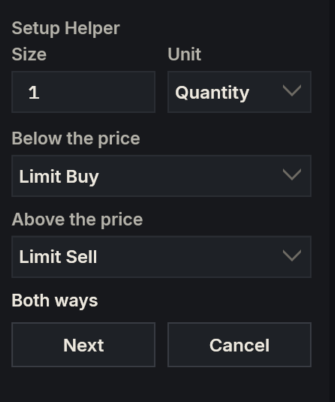
Click a price
While Setup Helper waits for a price, the pointer is a crosshair. A hint at the top left of the price pane says what to click, for example "Click the Limit Buy price. Esc to cancel", and the status line says the same. A dashed line follows the pointer, with the price a click there would give and what that line of the box would say, for example "Limit Buy 2" or "-100.00 USD". When only the price shows, a click there would be refused, or Size gives no quantity.
Click in the price pane. The price is rounded to the instrument's tick. The click does not move the chart, start a drawing or select anything. A click in an indicator's pane is ignored, and the chart goes on waiting.
The checks
Each click is checked. A price on the wrong side is refused: the status line gives the reason, and the same price is asked for again.
| Price | Rule | Refused with, for example |
|---|---|---|
| An entry | On its side of the market at the moment you click. | "A Limit Buy goes below the market (6000.25)." |
| A target | Above the entry for a long, below it for a short. | "For a long, the target goes above the entry." |
| A stop | Below the entry for a long, above it for a short. | "For a short, the stop goes above the entry." |
Cancel a setup
Press Esc while Setup Helper waits for a click, or choose Cancel in the panel at any step before Finish setup. Picking a drawing tool while it waits for a click cancels the setup too. The boxes go, the status line says "Setup cancelled", and Set up is back.
The boxes
Each entry gets a box on the chart, drawn at the right edge of the price pane. It grows with your clicks: first the entry line, then the target, then the stop. The box of a single order, or of a bracket's entry below the price, sits at the edge; the box of a bracket's entry above the price sits just to its left. The two never overlap, and they stay at the right edge as new bars arrive.
Above each line, at the left of the box, are its price and its label:
| Line | Label, for example | What it says |
|---|---|---|
| Entry | "Limit Buy 2" | The kind of entry and the quantity that will be sent. |
| Stop | "-100.00 USD" | The money you lose if the stop fills. |
| Target | "+200.00 USD 2.0R" | The money you make if the target fills, then how many times the risk that is. |
The money is the distance in price, times the quantity, times the instrument's point value: 10 points on 2 MES contracts at 5 USD a point is 100.00 USD. It is followed by the instrument's currency, such as USD or USDT, when AlgoDesk knows it. The figures are before commission. The area between the entry and the stop is shaded red, and the area between the entry and the target green.
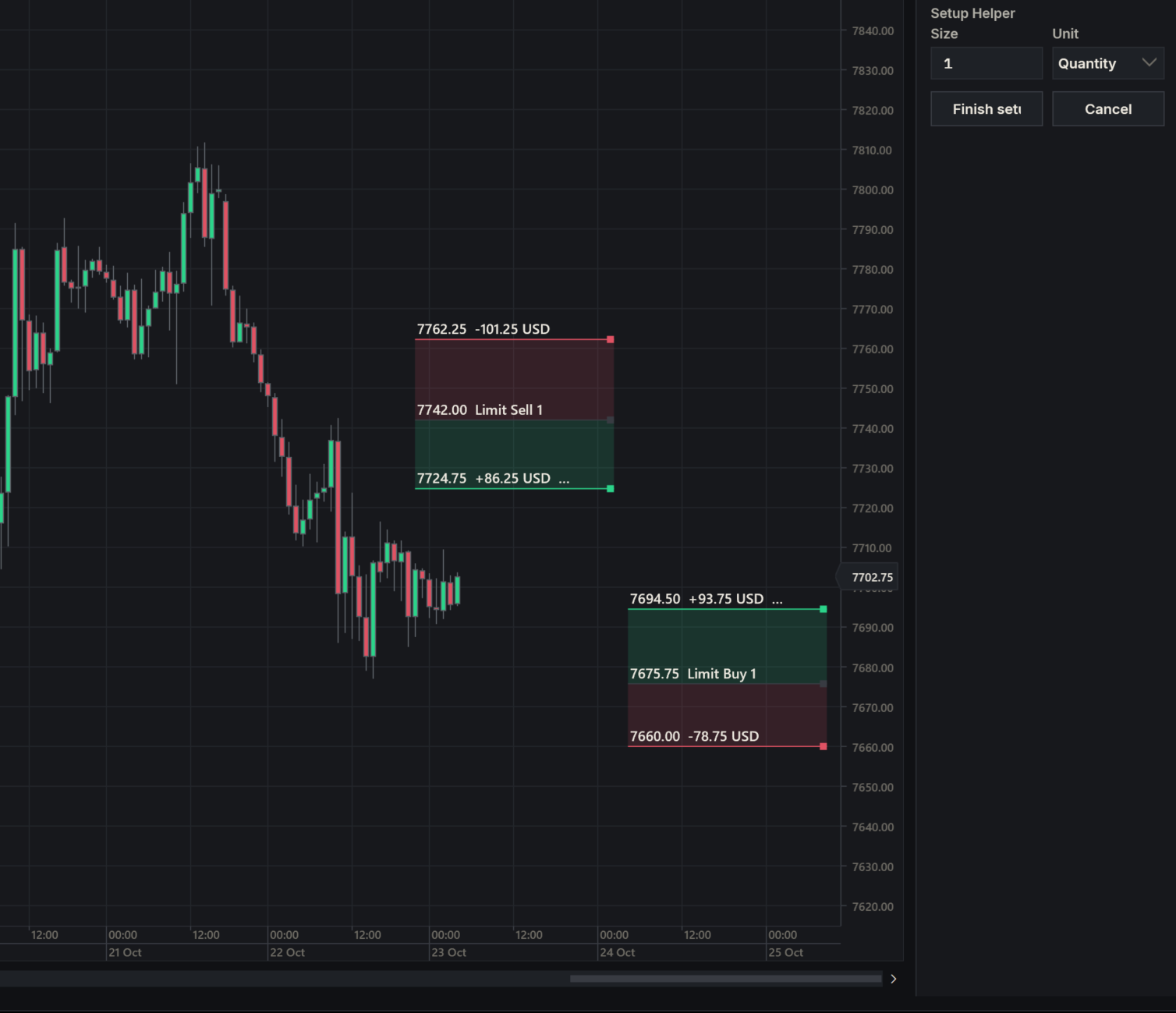
Drag a line
After your last click, each line gets a small handle at its right end. Drag a line inside its box to move it. It snaps to the tick, and the other two lines stay where they are; unlike the Risk Reward drawing, there is no ratio to keep. The labels follow while you drag. Changing Size or Unit changes every label at once.
A drag that breaks a rule is allowed, for example a stop dragged above a long's entry. When you drop the line, the box shows the problem under it in red, such as "For a long, the stop goes below the entry.", and Finish setup refuses until you fix it.
Not a drawing
A box belongs to Setup Helper, not to your drawings. It is not listed in the Drawing Tools panel, Delete and Clear all leave it alone, and it is not saved with the chart. When Setup Helper stops, its boxes go.
Finish setup
Finish setup checks the whole plan again against the latest price, then sends each entry as a real order at its box's price and quantity. The entries are named "Setup Entry 1" (a single order, or a bracket's entry below the price) and "Setup Entry 2" (a bracket's entry above the price). That is how they read in the Name column of the Orders tab.
While the entries go out, the status line says "Sending the entries". Then the boxes lock and lose their handles, Size and Unit grey out, and the status line says "Waiting for entry", with a Cancel button.
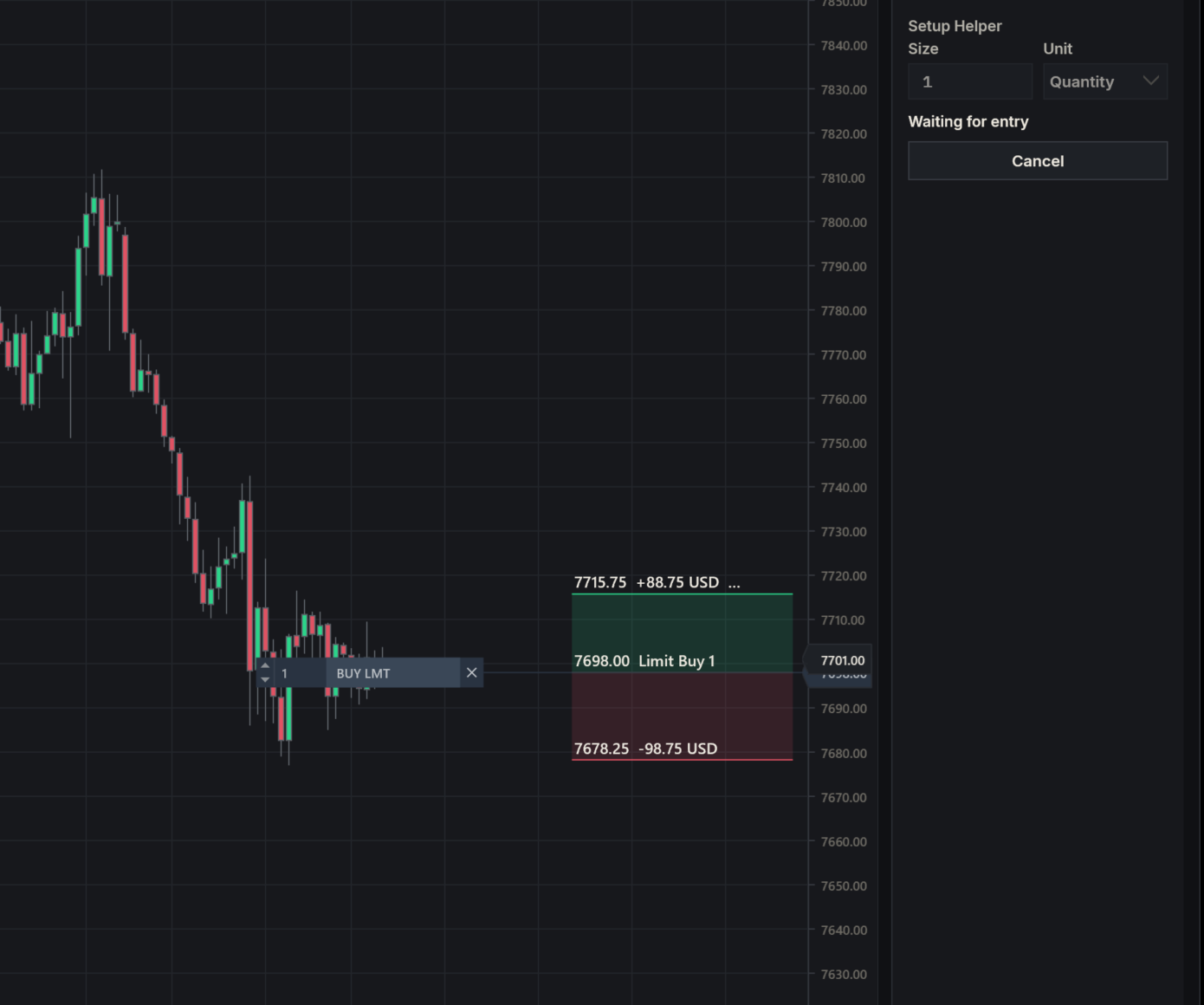
If something is wrong, nothing is sent: the status line says why and the boxes can be dragged again. For example:
| Status line | What to do |
|---|---|
| "A Limit Buy goes below the market (6000.25)." | The market moved past your entry. Drag it, then try again. The same goes for the other rules in The checks. |
| "Limit Buy: the quantity must be greater than zero" | Size comes to less than one lot. Make it bigger. |
| "the strategy already holds a position - close it from Chart Trader" | A plan starts flat, and Setup Helper holds a position of its own. See Get out of a trade. |
| "the connection is catching up (…) - try again in a moment" | The connection has just come back. Try again in a moment. |
If your broker refuses an entry at once, the status line says so, for example "Setup Entry 1 was refused -" followed by the broker's reason. When the second entry of a bracket is refused after the first has gone out, Setup Helper cancels the first, and the status line says "Setup Entry 2 was rejected" with the reason and "- the plan is cancelled".
While the entries wait
To call the plan off, choose Cancel. The status line says "Cancelling the entries"; once the cancels are confirmed, the boxes go, it says "Setup cancelled" and Set up is back.
The entries are ordinary working orders, so Chart Trader draws them and you can move, resize or cancel them there. See Change the orders on Chart Trader.
If your broker rejects or expires an entry later, before anything has filled, Setup Helper cancels the whole plan, both entries of a bracket included. The status line says why, for example "Setup Entry 1 expired - the plan is cancelled".
When an entry fills
- In a bracket, Setup Helper cancels the other entry, and its box goes.
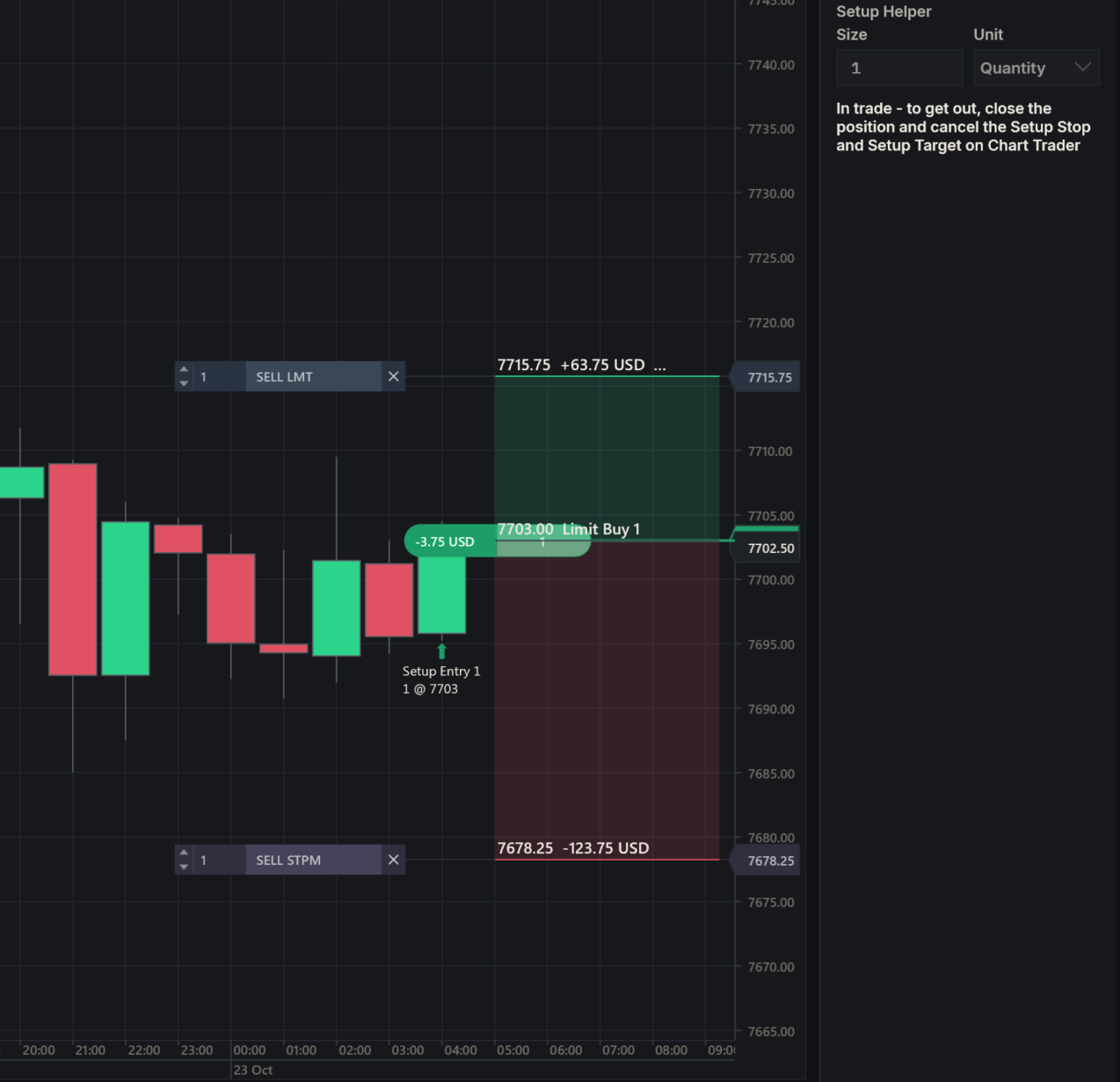
- It places a stop and a target for the filled quantity, at the box's prices. They read "Setup Stop" (a stop market order) and "Setup Target" (a limit order).
- If the entry fills in parts, the stop and target follow the position: each time it grows, Setup Helper cancels them and places them again for the new size.
- The box of the filled entry stays, locked. Its stop and target labels show the money for the position they cover.
The status line says "In trade - to get out, close the position and cancel the Setup Stop and Setup Target on Chart Trader". There are no buttons in a trade; see Get out of a trade.
A stop already past the market
Sometimes the market is already at or beyond the stop when the entry fills, for example when the price gaps down through a Limit Buy at 6000.00 and its stop at 5995.00, and the entry fills at 5994.00. The stop level has been hit already, so Setup Helper does not place the stop. It closes the position at once with a market order named "Setup Close", and the target and any unfilled part of the entry go too.
Both entries of a bracket fill
Setup Helper cancels the other entry as soon as one fills, but in a fast market the other can fill before its cancel arrives.
- Long only or Short only: the second fill is on the same side as the first. Setup Helper closes it at once with a "Setup Close" market order. The first entry keeps its stop and target.
- Both ways: the two fills offset each other. Setup Helper cancels the stop and the target, closes anything left over with a "Setup Close", and the plan ends.
After a Both ways double fill, Setup Helper's own record of its position can be out of step with your account, which is flat. The Debug window then has a line starting "the strategy's own position is out of step after both entries filled", and the next Finish setup is refused with the same words. Untick Enabled, choose Cancel orders, keep position in the Stop live strategies window, and enable Setup Helper again.
In that case do not choose Close position. Your account is already flat, so its market order would open a new position.
When an exit fills
When the stop or the target fills, Setup Helper cancels any part of the entry that has not filled yet, so the plan never enters again. Once the position is closed, it cancels the other exit. If an exit fills only in part, the other exit follows the smaller position.
When nothing of the plan is left, the boxes go, the status line says "Plan ended", and Set up is back.
Change the orders on Chart Trader
You can move, resize or cancel any order of the plan on Chart Trader, as any other order (see Orders and position on the chart). Setup Helper follows what the order is now and never puts back what you took away. Its box catches up by the next trade at the latest.
| You | What Setup Helper does |
|---|---|
| Move an order | The box's line moves to the order's new price, and the labels are worked out again. Moving an entry leaves its stop and target where they are. |
| Change an order's quantity | The labels show the money for the new quantity. A stop or target you resized stays as it is until the position changes. If a stop you resized fills and leaves part of the position open, it is not placed again, and the Debug window says the rest of the position is unprotected. |
| Cancel an entry before anything filled | In a bracket, the other entry stays working on its own. Its box stays; the cancelled entry's box goes. A single order's plan ends. |
| Cancel the stop or the target | It is not placed again, and that line of the box goes. Without a stop, the target's label loses its ratio. The Debug window says "the stop was cancelled by hand - the position is unprotected". |
If your broker rejects or expires the stop or the target, Setup Helper does not try again. The Debug window says so, and that line of the box goes.
Get out of a trade
In a trade the panel has no buttons. Its status line says what to do: close the position and cancel the Setup Stop and Setup Target on Chart Trader.
- Choose Close in Chart Trader. It closes the position with a market order and leaves the working orders.
- Cancel the "Setup Stop" and the "Setup Target" with the ✕ on their markers.
Setup Helper counts only its own orders, so it does not see a close you make by hand: its panel stays at "In trade". Before your next setup, untick Enabled, choose Cancel orders, keep position in the Stop live strategies window, and enable Setup Helper again. As above, do not choose Close position after a close by hand.
You can instead stop Setup Helper while the trade is open and choose Close position: it cancels the Setup Stop and Setup Target and closes the position with a market order. See Stop a strategy and Close a position.
Stopping, restarts and reconnects
When you untick Enabled, the panel leaves Chart Trader and the boxes go. If the plan has working orders or a position, AlgoDesk asks first, in the Stop live strategies window, as for any strategy.
Setup Helper starts afresh every time it stops and starts again: when you disable and enable it, change the chart's bar size, choose OK in Data series..., or compile. It comes back with an empty panel and no boxes. It does not pick up a plan it left:
- If orders of the plan stay working, for example after Keep everything working, nothing looks after them any more. An entry that fills gets no stop or target, and when one exit fills, the other stays working. Cancel them yourself on Chart Trader.
- So end a plan before you do any of these, or choose Close position in the question.
A connection that drops and comes back by itself does not restart Setup Helper, and the plan carries on. While the connection catches up, Setup Helper sends and cancels nothing, and Finish setup and Cancel are refused with "the connection is catching up". With the first trade after the catch-up, it does what is missing, such as cancelling the other entry or placing the stop and target. If AlgoDesk stops the strategy instead, see If the connection drops.
Instruments
Setup Helper does not trade spot instruments (type SPOT), such as a spot pair on Bybit. On a spot chart the status line says "Setup Helper does not trade spot instruments" and Set up is greyed out.
Some instruments have no point value, so a distance in price cannot be turned into money. The labels then show ticks instead, for example "-40 ticks" and "+80 ticks 2.0R", and the status line says "No point value for this instrument - the labels show ticks".
Messages
Besides the hints and checks above, the status line can say:
| Status line | Meaning |
|---|---|
| "Setup Helper: the strategy is not live" | The strategy is not live yet. Wait for it to go live. |
| "Setup cancelled" | You cancelled the setup, or the entries of a waiting plan. |
| "Plan ended" | Nothing of the plan is working any more. |
| "the position is now Short 1, the other side of the plan, and has no stop: close it from Chart Trader" | An exit filled after the position had already closed, and turned it the other way. Setup Helper cancels what is left of the plan but does not close that position: close it yourself, as in Get out of a trade. |
Setup Helper writes each step to the Debug window, each line starting with the time and "Setup Helper:". To open it, see Printing messages. The lines you will meet most:
| Debug line, for example | Meaning |
|---|---|
| "Sent Setup Entry 1: Limit Buy 2 @ 6000, stop 5990, target 6020" | Finish setup sent an entry. |
| "Setup Entry 1 filled first - Setup Entry 2 is cancelled" | One entry of a bracket filled, and the other goes. |
| "Exits for Long 2: stop 5990, target 6020" | The stop and target were placed for the position. |
| "the stop 5990 is already past the market (5989.75) - closing Long 2 at market" | See A stop already past the market. |
| "Setup Close refused" | The close at market was refused. The rest of the line says what is left open: close it from Chart Trader. |
| "Plan done - flat" | The trade is over. |
| "Plan ended - no entry is working" | The plan ended before anything filled. |
Related
- Chart Trader draws the plan's orders and lets you change them.
- Running a strategy live covers enabling, stopping and the stop question.
- Built-in scripts lists Setup Helper with the other built-in strategies.
- Script writers: Prices and boxes on the chart explains the chart methods Setup Helper uses.