Setting up a connection
A connection links AlgoDesk to a provider of prices or a place to trade (dxFeed, Interactive Brokers, Bybit, Tradovate or TopstepX), or holds price bars you import from files (Static data). You add, rename and remove connections in the Connections window, then turn them on from the toolbar; a Static data connection is always ready, so it has no switch.
What each connection gives you
| Connection | Prices and history | Orders at the provider | Accounts you get when it connects |
|---|---|---|---|
| dxFeed (coming soon) | Yes | No | Local paper |
| Interactive Brokers | Yes, through Trader Workstation or IB Gateway | Yes | Broker (Real) or Server paper (Paper), and Local paper |
| Bybit | Yes, with or without an API key | Yes, with an API key | Broker when you give a key, and Local paper |
| Tradovate | Yes, after you sign in on Tradovate's page | Yes | Broker (Real) or Server paper (Paper), and Local paper |
| TopstepX | Yes, with your TopstepX user name and API key | Yes | Broker, one per TopstepX account, and Local paper |
| Static data | History from the files you import, no live prices | No | None |
The accounts appear on the Accounts tab of the Control Center while the connection is on:
- Local paper: practice trading inside AlgoDesk. Orders are filled against the connection's live prices and never reach the provider. Every connection except Static data has one, so you can paper-trade on dxFeed prices too.
- Server paper: your Interactive Brokers paper login, or your Tradovate Demo account.
- Broker: your real account, one per account when the connection carries several at its venue, as TopstepX does. Orders cost real money.
See Orders, positions and accounts.
The Connections window
On the toolbar, choose Connections, then Configure....
| Part | What it is |
|---|---|
| Available connections (top left) | The kinds of connection AlgoDesk can make: Bybit, dxFeed (coming soon), InteractiveBrokers, Static data, TopstepX and Tradovate. dxFeed is not yet open to every user; see dxFeed. |
| Configured connections (bottom left) | The connections you have. Below the list are two buttons: + adds a connection of the kind selected above, × removes the selected connection. |
| Settings (right) | The settings of the selected connection. |
| OK | Saves every change you made in the window. |
| Cancel | Throws away every change since you opened the window: additions, removals and edited settings. |
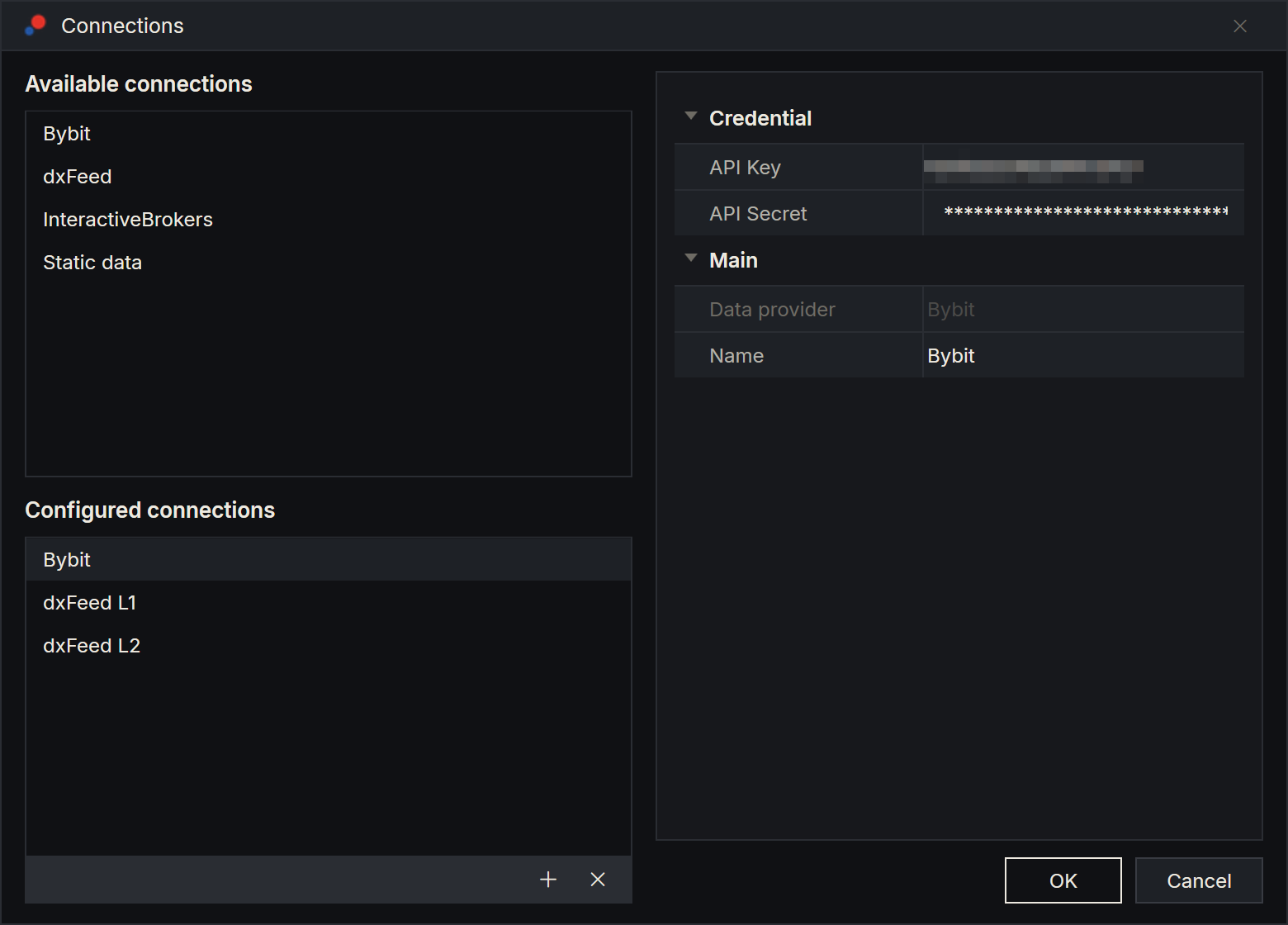
Add a connection
- Under Available connections, double-click the kind you want. You can also select it and choose +.
- The new connection appears under Configured connections, selected, with its settings on the right.
- Fill in the settings. Each provider's page explains them: Interactive Brokers, dxFeed, Bybit, Tradovate, TopstepX. Static data needs only a name.
- Choose OK.
A new connection is named after its provider: "dxFeed", "InteractiveBrokers", "Bybit", "Tradovate", "TopstepX" or "Static data". If that name is taken, AlgoDesk adds a number: "Bybit 2", "Bybit 3".
Adding a connection does not connect it, except Static data, which is ready as soon as you choose OK. See Connect below.
The settings
Every connection has these two settings, next to its provider's own. A Static data connection has nothing else:
| Setting | What it does |
|---|---|
| Data provider | The provider. You cannot change it. |
| Name | The name shown in the Connections menu, the connection icon's list, the Connection lists of charts and Book Traders, and the Control Center. A Static data connection is left out of the connection icon's list. |
An Interactive Brokers or Tradovate connection also has Connection type: Real or Paper, starting on Real. For Interactive Brokers, Real makes the account your real Broker account and a blank Port means 7496; Paper makes it Server paper and a blank Port means 7497. Which IB login you reach depends on the port, not on this setting. See Interactive Brokers. dxFeed, Bybit and TopstepX connections are always Real, so they do not show this setting.
For Tradovate, Real is your Live account, a Broker account, and Paper is your Demo account, a Server paper account. See Tradovate.
Real and Paper connections keep separate price history on your computer.
Change a connection's settings while it is turned off, then turn it on again.
Rename a connection
- Select the connection under Configured connections.
- Type the new name in Name.
- Choose OK.
Two rules apply. If one is broken, a message tells you, the window stays open and the connection to fix is selected:
- A name cannot be empty: "Connection name can't be empty".
- Two connections cannot have the same name, ignoring capitals and spaces at either end: "A connection named Bybit already exists".
Remove a connection
Removing a connection also deletes every instrument you added from it and every instrument list that belongs to it. AlgoDesk does not ask you to confirm the removal, and once you choose OK this cannot be undone.
- Select the connection under Configured connections and choose ×.
- Choose OK. If you change your mind before that, choose Cancel and nothing is removed.
If the connection is on, AlgoDesk disconnects it first. When strategies trading on it still have a position or working orders, it first asks the Stop live strategies question, as when you turn the connection off; see Connecting and disconnecting. Don't stop keeps the connection: nothing is disconnected or removed, and the Log tab of the Control Center says "… was not removed: its live strategies were not stopped". A Static data connection is removed at once: it has nothing to disconnect and no strategy to stop. Removing a Tradovate connection also forgets the Tradovate sign-in on this computer, for every Tradovate connection; see Tradovate.
The price history you downloaded stays on your computer. It is shared by every connection of the same provider and Connection type, so if you add the connection again, its charts do not download that history again. Its instruments and lists, though, start empty, apart from the Default lists a Bybit, Tradovate or TopstepX connection makes when it connects.
The bars of a Static data connection stay too, but they are not shared: a new Static data connection does not take them over, even under the same name. See Static data.
Several connections
You can have as many connections as you like, including several of the same provider: two Bybit accounts, or an Interactive Brokers live login next to a paper one.
- Each connection has its own name, its own instruments and instrument lists, and its own accounts. An instrument you add on one does not appear on the other.
- Connections of the same provider and Connection type share their downloaded price history.
- Static data connections do not share bars: each keeps its own. See Static data.
- Two Interactive Brokers connections to the same Trader Workstation need different Client id values. See Interactive Brokers.
- A chart or a Book Trader uses the connection you pick by name in its Connection list.
Where your settings are kept
AlgoDesk keeps your connections and their settings in its database in Documents\AlgoDesk.
- The dxFeed Password, the Bybit API Secret and the TopstepX API key are masked on screen and stored encrypted, so that only your Windows user on this computer can read them.
- The dxFeed User name, the Bybit API Key and the TopstepX User name are stored as plain text.
- Interactive Brokers needs no password in AlgoDesk: you log in to Trader Workstation or IB Gateway instead.
- Tradovate needs no password in AlgoDesk: you sign in on Tradovate's page in your browser, and AlgoDesk keeps only the sign-in token, encrypted. On another computer or Windows user it cannot be read, and the browser opens again.
If you copy Documents\AlgoDesk to another computer or another Windows user, the encrypted fields come up empty there. Type the password, secret or API key again and choose OK. See Moving to another computer.
Connect
On the toolbar, choose Connections and turn on the switch next to the connection. You can also click the connection icon and click the connection in its list.
AlgoDesk never connects by itself, at start or when it opens a workspace. Turn your connections on each time you start AlgoDesk. The one exception is Static data, which is always ready. See Static data. Connection status and reconnecting explains the colours, what happens when a line drops and what the messages mean.