Coding scripts with Claude
Claude Code can write your strategies, indicators, commissions and fitness functions from a description in plain words, compile them in AlgoDesk and tell you how they trade. This page shows how to open Claude Code in your scripts folder, what to ask for, what Claude asks you first and what it may change.
You need Claude Code installed on this computer, or the Code tab of Claude Desktop, and AlgoDesk linked to Claude. See Connecting Claude.
Open Claude Code in your scripts folder
Open Claude Code in your scripts folder, Documents\AlgoDesk\bin\Custom or the folder in Path to Custom Project. AlgoDesk keeps a guide for Claude there, which tells it how an AlgoDesk script is written. Opened in any other folder, Claude Code does not have the guide.
There are three ways to open it.
From the Claude menu
- On the toolbar, click the Claude icon, the sparkle next to the scripts cube.
- Choose Code scripts with Claude Code.
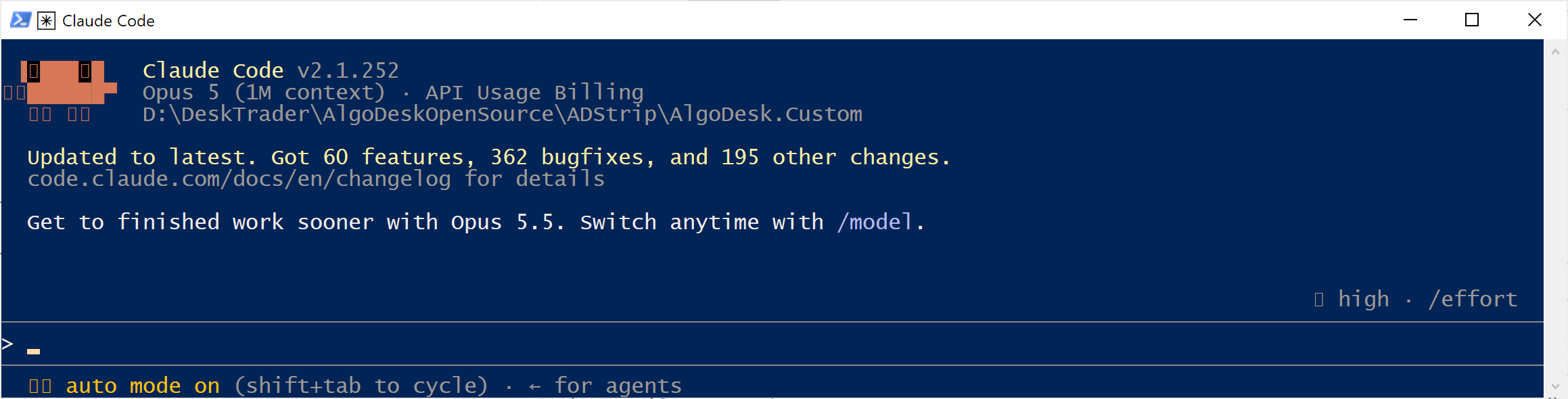
AlgoDesk opens Windows Terminal in your scripts folder and starts Claude Code in it. Without Windows Terminal, it opens a PowerShell window instead. The window stays open when you leave Claude Code.
The scripts folder is the one in Path to Custom Project, in Tools, Options, under General, Project. The menu item works whether or not AlgoDesk is linked to Claude; see The first time for what linking adds.
If nothing opens, the table says why:
| What you see | What it means |
|---|---|
| Code scripts with Claude Code is greyed out | AlgoDesk finds no Claude Code on this computer. Choose Claude Code is not installed - open its page in the same menu and install it. |
| Claude Code's page at claude.com opens | AlgoDesk found no claude program it could start. Install Claude Code from that page, then choose the item again. |
| A card titled Claude link says "The scripts folder was not found" and names the folder | The folder in Path to Custom Project does not exist. Set the right one in Tools, Options. |
| A card titled Claude link says "Could not start Claude Code" and gives a reason | AlgoDesk could not start a terminal. Open Claude Code yourself, as described below. |
From the Code tab of Claude Desktop
Open Claude Desktop, go to the Code tab and choose your scripts folder as the folder to work in: Documents\AlgoDesk\bin\Custom, or the folder in Path to Custom Project. The Code tab runs Claude Code, so everything on this page applies to it too.
From a terminal
Open PowerShell or Windows Terminal, go to your scripts folder and start Claude Code:
cd "$HOME\Documents\AlgoDesk\bin\Custom"
claude
If Path to Custom Project points to another folder, go to that one instead.
A chat in Claude Desktop can read your scripts and compile them (see Scripts and compiling), but AlgoDesk gives it no way to write script files. To have Claude write scripts, use one of the three ways above.
The first time
Three things to know about the first time you open Claude Code in your scripts folder.
Claude Code asks whether you trust the folder. Say yes. AlgoDesk's permission rules, described in What Claude may change, take effect once you have.
Claude recommends the superpowers plugin, once. It is an optional plugin of working habits for Claude Code. To install it, type this in Claude Code:
/plugin install superpowers@claude-plugins-official
Whether you install it is up to you; Claude does not bring it up again. With the plugin installed, Claude still works in your scripts folder itself and keeps any test files outside it.
AlgoDesk must be linked to Claude Code, open and signed in. Claude compiles your scripts and puts them on charts through AlgoDesk, and Claude Code gets AlgoDesk's tools only after Link Claude and a restart of Claude Code. See Link Claude. If the tools are missing, Claude tells you to choose Link Claude in the Claude menu and restart Claude Code. Until then it can still write the script file, and you can compile it yourself; see Compiling.
What to ask for
Describe the idea the way you would to another trader. You do not need to read the code: Claude says what the script does and how it traded, and shows code only when you ask. Before it writes anything, Claude asks about what changes the code and you have not said, such as entries, exits, stop, target, size and which bars.
| You ask | What Claude does |
|---|---|
| "Buy when the price breaks yesterday's high, put the stop under yesterday's low and take profit at twice the risk." | Asks what it needs, for example long only or both ways and how many contracts. Writes a new strategy in Strategies\Mine, compiles it and fixes its own errors. The strategy is listed under Mine in the Strategies window. |
| "Make an indicator in its own pane that shows how far the close is above its 20-bar average." | Writes a new indicator in Indicators\Mine and compiles it. |
| "Change MyCrossover so it only buys when the 1-hour trend is up." | Changes your own file, compiles, and tells you what is different. |
| "I like MA Crossover, but I want a trailing stop." | Copies MA Crossover into your own folder under a new name, and changes the copy. The built-in one stays as it is. |
| "Write a commission of 2 dollars a contract each way." Or: "Write a fitness function that scores a run by profit divided by drawdown." | Writes the commission in Commissions\Mine, or the fitness function in OptimizationFitnesses\Mine. They show up in the same lists as the built-in ones, under Type and Optimize on. |
Once a script is on a chart or in a Backtester, you can ask about its results as always. See Results, orders and the log.
What Claude does, and what it asks first
For every script Claude does this:
- It writes the script in your own folder, never in the built-in ones.
- It compiles through AlgoDesk and fixes every error AlgoDesk reports until the compile succeeds. It uses no other build tool, because other tools accept code that AlgoDesk refuses. A script is finished only when AlgoDesk has compiled it.
- It asks first when a strategy is running. Before every compile, Claude looks at what is open in AlgoDesk. If a strategy is switched on on a chart, live or paper, Claude names it and its chart and says that the compile restarts it flat in its own books, so a position it had is no longer managed by it (see When strategies are running). It compiles only when you say yes. When you compile from the toolbar, the window Stop live strategies asks only if a running strategy has a position or working orders. Claude's compile has no such window, which is why Claude asks whenever a strategy is switched on. If the strategy is on a live chart, AlgoDesk refuses Claude's compile while it is switched on, whatever you answer: switch the strategy off in AlgoDesk. See Live trading stays with you.
- It offers a chart or a backtest and does it only on a yes. When the script compiles, Claude says so and asks, for example, "It compiles. Want me to put it on a chart or run a backtest?" Putting a script on a chart, running a backtest and downloading data all wait for your yes. Then Claude asks for the instrument, the bar size and the number of days, unless you have said them. It never picks them itself.
- It reports in trader words: what the script does, then the results and the trades.
When something is in the way, Claude says so and does not work around it. AlgoDesk may not be running or signed in; there may be no history stored for the instrument, in which case Claude offers to download it and waits for your yes.
What Claude may change
Claude Code normally asks before it uses a tool or changes a file. AlgoDesk's settings file, .claude\settings.json in your scripts folder, lets the routine work go through and fences off what an update would overwrite:
- No question: AlgoDesk's tools, and edits to files in your scripts folder, except in the
.claudefolder: Claude Code always asks before it writes there. Claude still asks you in the chat where this page says so: before a chart, a backtest or a download, and before compiling while a strategy is running. - Blocked: edits to
lib,Strategies\Strategy.cs,Indicators\Default\Indicator.csand the guide's own files:CLAUDE.md,.claude\settings.jsonand the skills in.claude\skillswhose names start withalgodesk-. Every update replaces these, so a change would be lost anyway. - Built-in scripts are not blocked, but Claude copies one into your folder instead of changing it, because every update replaces them too.
- Everything else is Claude Code's normal behaviour. For example, it still asks before it runs a command.
To make Claude stricter, add rules of your own. In Claude Code, type /permissions. When it asks where to save a rule, choose the local project file, .claude\settings.local.json in your scripts folder: updates never touch it. A rule saved in .claude\settings.json is replaced by the next update. You cannot loosen what AlgoDesk blocks: only editing AlgoDesk's settings.json would, and the next update puts it back.
Your own notes
CLAUDE.local.md in your scripts folder is yours. Claude Code reads it along with AlgoDesk's guide, and AlgoDesk never ships or changes it. Put there what Claude should remember about how you work, for example "I trade only MES and MNQ, and I use 2 contracts unless I say otherwise." You can also tell Claude to remember something for this folder, and it writes the note in this file, never in AlgoDesk's CLAUDE.md.
When Claude has recommended the superpowers plugin, it adds one line to this file, starting "AlgoDesk guide: superpowers recommended". Leave it there: it is how Claude knows it has already asked.
Updates
Every AlgoDesk update replaces the guide: CLAUDE.md, .claude\settings.json and the algodesk- skills in .claude\skills. So the guide always matches the AlgoDesk you have installed. CLAUDE.md and .claude\settings.json are AlgoDesk's, not yours: your own notes and rules belong in CLAUDE.local.md and .claude\settings.local.json. Updates never touch your own files: your scripts, CLAUDE.local.md, .claude\settings.local.json and anything else you added.
If you made a CLAUDE.md of your own in your scripts folder before this version of AlgoDesk, the update replaces it with AlgoDesk's. Before you update, copy what you want to keep into CLAUDE.local.md, and the rules of a .claude\settings.json of your own into .claude\settings.local.json.