TopstepX
Topstep is a futures prop firm. TopstepX is the trading platform it gives its traders. With a TopstepX connection, AlgoDesk shows you CME futures prices, history and the order book. It also trades on your TopstepX accounts: your evaluation (a Trading Combine), your practice account and your Express Funded account, each as an account of its own in AlgoDesk. You sign in with your TopstepX user name and an API key. The API is the way a program such as AlgoDesk talks to TopstepX.
This page takes you from nothing to your first order, one step at a time. The steps you do at Topstep follow Topstep's own help pages, which are linked at the end of this page. Topstep can change its pages, prices and menus at any time; when this page and Topstep's page disagree, Topstep's page is right.
What you need
Before AlgoDesk can connect, you need four things. A fifth, a practice account, is not needed to connect, but it is the safe place to try AlgoDesk, so get one if Topstep gives you one. Each has a step below.
- A TopstepX login with at least one account that can trade. You have this already if you trade with Topstep.
- A ProjectX account. ProjectX is the company behind the TopstepX API. See Step 1.
- The ProjectX API Access subscription, linked to your TopstepX profile. See Step 2 and Step 3.
- An API key, made in TopstepX. See Step 4.
- A practice account, to try AlgoDesk without risking your Combine. Not needed to connect. See Step 5.
Then you add the connection in AlgoDesk. See Add the connection in AlgoDesk.
Topstep does not allow live funded accounts through its API. AlgoDesk cannot trade a Live Funded account, and such an account never appears in AlgoDesk. Evaluation, practice and Express Funded accounts do.
Step 1: Create your ProjectX account
ProjectX runs the TopstepX API. You need a free ProjectX account before you can buy API access. If you already have a login for the ProjectX Dashboard, go to Step 2.
- Open the ProjectX Dashboard at dashboard.projectx.com in your browser.
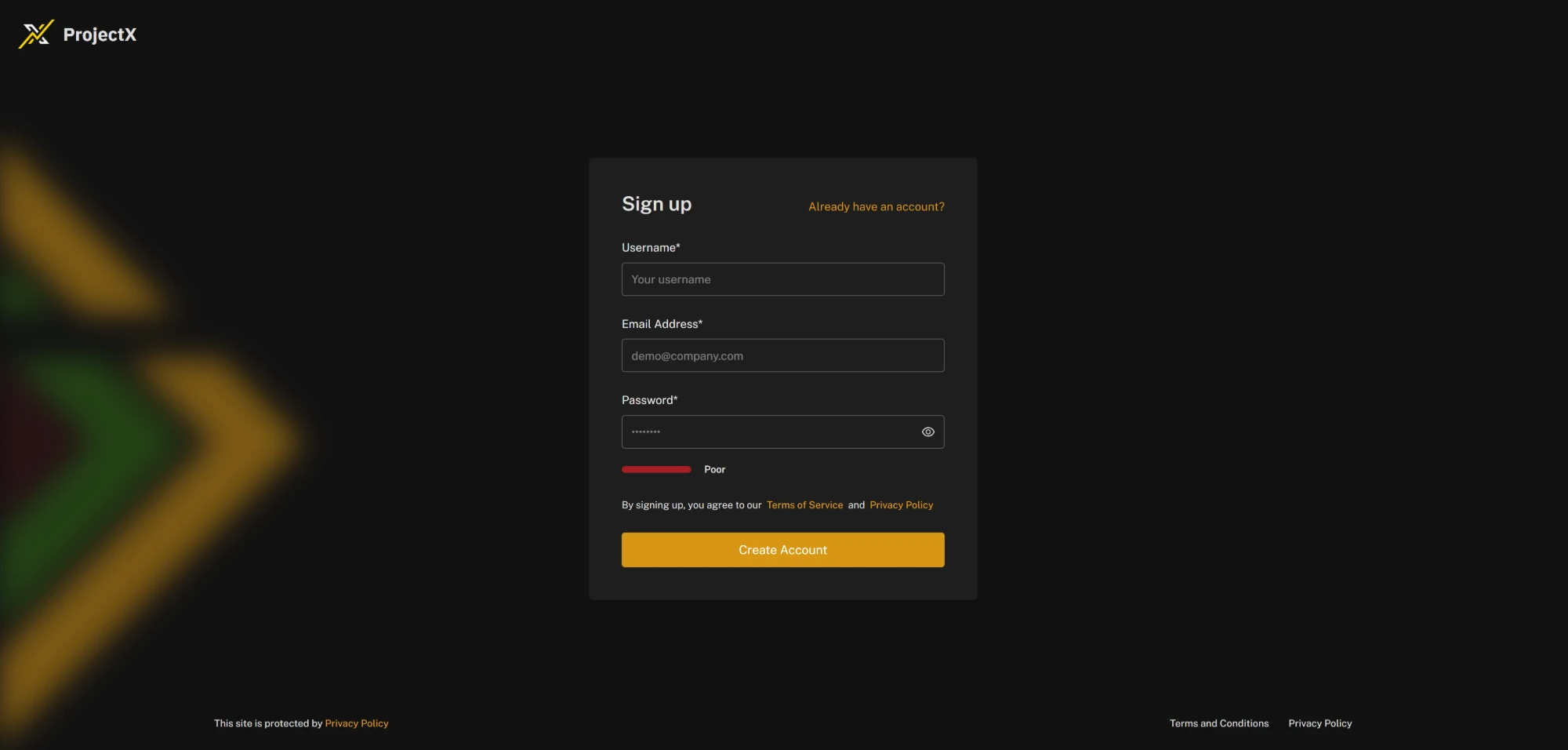
- Click Register. A page titled Sign up opens.
- In Username, choose a user name. This ProjectX user name is only for the ProjectX Dashboard. It is not the one AlgoDesk asks for later: AlgoDesk wants your TopstepX login.
- In Email Address, enter the email you gave Topstep.
- In Password, choose a password.
- Click Create Account.
Step 2: Subscribe to API Access
API access is a paid subscription from ProjectX. It is billed on its own, apart from what you pay Topstep.
- Log in to the ProjectX Dashboard.
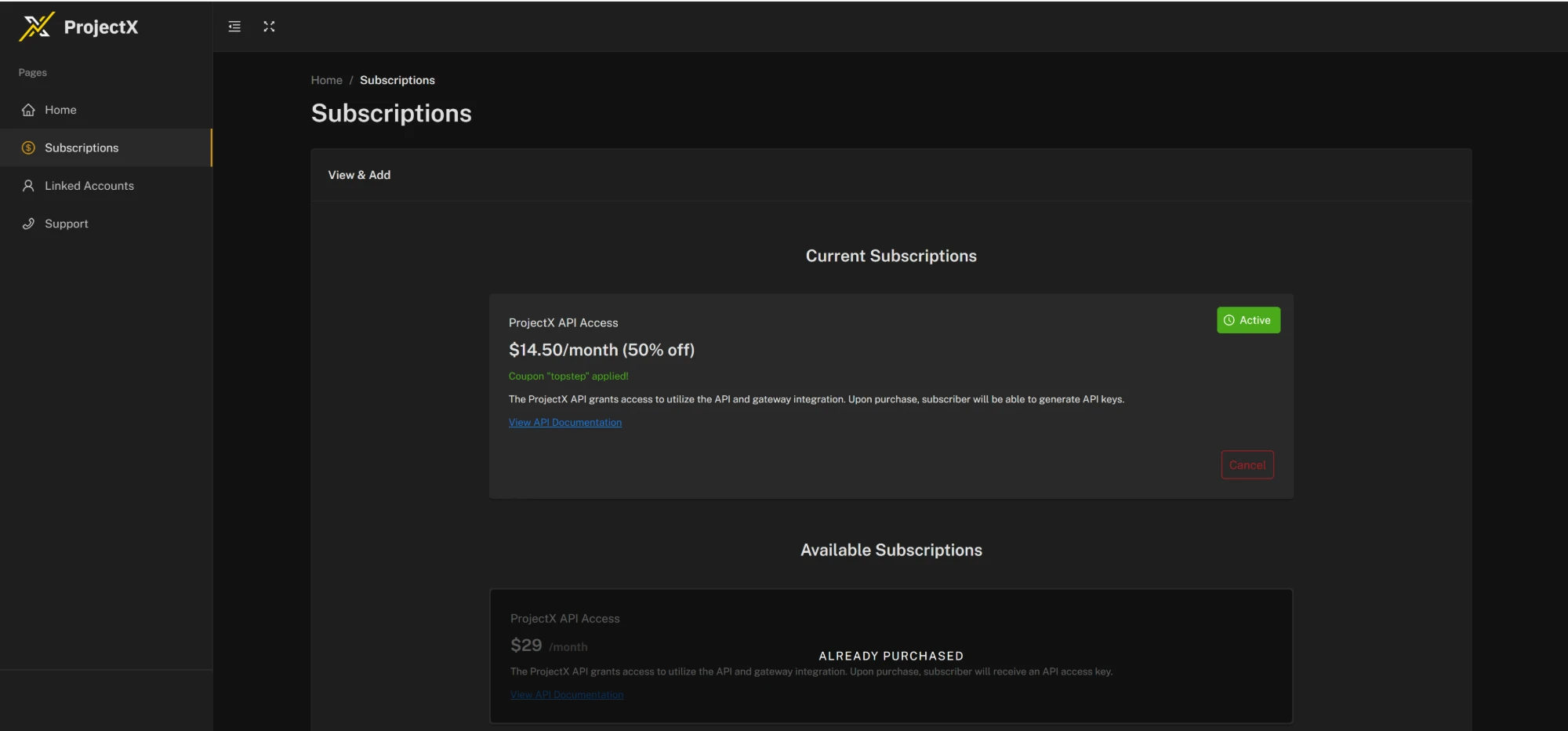
- Open Subscriptions in the menu on the left. Under Available Subscriptions, click ProjectX API Access.
- Enter your payment details.
- Enter the promo code
topstep. It gives Topstep traders half off: the card then says that the coupon "topstep" is applied, and the price drops to half. - Confirm the subscription. It now shows under Current Subscriptions as Active, with the day it renews.
At the time of writing, Topstep's page says API Access costs US$29 a month, or US$14.50 a month with the code, for as long as you keep it. Check the price on Topstep's page before you subscribe. The charge shows on your bank statement as "Sim2Funded Solutions".
One subscription and one API key cover every account under your TopstepX profile. You do not need one per account.
Step 3: Link the subscription to your TopstepX profile
This is the step most people miss. Until you do it, TopstepX does not know that you have the subscription. Topstep's own programs then say "User lacks subscription", and AlgoDesk says "The TopstepX user has no API subscription; subscribe in the ProjectX dashboard and link it under Settings > API."
- Open TopstepX and sign in.
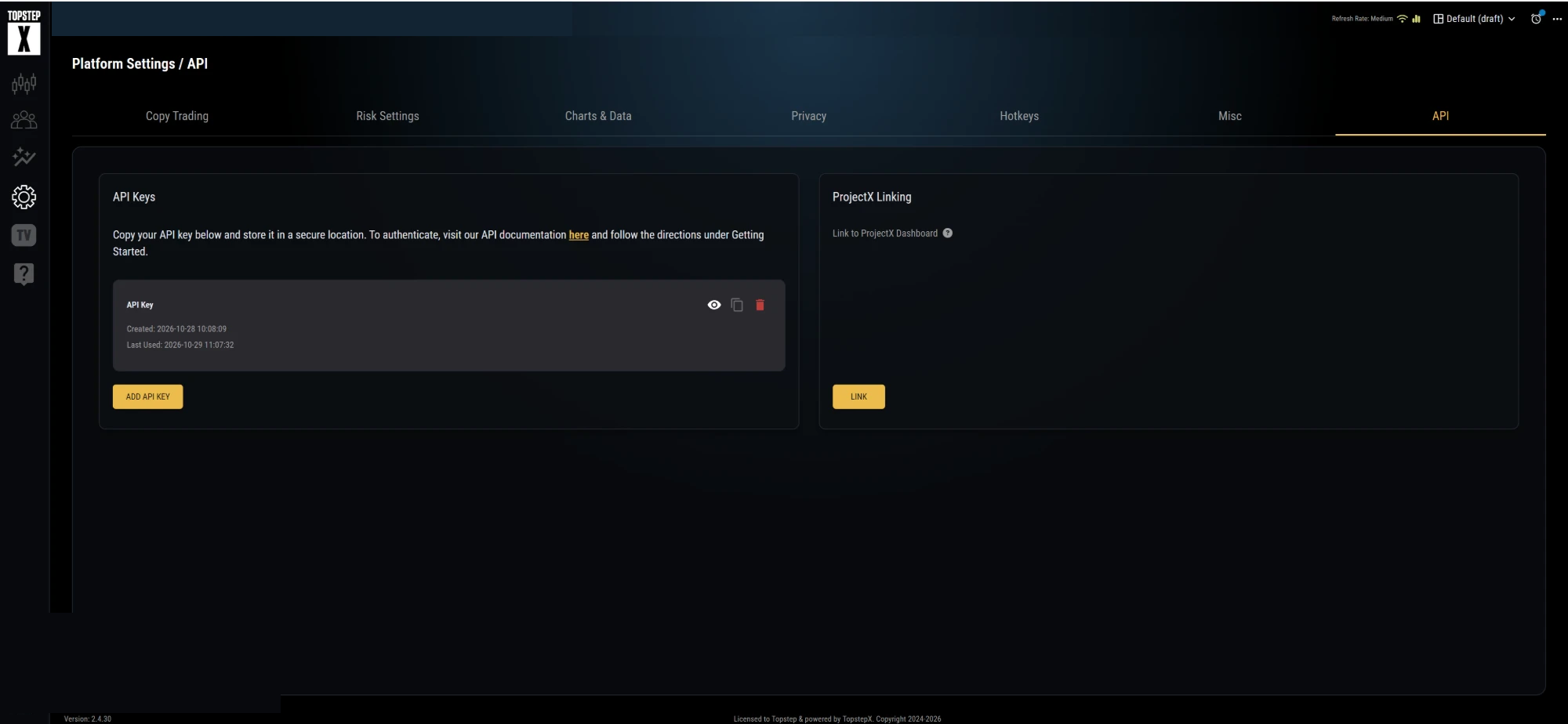
- Click the Settings icon (the gear in the bar on the left). The Platform Settings page opens.
- Open the API tab, the last tab on the right.
- On the right, under ProjectX Linking, click Link.
- A pop-up asks you to confirm. Confirm it.
- Go back to the ProjectX Dashboard, open Linked Accounts in the menu on the left, and check that your TopstepX account is listed there.
If it does not appear: turn off your pop-up blocker, or open the Dashboard in an Incognito window of Chrome, refresh the page, and try again. If it still does not appear, write to Topstep's support; its API Access page, linked at the end of this page, gives the address.
Step 4: Make your API key
- In TopstepX, click the Settings icon, then open the API tab.
- On the left, under API Keys, click Add API Key.
- The key appears in the list, with the day it was made. Click the eye icon to show it, or the copy icon to copy it. Keep it somewhere safe. The bin icon deletes it; a deleted key stops working at once.
If Add API Key does not work, Step 3 is not finished.
Treat the key like a password. Anyone who has it can trade on every account under your profile that the API can reach. Do not paste it into chats, emails or programs you do not trust. If you think someone else has seen it, make a new key in TopstepX right away and enter the new key in AlgoDesk.
AlgoDesk keeps the key encrypted on your computer, so that only your Windows user can read it, and never writes it to its log.
Step 5: Get a practice account
Topstep has no test server. Its own advice is to try things on a practice account first: it works through the same API as your other accounts, and what happens on it counts for nothing. Topstep calls it a "paper trade only" mode, not eligible for funding. Place your first orders from AlgoDesk on the practice account.
A practice account is free while you have an active Trading Combine. It always holds 150K (150,000), whatever the size of your Combine, and you can have one at a time. If you only have an Express Funded account, or your Combine subscription is cancelled, Topstep does not give you one. Then try AlgoDesk on the Local paper account instead; see Your accounts.
- Log in to the Topstep Dashboard. This is your account page on Topstep's website, where you bought your Combine, not TopstepX.
- Click Accounts in the menu on the left.
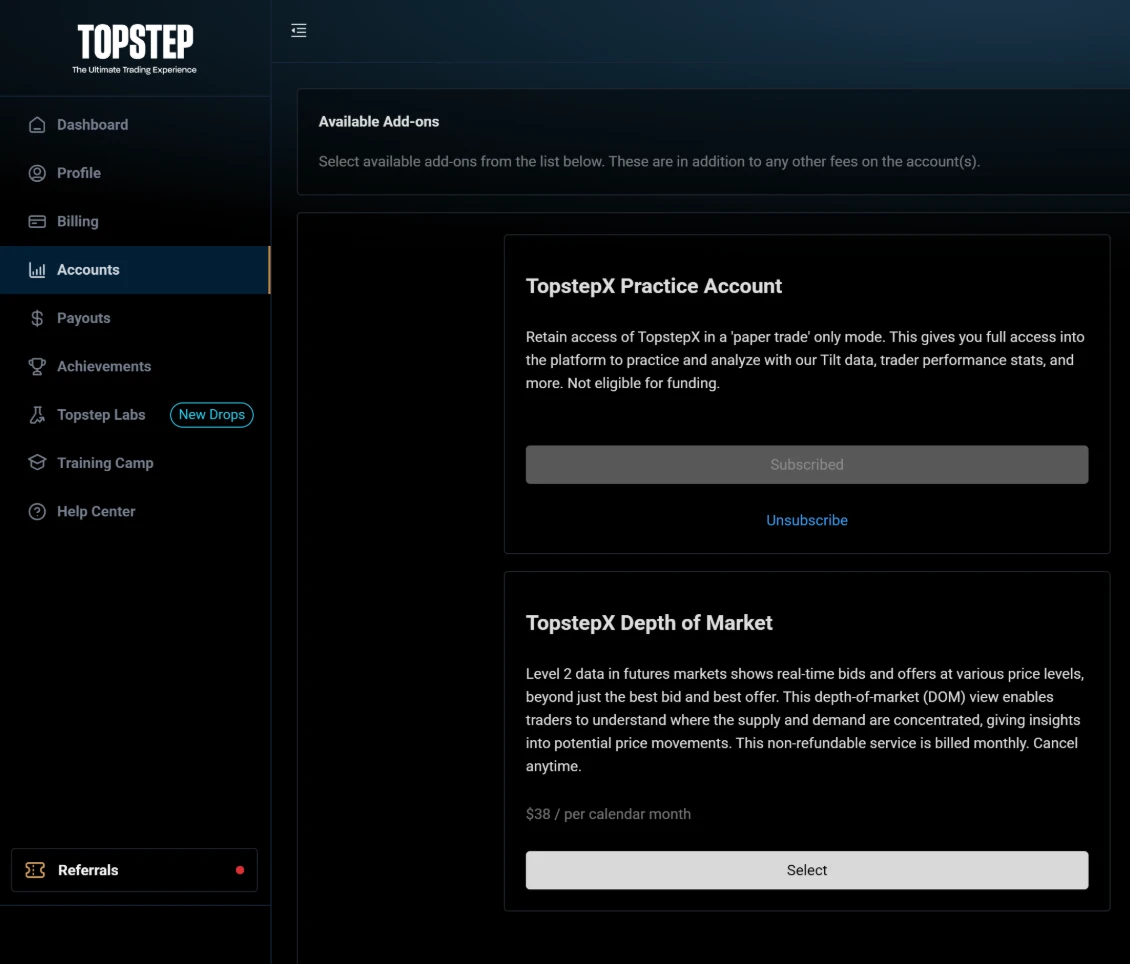
- Click Add Ons at the top left, above your list of accounts.
- On the TopstepX Practice Account card, click its button. It reads Select; Topstep's help page calls it Activate.
- If a payment panel appears on the right, the total for the practice account is USD $0.00. Tick its two boxes and click Pay.
The card now reads Subscribed, with Unsubscribe under it.

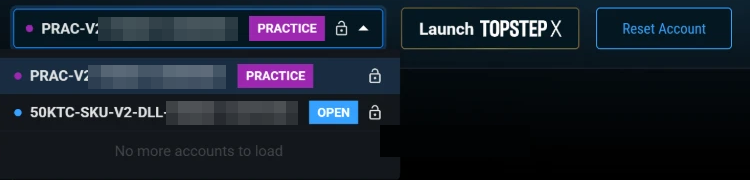
On the Dashboard's home page the account is marked PRACTICE, and your Combine is marked OPEN. In AlgoDesk it appears under its TopstepX name, which starts with PRAC. The next time you connect, it is there; if the connection is on while you activate it, it appears by itself a moment later.
To start the practice account afresh, for example after it hit its loss limit: on the Dashboard's home page, choose the practice account in the list at the top left and click Reset Account. Topstep's help page gives the older way too: on the Add Ons page click Unsubscribe, then select the add-on again, which makes a new practice account with a new name. After a reset, connect again in AlgoDesk and look at the practice account's name. If it changed, choose the new PRAC name again in every chart, Book Trader and strategy that used the old one.
Topstep's rules for API trading
These rules are Topstep's, not AlgoDesk's. They bind you, and breaking them can cost you your account. They come from Topstep's API Access page.
- Trade from your own computer. Never run AlgoDesk on a VPS (a rented computer in a data centre), through a VPN, or on any other remote server. Topstep's Terms of Use forbid it, and Topstep can suspend or remove you for it.
- Orders sent through the API are final. Topstep does not review, adjust or reverse them.
- The Trading Guidelines of your account apply to API orders exactly as to orders you place by hand. A rule broken by a strategy counts the same as one broken by hand.
- High-frequency trading is not allowed.
- Live Funded accounts are not available through the API.
- Topstep gives no support for third-party programs, AlgoDesk included. If a trade from AlgoDesk goes wrong, Topstep will not undo it.
- Test on the practice account before you trade a Combine or a funded account.
Add the connection in AlgoDesk
- On the toolbar, choose Connections, then Configure....
- Under Available connections, double-click TopstepX. The new connection appears under Configured connections, with its settings on the right.
- In User name, type what you sign in to TopstepX with: the user name you chose at Topstep, or your email address if you signed up with your Google account. It is not an account name.
- In API key, paste the key from Step 4. AlgoDesk shows it masked.
- Choose OK.
- On the toolbar, choose Connections and turn on the switch next to TopstepX.
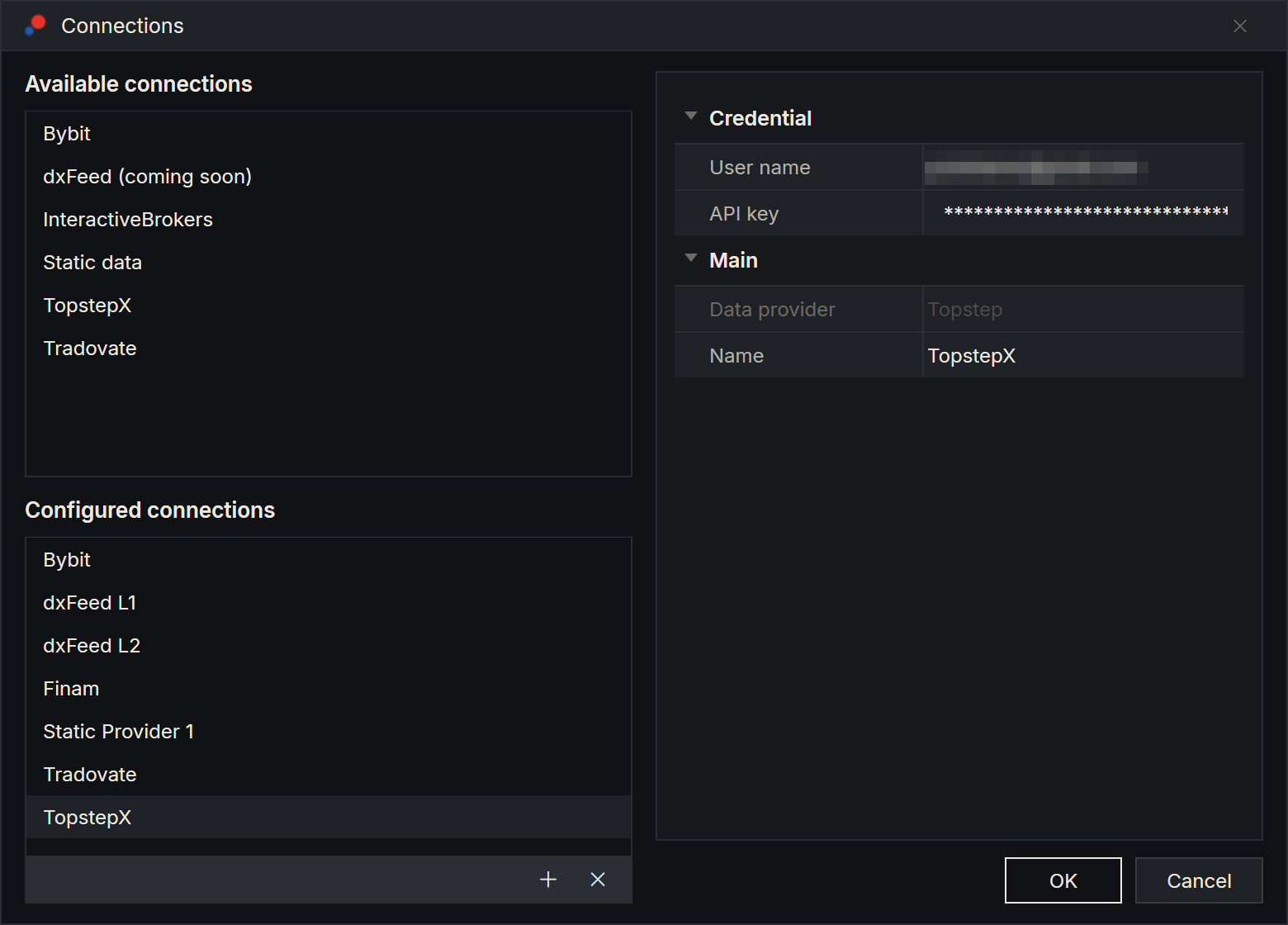
A new connection is named TopstepX. There is no Connection type setting and no account to choose: TopstepX has one environment, and the connection brings every account under the key.
When you turn the connection on, AlgoDesk signs in to TopstepX with the user name and the key. TopstepX answers with a sign-in that lasts 24 hours. AlgoDesk renews it by itself an hour before it runs out, for as long as the connection is on, and signs in again with the key if TopstepX refuses the renewal. The sign-in is kept only while AlgoDesk is running and is never saved on your computer. The key is never written to the Log tab of the Control Center.
When the connection is up, its icon is green and the Accounts tab of the Control Center lists your TopstepX accounts, one row each, under their TopstepX names. If it fails, a message box says why: see When you connect.
Your accounts
The connection brings every account under your key that TopstepX says can trade, and gives you one Broker account in AlgoDesk for each, named as TopstepX names it. The names appear on the Control Center's Accounts tab and wherever you choose an account: the Account list of Chart Trader and of the Book Trader, a strategy's Account setting, the Account name column of the Positions tab and the Account row of the order window. In a list an account reads as its name followed by the connection, for example "PRAC-V2-xxxxxx-xxxxxxxx - TopstepX", where the x's stand for the digits of your account.
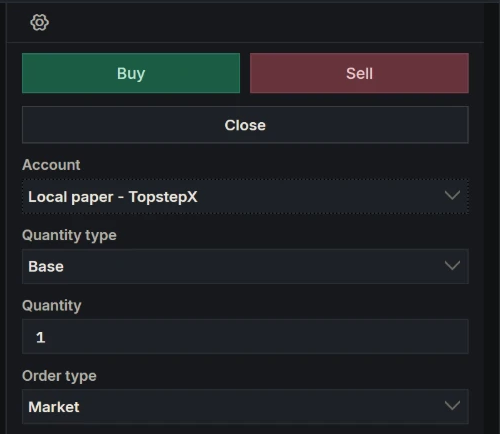
Always check the account before you send an order. Orders through the API are final, and nothing in AlgoDesk stops an order from going to your Combine if that is the account you chose. Three places decide where an order goes: the Account list of Chart Trader, the Account list of the Book Trader, and a strategy's Account setting. If the name there does not start with PRAC, it is not your practice account.
- Topstep runs its evaluation, practice and funded accounts as simulated accounts on its own side. What happens on an evaluation or a funded account has real consequences for you; what happens on the practice account has none. AlgoDesk treats each of them as a Broker account, and its orders reach TopstepX for real. TopstepX has one environment, so there is no Server paper account.
- A new account appears by itself. A Combine you buy, or a practice account you activate, while the connection is on shows in the account lists a moment later, with no reconnect.
- An account that is closed stays in the lists until the next time you connect. An account that can no longer trade stays too, and an order sent to it comes back refused in TopstepX's own words.
- Every TopstepX connection also has a Local paper account, for practice inside AlgoDesk against TopstepX's live prices. Its orders never reach TopstepX. See Orders, positions and accounts.
Your first order
Do this on the practice account. If Topstep gives you none, do it on the Local paper account, whose orders never leave AlgoDesk.
- Open a chart of one of the contracts in the Default list, for example MES. See Your first chart and The Default list.
- Show Chart Trader. See Chart Trader.
- In Chart Trader's Account list, choose your practice account, the one whose name starts with
PRAC. - Leave Time in Force on GTC.
- Place a limit buy well below the current price, so that it does not fill. See Place an order. The order appears on the chart and on the Orders tab of the Control Center as Working, and in TopstepX's own order list.
- Cancel it from the chart or from the Orders tab. See Cancel an order. It disappears in TopstepX too.
If the order comes back Rejected instead, its Reason says why. See On an order.
What TopstepX gives you
| What | Details |
|---|---|
| Instruments | One type, FUTURE: the futures contracts TopstepX trades, each expiry its own instrument. Choosing the type lists them all; type a product such as ES, or a contract such as ESZ6, to narrow the list. TopstepX names no exchange, so an instrument's Exchange is blank. See Finding and adding instruments. |
| History | Bars of 1 second; 1, 3, 5, 15 and 30 minutes; 1, 2, 4, 6 and 12 hours; 1 day; 1 week; and 1 month. How far back the history goes depends on the contract. |
| Live prices and depth | Every trade, for charts, and the order book for the Book Trader. On the accounts we tested, TopstepX sends only the best bid and the best ask, not the prices behind them. |
| Orders | Market, limit and stop orders, from charts, the Book Trader and strategies, to the account you choose, with Day and GTC. Stop-limit orders are refused by TopstepX. IOC and FOK are refused before they are sent. See Orders. |
| Your accounts | Balance, positions, and every order on every account, including the ones placed in TopstepX itself: those appear with an ID starting with tsx- and can be cancelled from AlgoDesk, but not changed. |
| The day's result | The Realized and Unrealized columns of the Accounts tab. See Realised profit and loss. |
Orders
An order goes to the account you chose, by name, so one connection can trade several accounts without mixing them up.
- Market, limit and stop orders are sent as they are.
- A stop-limit order is sent, and TopstepX refuses it: the order comes back Rejected with the reason "Invalid order type specified". TopstepX's API does not take stop-limit orders. Use a stop order or a limit order instead.
- Quantities are whole contracts. Anything else is refused before it is sent.
- TopstepX has no time in force: AlgoDesk cannot tell it how long an order should rest. An order sent as Day or GTC goes out as a plain order, and TopstepX keeps it as it keeps an order placed in TopstepX itself. IOC and FOK are refused before anything is sent, with "TopstepX orders have no time in force; choose Day or GTC." Chart Trader's Time in Force starts on GTC, so leave it there. Post only and Reduce only in Trading options do nothing at TopstepX: the order goes out as a plain order.
- An order placed in TopstepX itself, or by another program, shows in AlgoDesk with an ID starting with
tsx-. You can cancel it from AlgoDesk, but not change it. If it is of a kind AlgoDesk does not place, such as a trailing stop, AlgoDesk shows it as the nearest order type it knows, and its Reason says "TopstepX type" and a number. Change such an order in TopstepX. - If TopstepX does not answer an order at all, because the line dropped or TopstepX had an error, the order shows Unknown until AlgoDesk learns what became of it. AlgoDesk asks TopstepX by itself. Do not send the order again while it shows Unknown: it may have reached TopstepX. Look in TopstepX first.
When TopstepX refuses an order, the order is Rejected and its Reason says why: see On an order below, and When an order fails.
Realised profit and loss
For each account, the Realized column of the Accounts tab shows the closed profit and loss of the trading day, less the fees of the day's trades. The trading day starts at 17:00 Chicago time, when the CME session opens, and Realized counts the trades since then. It updates with every fill. Unrealized values your open positions at the last price AlgoDesk has for each contract.
TopstepX charges two things on every fill: a fee and a commission. Realized takes off the fee but not the commission, so the balance TopstepX shows moves a little more than Realized does. On one MES contract the commission was about US$0.25 per fill when we tested it; Topstep can change it. AlgoDesk works Realized out itself from the trades and prices TopstepX sends, so it can differ from TopstepX's own figure. Check your daily loss limit against TopstepX itself, which is the figure that counts.
The Default list
When a TopstepX connection connects, AlgoDesk makes sure it has an instrument list named Default of type FUTURE, holding the front contracts of ES, NQ, MES and MNQ - the ones TopstepX marks as the active contract - so you can chart them straight away. See Instrument lists.
Limits
Topstep limits how often a program may ask it for things: 200 requests a minute. AlgoDesk stays under that by itself, asking for at most 180 in any minute and no more than three at once, and waits when it has to.
Requests for history have a limit of their own: 50 in 30 seconds. AlgoDesk keeps under it by asking for history 0.7 second apart, so a long stretch of small bars takes a while to download.
If Topstep answers that a limit was hit anyway, AlgoDesk waits a second and asks once more. If that is refused too, the request fails with "TopstepX is rate limiting requests; try again in a moment." Wait a moment and try again.
Messages
When you connect
If the connection fails, a message box titled with the connection's name says why.
| Message | What to do |
|---|---|
| "TopstepX needs the user name and the API key; set them in the connection's settings." | One of the two settings is empty. Fill in User name and API key, then connect again. |
| "TopstepX refused the user name and API key; check both in the connection's settings (the user name is what you sign in to TopstepX with: the name you chose at Topstep, or your email if you signed up with Google)." | TopstepX did not accept the pair. The user name is what you sign in to TopstepX with: the user name you chose, or your email if you signed up with Google. If in doubt, make a new key in TopstepX (Step 4) and paste it in. |
| "TopstepX wants you to sign in to the platform and accept its pending agreements." | Sign in to TopstepX in your browser, accept the agreements it shows, then connect again. |
| "The TopstepX user has no API subscription; subscribe in the ProjectX dashboard and link it under Settings > API." | Do Step 2 and Step 3, then connect again. If you have subscribed already, Step 3 is the one missing. |
| "TopstepX has turned off API key sign-in; contact Topstep." | Topstep has switched off sign-in with an API key for your profile. Only Topstep can say why. |
| "TopstepX refused the sign-in: error …" | TopstepX refused the sign-in for another reason; the end of the message is TopstepX's own error number and words. |
| "TopstepX sign-in failed: …" | The sign-in did not get an answer, for example because your internet connection is down; the end of the message says what happened. Check the connection and try again. |
| "TopstepX refused the sign-in token; connect again to sign in." | TopstepX no longer accepts the sign-in, even after AlgoDesk signed in again. Connect again; AlgoDesk signs in afresh with your user name and key. |
| "TopstepX lists no account that can trade under this key." | TopstepX accepted the sign-in, but no account under the key can trade. Check in TopstepX that the account is active and that the key was made on the profile that holds it. |
| "TopstepX closed the connection: …" | TopstepX ended the live line for good and gives its reason after the colon. Connect again; look at the Log tab if it repeats. |
| "TopstepX refused the account subscriptions: …" | This is not about the paid API subscription. The live line is up, but TopstepX refused to send live updates for your accounts. The end of the message is TopstepX's own reason. If this happens while you connect, the connection stops; if it happens after a dropped line, AlgoDesk tries again. |
| "TopstepX could not read the orders and positions of …" | The line is up, but the orders and positions of the accounts named could not be read; each name is followed by its reason. If this happens while you connect, the connection stops; if it happens after a dropped line, AlgoDesk tries again. |
| "TopstepX did not answer the account subscriptions within 45 s." | TopstepX accepted the sign-in but did not set up the live line in time. Try again; look at the Log tab if it repeats. |
| "TopstepX did not answer the reads of the accounts' orders and positions within 30 s" | TopstepX was too slow to send your accounts' orders and positions. Try again; look at the Log tab if it repeats. |
| "TopstepX connect failed: …" | Something else went wrong while connecting; the end of the message says what. Try again; look at the Log tab if it repeats. |
If TopstepX refuses the sign-in when AlgoDesk renews it while the connection is on, the connection ends with one of the sign-in messages above.
On an order
A refused order is Rejected: its Reason in the order window says why, and a notice appears in the bottom-right corner.
| Reason | What it means |
|---|---|
| "TopstepX is not connected." | The connection is not up, so nothing was sent. Connect and send the order again. |
| "TopstepX has no account named … under this key." | The order names an account TopstepX does not list under this key. Choose another account. |
| "TopstepX orders have no time in force; choose Day or GTC." | The order asked for IOC or FOK, which TopstepX cannot honour. Nothing was sent. Use GTC. |
| "TopstepX trades whole contracts; quantity … is not one." | The quantity was not a whole number of contracts. Nothing was sent. |
| "Invalid order type specified" | TopstepX refused a stop-limit order. Use a stop order or a limit order. |
| "the account is not known to TopstepX" | TopstepX does not know the account the order went to. |
| "insufficient funds on the TopstepX account" | TopstepX says the account has too little money for the order. |
| "the TopstepX account is in violation and cannot place orders" | TopstepX has put the account in violation of a rule. Look at the account in TopstepX. |
| "the market is closed for this contract at TopstepX" | TopstepX takes no orders on this contract at this hour. |
| "TopstepX does not know this contract" | TopstepX does not have the contract the order named. |
| "this is not the active contract at TopstepX" | This expiry is not the active contract of its product at TopstepX. Use the front contract. |
| "the TopstepX account is not allowed to place orders" | TopstepX does not let this account place orders. Ask Topstep why. |
| "TopstepX rejected the order." or TopstepX's own words | TopstepX refused the order for another reason. When it gives words of its own, the Reason shows them as they are; when it gives none, the Reason is the first sentence. |
| "TopstepX answered … to the order." | TopstepX refused the order and gave only a number, no words; the number is in place of the dots. |
| "TopstepX refused the sign-in token; connect again to sign in." | TopstepX stopped accepting the sign-in while the order was sent. Connect again. |
| "TopstepX is rate limiting requests; try again in a moment." | A limit was hit. See Limits. Send the order again in a moment. |
| "cancel refused: …" or "modify refused: …" | TopstepX refused to cancel or change a working order. After the colon are TopstepX's own words, or "error" and a number when it gave none. The order stays as it was. |
| "modify refused: an order placed outside AlgoDesk can be cancelled but not modified" | You tried to change an order that was placed in TopstepX itself. Cancel it, or change it in TopstepX. |
When the line drops
AlgoDesk keeps up to two live lines to TopstepX: one for your accounts and orders, and one for prices and depth, which opens when a chart or Book Trader needs it. AlgoDesk checks each line every 15 seconds. If a line is silent for 45 seconds, AlgoDesk treats it as dropped and reconnects by itself, waiting a little longer between tries each time, never more than a minute. While it does, the connection shows yellow, as every connection does.
When your accounts' line is back, AlgoDesk reads every account's orders and positions again, and the day's trades, before it carries on, so nothing that happened during the drop is missed. If TopstepX refuses the sign-in on the way back, AlgoDesk signs in again with your key; if TopstepX refuses that, the connection closes with a message from the table above. See Connection status and reconnecting.
If something does not work
| What you see | What to do |
|---|---|
| The connection fails with a message about the user name and API key. | The user name is what you sign in to TopstepX with: the user name you chose, or your email if you signed up with Google. If it is right, make a new key (Step 4) and paste it into API key. |
| The connection fails with a message about the API subscription. | Do Step 3. If you have not subscribed yet, do Step 2 first. |
| The connection fails with "TopstepX lists no account that can trade under this key." | In TopstepX, check that at least one account is active. A Combine that failed, or a practice account that hit its loss limit, cannot trade. |
| Your practice account is not in the account lists. | Activate it (Step 5). If the connection is on, it appears by itself; otherwise connect again. |
| An account you closed is still in the lists. | It stays until the next time you connect. Turn the connection off and on. |
| A stop-limit order comes back Rejected with "Invalid order type specified". | TopstepX's API does not take stop-limit orders. Use a stop order or a limit order. |
| Realized is not the figure TopstepX shows. | Realized is the day's closed profit less fees, counted from 17:00 Chicago time, and leaves out TopstepX's commissions. TopstepX's own figure is the one that counts for your loss limit. See Realised profit and loss. |
| The order book shows only one price on each side. | TopstepX sent only the best bid and ask for this account. That is what TopstepX gives, not a fault in AlgoDesk. |
| TopstepX shows an order that AlgoDesk does not. | Turn the connection off and on. AlgoDesk reads every open order when it connects. |
Topstep's own pages, which these steps follow: TopstepX API Access and Practice Account.