Saved runs and PDF reports
A run's results stay in its window only until the next run or until you close it. Save a run to keep it, open it later from the Database window, and export a PDF report of any run.
Save a run
- Right-click the left panel of the Optimizer window and choose Save results.
- Type a name and choose OK.
AlgoDesk says "Optimization results successfully saved!". Save results also works after you stop a run, and keeps what had finished.
A saved run keeps:
- the setup: strategy, instrument, bar size, optimizer and its settings, fitness function, filters, parameter rows and commission;
- the periods and the state each one ended in;
- each period's selection, and every other candidate that has an out-of-sample result;
- for each saved candidate, its parameters and its in-sample, out-of-sample and continued trades;
- whether Continue Out of Sample Up to Current Date was on, and the headline figures of the total.
On your own runs, the candidates with an out-of-sample result are the ones you clicked. A candidate you never clicked is not saved, so click the ones you want to keep before you save.
A workspace remembers an Optimizer window's setup and periods, but not its results.
Where saved runs are kept
Each saved run is a folder in Documents\AlgoDesk\OptimizerResults, listed in AlgoDesk's database. Manage them from the Database window rather than by moving or deleting folders, so the list and the files stay in step.
Runs Claude starts
A run Claude starts is saved automatically when it ends, under the label Claude gave it, which is the name you see in the list. Claude's runs evaluate every kept candidate in-sample and out-of-sample, so their saved runs hold every candidate. A Claude run that is cancelled, by Claude or by your Stop, is not saved. Claude has no way to remove saved runs. See Claude and the Optimizer.
The Database window
Right-click the left panel of any Optimizer window and choose Results. The Database window opens on Optimizer results: every saved run, newest first, with its Name, Strategy, Version, Date, Symbol and TimeFrame. Narrow the list with Strategy, Symbol and TimeFrame at the top.
The list is read when the window opens. A run saved while it is open appears the next time you open it.
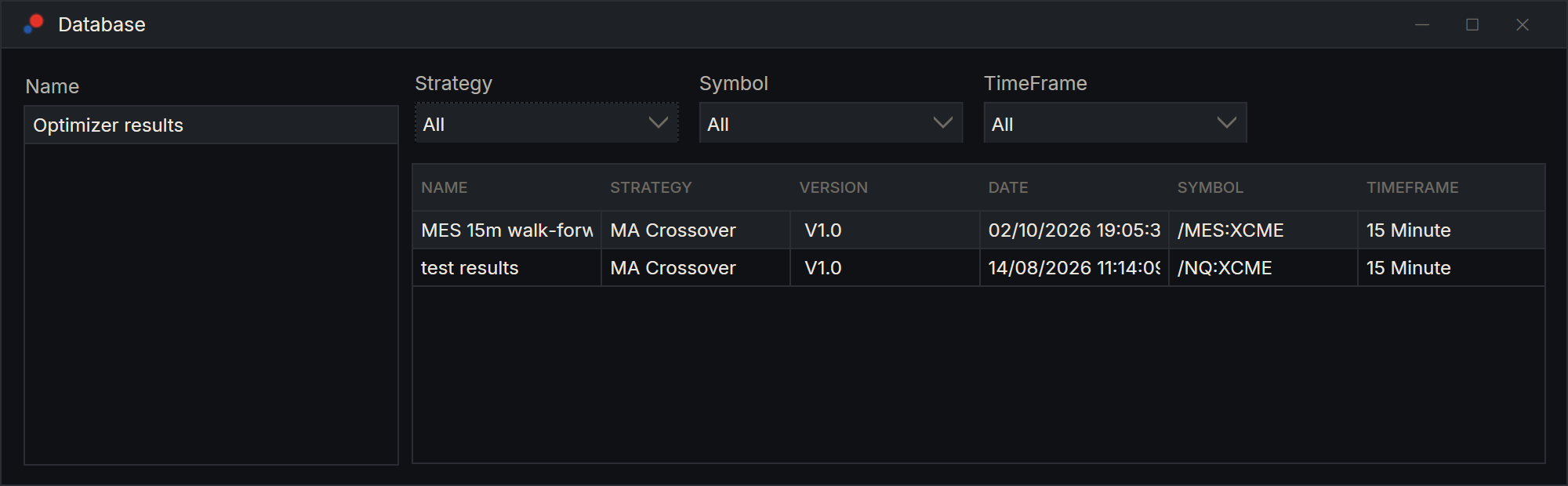
Right-click a saved run:
| Menu item | What it does |
|---|---|
| Remove | Deletes the saved run and its folder. It asks first, naming the run, for example "Remove the saved run "MES 15m" and its files? This cannot be undone." |
| Rename | Changes its name. |
| Export | Writes the saved run to a .zip file, in Documents\AlgoDesk\Exports unless you choose another folder. |
| Import | Adds a saved run from a .zip file made with Export, under the name it had. |
Remove cannot be undone. Export a run you might want later before you remove it.
Open a saved run
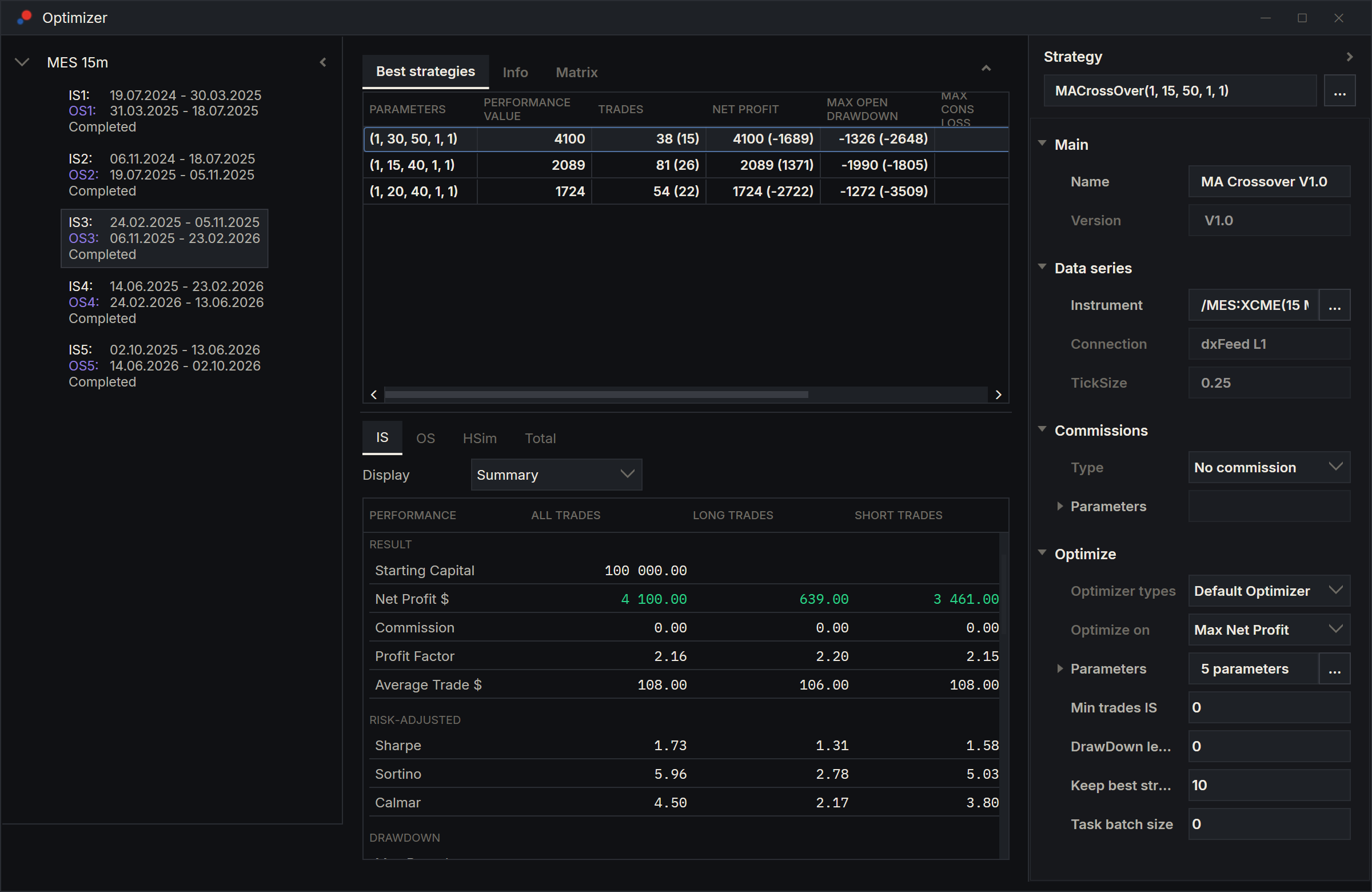
Double-click a saved run. It opens in an Optimizer window that shows the run as it was saved:
- each period lists every saved candidate, with the saved selection highlighted and the period's state as it ended;
- clicking a row shows that candidate's saved results. Nothing runs and no history loads, and the walk-forward total keeps showing the saved selections' total;
- the HSim tab appears only for candidates with continued trades;
- each period's Info tab shows the counts of its search;
- Run is hidden and Save results is greyed out: the run is already saved.
Rank 1 is the top row. A period that was hand-picked when the run was saved shows "Hand-picked" in the left panel, and its highlighted row is not the top one. Clicking rows in a saved run does not change the mark. See Reading the results.
Runs saved by earlier versions of AlgoDesk open too, with only the selection of each period and 0 in the Info tab counts.
Export a PDF report
- In the Optimizer window, click the test, the top row of the left panel.
- Right-click it and choose Export as PDF. The item appears only when the test is selected.
- Choose where to save the file.
AlgoDesk says "Export successfully completed!" when the file is written. The window is busy while it draws the graphs. Exporting works in a window that has finished a run and in a saved run you have opened. If there is no walk-forward total yet, no file is written.
The report contains:
| Part | What it shows |
|---|---|
| First page | The title "Strategy In-Sample vs Out of Sample Research", the date, a short explanation and a risk note. Then Strategy (name and version), Symbol, Timeframe, Optimization Fitness, Optimizer, Total Iterations and Individual iterations. Where a count is not known, it says "not recorded". |
| IS/OS List | Every period with its in-sample and out-of-sample dates. |
| Combined Out of Sample Results | The walk-forward total: its equity and drawdown graphs and its summary table for all, long and short trades. |
| One page per period | Graphs of the selection's in-sample, out-of-sample and continued trades, with an In Sample Summary and an Out of Sample Summary. A period with no selection says "No selection (emptied by the filters, or failed)". |
Optimization Fitness shows the fitness function's name as Optimize on shows it, for example "Max Sharpe". Individual iterations is the number of combinations tried in a period; Total Iterations is that number times the number of periods.
Claude can export the same report for you. See Claude and the Optimizer.