Connection status and reconnecting
This page shows how to tell whether a connection is up, what AlgoDesk does when a line drops, and what to do when a connection fails.
Reading the status
The connection icon on the toolbar, a Wi-Fi symbol, sums up all your connections:
| Colour | Meaning |
|---|---|
| White | Nothing is connected. |
| Yellow | A connection is connecting, or reconnecting by itself after its line dropped. |
| Green | At least one connection is connected, and none is connecting or reconnecting. A Static data connection, which is always ready, does not count. |
Hold the mouse over the icon to see which connections are on, for example "Connections — dxFeed, Bybit", or "Not connected". A connection that is reconnecting is still listed.
Click the icon for a list of every connection except Static data (see below) with a coloured dot: red for disconnected, yellow for connecting or reconnecting, green for connected. Click a connection to connect or disconnect it.
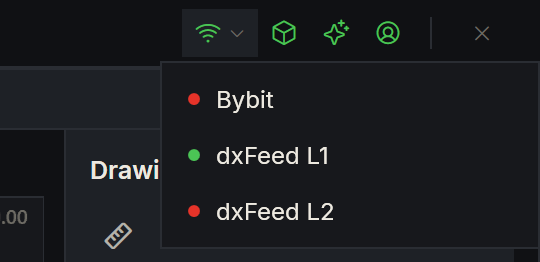
The Connections menu on the toolbar does the same with a switch per connection (except Static data). A switch is greyed out while its connection is connecting or disconnecting.
A Static data connection, which serves the bars you import, is always ready. It has no switch: its row in the Connections menu reads "always ready". It is left out of the icon, its hover text and its list, since it is on from start-up and would turn the icon green by itself. See Static data.
Other signs:
- A short sound plays when a connection comes up.
- The connection's accounts appear on the Control Center's Accounts tab while it is up.
- The Control Center's Log tab records every change, for example "dxFeed: Old status: Disconnected; New status: Connecting". Lines from the providers themselves start with
[DxFeed],[InteractiveBrokers],[Bybit],[Topstep]or[Tradovate].
Connecting and disconnecting
AlgoDesk never connects by itself, at start or when it opens a workspace. Turn your connections on each time you start AlgoDesk. The one exception is Static data, which is on from the start. See Static data.
When you connect, open charts on that connection load their data again.
Turning a connection off while it is still connecting ends the attempt quietly: the switch goes off and no message box opens.
When you disconnect, strategies running on that connection stop. If any of them still has a position or working orders, AlgoDesk asks first, in the Stop live strategies window ("You are about to disconnect this connection. These strategies have something at their account:"):
| Choice | What happens |
|---|---|
| Close position | The strategies' orders are cancelled and their positions closed, then the connection goes down. |
| Cancel orders, keep position | The orders are cancelled, the positions stay open at your broker or exchange. |
| Keep everything working | Orders and positions stay as they are at your broker or exchange. |
| Don't stop | Nothing happens: the connection stays up. |
Connecting again does not restart the strategies. Turn each one on again on the Control Center's Strategies tab. See Running a strategy live.
When a line drops
A dropped line is not the same as a disconnect. Each connection notices the drop and reconnects by itself, and you do not need to do anything:
| Connection | How the drop is noticed | How it reconnects |
|---|---|---|
| dxFeed | The live line has been silent for 10 seconds. | dxFeed's own software reconnects and picks up the same instruments. |
| Interactive Brokers | TWS closes the connection, for example at its nightly restart, or reports that it lost its link to IB. | AlgoDesk dials TWS again after 5 seconds, then twice as long each time, up to once a minute, until TWS answers. If only TWS's own link to IB went, TWS recovers it. |
| Bybit | A stream does not answer AlgoDesk's check, made every 20 seconds. | AlgoDesk reconnects after 1 second, then twice as long each time, up to once a minute. |
| Tradovate | The line has been silent for 30 seconds, or Tradovate closed it. | AlgoDesk reconnects after 1 second, then twice as long each time, up to once a minute, and signs the line in again. |
| TopstepX | A line has been silent for 45 seconds, although AlgoDesk pings it every 15 seconds, or TopstepX closed it. | AlgoDesk reconnects after 1 second, then twice as long each time, up to once a minute, then reads every account's orders and positions again. |
None of them gives up: they keep trying until the line is back or you turn the connection off.
While AlgoDesk reconnects, the toolbar's connection icon and the connection's dot turn yellow, and go back to green when the line is back. The connection still counts as on: its switch stays on, and you can still turn it off. The Log tab shows the change, "New status: Connecting", and later "New status: Connected".
Charts and the Book Trader
During the drop, charts get no new prices. When the line is back, AlgoDesk fetches the bars each chart missed and the chart carries on, without reloading. If those bars cannot be fetched within 30 seconds, the chart carries on from the next live bar and the missed ones stay missing until you reload it.
The Book Trader rebuilds its order book when the line is back.
Running strategies
While the line is down, every strategy trading on that connection, on any of its accounts, is catching up: it keeps calculating, but every order it tries is refused. Hold the mouse over its row on the Strategies tab to see why: "Catching up: the connection is down".
When the line is back, AlgoDesk:
- reads the orders and positions your broker or exchange holds, and books any order that filled during the drop as the strategy's own trade;
- runs the strategy through the bars it missed, still refusing its orders; the row then says "Catching up: closed while the connection was down";
- does what After a reconnect says.
After a reconnect is in Tools, Options, General, Preferences:
| Setting | What happens |
|---|---|
| Sync with the venue and carry on (the default) | AlgoDesk checks that the positions of the strategies on each instrument add up to the position your broker or exchange reports. If they do, the strategies trade again from the next bar that closes. If they do not, those strategies stop without sending anything, their orders stay working, their rows turn red with the reason, and a notice "Out of sync with the venue on …" names them. |
| Stop the strategy | Every strategy on the connection stops: its orders are cancelled and its position is kept. |
See Options and Running a strategy live.
When a connection is lost for good
Sometimes a provider ends the connection and AlgoDesk cannot get it back by itself, for example "dxFeed endpoint closed" or "Tradovate closed the connection: DeviceQuotaReached". Then:
- a message box titled with the connection's name says why;
- the connection's switch turns off and its accounts go;
- strategies on it stop without sending anything, and their orders stay working at your broker or exchange.
Turn the connection on again when you are ready.
Failure messages
When a connection fails to come up, one message box titled with the connection's name says why. The most common ones:
| Message | What to do |
|---|---|
| "Connection could not be established. INVALID_CREDENTIALS" | dxFeed: check the user name and password. |
| "TWS at … could not be reached: …" | Interactive Brokers: start TWS or IB Gateway, log in, and check Host and Port. |
| "Bybit rejected the API key: …" | Bybit: check the key, the secret and your Windows clock. |
| "Tradovate refused the sign-in: …" | Tradovate: connect again and sign in on Tradovate's page. |
| "TopstepX refused the user name and API key; check both in the connection's settings (the user name is what you sign in to TopstepX with: the name you chose at Topstep, or your email if you signed up with Google)." | TopstepX: check the user name and the API key. |
| "Tradovate is refusing requests after a rate limit; try again after … UTC." | Tradovate: a limit was hit; connect again after the time shown. |
| "… connected, but its broker account could not be loaded (the venue did not send its orders, positions or balances). The connection was closed; connect again, and see the log for details." | The provider answered, but AlgoDesk could not read your real account from it, so it closed the connection. Turn it on again, and look at the Log tab if it happens again. |
| "Connection could not be established by connector '…'." | The provider gave no reason of its own. Look at the Log tab. |
Each provider's page lists its messages in full: Interactive Brokers, dxFeed, Bybit, Tradovate, TopstepX.
Keep the Windows clock right
AlgoDesk uses your Windows clock to decide which bar on a chart is still open. If the clock is wrong, for example an hour fast because the time was set by hand, charts can load their history and then show no live prices at all, while the connection icon is green.
A wrong clock also makes Bybit refuse your API key: see The Windows clock.
AlgoDesk does not check the clock and does not warn you. In the date and time settings of Windows, let Windows set the time automatically, and check that the time zone is right.
If a connection is green but charts show no live prices, check the Windows clock first.