Running an optimisation
When you press Run, the Optimizer works through every period: it loads the history, searches the in-sample part, runs the best candidate on the out-of-sample part, and joins the results into the walk-forward total. This page explains what you see while it runs and how to stop it.
Start a run
Once the setup and the periods are ready, choose Run at the bottom of the left panel, or right-click the left panel and choose Run.
Before it clears anything, Run may stop to tell you or ask:
- a parameter row that cannot run: a notice titled "Optimization not started" lists every problem. See Full and genetic search;
- a Default Optimizer grid above 1,000,000 combinations per period: it asks whether to run anyway;
- missing history while the instrument's connection is off: it asks whether to run with what you have. See Data that has to download first.
If you decline, nothing changes.
Run replaces the results in the window. To keep them, save them before you press Run. See Saved runs and PDF reports.
What a run does
All periods start together. For each period, the Optimizer:
- loads the bars for the in-sample part from the history on your computer;
- searches the in-sample part: every combination with the Default Optimizer, a guided sample with the Genetic Optimizer. It drops combinations the filters rule out and keeps the best ones as candidates;
- makes rank 1 the selection and evaluates it: a run on the in-sample part, then a run on the out-of-sample part, and, when Continue Out of Sample Up to Current Date is on, a continued run up to today.
The out-of-sample run starts at the beginning of the in-sample part, so the strategy's indicators are warmed up, and keeps only the trades from the first out-of-sample day on.
When every period has finished, the Optimizer joins the out-of-sample trades of every period's selection into the walk-forward total. See Reading the results.
Period states
Under each period's dates in the left panel, a line shows where it is. Hold the mouse over it to read the reason, where there is one. A period that has not run yet shows no state.
| State | What it means |
|---|---|
| Waiting | The run has started; the period has not begun yet. |
| Loading data | The period is loading its history, or waiting for missing history to download. |
| Searching | The in-sample search is going. |
| Evaluating | The selection is being run in-sample and out-of-sample. This also shows after you click a candidate. |
| Completed | The period is done. Its selection's out-of-sample trades are in the total. |
| Emptied by the filters | Min trades IS or DrawDown level removed every combination. The reason gives the counts. The total leaves the period out. |
| Failed | Something went wrong in this period. The reason says what. The total leaves the period out. |
| Cancelled | The run was stopped before the period finished. |
A failed period does not stop the others
If one period fails, for example because its history could not be loaded, it shows Failed and the other periods carry on. The walk-forward total is built from the periods that completed and leaves the failed one out.
To see why it failed:
- hold the mouse over the period's Failed line;
- on the Periods tab its row shows Error and "Strategy run failed, details in the log". Double-click the row for the error details, where there are any;
- the Log tab of the Control Center has the full message.
If every period fails, the run ends with no total.
Progress
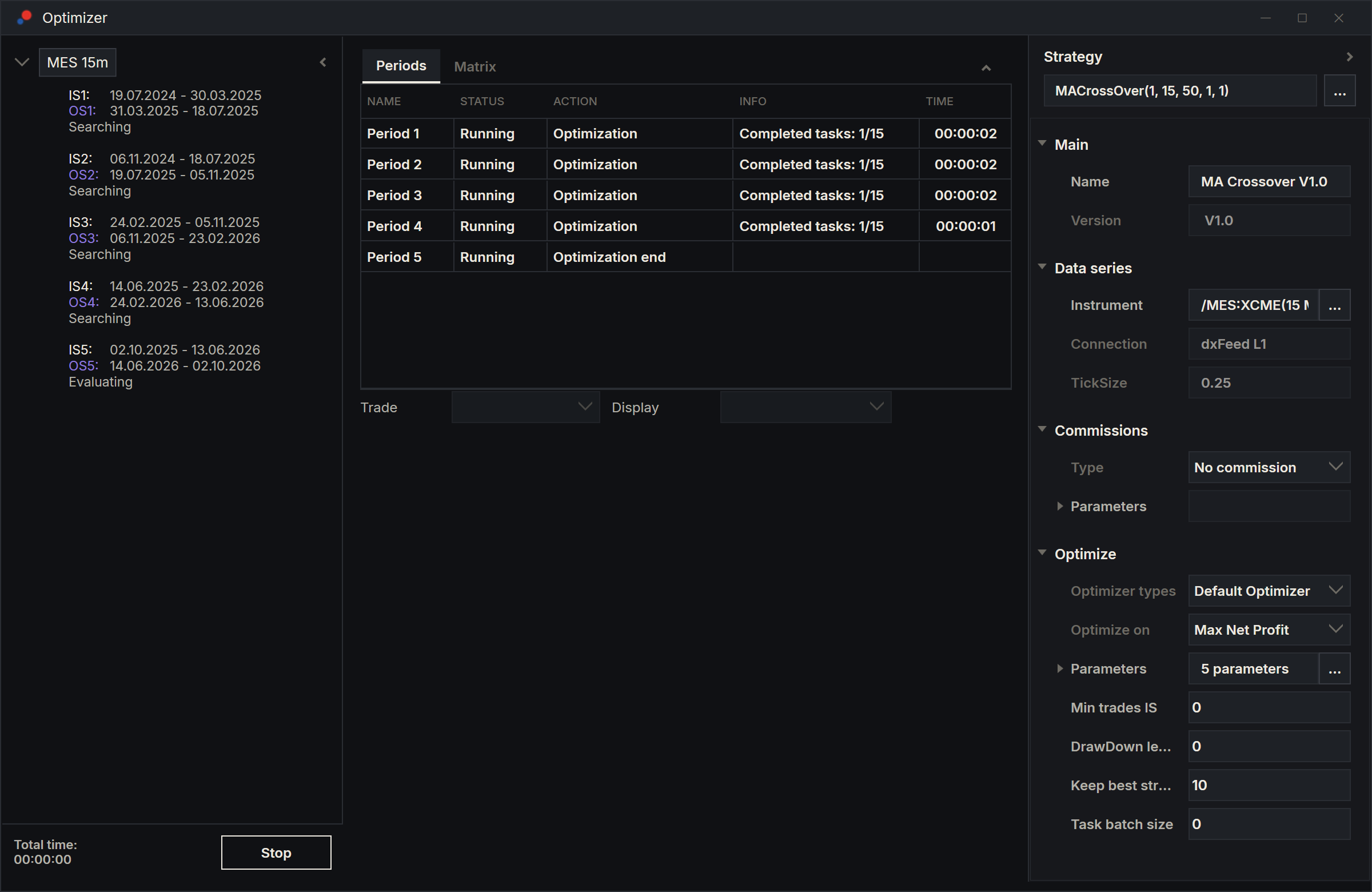
Click the test, the top row of the left panel, to see the Periods tab. It has one row per period:
| Column | What it shows |
|---|---|
| Name | The period, for example "Period 3". |
| Status | Not started, Running, Completed, Error, Canceling or Canceled. |
| Action | What the period is doing: downloading history, searching, or calculating its results. |
| Info | Backtests done against the total, for example "Completed tasks: 250/1000", and the seed for a genetic search. At the end, the number of combinations tried. |
| Time | The time the search has left. |
Total time: at the bottom of the left panel counts the time since you pressed Run.
Data that has to download first
Before it starts, Run compares the history on your computer with what the run needs: up to the end of the last period's out-of-sample part, or up to now when Continue Out of Sample Up to Current Date is on.
- If history is missing and the instrument's connection is connected, the last period downloads it first. The other periods show Loading data until it is done, and the Periods tab shows the download.
- If history is missing and the connection is off, Run asks first. The question starts "You don't have enough data to run the test and you are not connected" and gives Period End DateTime, the end the run needs, and Meta End DateTime, the end of the history you have, both in UTC. Choose OK to run with the history you have, or Cancel to change nothing, connect and press Run again.
With Continue Out of Sample Up to Current Date on, the run always needs history up to now, so connect the instrument's connection before you press Run. See Historical data and Connection status and reconnecting.
While it runs
Stop takes the place of Run. Meanwhile:
- You can click a period to look at it. Wait until a period shows Completed before you click its candidates: a click while it is still searching can make the total be built before the period's own result is in.
- Leave the setup alone until the run ends. Each period copies the setup when its search starts.
- Changing Continue Out of Sample Up to Current Date in Options does not affect a run that has started. See Continuing to today.
- You can use the rest of AlgoDesk. The run goes on in the background.
- Wait for the run to end before you compile scripts: compiling rebuilds the strategy in every open Optimizer window.
- Closing the Optimizer window cancels its run.
Stop a run
Choose Stop. On the Periods tab, periods still going show Canceling, then Canceled; in the left panel they show Cancelled. A period whose search had just ended, but whose rank 1 had not yet been run, stops too and shows Cancelled in the left panel. Periods that had finished keep their candidates and results. Run comes back once the stopped run has ended.
After a Stop you can still click candidates in the finished periods and save the results.