Continuing to today
With Continue Out of Sample Up to Current Date on, each period's selection keeps trading after its out-of-sample part ends, all the way to today. It shows how a choice made back then would have done since.
Turn it on
- On the toolbar, choose Tools, then Options.
- Under General, choose Preferences.
- Tick Continue Out of Sample Up to Current Date and choose OK.
The setting applies to the next run of every Optimizer window. See Options.
A run reads it once
A run reads the setting once, when you press Run, and uses that value until it ends:
- ticking or unticking it during a run changes nothing in that run;
- after the run, clicking another candidate follows the run's value, not the one in Options now;
- a saved run records whether it was on, and shows continued results when you open it again.
When Claude sets up a window, it can choose the value for its own runs. Your Run always takes the value from Options. See Claude and the Optimizer.
What the continued run is
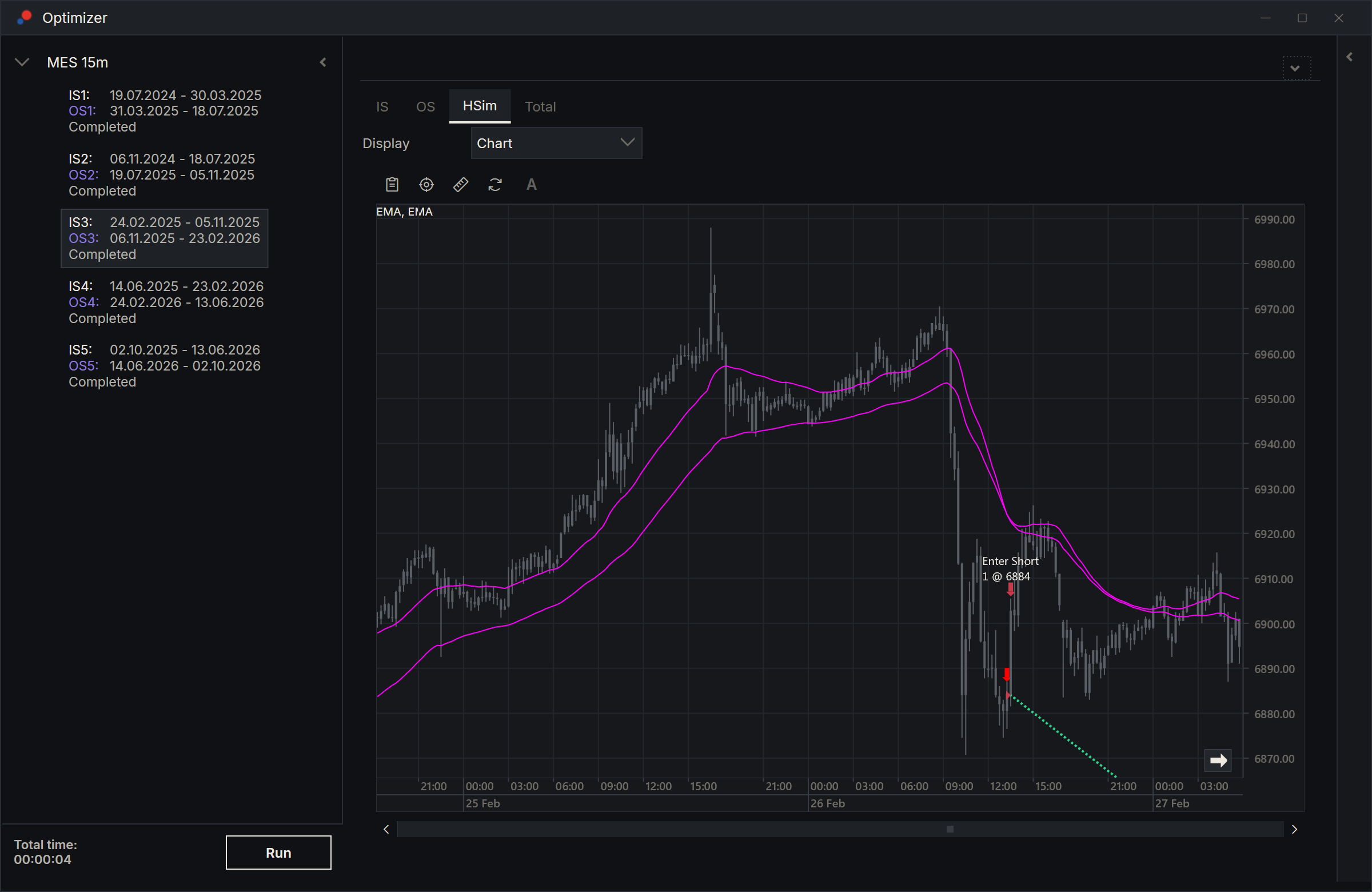
For each period's selection, AlgoDesk runs the strategy with the same parameters from the start of the in-sample part up to now, and keeps the trades from the day after the out-of-sample part ends. Those are the continued trades: what would have happened if you had kept trading that selection, unchanged, to this day.
| Where | What you see |
|---|---|
| The period's HSim tab | The continued trades. On the chart, vertical lines mark where the out-of-sample part starts and where the continued part starts. |
| The period's Total tab | The in-sample, out-of-sample and continued trades together. |
| The walk-forward total | No continued trades: it stays the joined out-of-sample trades. |
Only the selection is continued. When you click another candidate, it becomes the selection and is continued too. A live period has no continued run.
History up to now
The continued runs need history up to now. Connect the instrument's connection before you press Run, so the run can download what is missing. If the connection is off, Run asks first; if you choose OK, the continued runs can only reach the last bar you have. See Running an optimisation.
Each continued run is one more backtest per period, and the longest one, so a run with the option on takes longer.
Use it to judge re-optimising
Period 1's out-of-sample and continued trades together answer the question: "What if I had optimised once, on the first in-sample part, and traded those parameters unchanged ever since?" Every later period answers the same question from a later start.
The walk-forward total answers a different one: "What if I had re-optimised at every period?" To judge whether re-optimising helps on this history:
- Run with the option on.
- Click period 1 and look at its OS and HSim tabs.
- Click the test and look at the walk-forward total over the same months.
If the total did clearly better than holding period 1's parameters, re-optimising on that schedule added something on this history. If it did not, the extra work bought little. The continued run reaches today, which can be later than the last period's out-of-sample end, so use the Trades ($) lists to compare the same dates.
The continued trades of several periods also show how long a choice kept working after it was made. A selection whose continued results fade quickly is a hint to re-optimise more often or to look again at the strategy.
Results on past history do not promise future results.