Reading the results
When a run ends, each period holds its kept candidates with one of them selected, and the test holds the walk-forward total. This page explains what each part of the window shows and how to read it.
Where to look
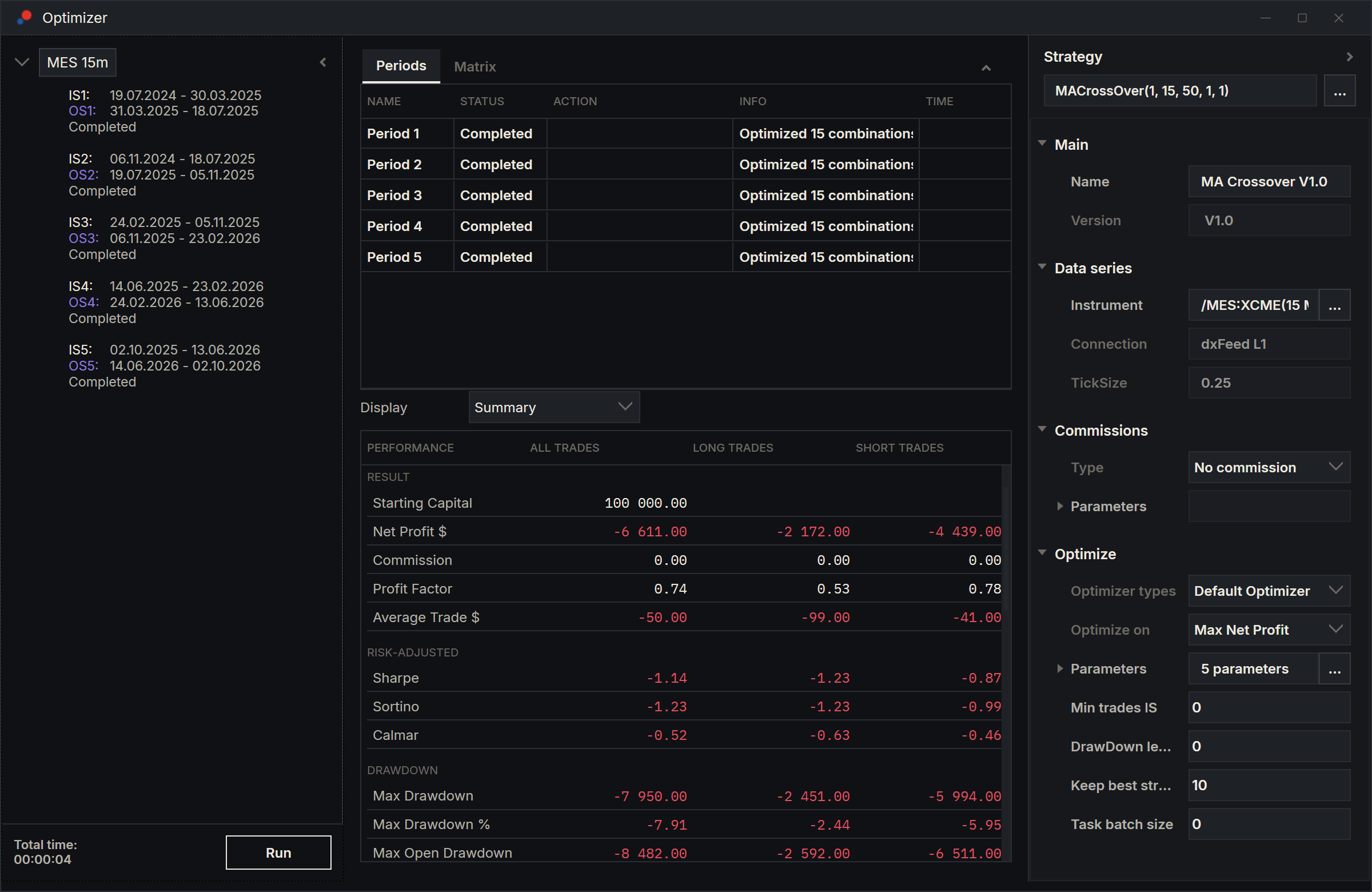
- Click the test, the top row of the left panel, for the Periods and Matrix tabs and, below them, the walk-forward total.
- Click a period for its Best strategies, Info and Matrix tabs and, below them, the results of its selection on the IS, OS, HSim and Total tabs.
Candidates and their rank
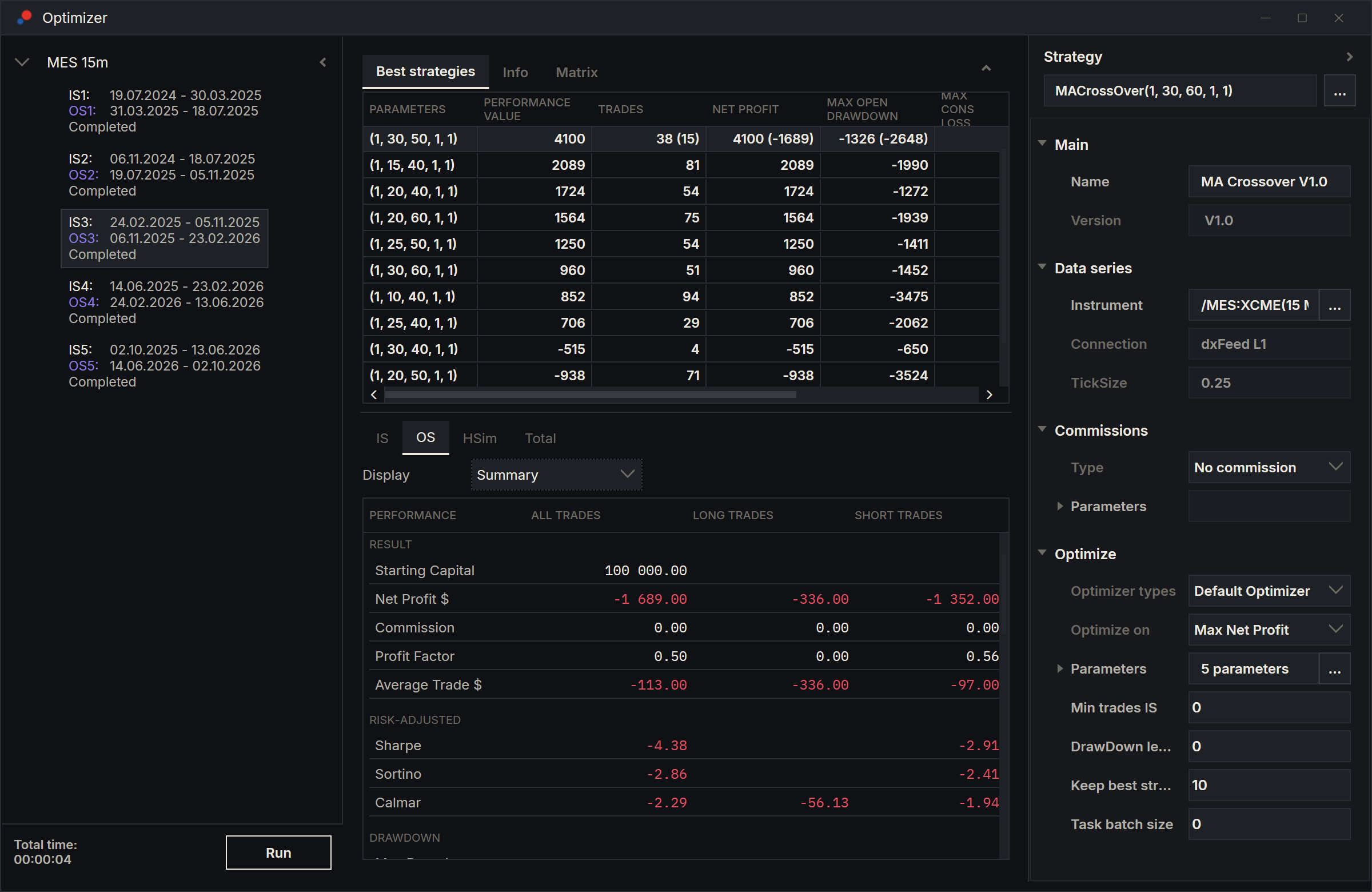
The Best strategies tab lists the period's candidates: the combinations that passed the filters and scored best, as many as Keep best strategy allows. They are in rank order: rank 1, the highest score, is at the top.
| Column | What it shows |
|---|---|
| Parameters | The candidate's parameter values. |
| Performance value | Its in-sample score from the fitness function. |
| Trades, Net Profit, Max Open DrawDown, Max Cons Loss, Win % | Its figures. Once the candidate has an out-of-sample run, each cell shows the in-sample figure with the out-of-sample one in brackets: "4210 (380)". |
| Custom value | A figure the Genetic Optimizer keeps for each candidate. It is empty for the Default Optimizer. |
Right-click the list for more:
| Menu item | What it does |
|---|---|
| Preset save | Saves the selected candidate's parameters as a strategy preset, to use on a chart or in a Backtester. |
| Settings | Chooses which columns the list shows. |
| Open in Backtester | Opens a new Backtester with the selected candidate: IS over the in-sample dates, ISOS from the in-sample start to the out-of-sample end. |
| View parameter list | Lists the selected candidate's parameters. |
The selection
After a run, each period's selection is rank 1, the highlighted row. Its results fill the tabs below the list:
| Tab | What it shows |
|---|---|
| IS | The selection's run on the in-sample part. |
| OS | Its run on the out-of-sample part. The chart marks where the out-of-sample part starts with a vertical line. |
| HSim | Its continued run, when the run had Continue Out of Sample on. See Continuing to today. |
| Total | Its in-sample, out-of-sample and continued trades together. |
Each tab has a list of sections: Summary, Chart, Analysis, Trades ($) and Orders ($). The Total tab has no Chart or Orders ($). The sections read as they do in Backtester results; see Backtest results. A live period has only the IS tab.
Clicking a candidate
Click another row and AlgoDesk evaluates it: it runs the candidate in-sample and out-of-sample, and continued when the run had Continue Out of Sample on. It shows the results on the tabs, makes the candidate the period's selection and rebuilds the walk-forward total with it. A row you have clicked before shows its results at once, without running again.
On runs Claude starts, every kept candidate is run in-sample and out-of-sample during the run, so clicking one shows its in-sample and out-of-sample results without running them again. Clicking still changes the selection. See Claude and the Optimizer.
The walk-forward total
Click the test to see the total below its tabs. It joins the out-of-sample trades of every period's selection into one result, with Summary, Analysis and Trades ($) sections. It is what the strategy made on history it had not been optimised on, re-optimising at every period.
The total leaves out:
- the live period, which has no out-of-sample part;
- any period that was emptied by the filters, failed or was cancelled, or whose out-of-sample run did not finish.
The Log tab of the Control Center names each period the total left out, and why. Continued trades are never part of the total.
Hand-picked periods
A period whose selection is not rank 1 is hand-picked. As soon as you click another candidate, the total uses your choice for that period, and the period's row in the left panel shows "Hand-picked" under its dates and state.
A hand-picked total is not a walk-forward result. You chose that candidate after seeing how it did out-of-sample, so that history is no longer unseen: the total shows how your choice did, not how the method would have done. To get the walk-forward total back, click rank 1 again in every period marked "Hand-picked". Each mark goes once its period is back on rank 1.
Claude also tells you whenever it reports a total with hand-picked periods. A saved run keeps the selections, and the marks, as they were when you saved it.
The Matrix tabs
The test's Matrix tab has one row per parameter and one column per period. Each cell is the value the period's selection used. It shows at a glance whether the best values stay close from period to period or jump around. It shows the first 30 periods only; later periods run, count in the total and are saved, but do not appear in this tab.
A period's Matrix tab is the same for its candidates: one column per rank.
The Info tab
A period's Info tab counts its search: All strategies checked:, Removed by min trades: and Removed by draw down:. A saved run you open again shows the counts it was saved with.
Reading the numbers
- In-sample figures flatter: they are the best of many tries on that history. Compare each period's out-of-sample figures with its in-sample ones. Out-of-sample results that are weaker but still positive are common; losses in most periods suggest the in-sample fit does not carry forward.
- Check the number of trades in the total. A few trades can make any figure look good or bad.
- Use the Matrix tab: values that swing from one end of the range to the other from period to period suggest the best values depend on the period more than on a lasting pattern.
- Where candidates have out-of-sample figures, see whether the higher-ranked ones also did better out-of-sample.
Past results do not promise future ones. See Saved runs and PDF reports to keep a run and report it.