Troubleshooting
When something does not work, start with what AlgoDesk has already told you: the Log tab, the notices and the message boxes. This page says where to find them, then lists common problems by area with what to check and where to read more.
Where to look first
| Where | What it tells you |
|---|---|
| The Log tab of the Control Center | What AlgoDesk, your connections and your scripts report, newest at the top: compile errors, warnings from the providers, why a period of an optimisation failed, connection status changes. Right-click it for Clear. See A tour of AlgoDesk. |
The log files in Documents\AlgoDesk\Log |
The same lines, kept after AlgoDesk closes. AlgoDesk starts a new file each time it starts, named after the date and time, for example log_20261002_091503.txt. Clear on the Log tab does not touch the file. The files are written while Log in file is ticked in Tools > Options > Preferences; it is ticked at first. |
The mcp- files in the same folder |
The Claude side of the link, one file a day. See Connecting Claude. |
| A tooltip | Hold the mouse over a red or amber row on the Strategies tab, or over an optimisation period's state, to read the reason. |
| The Debug window | What your scripts print. Open it with New > Debug. See How scripts work. |
| A message box | A window you must answer, for example when a connection fails; its title names the connection. |
| A notice | A short message at the bottom right of the screen. See below. |
Notices
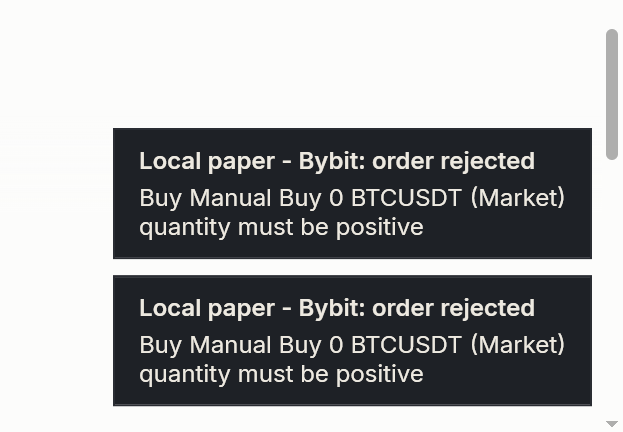
A notice is a small card that appears at the bottom-right corner of your main monitor, on top of other windows, without taking the keyboard from the window you are working in. Its first line, in bold, says what it is about; the text below gives the detail.
AlgoDesk shows a notice when, for example:
- your broker or exchange rejects an order, or a cancel or change does not go through ("Broker - Bybit: order rejected");
- a strategy is not started, stops, hits an error, or is out of sync with your account after a reconnect;
- you try to change something while a strategy is running ("Stop the strategy first");
- the Optimizer refuses to start a run ("Optimization not started");
- Link Claude has finished, or an email from a script could not be sent.
Up to five notices show at a time; a sixth pushes the oldest out. Each one goes away by itself after about eight seconds. Click a notice to dismiss it sooner.
A notice you missed is not lost. Notices about strategies, the Optimizer and the Claude link are also written to the Log tab, on lines that start with "NOTICE". A rejected order keeps its reason: on the Orders tab, right-click the order and choose View order, and read its Reason row. See Orders, positions and accounts.
Signing in
| Problem | What to check or do |
|---|---|
| The Sign in window refuses with a message | The message says why. Sign in lists the common ones. |
| "The sign-in could not be verified. Check your internet connection and try again." | AlgoDesk could not reach algo-desk.com. Check the internet connection, and any firewall or proxy. |
| "This account is registered to another machine. …" | Your account is tied to another computer, or new hardware changed this one's Machine ID. See Moving to another computer. |
| "No active plan on this account. …" | Your free month or plan has ended. See When your plan ends. |
| Remember me stopped signing you in | The Sign in window opens with the reason. If you changed your password at algo-desk.com, enter the new one. See Your password. |
| Every toolbar button opens the Sign in window | You are signed out. Sign in; only Help and the exit button work while you are signed out. |
Connections
| Problem | What to check or do |
|---|---|
| Nothing is connected after AlgoDesk starts | AlgoDesk never connects by itself, except for Static data, which is always ready. Choose Connections on the toolbar and turn on each connection. See Setting up a connection. |
| A message box opens when you connect | Its title names the connection and the text says why. Each provider's page lists its messages: Interactive Brokers, dxFeed, Bybit, Tradovate, TopstepX. |
| "… connected, but its broker account could not be loaded …" | The connection reached TWS or the exchange but could not read your account, for example because TWS did not finish sending your positions. AlgoDesk closed the connection. Turn it on again; the Log tab says more. |
| A second Interactive Brokers connection to the same TWS fails | Each needs its own Client id. See Interactive Brokers. |
| Bybit rejects your API key | Check the key and secret, that the key is from your live Bybit account, and the Windows clock. See Bybit. |
| A connection turned itself off, for example after "dxFeed endpoint closed" | The provider ended the connection and AlgoDesk could not bring it back. Turn it on again. See When a connection is lost for good. |
| A connection's switch is greyed out | It is connecting or disconnecting. Wait for it to finish. |
| New settings seem to have no effect | Change a connection's settings while it is off, then turn it on again. |
Live prices
If a connection is green but charts show no live prices, check the Windows clock first. AlgoDesk uses it to decide which bar is still open, and it does not check the clock or warn you. Let Windows set the time automatically, and check the time zone.
| Problem | What to check or do |
|---|---|
| The connection icon is green, charts loaded their history, but no new bars arrive | The Windows clock, as above. See Keep the Windows clock right. |
| Prices stop for a while, then carry on | The line dropped and AlgoDesk reconnected by itself. While it reconnects, the switch stays on, and the connection icon and the connection's dot in its list are yellow until the line is back. The Log tab shows "New status: Connecting", then "New status: Connected". Charts fetch the bars they missed. See When a line drops. |
| No prices on Interactive Brokers, and the Log tab shows "Requested market data is not subscribed" | Your IB account has no market data subscription for that market. A paper login needs your live login's data shared with it. See Market data subscriptions. |
| A dxFeed instrument has no prices or cannot be found | What you can find and chart depends on your dxFeed subscription. The Log tab lists what your login includes: "dxFeed feeds on this login: …". |
| The Book Trader says "No market depth received from … for this instrument." | Your data plan does not include Level 2 for that market. See Book Trader. |
| Time And Sale is empty | It shows only trades that arrive while it is open, not history. See Time And Sale. |
Charts and history
| Problem | What to check or do |
|---|---|
| A new chart takes a long time to open | It is downloading history; the next chart of the same instrument and bar size opens faster. "dxFeed is responding slowly (high load)" means dxFeed is busy; AlgoDesk waits up to five minutes. See Progress messages. |
| A chart shows old bars and nothing since | Its connection is off, so it shows only what is stored. Connect, then open the chart again. See Without a connection. |
| A chart has gaps after you deleted history folders by hand | AlgoDesk still records those days as stored. In Tools > Options > Historical Data, right-click the instrument's node, choose Remove and answer Yes, then open the chart again to download it afresh. See See and delete stored history. |
| A chart on a Static data connection is empty and says "No bars in this period. …" or "No 15-minute bars stored for …" | Its bars are not in the dates the chart counts back over, or you did not import that bar size. Change the chart's dates, or import the size. See Bar sizes. |
| A continuous future jumps at the same time every few months | That is the roll: dxFeed does not adjust older prices. See Continuous futures jump at each roll. |
| The symbol box or a search finds nothing | The symbol box searches only instruments you have added. In the Instruments window the connection must be connected, and dxFeed and Interactive Brokers need a symbol typed. See Finding and adding instruments. |
| The chart will not change instrument: "Stop the strategy first: …" | A strategy is live on it. Stop it first. See Opening a chart. |
| Drawings are gone | Changing a chart's instrument clears its drawings, and drawings are not saved with the workspace. See Drawing tools. |
| Indicator colours are back to their defaults | A workspace keeps indicators' parameters, not their colours and lines. See Indicators. |
| A chart window will not close | A chart with a strategy, or with an open position in its instrument, is only hidden. See Closing a chart. |
Scripts
| Problem | What to check or do |
|---|---|
| The lists of strategies and indicators are empty, and the cube is red | Your scripts are not compiled, or the last compile failed. Compile, and read the errors on the Log tab. See Reading compile errors. |
| The compile fails although you changed nothing in that script | An error in any file stops them all, and a backup copy left in the scripts folder repeats a class name. See If the compile keeps failing. |
| Your changes to a built-in script are gone | Every update puts the built-in scripts back. Copy a script under a new name before you change it. See How scripts work. |
| Export, Import or a script's Remove does nothing after the Stop live strategies question | You chose Don't stop, so nothing was exported, imported or removed. Each of them compiles your scripts, which restarts every running strategy. Choose another answer, or stop the strategies first. See When strategies are running. |
| Export or Import says "Custom project is not compiled" | Fix the compile first. |
| "Export failed: Empty guid field:" | A strategy or indicator in your folder has no GUID. See What the zip contains. |
| "Export failed: Duplicate guid: …" | The two scripts named in brackets after the GUID share it, usually because one is a copy whose GUID you did not change. Give the copy a new GUID and compile. See Editing a script. |
| "Import could not be accomplished." | The scripts did not compile after the import, so AlgoDesk undid it. The errors are on the Log tab. See Import scripts. |
| "Unable to delete file, see log for details." | Another script uses the one you removed, so AlgoDesk put it back. See Removing a script. |
Strategies
| Problem | What to check or do |
|---|---|
| A notice says the strategy was not started | Its account is not connected. Connect it, or choose another Account. See Enable and disable. |
| The row on the Strategies tab is amber | The strategy is finishing what its history run left, on paper, before it trades your account. See What happens when you enable it. |
| The row is red | The strategy stopped after an error, or was out of sync with your account after a reconnect. The tooltip says which. See Coloured rows. |
| Apply changes nothing, and a notice says "Stop the strategy first" | You cannot change a running strategy. Untick Enabled, choose Apply, then change it. |
| "Account not changed" | A strategy with a position or working orders keeps its account. |
| The strategy still shows a position you closed on the Positions tab | A strategy keeps its own record. Stop it and choose Close position instead. See Close a position. |
| Strategies are switched off after a restart, an update or a workspace switch | A workspace always brings its strategies back switched off. Check each Account and turn them on again; they start flat. See Workspaces. |
| Buy or Sell says "You are not connected to data provider" | The chart's or Book Trader's connection is down, or no account is chosen. |
Backtests and optimisations
| Problem | What to check or do |
|---|---|
| Run is greyed out in the Backtester | Nothing on the selected row would run: a strategy is missing where the list's Apply to all instruments switch looks for one, or the list has no instruments. See Running a backtest. |
| "Execute strategy script error:" | The strategy's code failed during the run. The text after "Strategy calc exception:" is the error your script hit; the Log tab has the details. |
| The same backtest gives different numbers the second time | The strategy keeps something from one run to the next. See Rules for a strategy that gives the same result twice. |
| A backtest misses the latest days | A run uses the history loaded when you added or last edited the instrument. Edit it and choose OK. See History. |
| The commission is back to No commission | Backtester presets and workspaces do not keep it. See Commissions. |
| Run is greyed out in the Optimizer | See Before you press Run. |
| A notice says "Optimization not started" | A parameter row cannot run. The notice lists each problem. See Settings Run refuses. |
| A period shows Failed or Emptied by the filters | Hold the mouse over the state for the reason; the Log tab has the full message. See Period states. |
| "You don't have enough data to run the test and you are not connected" | Choose Cancel, connect the instrument's connection and run again. See Data that has to download first. |
| The previous results are gone | Run replaces them. Save a run before you run again. See Save a run. |
Claude
| Problem | What to check or do |
|---|---|
| Claude says AlgoDesk is not running, or nobody is signed in | Start AlgoDesk and sign in, then ask again. |
| Claude does not seem to know about AlgoDesk | Check the Claude icon on the toolbar. Grey: choose Link Claude. White: restart Claude. See Restart Claude and check. |
| "AlgoDesk did not answer in time; …" | AlgoDesk is waiting for you in a message or a question. Answer it, then ask again. |
| Claude refuses to turn a strategy on or off | The chart is live: its connection gives you a Broker account, or its strategy trades one. You do that in AlgoDesk. See What Claude will not do. |
| Claude changed a strategy's parameters, but the strategy did not run | The strategy is switched off, and a parameter change never switches it on. Switch it on in AlgoDesk, or, on a chart that is not live, ask Claude to. |
| Link Claude is greyed out | AlgoDesk found neither Claude Desktop nor Claude Code. Install one, or set it up by hand. See Manual configuration. |
More in Connecting Claude.
Updates
| Problem | What to check or do |
|---|---|
| No update is offered at start | You may have ticked Remember this choice and chosen Skip. Choose Help > Check for updates, and tick Check for updates at startup in Options to bring the check back. See The check after you sign in. |
| "Could not reach the update server. Try again later." | Check the internet connection, and try again later. |
| The updater window ends with a message | Each ending says whether AlgoDesk was changed and what to do next. See The updater window. |
| Strategies are off after the update | Turn on the ones you want to trade again. See After the update. |
Getting help
If you cannot solve a problem, sign in at algo-desk.com and contact us from the Support section of your account.
Include:
- the AlgoDesk version, from Help > About;
- what you did, what you expected, and the exact text of any message or notice;
- the log file of that session from
Documents\AlgoDesk\Log, and for a Claude problem themcp-file of that day.
Log files can hold your account numbers, for example in the Interactive Brokers line "IB managed accounts: …". Remove anything you do not want to share before you send a file.